

Appspace is a content and device management platform for digital signage. The Innomesh integration brings every Appspace endpoint into Innomesh Portal as a single, filterable register, so the signage fleet is visible alongside the rest of your environment rather than in a separate console. Where a signage device is also monitored by Innomesh Sight or Space, Innomesh enriches the Appspace record with its own device data, exposes a live screen preview, and raises Hotlist alerts when the device stops behaving.
The integration delivers three capabilities, each covered below:
- Fleet visibility. Every endpoint registered in Appspace appears in a paginated, filterable, exportable table, with its connection, registration, and content sync state shown at a glance.
- Per-room signage detail. Rooms with associated signage gain a Digital Signage page under Room Information, listing each endpoint’s properties and a live preview of what is currently on screen.
- Signage health monitoring. Signage faults surface as Device Unhealthy alerts on the Innomesh Hotlist, so a stalled or unregistered player is caught the same way as any other device problem.
How It Works
Innomesh polls the Appspace Cloud API every 15 minutes and rebuilds its picture of the signage fleet from the response. Each Appspace device contributes its name, network location, channel, device type, MAC and IP address, app version, tags, content sync state, connection status, last-online time, and its serial number where Appspace reports one.
Innomesh then attempts to correlate each Appspace endpoint with an Innomesh asset by matching on MAC address. Where a match is found, the endpoint is enriched from two further sources:
| Enrichment source | Data contributed |
|---|---|
| The Innomesh asset record | Room, Model, Serial Number |
| Sight device state | Connection Type, Firmware, Output Resolution, Uptime |
An endpoint that correlates to an Innomesh asset is described in this article as Sight-enriched. This covers rooms on the Sight tier and above, so Space rooms qualify too. Only Sight-enriched endpoints carry the enriched columns, expose device actions, offer a live preview, and generate Hotlist alerts. Endpoints that exist only in Appspace still appear in the table with everything Appspace reports about them.
Because the two sides are reconciled on every cycle, the integration also catches devices that fall out of Appspace. An endpoint that Innomesh still holds as an asset but that Appspace no longer reports is retained in the table and marked as unregistered, rather than silently disappearing. Endpoints that are neither registered in Appspace nor matched to an Innomesh asset are dropped, since they no longer relate to your environment.
The integration has been verified with BrightSign players and Crestron scheduling panels. Enriched data for any given device also depends on its model, API version, and firmware supporting the underlying queries.
The Appspace Endpoints Table
The endpoint register is the single source of truth for the signage fleet. Open it from the Integrations menu in the Portal navigation bar and select the Appspace tab.
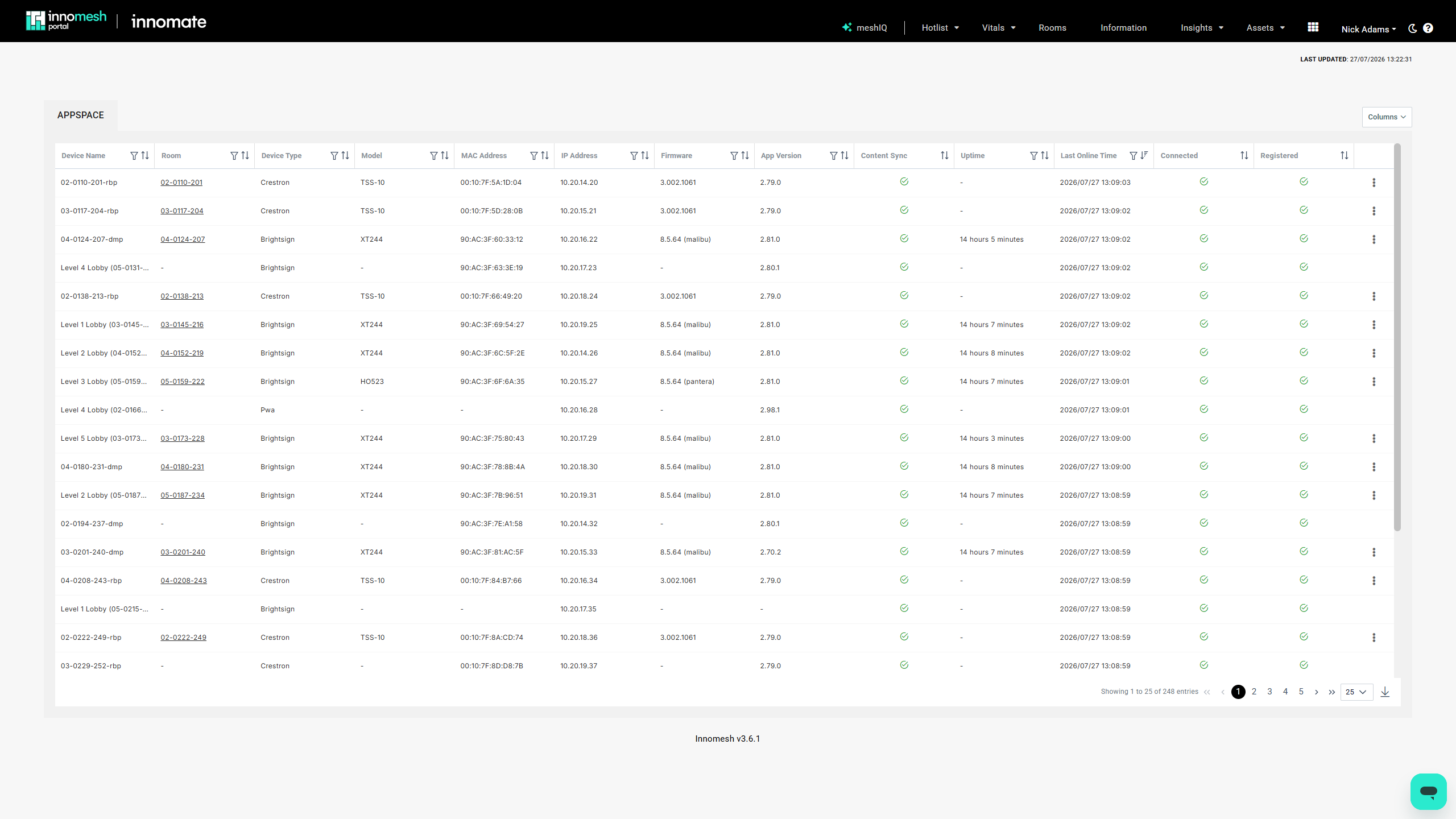
The table behaves like the Assets register:
- Filter and sort columns using the icons in their headers. The Content Sync, Connected and Registered columns offer sorting only.
- Show or hide columns with the Columns button. Several enriched and lower-traffic columns are hidden by default. For the full list, see Appendix: Endpoint Column Reference.
- Export the current filtered view to CSV using the download button beneath the table.
- Page through the fleet using the pagination controls, adjusting the number of endpoints shown per page.
Status Columns
Three columns report state as icons rather than text. Hover any icon for its tooltip.
| Column | Icon | Meaning |
|---|---|---|
| Registered | Green tick | Registered in Appspace |
| Registered | Red cross | Unregistered in Appspace |
| Connected | Green tick | Connected to Appspace |
| Connected | Red cross | Disconnected from Appspace |
| Connected | Yellow exclamation | Lost communication with Appspace |
| Connected | Yellow question mark | Unknown, because the endpoint is not registered |
| Content Sync | Green tick | Content in sync |
| Content Sync | Red cross | Content out of sync |
| Content Sync | Yellow question mark | Unknown, because the endpoint is not registered |
Connected reflects Appspace’s own view of the device. Appspace reports a device as having lost communication when it misses a recent check-in, and as disconnected once it has been absent for an extended period.
Room Information: Digital Signage
Signage that is correlated to a room gets its own page in the Room Information view. Open a room from the Information page and select Digital Signage in the left-hand menu.
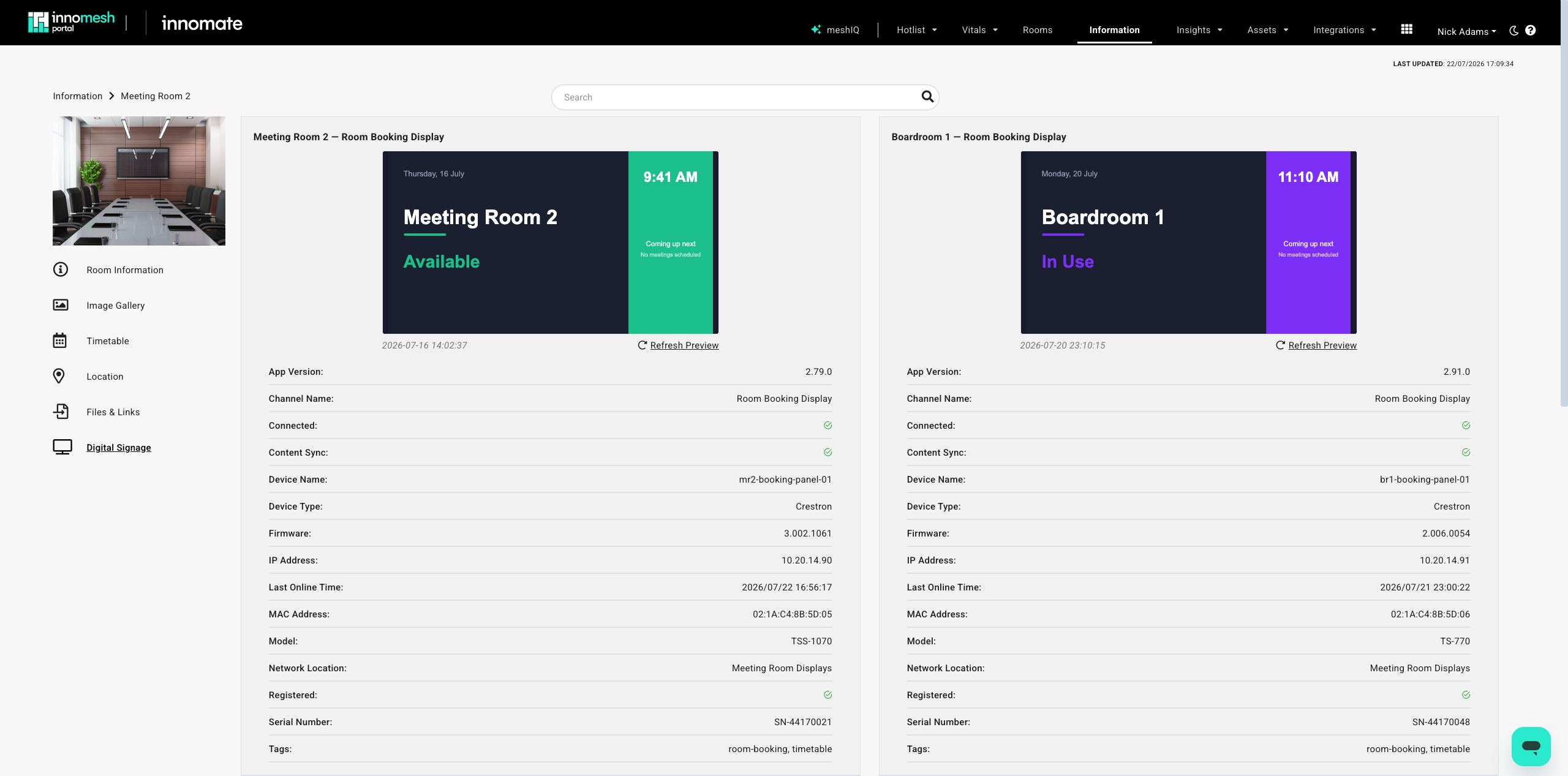
Each endpoint associated with the room is presented as its own panel, headed by the endpoint and the Appspace channel it is playing. Beneath the preview image, the panel lists the endpoint’s properties: app version, channel name, connected and content sync state, device name and type, firmware, IP and MAC address, last online time, model, network location, registration state, serial number, and tags.
The Room, Uptime, Connection Type and Output Resolution values from the endpoints table are not repeated on this page.
Use the Search bar at the top of the page to filter the properties shown, which is useful on rooms with several signage devices.
Live Screen Previews
The preview frame shows the most recent screen capture Innomesh holds for the device, with the capture timestamp beneath it. This answers the question a signage fault usually raises first: is the display actually showing the right content?
To capture a fresh image, click Refresh Preview. Innomesh triggers a Get Preview action on the device, which captures its current screen and returns it to Innomesh for processing. The panel dims the existing image and shows a spinner while it waits, then swaps in the new capture and updates the timestamp as soon as it arrives. If nothing returns within 20 seconds, the spinner clears and the previous image remains.
Where no capture has been taken yet, the frame reads “Image not found” and no timestamp is shown. Click Refresh Preview to take the first one.
Triggering Actions on Signage Endpoints
Sight-enriched endpoints are also actionable. Because each one is correlated to an Innomesh asset, the device controls that asset supports are available directly from the Appspace table, using the same Trigger Operation menu as the Assets register.
Click the ellipsis icon at the end of an endpoint’s row, then hover Trigger Operation to see the operations that device supports.
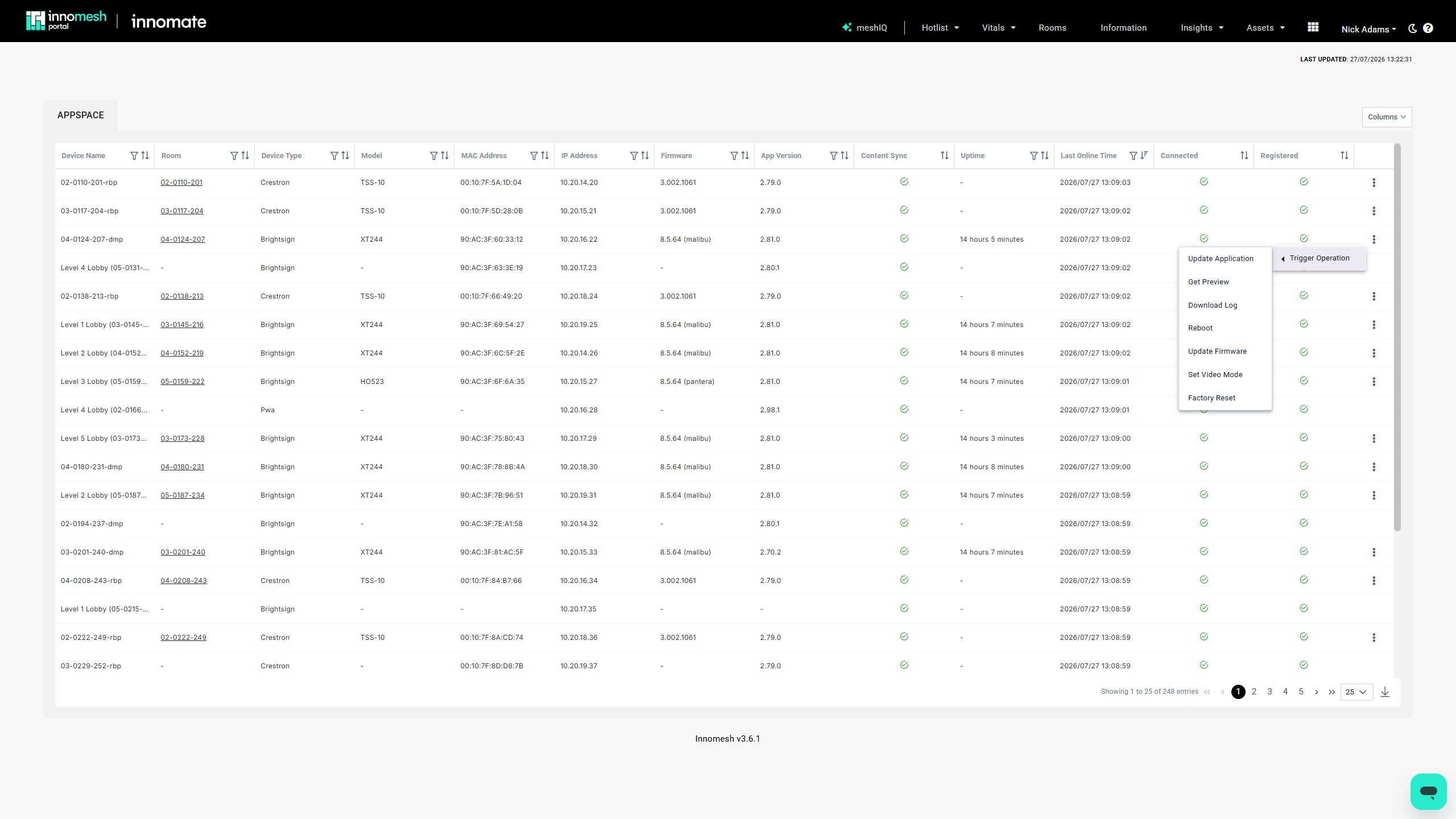
Which operations appear depends on the device’s manufacturer, model, and driver, exactly as it does elsewhere in the Portal. The BrightSign player above offers a reboot, a firmware update, and a log download, among others. The definitive set of commands for any device is published in the Driver Catalogue.
Get Preview is the same operation that the Refresh Preview button runs on the Digital Signage page, so a screen capture can be requested from either place.
Endpoints that exist only in Appspace have no correlated asset, so the ellipsis icon does not appear on their rows.
Signage Health in the Hotlist
Signage health is monitored on the same 15-minute cycle that refreshes the table. On each pass, Innomesh records the Appspace registration, connection, content sync, and output resolution state of every Sight-enriched endpoint, and evaluates that state against four alert conditions.
Each condition raises a medium-severity Device Unhealthy alert on the Hotlist against the signage asset, so a stalled player is triaged alongside the rest of your environment and resolves automatically once the device recovers.
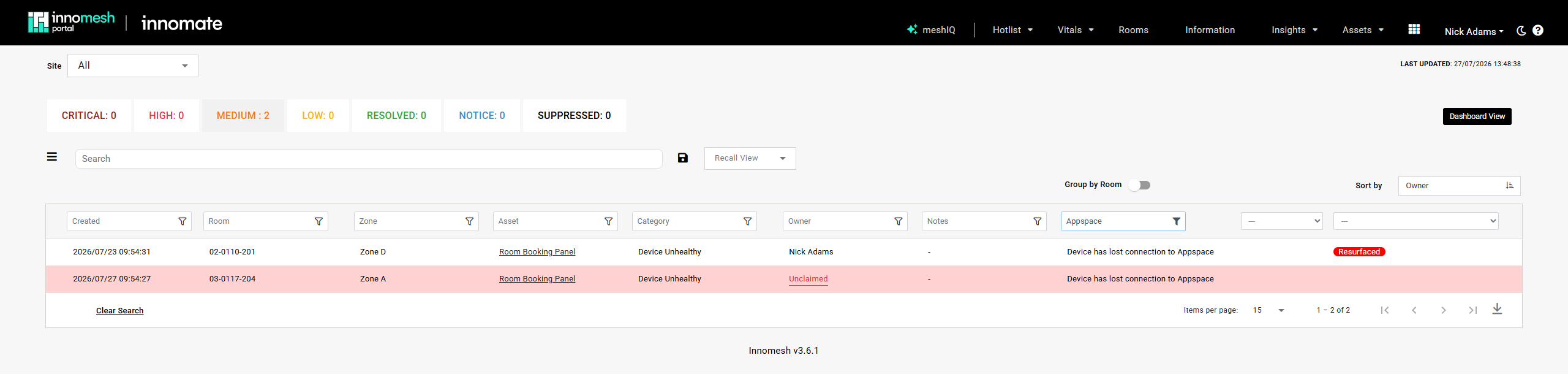
Typing “Appspace” into the Description column filter narrows the Hotlist to signage faults, as the screenshot above shows.
The four conditions cover a device dropping off Appspace, losing its registration, failing to pull down current content, and falling back to a default video resolution. For the exact triggers and alert text, see Appendix: Appspace Alert Conditions.
Appspace alerts behave like any other Hotlist alert, so they can be diagnosed, suppressed, and reported on using the standard tooling. They can also drive automation policies, letting a fault such as a lost Appspace connection schedule a reboot of the player within a maintenance window.
Enabling the Integration
The integration is enabled per tenancy by Innomate and requires configuration on both sides.
What Innomate needs from you:
- The URL of your Appspace server, which is the API endpoint for your Appspace cloud instance.
- Credentials for an Appspace application account, comprising a subject ID and a refresh token, generated from your Appspace tenancy.
What Innomate configures:
- Stores your Appspace credentials securely and schedules the 15-minute endpoint collection for your tenancy.
- Enables the Appspace tab under the Integrations menu and the Digital Signage page under Room Information.
- Deploys the four Appspace alert conditions to your tenancy.
No configuration is required against individual rooms or assets. Correlation is automatic, based on the MAC addresses Innomesh already holds through Sight or Space.
Related Articles
- Biamp SageVue Integration
- Information Page Overview
- Ops Overview
- Asset Automation Overview
- Alert Diagnosis
Appendix: Endpoint Column Reference
Columns marked Sight-enriched are only populated for endpoints correlated to an Innomesh asset, and depend on the device’s model, API version, and firmware supporting the query. All other columns are populated for every Appspace endpoint.
| Column | Default | Availability | Notes |
|---|---|---|---|
| Device Name | Shown | All endpoints | The device name as configured in Appspace |
| Room | Shown | Sight-enriched | The Innomesh room the correlated asset belongs to |
| Device Type | Shown | All endpoints | For example, BrightSign or Crestron |
| Model | Shown | Sight-enriched | |
| MAC Address | Shown | All endpoints | Also the key used to correlate the endpoint to an Innomesh asset |
| IP Address | Shown | All endpoints | |
| Firmware | Shown | Sight-enriched | |
| App Version | Shown | All endpoints | The version of the Appspace app running on the device |
| Content Sync | Shown | All endpoints | Rendered as an icon |
| Uptime | Shown | Sight-enriched | Normalised to a human-readable duration |
| Last Online Time | Shown | All endpoints | Converted to your local time zone |
| Connected | Shown | All endpoints | Rendered as an icon |
| Registered | Shown | All endpoints | Rendered as an icon |
| Network Location | Hidden | All endpoints | The Appspace location the device is assigned to |
| Channel Name | Hidden | All endpoints | The Appspace channel the device is playing |
| Serial Number | Hidden | All endpoints | Sourced from Appspace, or from the correlated asset where Appspace does not report one |
| Connection Type | Hidden | Sight-enriched | Ethernet or Wireless. BrightSign players only |
| Output Resolution | Hidden | Sight-enriched | BrightSign players only |
| Tags | Hidden | All endpoints | The Appspace tags applied to the device, shown as chips |
Appendix: Appspace Alert Conditions
All four conditions are evaluated against the last 15 minutes of signage state and raise a medium-severity Device Unhealthy alert against the correlated Innomesh asset.
| Alert | Triggers when | Alert description |
|---|---|---|
| Appspace Connection | The endpoint’s Appspace connection state is disconnected, or communication has been lost | ”Device has lost connection to Appspace” |
| Appspace Registration | The endpoint is no longer registered in Appspace | ”Device is unregistered in Appspace” |
| Appspace Content Sync | The endpoint’s content has been out of sync for 30 minutes | ”Device Appspace content is out of sync” |
| Resolution | The device’s video output has fallen back to a 640x480 default resolution | ”Video output is [current resolution]” |
The Content Sync condition carries a 30-minute threshold, so a device briefly out of sync while it pulls down new content does not raise an alert. The other three raise on the first evaluation that matches.