

The Actions page is the single view of every asset action in the platform, whether it came from an automation policy or was triggered directly by a user. Use it to see what is about to happen, confirm what already did, and cancel work you no longer want.
Navigate to Assets > Actions. The page has two tabs: Schedule for upcoming actions, and History for actions that have already run.
Schedule
The Schedule tab is a forecast of pending actions.
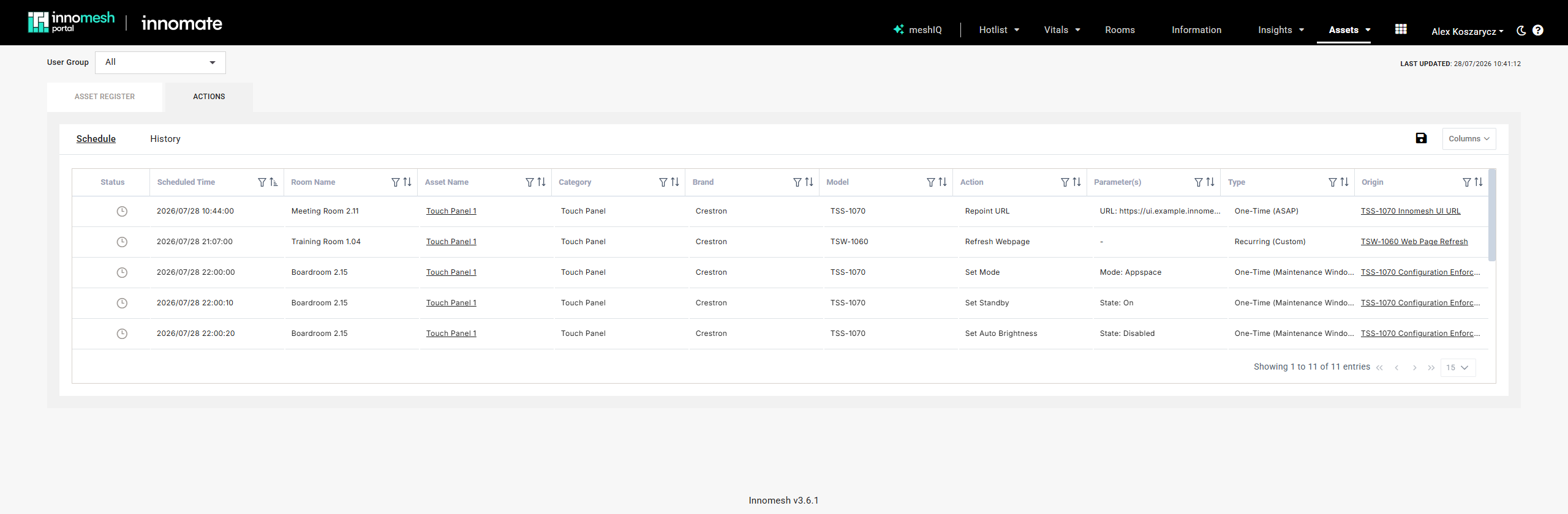
| Column | Description |
|---|---|
| Status | The action’s current state |
| Scheduled Time | When the action will run, converted to your local timezone |
| Room Name | The room the asset sits in |
| Asset Name | The target device, linked to its Asset Information page |
| Category, Brand, Model | The device’s identity, matching its asset profile |
| Action | The operation to be performed, such as Set Input or Reboot |
| Parameter(s) | The values the action will apply, such as Input: HDMI1 |
| Type | The action’s cadence and what triggered it |
| Origin | The policy that created the action, linked to the policy itself, or the user who triggered it |
Key behaviours:
- Origin is a link when a policy created the action. Administrators with the right permissions can click through to open and edit it. An action a user triggered names that user instead, including a policy a user ran by hand.
- Only the next occurrence is shown for recurring policies. Once today’s actions complete, the list refreshes to show tomorrow’s.
- The page updates itself as actions progress, so a run can be watched without reloading.
- Filters and sorting are available per column, and the Columns button shows or hides columns.
- User-triggered actions appear here too, which makes this the one place to check before touching a device manually.
Removing Queued Actions
Select one or more rows using their checkboxes and click Delete.
Cadence and Trigger Labels
The Type column names both how often an action recurs and what scheduled it.
| Type | Meaning |
|---|---|
| Recurring (Custom) | A time-based policy running at a custom time on selected days |
| Recurring (Maintenance Window) | A time-based policy running inside a maintenance window |
| One-Time (ASAP) | An alert-based or property-based policy set to ASAP, an action a user triggered directly, or a policy a user ran by hand against one device |
| One-Time (Maintenance Window) | An alert-based or property-based policy deferring to a maintenance window |
History
The History tab lists actions from the last 24 hours with their outcomes.
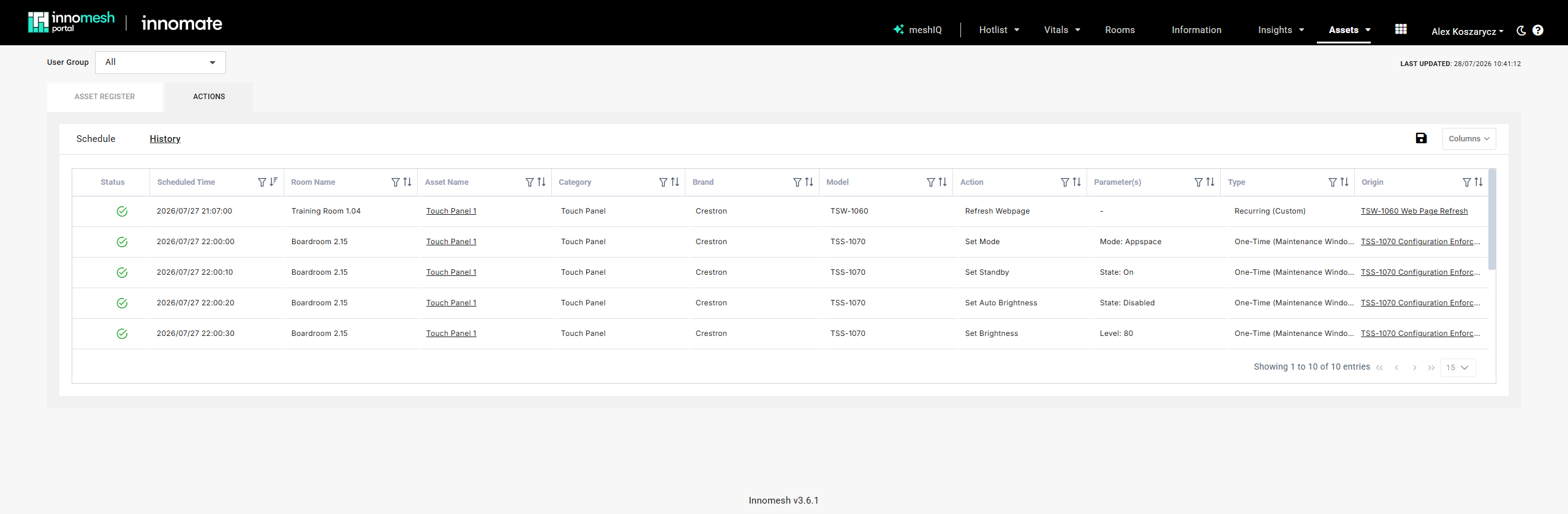
| Status | Meaning |
|---|---|
| Completed | The action ran successfully |
| Failed | The action encountered an error during execution |
| Timed Out | No status update was received within the expected time |
| Cancelled | The action was cancelled before running, for example because its alert resolved first |
Hover a status icon for additional detail about that execution. This is the fastest way to distinguish a policy problem from a device problem: an action that reached Failed or Timed Out was dispatched correctly, so the fault usually lies with device credentials, network reachability, or the device itself.
For a longer view of a single device’s activity, open its Asset Information page. See Asset Information.