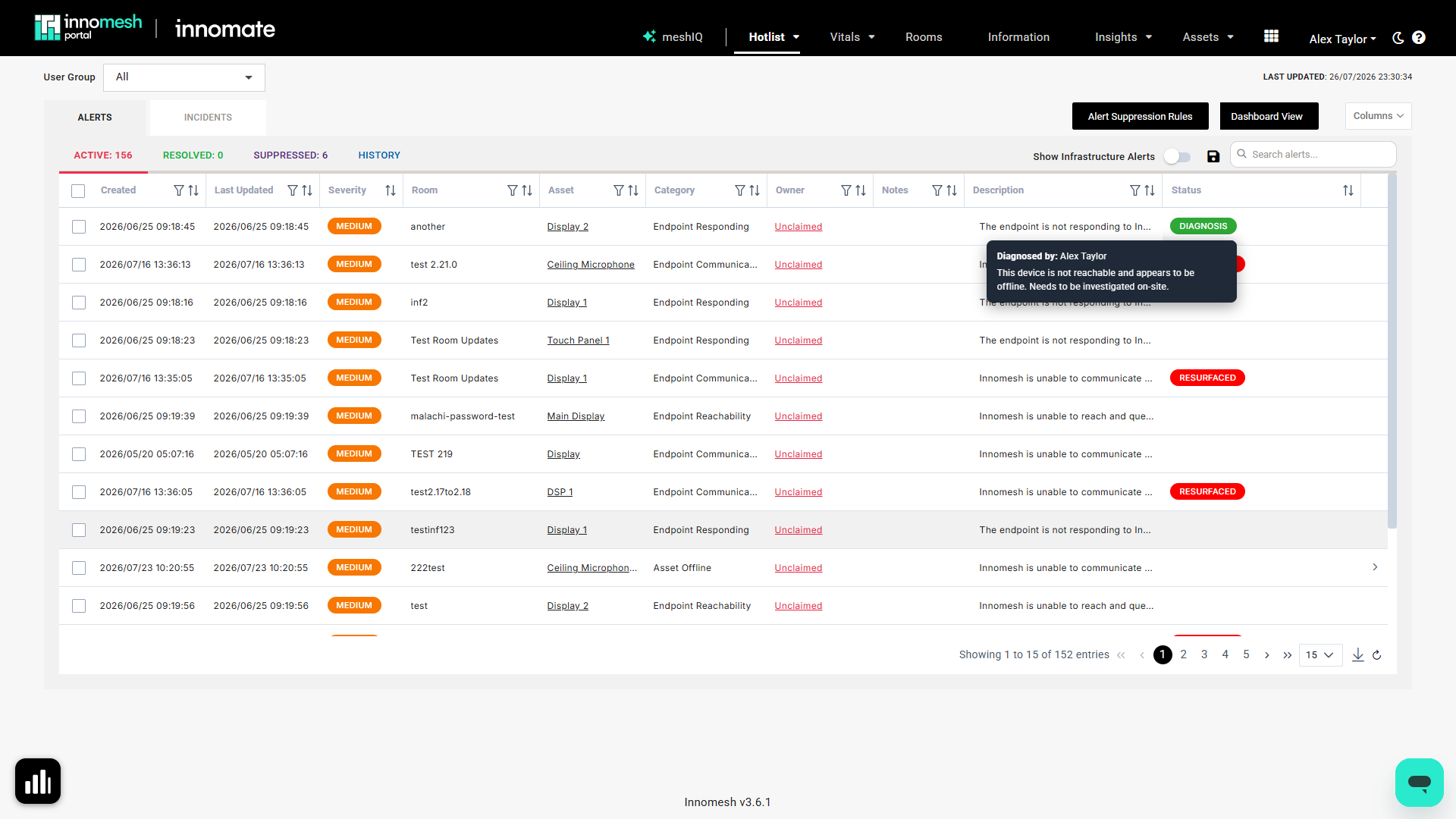
Alert Diagnosis enables the Innomate support team to investigate alerts within your environment and attach diagnostic notes directly to Hotlist items. When a diagnosis is available, a green diagnosis box appears next to the alert containing notes to assist your on-site team in troubleshooting and resolving the issue.
📌 Since
Innomesh v3.4.0
How It Works
When an alert appears in the Hotlist, the Innomate support team may review it and provide a diagnosis. The diagnosis notes are written directly against the alert record so that anyone viewing the Hotlist can see the findings.
A green Diagnosis pill in the alert’s Status column confirms that the support team has looked into the alert. Hovering over the pill reveals the diagnosis notes, which typically include:
- A description of the probable root cause
- Recommended actions for the on-site team
- Any relevant observations from remote diagnostics
Accessing Alert Diagnosis
- Open the Hotlist page from the Portal navigation bar.
- Locate the alert you want to review.
- Look for the green Diagnosis pill in the alert’s Status column.
- Hover over the pill to read the full diagnostic notes.