

Property-based policies compare the live state of each device against the state you want it in, then act only on the devices that have drifted. Use them for compliance and configuration management: a projector on outdated firmware, a display left on the wrong input, a touch panel with TLS below your minimum, or a device running hotter than it should. A policy can raise a Hotlist alert, run remediation actions, or both. Policies also cover devices that arrive later, so a new device matching the policy is provisioned into the approved configuration the first time it appears. See Provisioning New Devices.
How Innomesh Knows a Device’s State
Innomesh already collects device state for monitoring. Property-based policies read from that same collected state, so no extra polling is added to your devices.
- State is refreshed every 15 minutes for every asset in the platform.
- Properties come from whichever monitoring tiers cover the room: Pulse, Sight, Space CE, and Space VC. See Platform Tiers.
- Which properties exist for a given device depends on the driver mapped to its asset profile. A Panasonic projector exposes lamp hours and video input; a touch panel exposes TLS version and web page URL.
- Some properties are reported per instance, such as
Video Inputon each output of a matrix switcher. Innomesh keeps one value per output.
Because state is up to 15 minutes old, property-based policies suit values that change slowly: firmware versions, configuration flags, selected inputs, security settings.
Prerequisites
- A role with Innomesh Portal administration access.
- An asset profile for the devices you want to target, with a mapped driver. Property-based policies read the property list from the driver, so a profile with no driver mapping offers no properties to choose from. Driver mappings are requested through the form in the Innomate Support Portal. See Asset Profiles.
- A clear statement of the compliant state, expressed as one or more conditions. Write the condition so it is true when the device is wrong, because that is what triggers the policy.
Creating the Policy
- Navigate to Administration > Automation > Policies.
- Click Create New, then set Policy Type to Property-based.
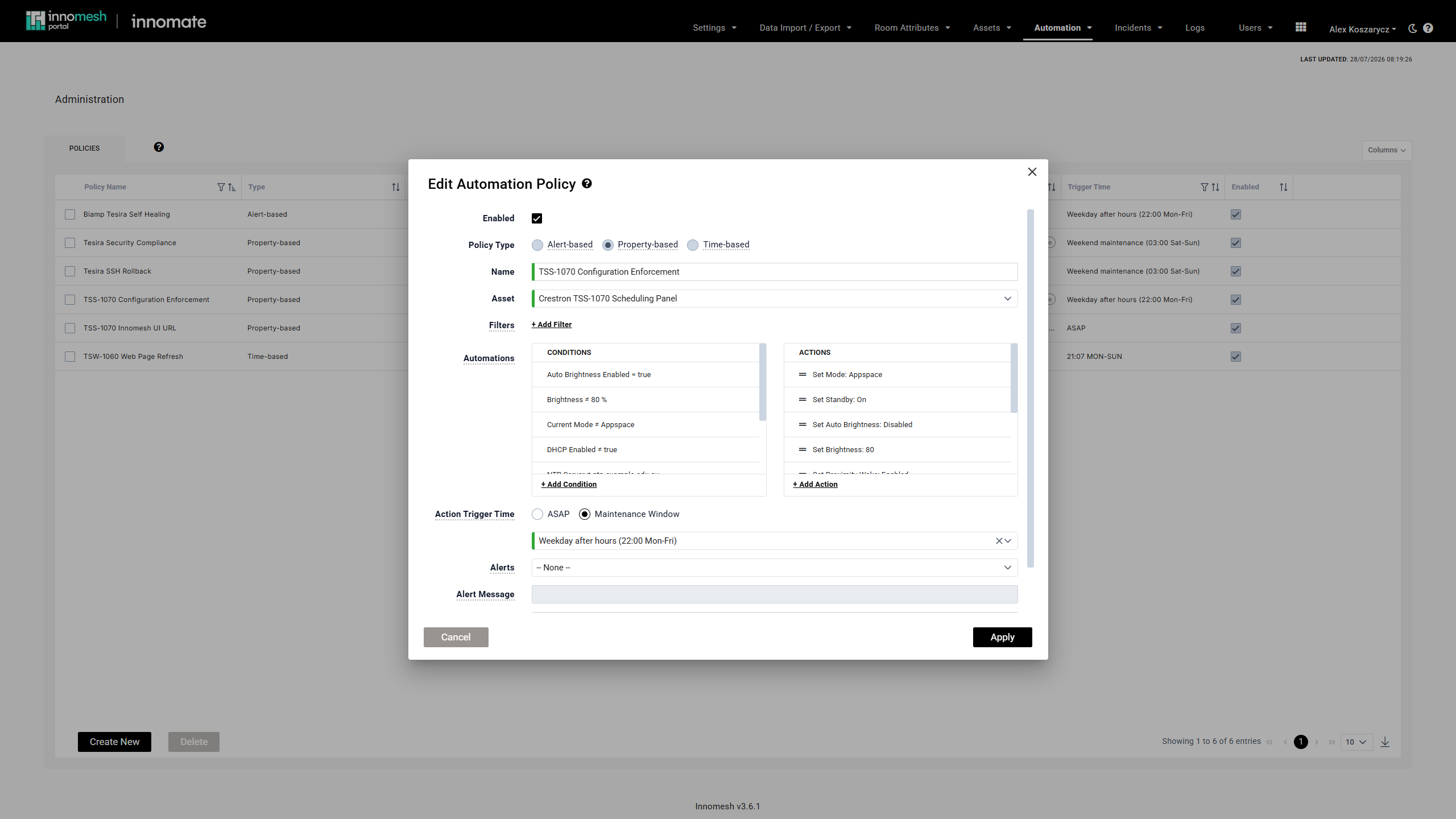
- Enter a descriptive Name, such as “TSS-1070 Configuration Enforcement”.
- Select the target Asset.
- Optionally add Filters to restrict the policy to specific rooms, zones, sites, or user groups. See Targeting Assets with Filters.
- Add at least one Condition. See Adding a Condition below. A policy with no conditions cannot be saved.
- Under Automations, add any remediation actions to run on non-compliant devices. Actions are optional when the policy raises alerts.
- Set the Action Trigger Time:
- ASAP schedules remediation at the start of the next minute after the policy detects the breach.
- Maintenance Window defers remediation to a defined window, which is usually the right choice for anything disruptive such as a reboot or a firmware update.
- Set Alerts to a severity if you want a Hotlist alert raised for each breach, and optionally enter an Alert Message. See Raising Hotlist Alerts.
- Tick Onboarding if the policy describes part of a correctly configured device, so it can be applied in one pick when provisioning by hand. See Manual Policy Runs.
- Optionally add Comments.
- Click Apply.
Adding a Condition
Each condition names a device property, an operator, and a value. Click Add Condition and complete three fields.
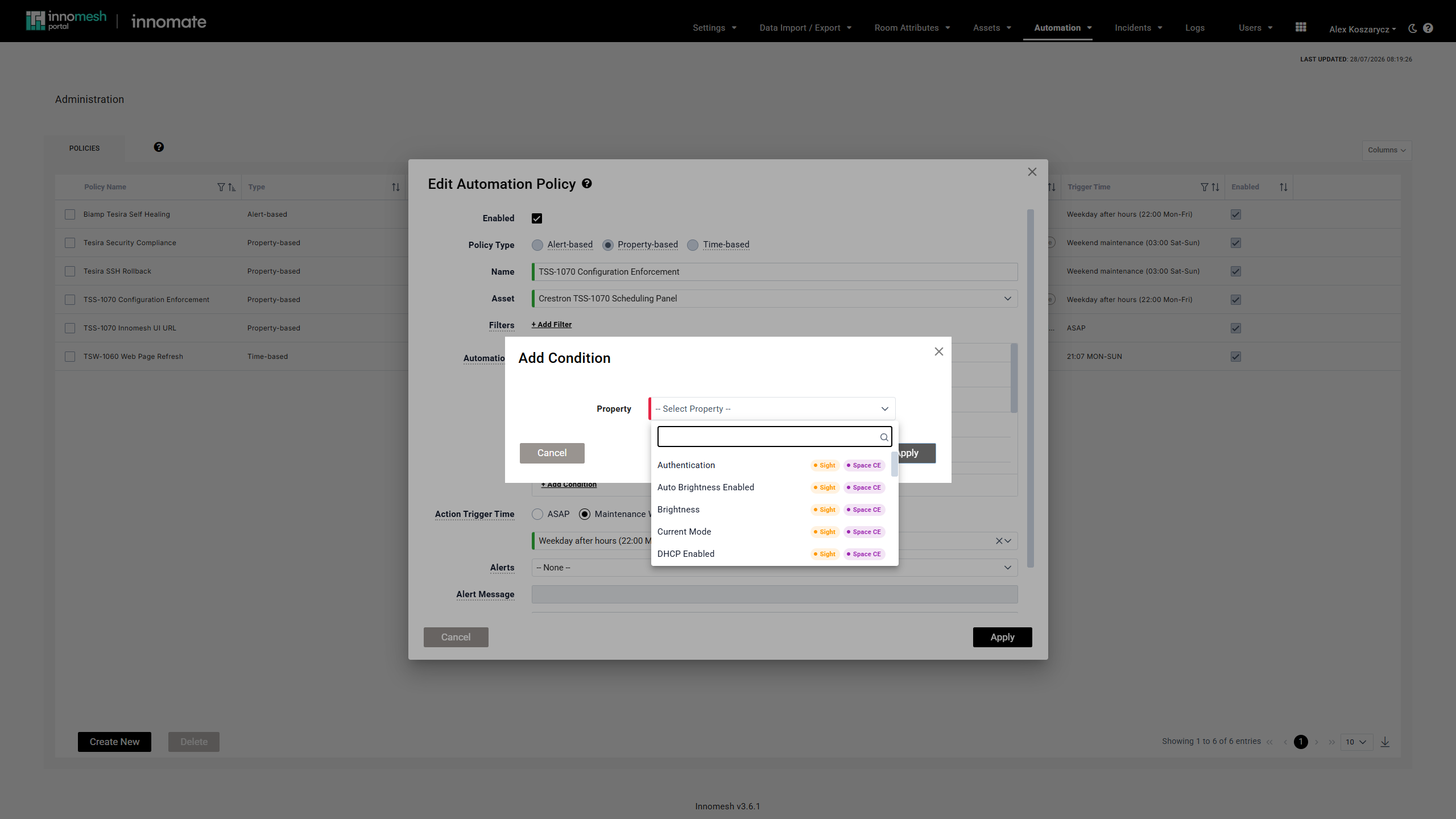
Property. A searchable list of every property available for the selected asset profile. Type in the search box to filter. Each property is tagged with the monitoring tiers that can supply it, so you can tell at a glance whether your rooms will report the value. See Appendix: Tier Availability Indicators.
Operator. The available operators depend on the property’s type. Text and true/false properties support equals and not-equals only; numeric properties add the four comparison operators. See Appendix: Operators by Property Type.
Value. The input adapts to the property:
| Property type | Value input |
|---|---|
| True/false | A True / False selector |
| Text with a known set of values | A searchable dropdown of those values |
| Text with no fixed set | A free-text input, which also accepts a regex |
| Whole number or decimal | A numeric input |
Where the property has a unit, such as °C, %, or h, the unit is shown as a suffix on the value input.
Text values accept regex. For a free-text property, begin the value with ^ and end it with $ and Innomesh matches it as a regex instead of literal text, the same convention used by filters and alert-based conditions. This is the way to write one condition that tolerates variation, for example flagging any firmware outside an approved 4.x line with Firmware ≠ ^4\..*$. Alerts raised from a regex condition also resolve correctly, because the same pattern is re-checked when the device is revalidated. See Appendix: Regex Patterns.
Apply stays disabled until all three fields are set. Conditions can be duplicated, edited, and deleted using the controls that appear on each row of the list. Deleting a condition is not confirmed, so take care.
For a property reported per instance, such as Video Input on a multi-output switcher, the condition is checked against every instance. Video Input ≠ HDMI1 applies to a switcher if any output is not on HDMI1. Conditions cannot yet be scoped to a specific output.
When the Policy Runs
Property-based policies are evaluated:
- Hourly, at the top of each hour.
- Immediately on save, whenever the policy is created or edited.
Each evaluation starts fresh. Innomesh clears the policy’s pending actions, re-checks every targeted asset against the current conditions, and schedules new actions for those that breach. A device that has since been fixed loses its queued action automatically, and no manual cleanup is needed.
Provisioning New Devices
Typically a device’s out-of-the-box configuration breaches the policy’s conditions, so its actions run and provision the device automatically. Set the connection details Innomesh needs to reach it, such as hostname or IP address and credentials, and the policy handles the rest.
Tips to use a policy for provisioning:
- Write conditions that anticipate out-of-the-box defaults, for example
Telnet Enabled = trueandSSH Enabled ≠ trueon a device that ships with Telnet on and SSH off. - Give the policy actions. An alert-only policy reports a new device’s state but does not provision it.
- Choose the Action Trigger Time to match how disruptive provisioning is: ASAP configures the device as soon as it is detected, while a Maintenance Window defers noisy steps such as a firmware update.
See Manual Policy Runs for how to provision a device on the spot rather than waiting for detection.
Raising Hotlist Alerts
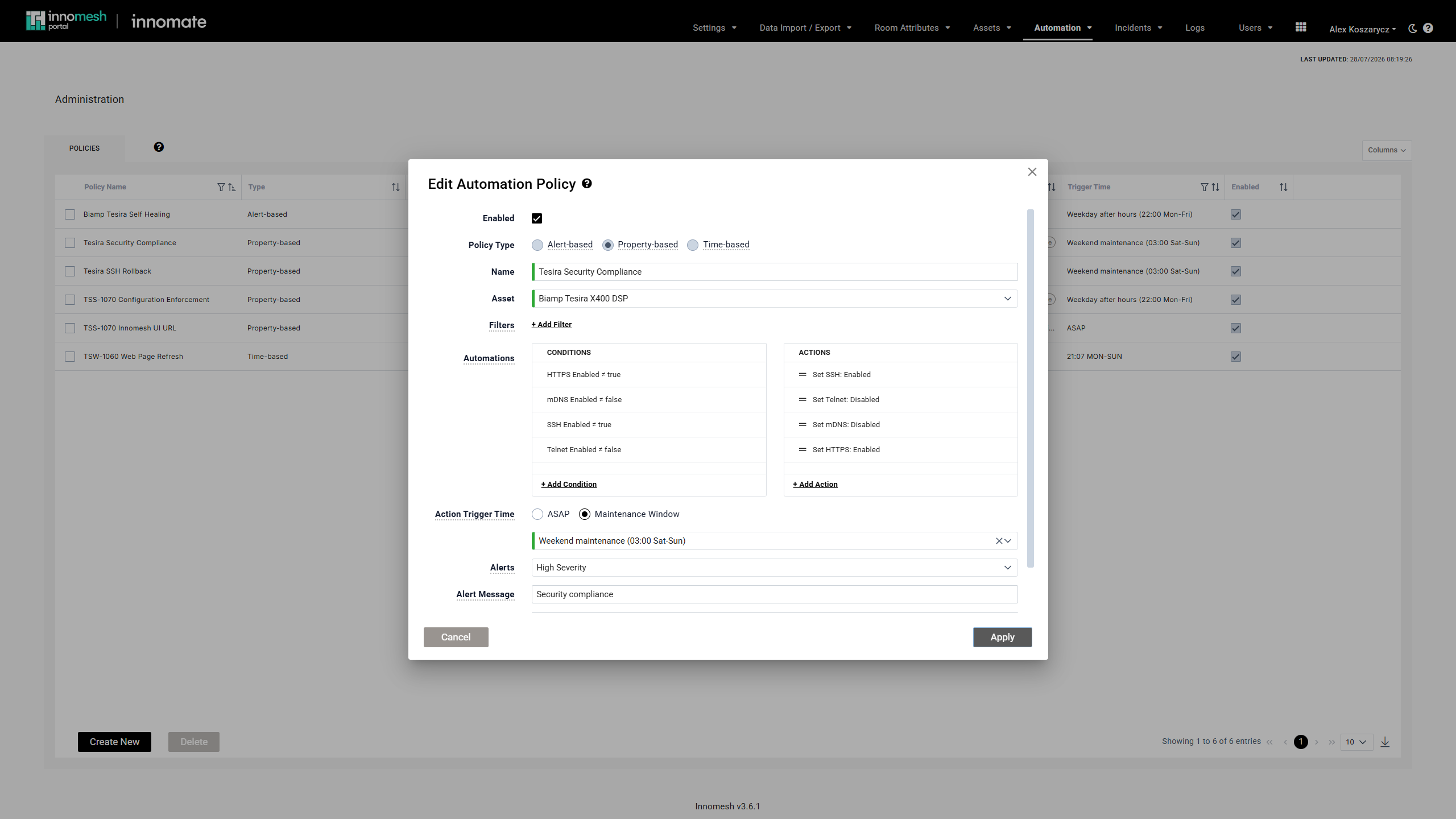
Set Alerts to a severity and the policy raises a Hotlist alert for every breached condition, in addition to any actions it runs.
| Field | Behaviour |
|---|---|
| Alerts | None (the default) raises no alerts. Notice Severity, Low Severity, Medium Severity, and High Severity each raise alerts at that level. Critical is reserved for emergency-class alerts from other sources and is not offered here. |
| Alert Message | Optional text prepended to the alert’s description, for example “Security compliance issue”. Disabled while Alerts is set to None. |
Setting a severity without any actions creates an alert-only policy. This is the right shape for compliance reporting where you want visibility of non-compliant devices but do not want Innomesh changing them. Alert severity can also be raised or suppressed centrally by severity rules. See Alert Settings.
How Compliance Alerts Appear
Policy-generated alerts sit in the Hotlist alongside alerts from every other source, in the unified alert list sorted by severity. There is no separate section to check.
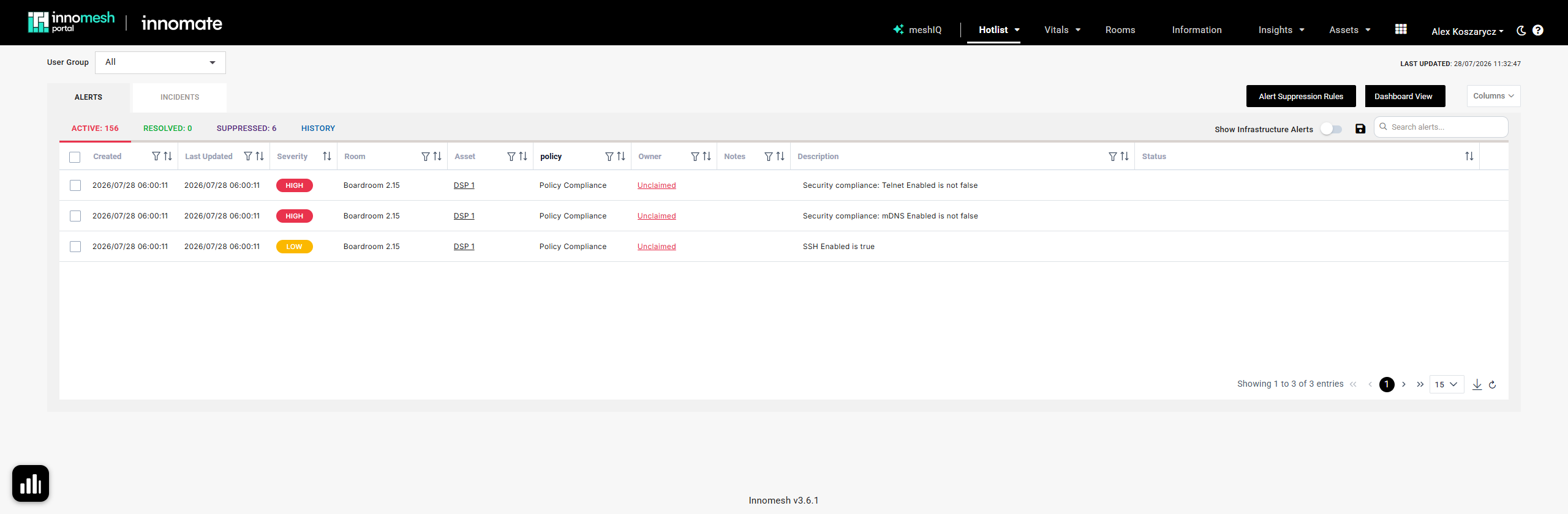
policy typed into the Category column's filter box, which is why that column header shows the filter text rather than its name. The two High alerts come from one policy, because each breached condition raises its own alert. The Low alert comes from a second policy whose Alert Message is blank, so its description carries no prefix.- The Category column reads Policy Compliance for every policy-generated alert, so filtering the Hotlist by category isolates them.
- The Description is composed from your Alert Message and the breached condition, written out in plain language. See Appendix: Alert Description Format.
- Alerts participate fully in the existing claim, acknowledge, owner, and notes workflows, and appear in alert history and Insights like any other alert.
- A property reported per instance raises one alert per breached instance. A four-output switcher with all four outputs wrong raises four alerts.
How Compliance Alerts Are Resolved
Alerts close themselves. You do not need to tidy up after a policy change.
- When the device comes into line, the alert auto-resolves within a few minutes and moves to the Resolved tab. Resolution runs on its own faster cycle, so an alert clears sooner than a new breach is detected.
- When you edit the policy’s threshold, severity, or Alert Message, the existing alert updates in place. Its owner, claim state, notes, and link stay intact.
- When you delete or disable the policy, set its severity to None, remove the breached condition, or exclude the device with a filter, the alerts it raised are resolved within seconds.
- When you swap a condition to a different property, the old alert is resolved and a fresh one is raised for the new property on the next evaluation.
A daily sweep catches the rare stragglers, such as an alert left behind after an asset profile correction. For the full set of resolution paths and their timings, see Appendix: Alert Resolution Paths.
Verification
- Save the policy, which forces an immediate evaluation.
- If the policy raises alerts, open the Hotlist, filter the Category column to Policy Compliance, and confirm the expected devices are listed with the description you expect.
- If the policy runs actions, navigate to Assets > Actions and confirm the Schedule tab lists a row per non-compliant asset with your policy name in the Origin column.
- Check the count against reality. If a policy you expected to catch a handful of devices catches the whole fleet, the condition is probably inverted. Conditions describe the non-compliant state.
- After the trigger time passes, open the History tab to confirm remediation actions completed, then confirm the alerts resolved.
Troubleshooting
| Symptom | Likely cause |
|---|---|
| The property dropdown is empty | The asset profile has no mapped driver. Property lists come from the driver, so request the mapping through the form in the Innomate Support Portal. See Asset Profiles. |
| The property you need is not listed | The driver mapped to that profile does not report it, or it is only reported by a tier that is not deployed in your rooms. Check the tier indicators next to related properties. |
| The policy matches nothing at all | The condition may be describing the compliant state rather than the non-compliant one. Also confirm the property is actually being collected: a property with no reported value never matches a condition. |
| The policy matched nothing right after rollout | Assets are only comparable once the 15-minute state refresh has run for them. Wait for a refresh cycle and re-save the policy. |
| A text condition does not match a value you can see on the device | Exact comparison ignores letter case but not spacing or punctuation. Tiers sometimes spell the same input differently, such as Computer 1 against computer1. Either check the exact reported value, or write the condition as a regex that tolerates both. Regex matching is case-sensitive, so the pattern has to allow for both spellings: ^[Cc]omputer\s?1$. |
| The policy caught a device you thought was compliant | For a per-instance property, the condition matches if any instance breaches it. One wrong output on a switcher is enough. |
| Alerts arrive but nothing is remediated | The policy has a severity set and no actions, which is a valid alert-only policy. Add actions if you want remediation as well. |
| Actions are scheduled every hour and appear to repeat | Two policies with different trigger times are setting the same action with conflicting parameters, each undoing the other. Delete or reconcile one of them. |
| Values look out of date | State is refreshed every 15 minutes, and the evaluator trusts the last known value. Persistent staleness across many assets is a platform issue worth raising with Innomate support. |
Related Articles
- Asset Automation Overview
- Manual Policy Runs
- Scheduled Actions and History
- Alert Settings
- Asset Profiles
Appendix: Operators by Property Type
| Operator | True/false | Text | Whole number | Decimal |
|---|---|---|---|---|
= (is equal to) | Yes | Yes | Yes | Yes |
≠ (is not equal to) | Yes | Yes | Yes | Yes |
> (is greater than) | No | No | Yes | Yes |
< (is less than) | No | No | Yes | Yes |
≥ (is greater than or equal to) | No | No | Yes | Yes |
≤ (is less than or equal to) | No | No | Yes | Yes |
Text comparisons ignore letter case, so HDMI1 and hdmi1 are treated as the same value. They do not ignore spacing or punctuation. A value anchored with ^ and $ is treated as a regex instead of an exact match, and regex matching is case-sensitive.
The form only offers the operators a property’s type supports, so the comparison operators are simply absent when you pick a text or true/false property.
A device that reports no value at all for a property never matches a condition on it, so a policy will silently skip devices whose driver does not supply the property.
Appendix: Tier Availability Indicators
Each property in the dropdown carries one or more coloured tags naming the monitoring tiers that can supply it, such as Sight in orange or Space CE in lilac. They tell you what a room needs to be running for the property to be reported, so there is no colour code to memorise.
Tier colours are consistent with the rest of the Portal:
| Tag | Tier |
|---|---|
| Blue | Pulse |
| Orange | Sight |
| Lilac | Space CE |
| Green | Space VC |
Hover a property for the requirement in words:
| Tooltip | Meaning |
|---|---|
| Room must be running Sight or Space CE | The property is reported by Sight, which also monitors control devices in Space CE rooms |
| Room must be running Space CE | Only Space CE reports the property |
| Room must be running at least Pulse | Pulse reports the property, and the profile also has a higher-tier driver mapped |
| Requires Pulse monitoring | Only Pulse reports the property |
Indicators are a guide to expected availability, not a guarantee for an individual device. You can select any property in the list. If none of the targeted rooms run a tier that reports it, the policy simply schedules nothing and raises no alerts.
Appendix: Alert Description Format
Alert descriptions are composed at the moment the alert is raised:
{Alert Message}: {Property Name} [(instance)] {operator} {value}The Alert Message and its trailing colon are omitted when the field is left blank. The instance is included only for properties reported per instance. The operator is written out in words for readability.
| Operator | In the alert description | On the policy form |
|---|---|---|
| Equals | is | = |
| Not equals | is not | ≠ |
| Greater than | is greater than | > |
| Greater than or equal to | is greater than or equal to | ≥ |
| Less than | is less than | < |
| Less than or equal to | is less than or equal to | ≤ |
Worked examples:
| Condition | Alert Message | Resulting description |
|---|---|---|
TLS Version < 1.2 | Security compliance issue | Security compliance issue: TLS Version is less than 1.2 |
Firmware ≠ 2.5 | (blank) | Firmware is not 2.5 |
Video Input ≠ HDMI1, output 2 breaching | Wrong input | Wrong input: Video Input (output 2) is not HDMI1 |
Temperature > 45 | (blank) | Temperature is greater than 45 |
Appendix: Alert Resolution Paths
| Trigger | Latency | Notes |
|---|---|---|
| The device becomes compliant | Within a few minutes | Innomesh revalidates active alerts on their own short cycle, independently of the policy evaluation cycle |
| Policy deleted | Seconds | All alerts raised by the policy are resolved |
| Policy disabled, or severity set to None | Seconds | As above |
| Condition removed from the policy | Seconds | Only alerts for the removed condition are resolved |
| Filter edited to exclude a device | Seconds | Only that device’s alerts are resolved |
| Condition changed to a different property | Seconds, then next evaluation | The old alert resolves and a new one is raised for the new property |
| Asset moved to a Parking Lot zone, or deleted in Room Manager | Up to an hour | Handled by the platform’s standard alert sweep |
| Asset profile changed on a device that is still non-compliant | Up to 24 hours | Caught by the daily compliance sweep, which runs at 03:00 tenant time |
Resolved alerts move to the Hotlist Resolved tab. Where a tenant has ServiceNow auto-resolution enabled, the linked ticket is closed with a note recording which path resolved it.
Appendix: Dynamic Condition Values
A condition value can reference a field on the asset being evaluated, using the same {% %} placeholder syntax as dynamic action values. Innomesh resolves the placeholder per asset before comparing.
The motivating case is verifying that every touch panel points at its own room. A single condition covers the whole fleet:
Web Page URL ≠ https://ui.example.innomesh.io?roomId={% asset.room_id %}Evaluated against a panel in room room-201, the value resolves to https://ui.example.innomesh.io?roomId=room-201, and the condition is true only if the panel is pointed somewhere else.
{% %} looks like ordinary text on screen.