

Biamp SageVue is Biamp’s platform for monitoring and managing Biamp devices on the network. The Innomesh integration connects SageVue to the Innomesh Portal, so the DSP fleet SageVue manages is visible alongside the rest of your environment. Faults that SageVue detects appear as alerts on the Hotlist, and Innomesh can automatically schedule corrective actions such as a device reboot.
The integration delivers three capabilities, each covered below:
- Asset visibility. Each Biamp DSP monitored by SageVue is registered as an Innomesh asset and correlated to its SageVue record.
- Alert detection. Device faults reported by SageVue appear as Device Unhealthy alerts on the Innomesh Hotlist.
- Automated self-healing. Innomesh evaluates faults against automation policies and schedules corrective actions within a defined maintenance window.
How It Works
SageVue is Biamp’s own device management platform. Its Devices page lists every Biamp device on the network with its status, model, firmware, and serial number, and shows how many devices are currently reporting errors.
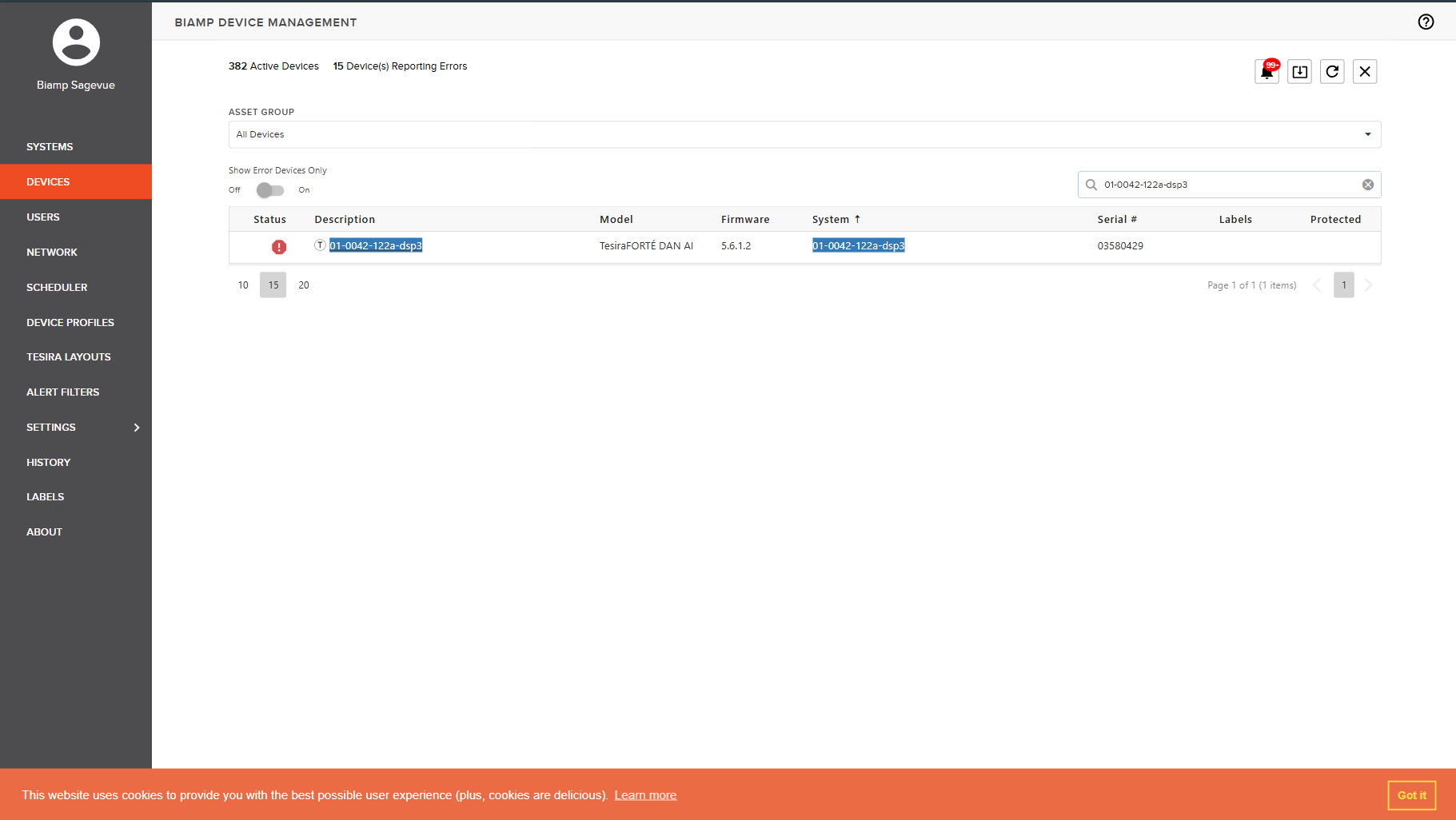
The Innomesh integration runs as a service built on SageVue’s REST API. On a schedule, it reads each device’s status and health from SageVue and attributes that information to the matching Innomesh asset. Innomesh polls SageVue every 5 to 15 minutes, which is the rate at which updated information flows through to Innomesh Portal.
Asset Register and Device Correlation
Every Biamp DSP monitored through SageVue is registered as an Innomesh asset. The Assets register lists each device with its category, brand, model, hostname, IP address, MAC address, and serial number. To narrow the register to the SageVue-managed fleet, filter Brand by “Biamp” and Category by “DSP”.
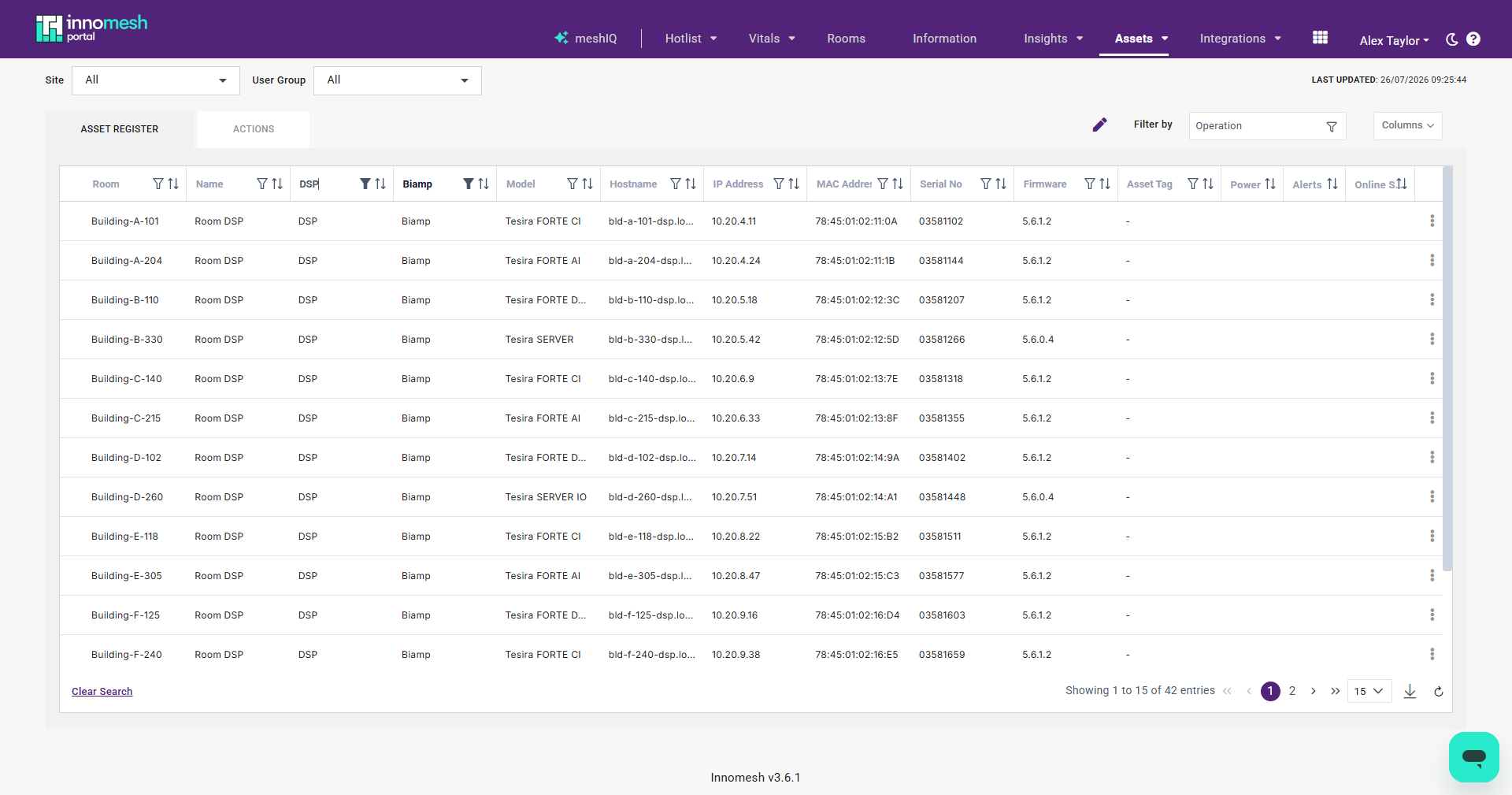
How Correlation Works
Each Biamp device exists in two places: as an asset in Innomesh and as a managed device in SageVue. The integration links the two records using the device’s serial number and MAC address. When the serial number and MAC address Innomesh holds for an asset match those SageVue reports, the integration treats both records as the same physical device.
Innomesh gathers the serial number and MAC address automatically through either Space CE or Sight, so there is no need to enter them manually against the asset. For this reason, the integration only works with rooms on the Sight tier or higher.
SageVue exposes these identifiers on the Manage Device screen. The Device Info tab shows the serial number, and the Network Settings tab shows the MAC address.
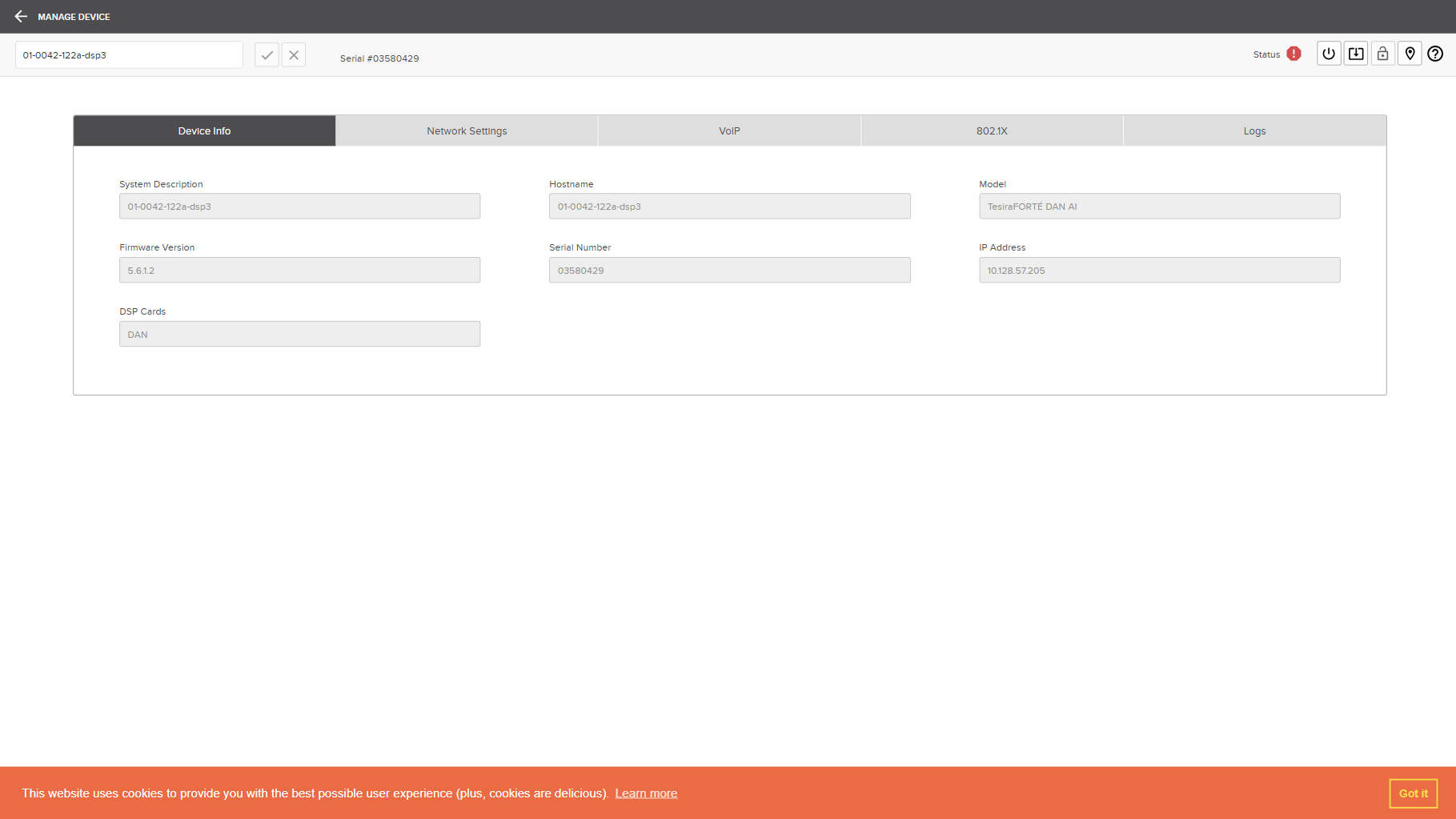
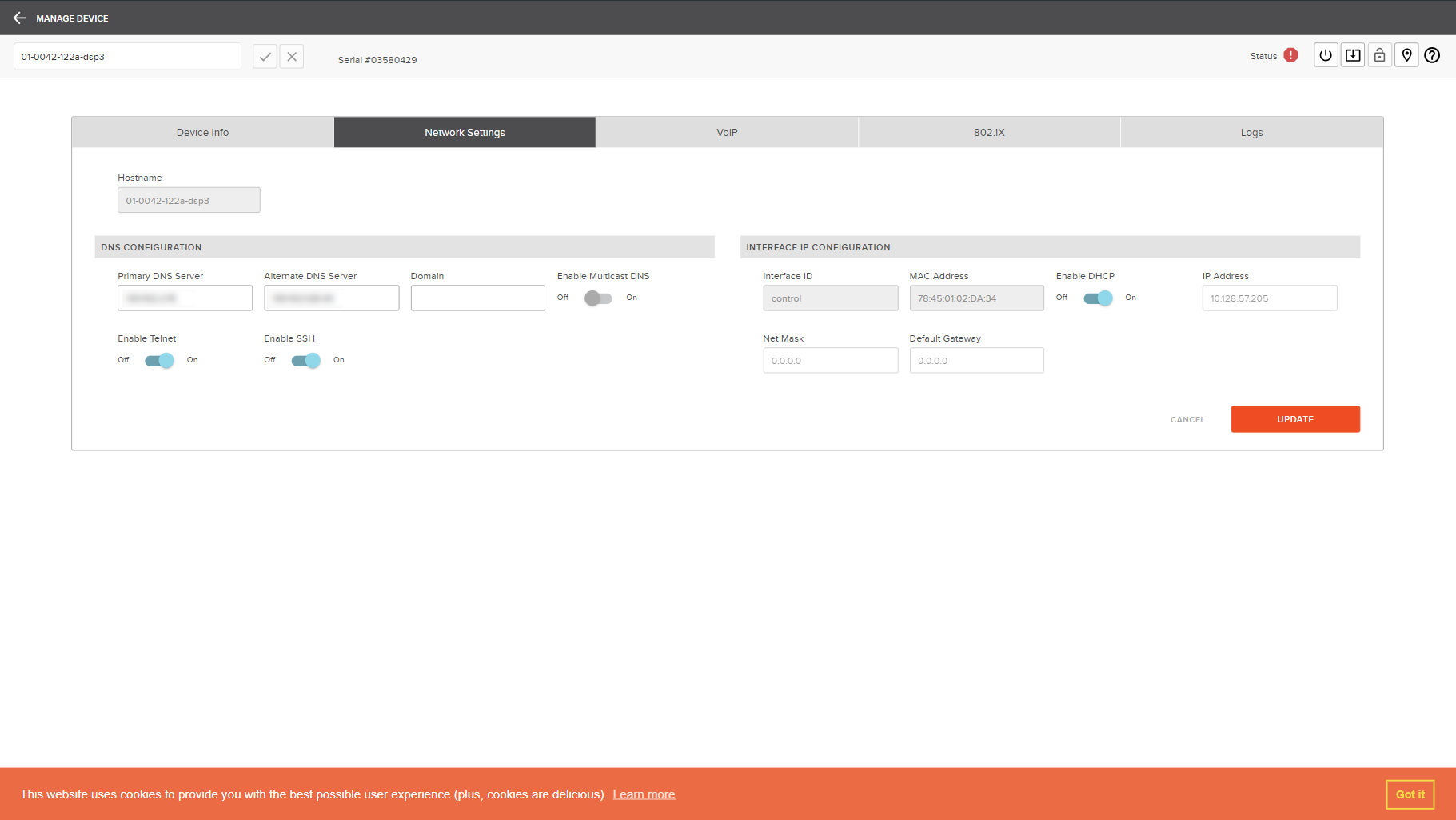
Once correlated, everything SageVue collects about the device, including its health status, is attributed to the matching Innomesh asset. When SageVue reports a fault, Innomesh can identify the affected asset and raise an alert against it.
Alert Detection in the Hotlist
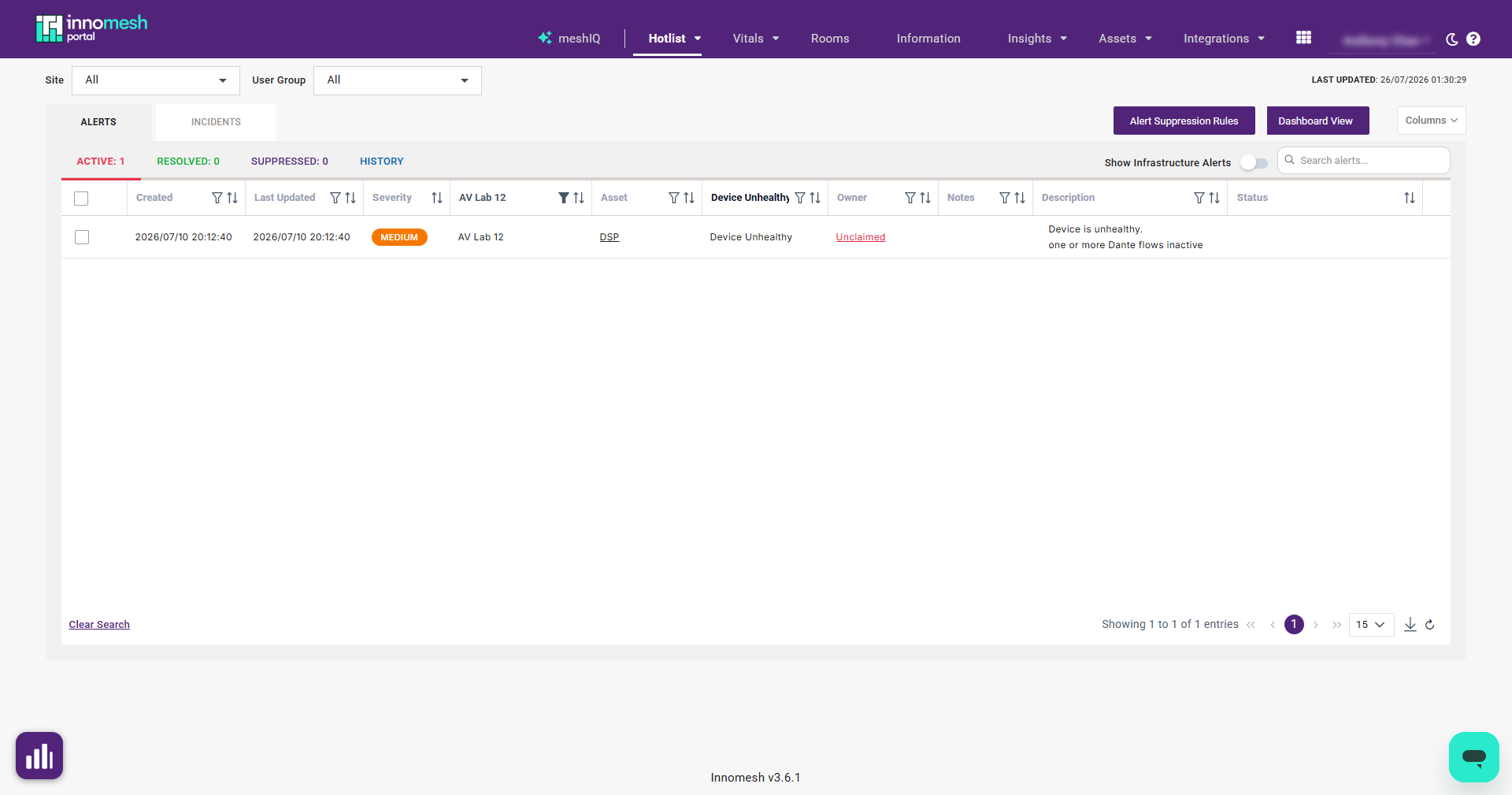
Because each Biamp device is correlated to its Innomesh asset, a fault SageVue reports is raised as a medium-severity Device Unhealthy alert on the Hotlist. This gives operators a single, real-time view of every device fault across the environment.
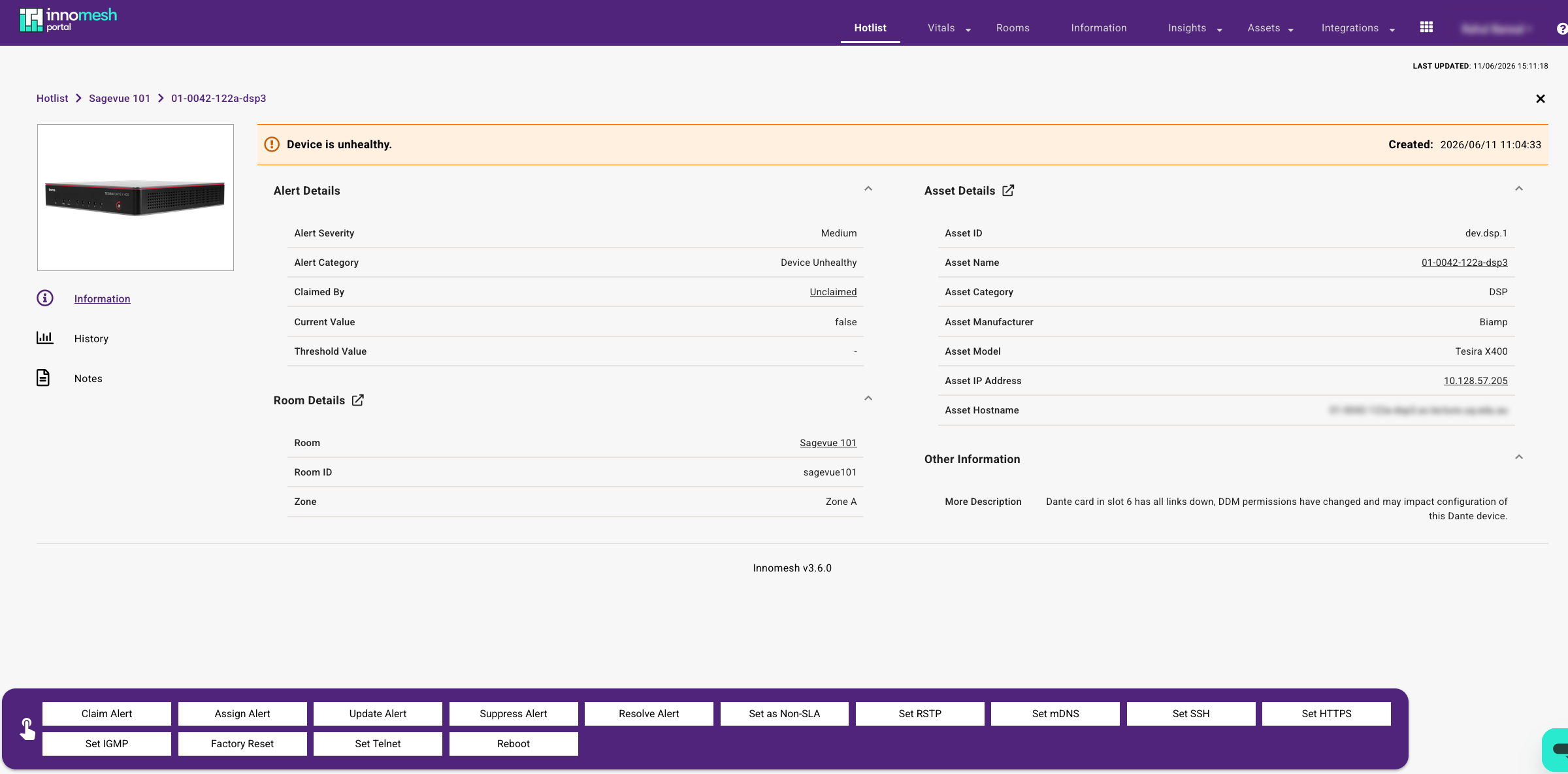
Opening the alert reveals the fault SageVue reported in the Other Information field, so operators can see exactly what SageVue flagged on the device. The alert also shows the correlated asset details, including manufacturer, model, and IP address.
For the full list of faults that surface as alerts, see Appendix: Supported SageVue Notifications.
Self-Healing and Automation
The integration adds automated self-healing for the Biamp devices SageVue monitors. When a fault is detected, such as a Dante card losing all of its network links, Innomesh raises an alert, evaluates it against the configured automation policies, and schedules the matching corrective action within the defined maintenance window.
Automation Policy
Alert-based automation policies are configured under Administration > Automation > Policies in the Innomesh Portal. A policy targets a Biamp DSP asset and runs an action when its conditions match an alert.
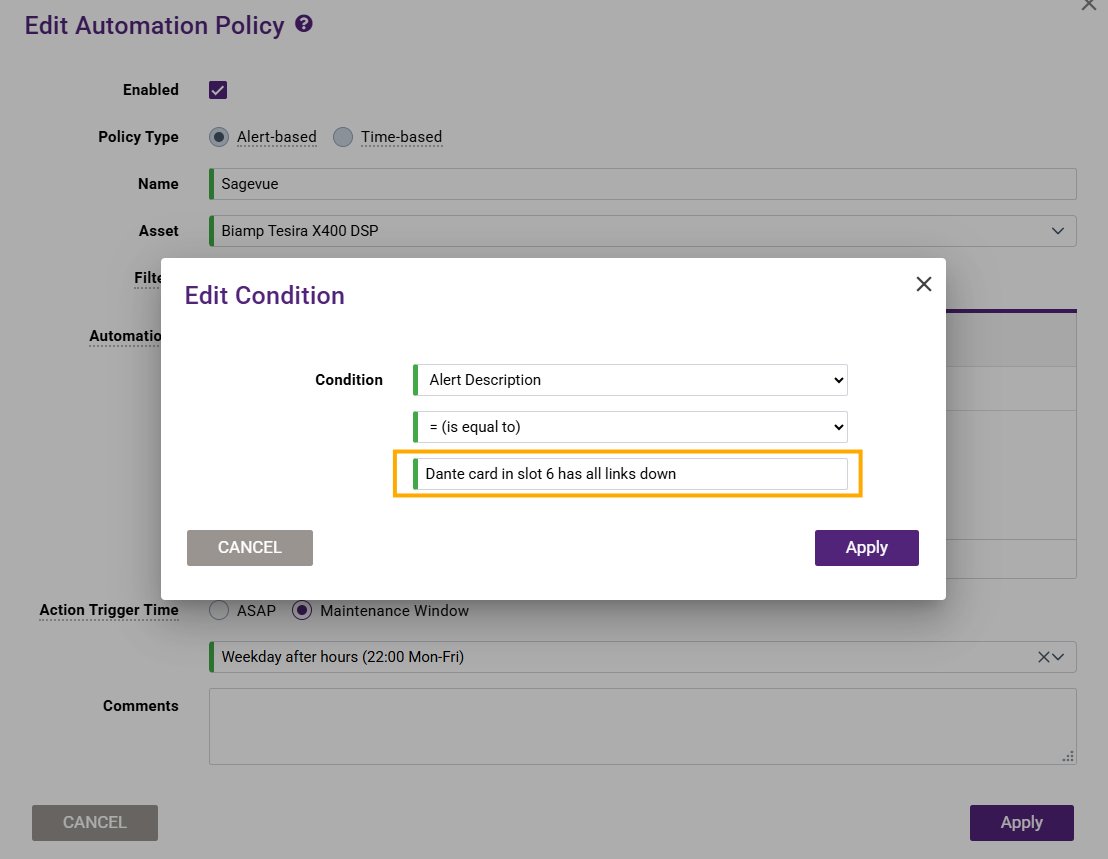
A policy condition determines which alerts it acts on. In the example below, the condition matches the alert’s Alert Description against the SageVue fault text “Dante card in slot 6 has all links down”, so the policy only acts on that specific fault.
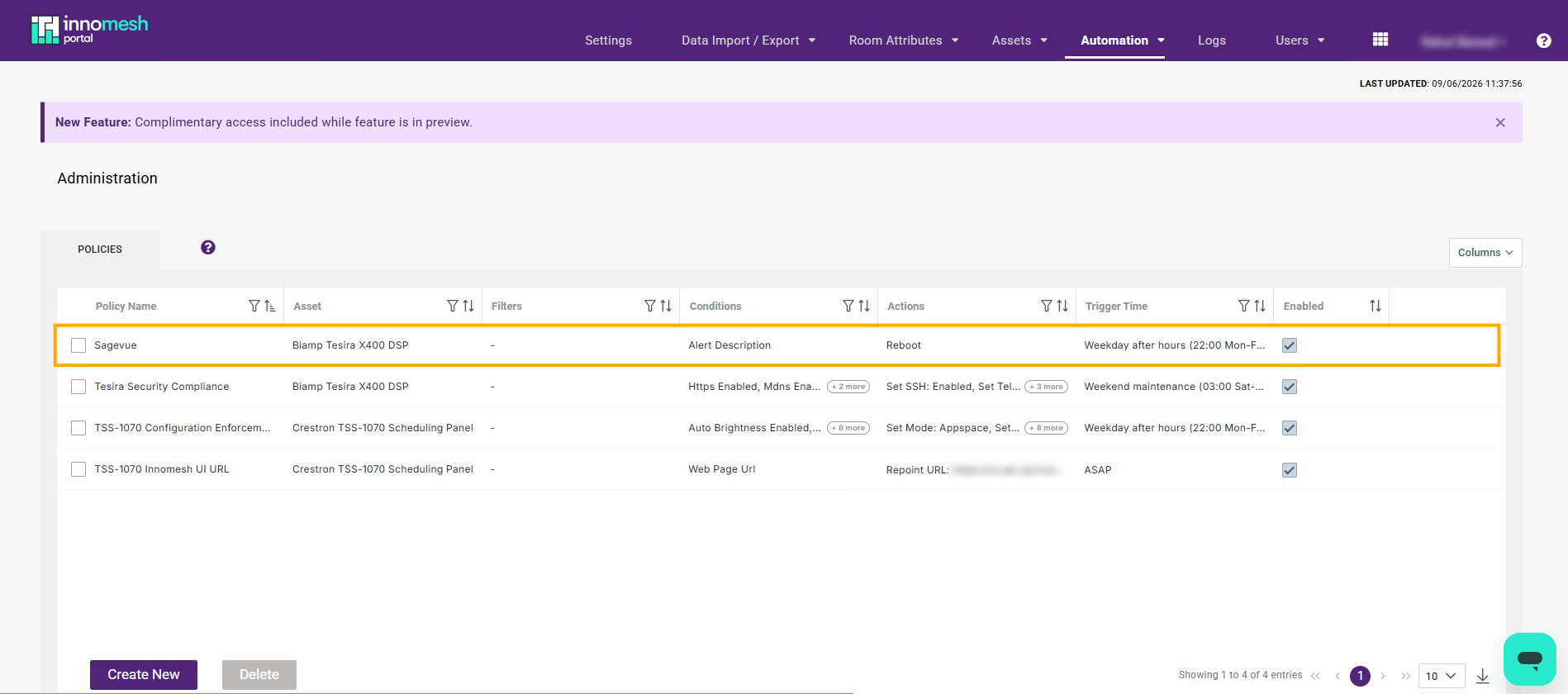
The policy list shows each policy with its target asset, conditions, action, and trigger time. The example policy targets the Biamp Tesira X400 DSP and runs a Reboot action during the weekday after-hours maintenance window.
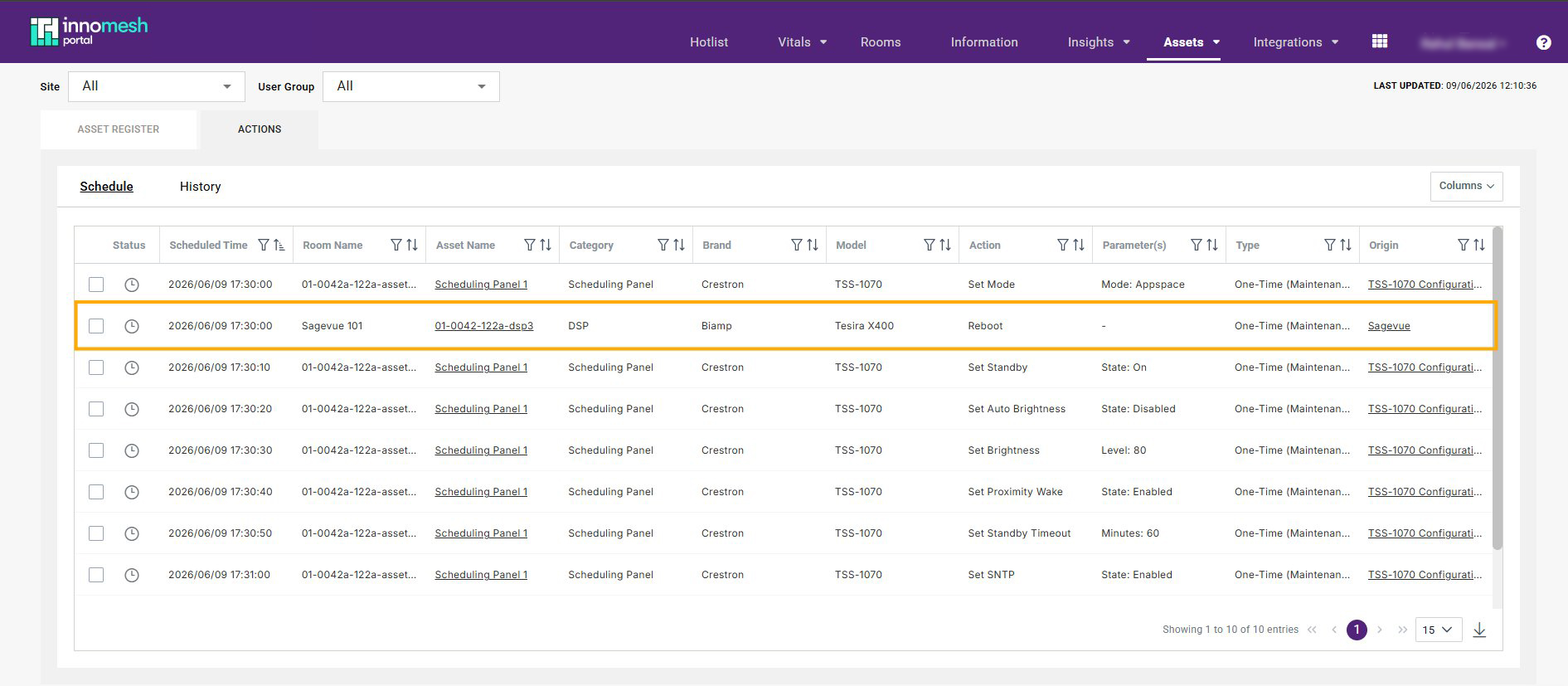
Once a policy matches an alert, Innomesh schedules the action. The Actions schedule shows the queued Reboot for the Biamp Tesira X400 DSP, with the Origin column confirming which policy raised it.
End-to-End Self-Healing Flow
The full remediation process for an unhealthy SageVue device runs as follows:
- Innomesh detects that a SageVue device has entered an unhealthy state and raises a Device Unhealthy alert on the Hotlist.
- The alert is populated with the fault SageVue reported and the correlated asset details.
- Automation policies evaluate the alert against their conditions to determine whether remediation is required.
- When a policy matches, its configured action, such as a reboot, is scheduled for the applicable maintenance window.
- The action runs at the scheduled time, allowing the device to recover.
- Once the device is healthy again, the alert resolves automatically and the completed action is recorded in the Action History.
Appendix: Supported SageVue Notifications
At minimum, the following SageVue fault notifications surface as Device Unhealthy alerts on the Innomesh Hotlist. Each can be used to drive an automation policy.
| SageVue Notification |
|---|
| Tesira reboot is required to complete Dante configuration |
| DSP Application error on card in slot X |
| DDM permissions are preventing configuration of this Dante device |
| Dante card in slot X has all links down |
| One or more Dante flows inactive |
| Expander device not found; unable to communicate with the expander device |
| Cooling fan malfunction; check filter and fan |