

Overview
Innomesh provides deep monitoring and management for the QSC Q-Sys ecosystem. Q-Sys cores and the peripherals attached to them are surfaced as first-class assets, with centralised logs and vitals across your whole environment, detailed per-device information, and automated DSP configuration backups.
Q-Sys interoperability is presented in two places in Innomesh Portal:
- The Integrations page (Integrations > QSC Q-Sys) provides an environment-wide view of your Q-Sys fleet: a Devices list, Global Logs, and a Global Vitals dashboard.
- The Asset Details view provides everything Innomesh knows about a single Q-Sys core: its peripherals, files and resources, device logs, and integration extensions (properties, licensing, services, multicast, and certificates).
The Integrations Page
Open Integrations from the Portal navigation bar and select the QSC Q-Sys tab. It presents three views.
Devices
The Devices view lists every Q-Sys core in your environment with its room, model, hostname, IP address, MAC address, serial number, firmware, status, up-since time, and online state. Search, sort, and filter across the list to find a specific core. Click any row to open that core’s Asset Details view.
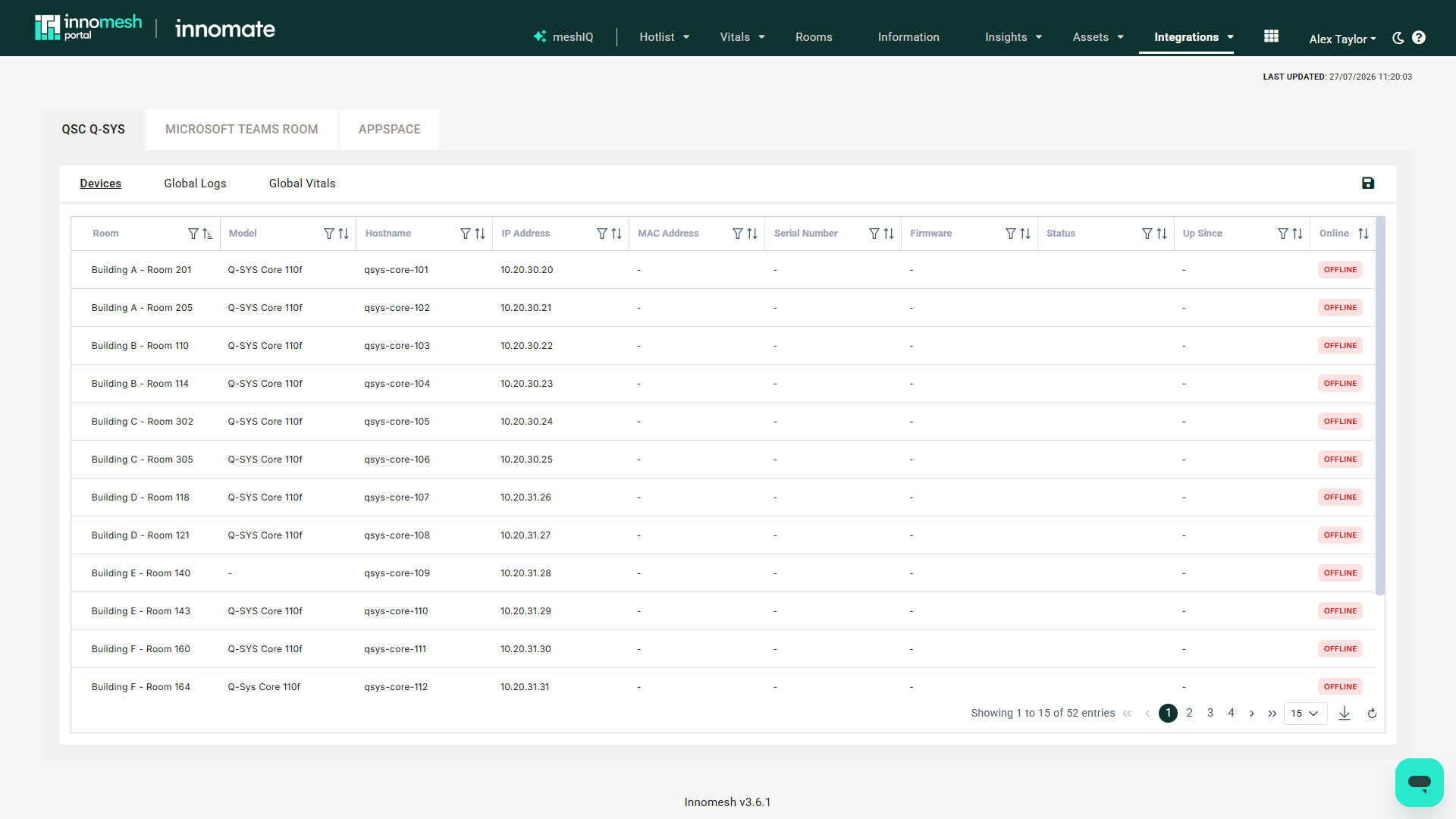 Devices | Innomesh Portal
Global Logs
The Global Logs view aggregates log lines from every Q-Sys core into a single searchable, sortable table. Each entry shows its timestamp, the room and device it came from, the device IP address, the log message, and a log category and source. The table uses infinite scroll, so you can page back through history for troubleshooting and audit.
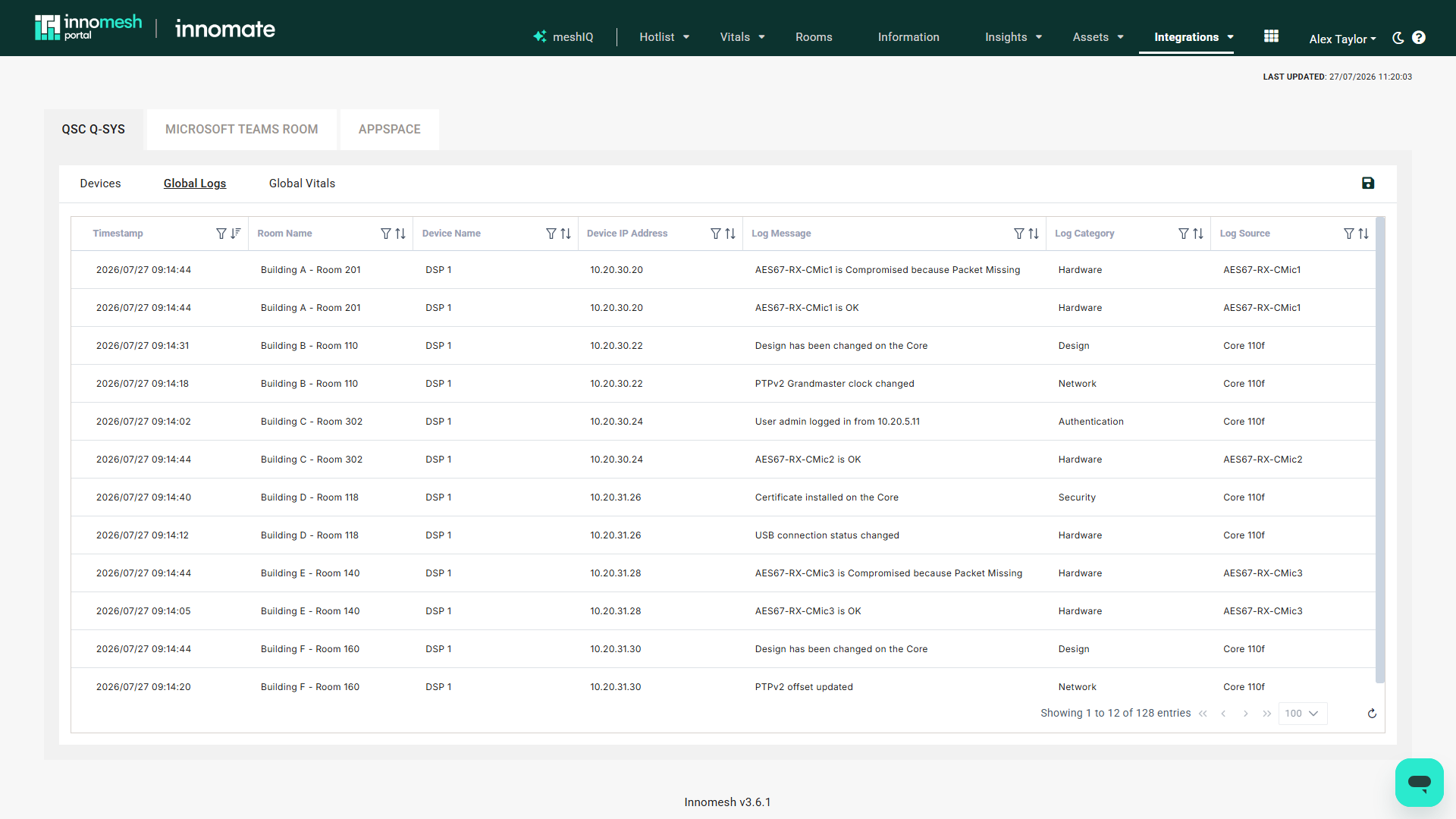 Global Logs | Innomesh Portal
Global Vitals
The Global Vitals dashboard summarises the health of the whole Q-Sys fleet over a selected time range (past 24 hours, 7 days, 30 days, or a custom range):
- Q-Sys Cores in Environment, Faults Detected, and Warnings Detected summary cards.
- CPU, Memory, and Disk usage percentage over time.
- An Up Since table listing each core’s boot time and uptime.
- Faults Trend and Warnings Trend over the selected period.
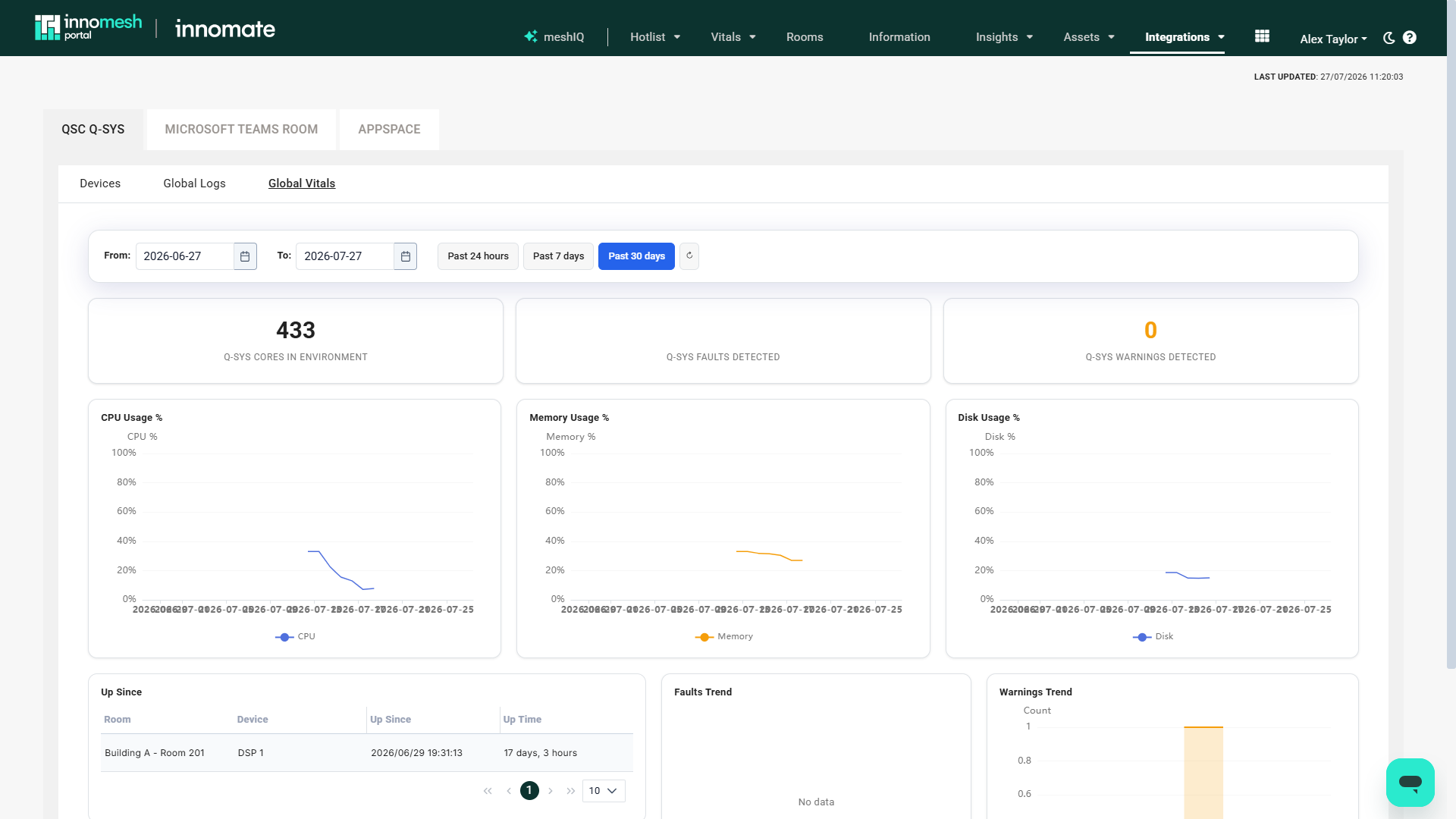 Global Vitals | Innomesh Portal
The Asset Details View
Clicking a core in the Devices view (or a Q-Sys asset anywhere in the Portal) opens the Asset Details view for that device. Alongside the standard Information, Status, Specifications, History, and Alerts sections, Q-Sys cores gain the following.
Peripherals
Devices connected to a Q-Sys core, such as AES67 receivers, I/O cores, and cameras, were previously invisible to monitoring. They now appear as first-class entries on the Peripherals tab, listed with their name, type, manufacturer, model, location, and status. Where a peripheral reports additional detail (hostname, IP address, serial number, firmware, MAC address, and power or connectivity state), that detail is available per peripheral.
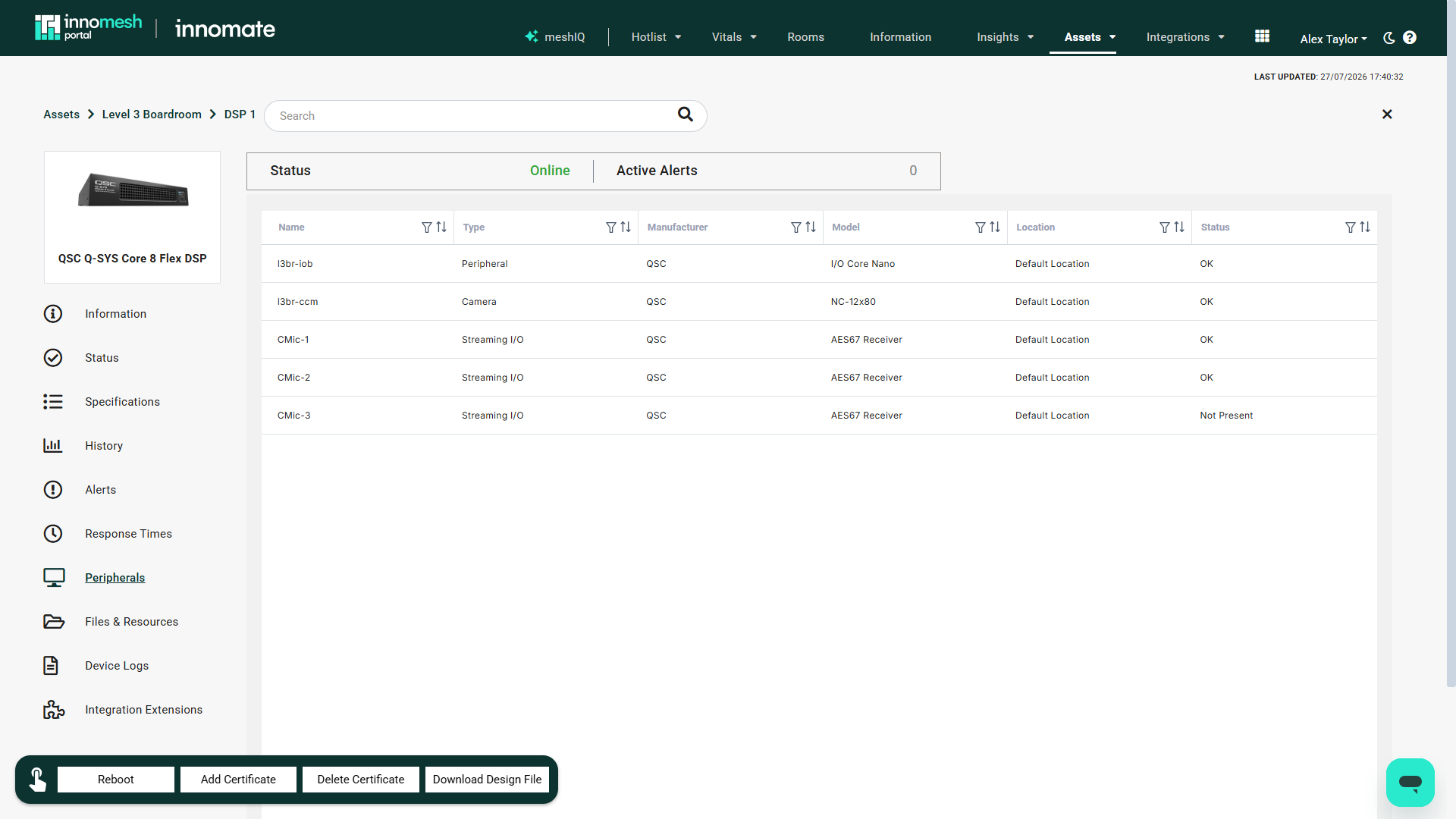
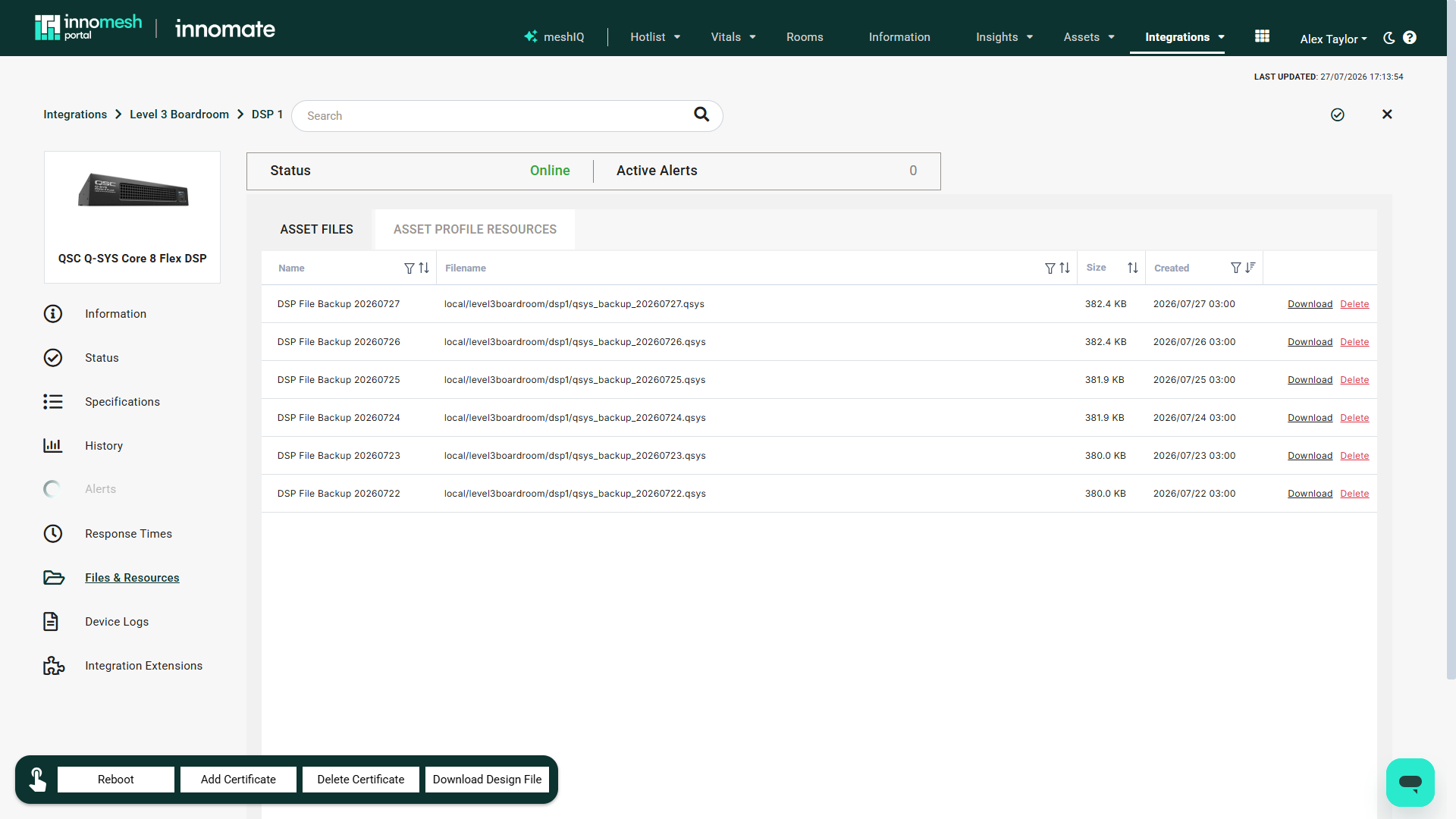
Files and Resources
The Files & Resources tab is split into two sub-tabs:
- Asset Files are files specific to this device, including its automated DSP configuration backups (see DSP Configuration Backups). You can upload, download, delete, and edit the friendly name and expiry of a file.
- Asset Profile Resources are profile-level files shared across devices of the same type, such as product manuals.
Device Logs
The Device Logs tab shows the log lines for this core alone, in the same table format as Global Logs (timestamp, message, category, source). This is the per-device equivalent of the environment-wide Global Logs view.
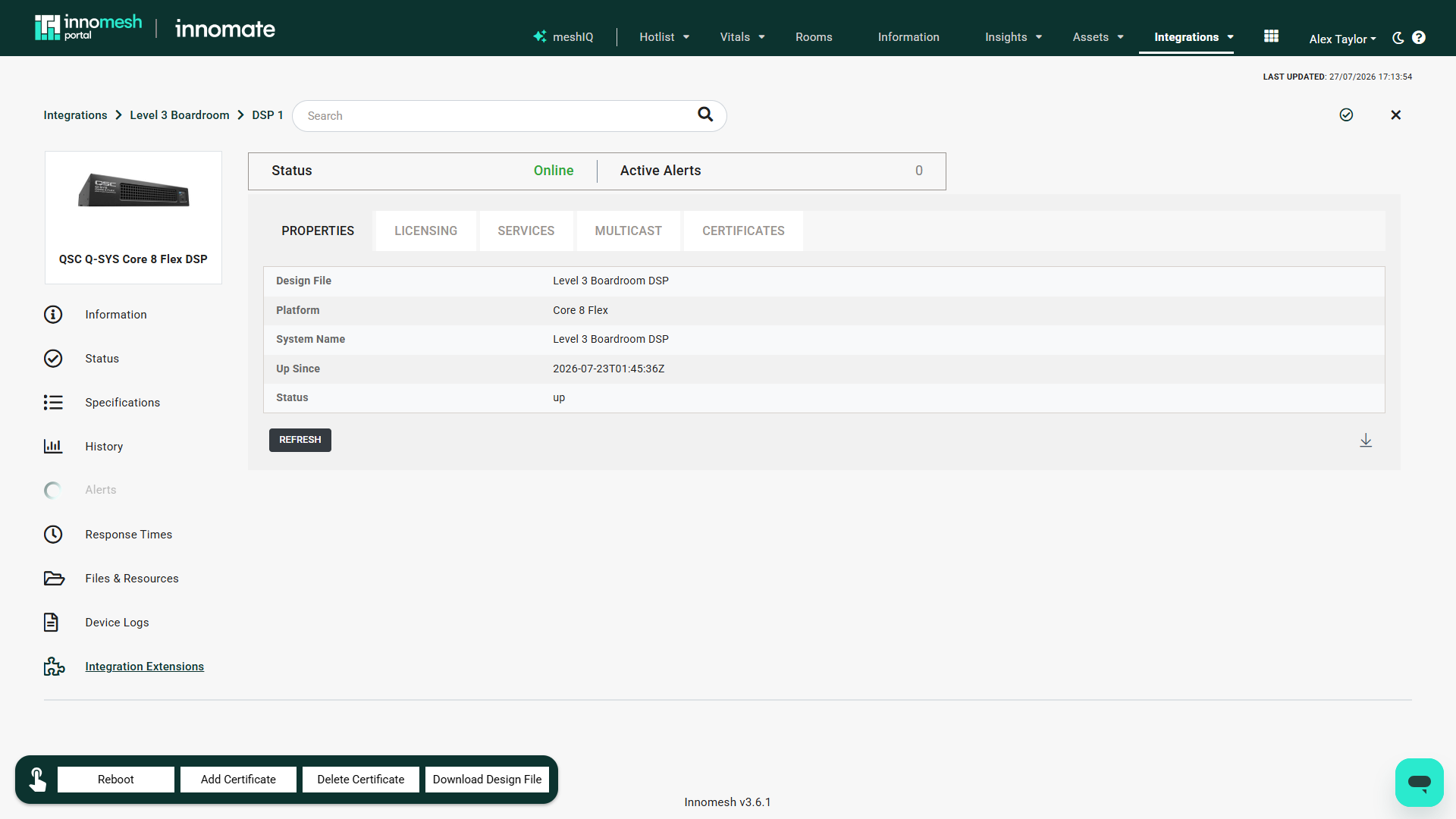
Integration Extensions
The Integration Extensions tab surfaces the extended, Q-Sys-specific information Innomesh gathers from the core. Each category appears as its own sub-tab:
- Properties such as the core’s system name and design file.
- Licensing covering licence type and expiry.
- Services and Multicast listing active network protocols, ports, and multicast ranges.
- Certificates loaded on the device.
Peripherals in the Assets Register
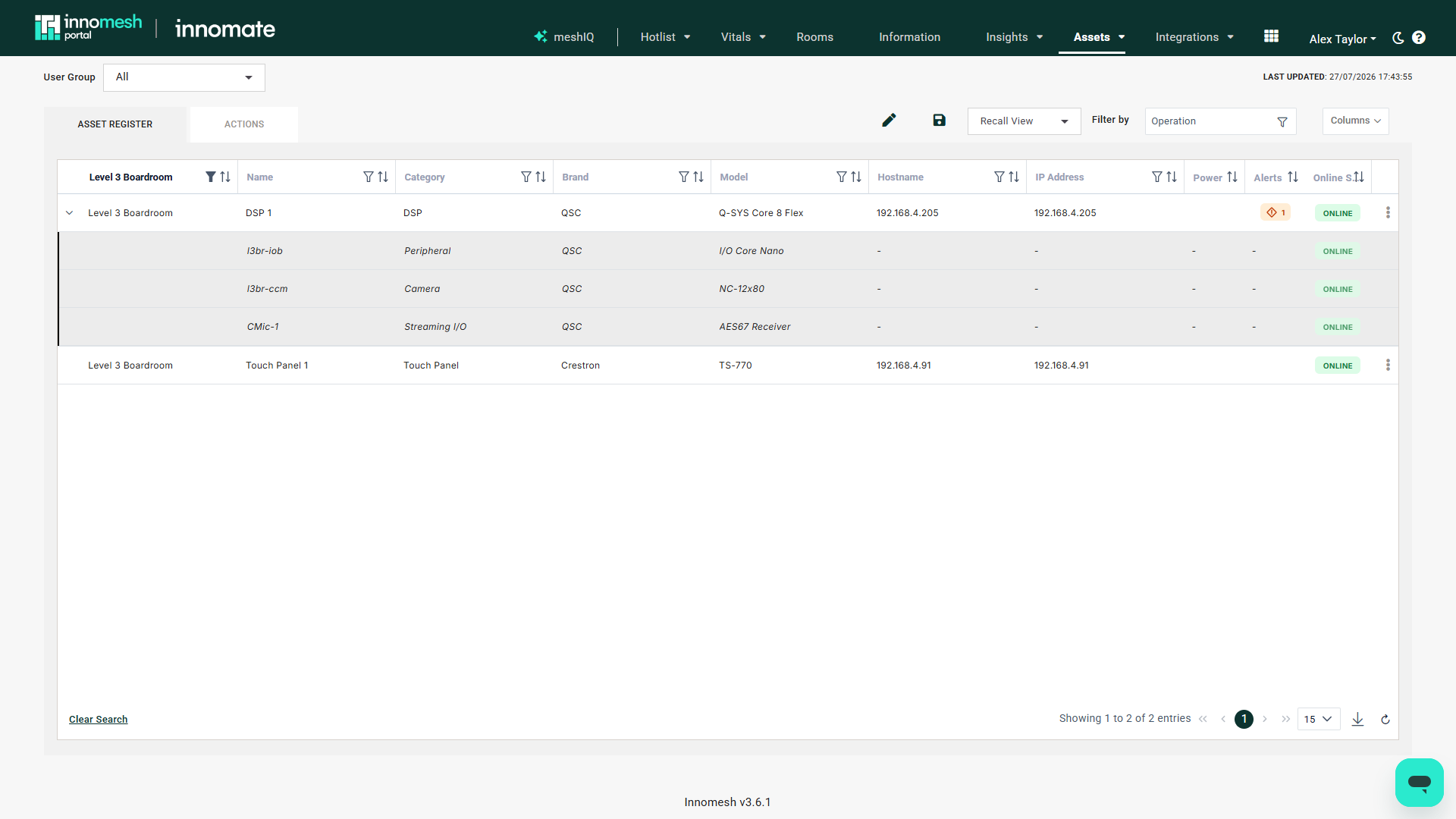
Because peripherals are first-class assets, they also appear in the Portal’s Assets Register. Any Q-Sys core with peripherals shows a chevron control on its row; expanding it lists the core’s peripherals as indented child rows beneath it. Clicking a peripheral opens its parent core’s Asset Details view on the Peripherals tab, with that peripheral highlighted.
DSP Configuration Backups
Innomesh automatically backs up each Q-Sys core’s design file (.qsys) every night through Asset Automation. Backups are written to the core’s Asset Files, with the 30 most recent backups retained per device, giving you a safety net for design changes and a straightforward way to roll back to an earlier configuration by downloading a previous version.
Because these backups run as a standard Asset Automation job, their schedule, run history, and outcomes appear alongside every other automated action in your environment.
Core Operations
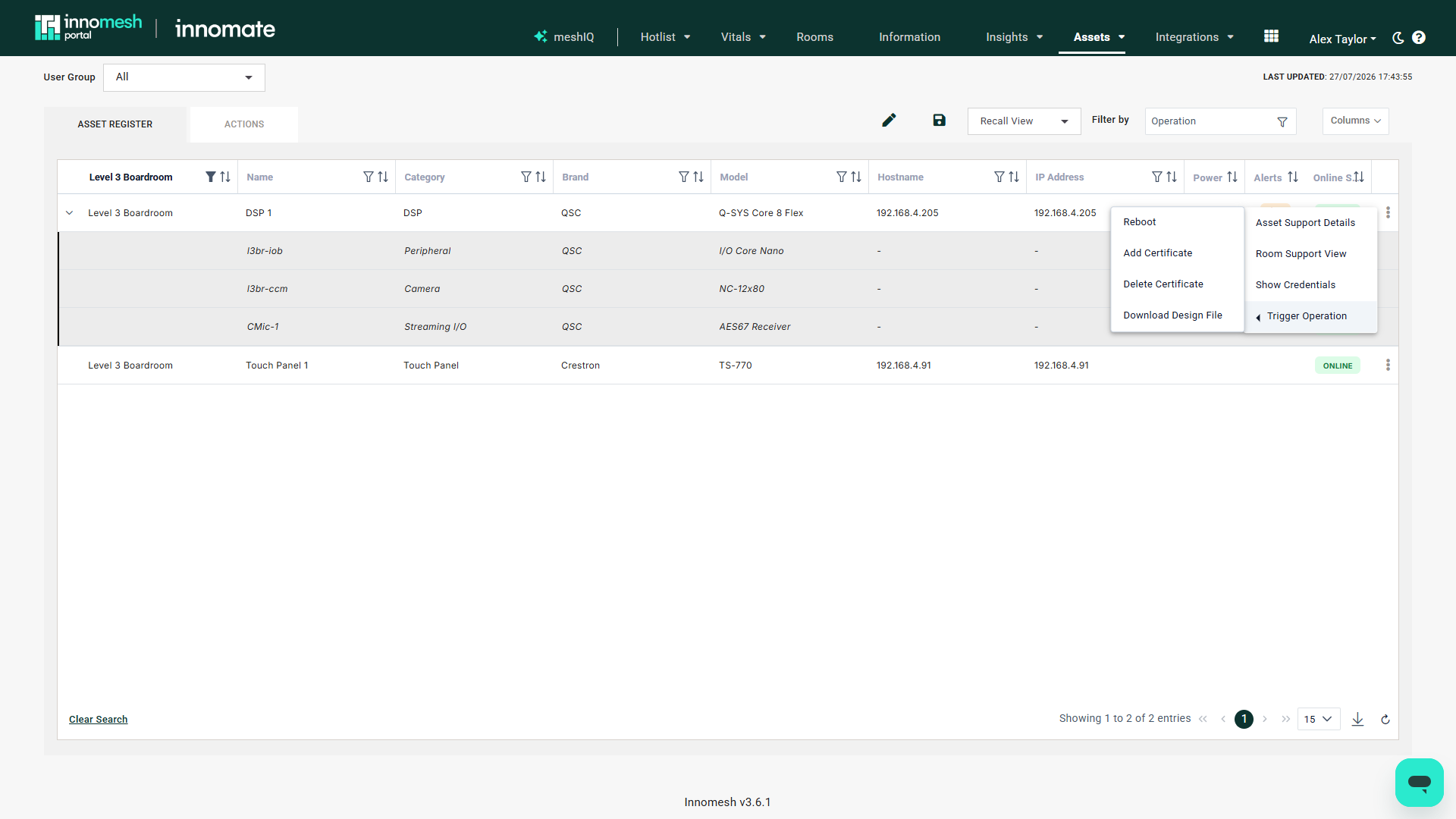
Operational actions can be triggered against a Q-Sys core from the Assets Register (through the row’s action menu) and the Asset Details view, including:
- Device reboot
- Certificate upload and deletion
- Download the current design file
 Q-Sys Interoperability | Trigger Operations
Getting Started
To enable Q-Sys interoperability for your tenancy:
- Ensure your Q-Sys cores are network-accessible from the Innomesh monitoring infrastructure and running a supported firmware version (9.x or above for integration extensions).
- Contact Innomate to enable the Q-Sys integration for your environment.
- Q-Sys cores and their peripherals begin appearing in the Devices list and Assets Register once discovery is complete.