

The Site Filter lets you categorise rooms by physical location (such as campus, city, or building) and filter Portal views accordingly. This is particularly useful for organisations managing AV environments across multiple sites.
Overview
Sites are organisational labels assigned to rooms to indicate their physical location. Once configured, users can filter the room list in both Innomesh Room Manager and Innomesh Portal to display only rooms belonging to the selected sites.
Access restrictions can also be applied to limit individual user access to particular sites, ensuring that support staff only see the rooms relevant to their location. See How Access Works in the RBAC Authorisation Guide for how sites, user groups and roles combine.
Filtering in Portal
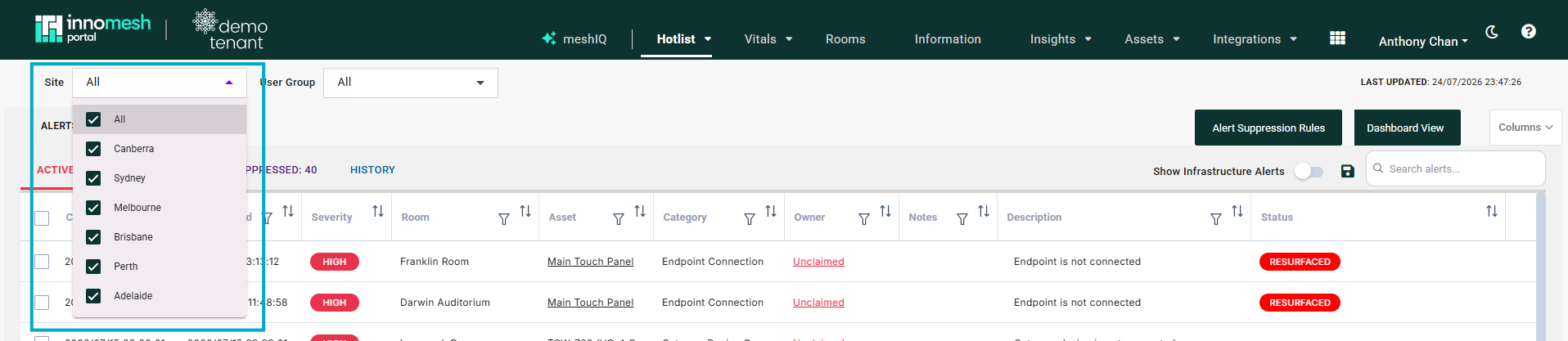
The Site dropdown appears at the top of the Hotlist, Rooms, Information, and Assets pages. Tick one or more sites to narrow the page to rooms at those locations, or leave All selected to show every site. The selection applies to the whole page, making it easier to monitor and manage rooms at a specific location.
Filtering in Room Manager
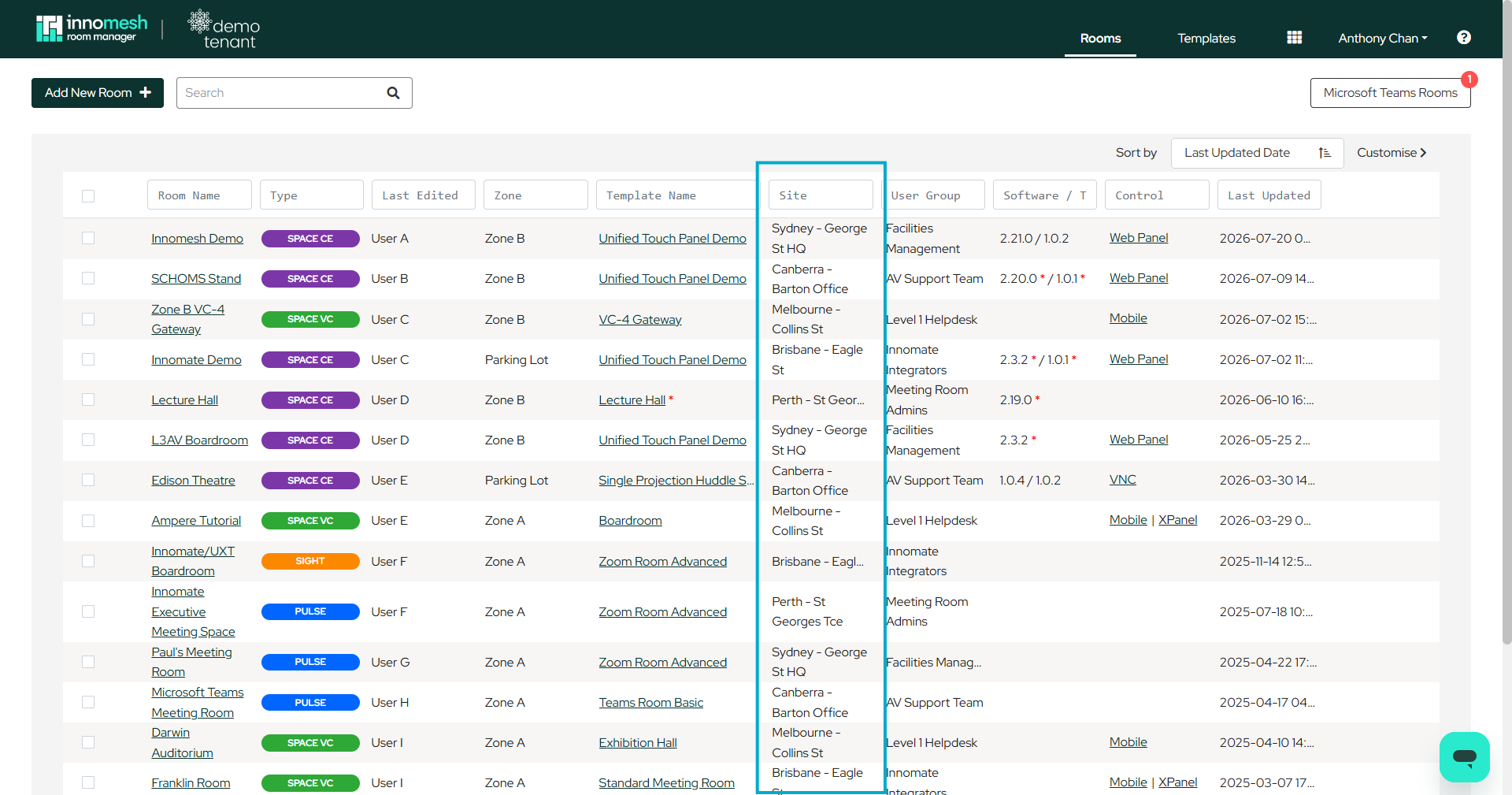
The same site information is available within Room Manager, allowing you to focus on rooms at a particular location when creating, editing, or deploying configurations. The Rooms page includes a Site column with its own filter field, and the Sort by dropdown can order rooms by site.
Assigning a Room’s Site
To change the site assigned to a room:
- Open the room in Room Manager.
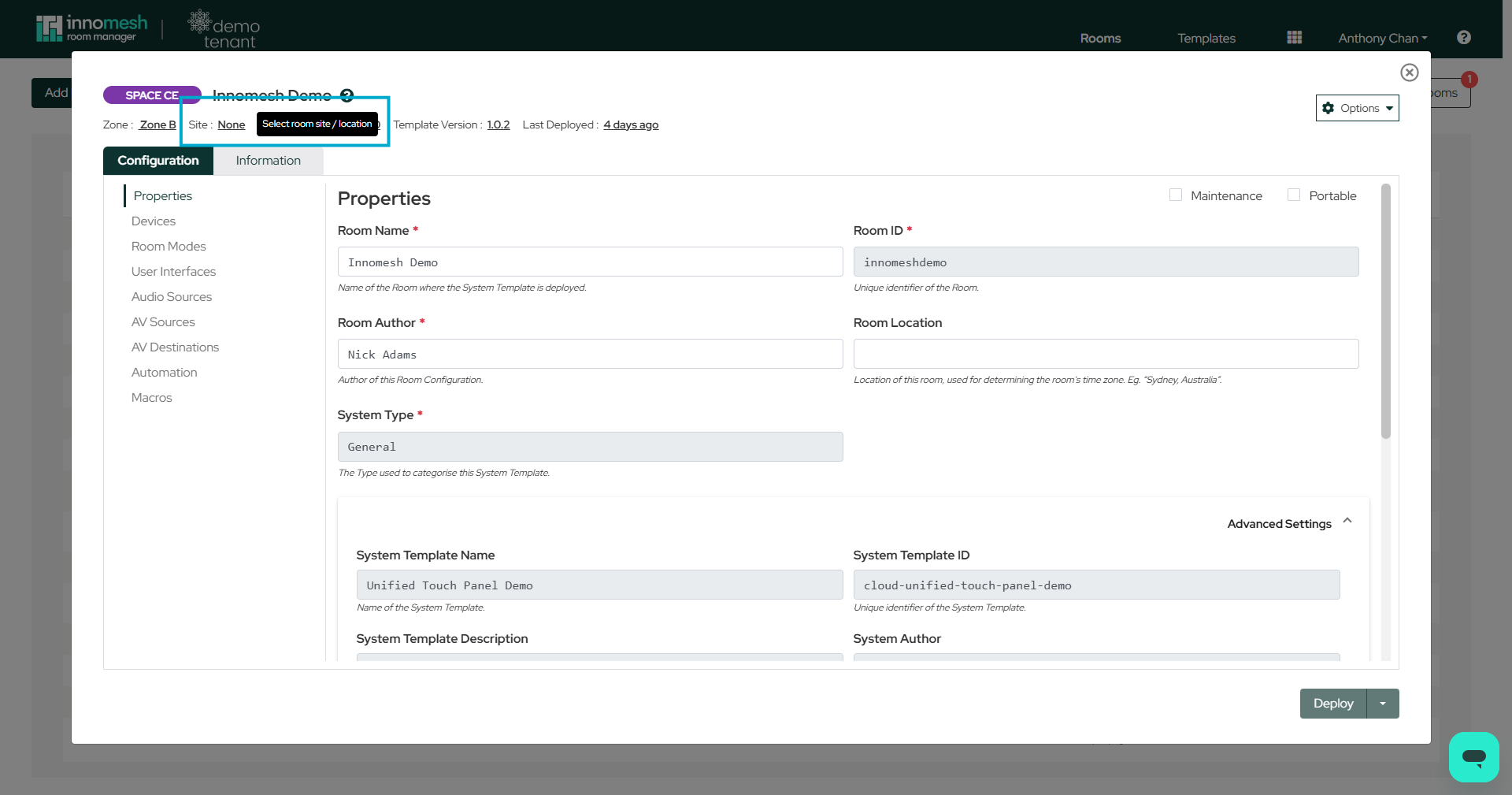
- Click the underlined Site field in the room header.
- Select a site from the list.
- Press Confirm.
- Deploy the room to apply the change.
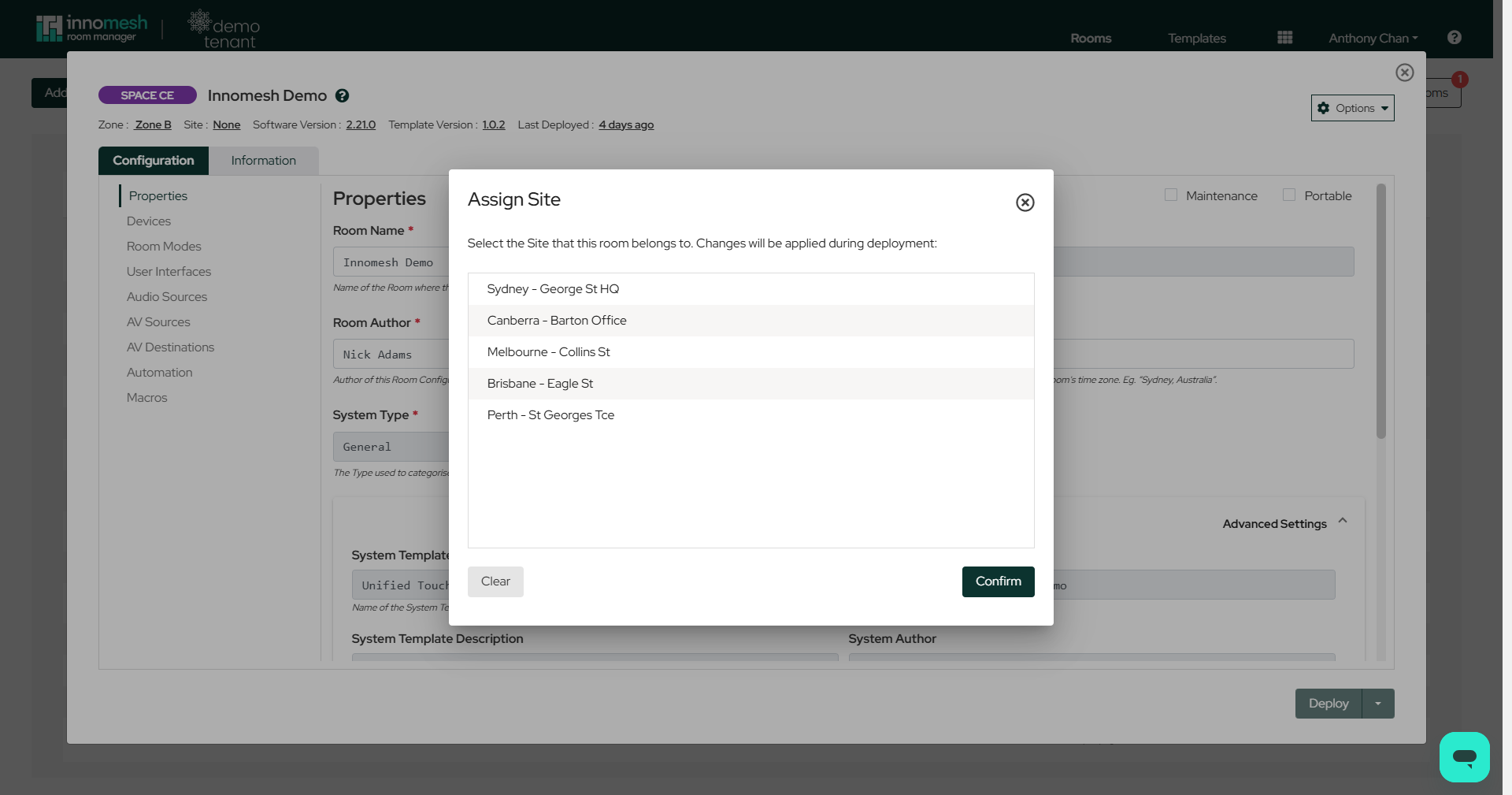
To remove a room’s site assignment, press Clear in the same dialog.