

Asset Automation lets Innomesh Portal administrators define policies that run asset actions automatically instead of responding to every fault or repeating the same configuration task by hand. A policy decides which assets it applies to, what actions to run on them, and what triggers the run. Innomesh handles the rest, cutting response times and freeing up support resources.
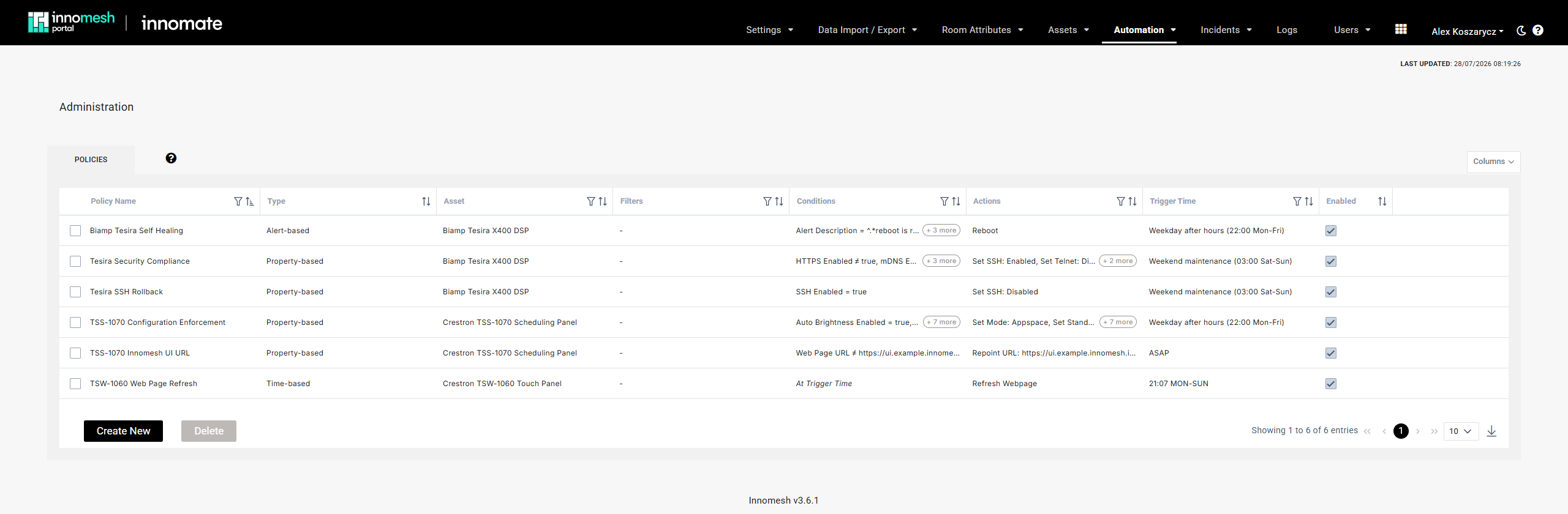
Policies are managed under Administration > Automation > Policies.
What a Policy Defines
Every automation policy answers three questions:
- Which assets does it target? An asset profile, optionally narrowed by filters on room, template, zone, site, or user group.
- What should happen? One or more actions to run on each targeted asset, such as Set Volume, Reboot, or PoE Reboot.
- What starts it? A schedule, a matching Hotlist alert, or a device property that has drifted from its desired value.
Actions are only created for assets whose category, brand, and model match the asset profile selected in the policy.
Policy Types
| Policy Type | Trigger | Best For | Available From |
|---|---|---|---|
| Time-based | A daily or weekly schedule, or a maintenance window | Configuration enforcement, pre-emptive reboots, end-of-day shutdowns | v3.6.0 |
| Alert-based | A Hotlist alert matching one or more conditions | Self-healing: recovering offline devices and connectivity faults | v3.6.0 |
| Property-based | A device property breaching a condition, checked hourly | Compliance and configuration management: firmware drift, wrong input, security settings | v3.6.1 |
Pick the type by what you know about the problem. If you know when something needs to happen, use time-based. If you are reacting to a fault Innomesh already detects, use alert-based. If you are enforcing a desired state and want to act only on the devices that have drifted from it, use property-based.
Each type has its own configuration guide:
Actions
Actions are the operations performed on each targeted asset. The available list changes with the selected asset profile, because it comes from the driver mapped to that profile. A Neat Bar Pro supports Set Language, Set Volume, Set Auto Update, and Reboot, while a Poly Studio X72 may only support Set Volume and Reboot.
Two actions do not run on the device itself, but on the infrastructure it is connected to:
- PDU Reboot cycles the power outlet on a connected power distribution unit, rebooting the device.
- PoE Reboot temporarily cuts power to the asset’s network port on a connected network switch, which also reboots the device.
Both rely on the asset’s PDU or network switch relationship being defined in the room configuration. See Asset PDU Association.
Actions are added and configured one at a time. Click Add Action, choose the action, then set whatever parameters it takes, such as the input to select or the volume level to apply.
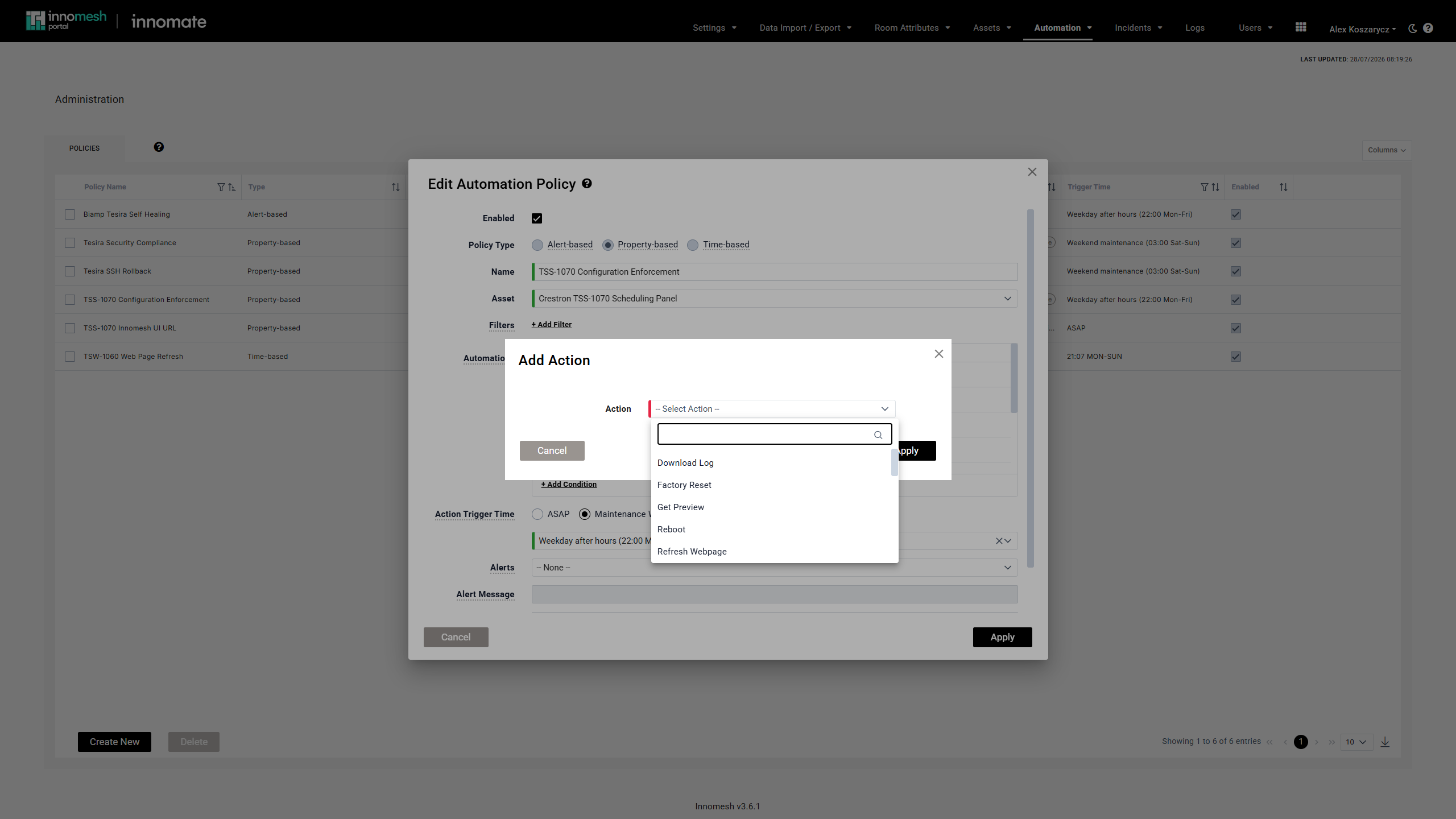
Within a policy, actions run in the order they are listed. Reorder them by drag and drop, and use the duplicate, edit, and delete controls on each row.
A parameter value does not have to be fixed. It can hold an expression that resolves separately for each asset when the action runs, which is what makes fleet-wide configuration possible from one policy. Pointing every scheduling panel at its own room’s control page takes a single action:
https://ui.example.innomesh.io?roomId={% asset.room_id %}See Appendix: Dynamic Action Values for the available references and how they behave.
Targeting Assets with Filters
Filters restrict which assets a policy applies to. Without filters, a policy applies to every asset matching the selected asset profile across all rooms.
| Filter | Matches on |
|---|---|
| Asset ID | The asset’s identifier |
| Asset Name | The asset’s display name |
| Asset Hostname | The asset’s hostname |
| Room Name | The name of the room the asset sits in |
| Template Name | The template the room was built from |
| Zone Name | The zone the room belongs to |
| Site | The site the room belongs to |
| User Group | The user group the room is assigned to |
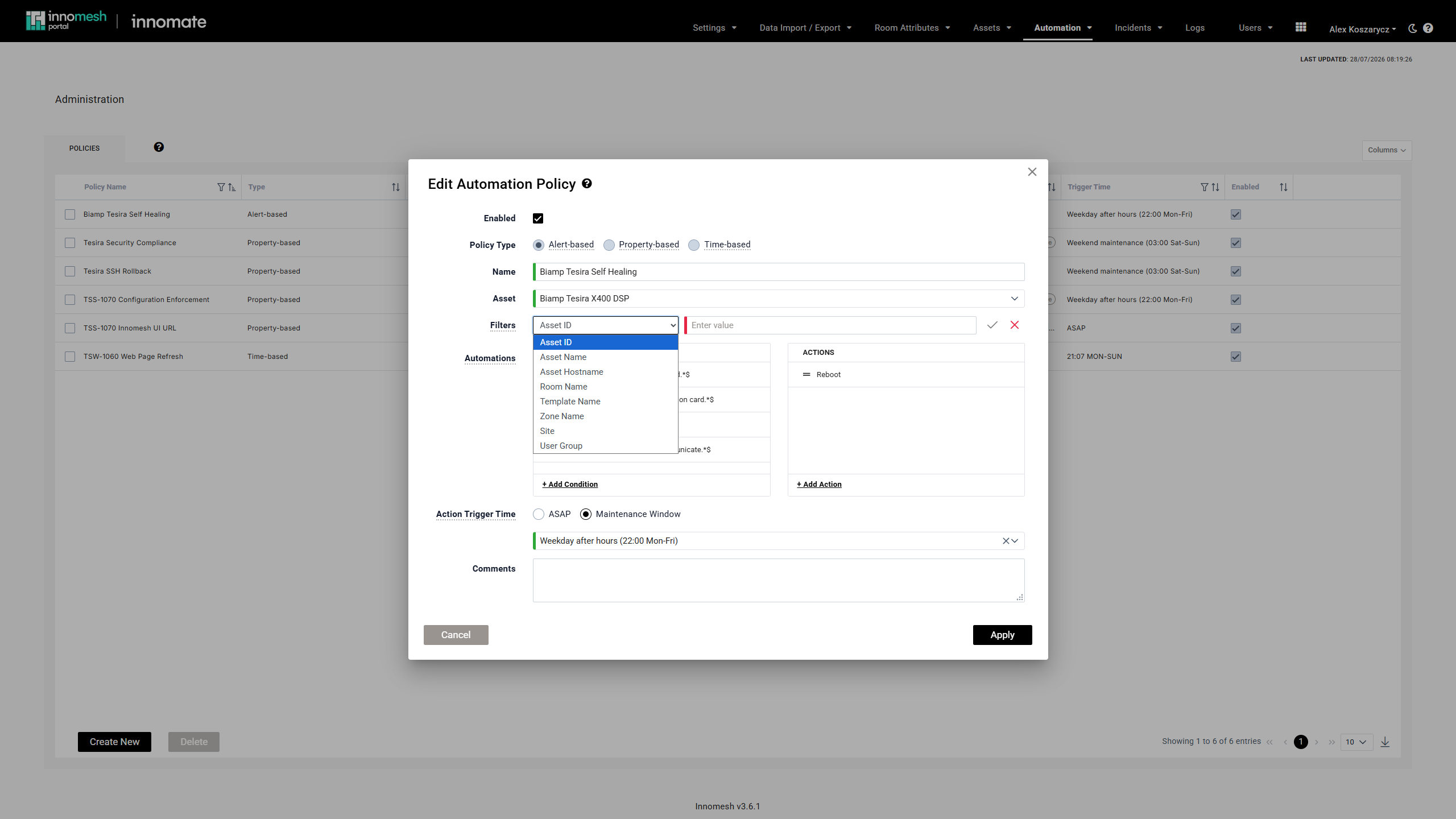
Filters can be combined. For example, filter by room name and then narrow further by user group. To edit an applied filter, click it. To remove one, click its X button.
When a policy builds its target list, assets in a Parking Lot zone are excluded, so decommissioned or staged devices never pick up scheduled or compliance actions.
A filter value can be a regex pattern rather than literal text, which is how you match a set of rooms by naming convention. See Appendix: Regex Patterns.
Trigger Times
Every policy sets an Action Trigger Time that determines when its actions run. The options available depend on the policy type.
| Option | Available For | Behaviour |
|---|---|---|
| Custom | Time-based | Runs at a specific time on selected days of the week |
| Maintenance Window | All three types | Runs during a pre-configured window, such as Weekday After Hours, Weekday Mornings, or Weekend Maintenance |
| ASAP | Alert-based, Property-based | Schedules the action at the start of the next minute after the trigger is detected |
Maintenance windows are defined once and reused across policies. A policy attached to a disabled maintenance window schedules nothing, which is a clean way to pause a set of policies without editing each one.
Timezone Handling
Three different timezones are in play, and it helps to keep them apart: the one you type a time in, the one an action runs in, and the one the schedule is displayed in.
| Timezone used | |
|---|---|
| A maintenance window | Each asset runs at the window’s clock time in its own room’s local zone, so a window set to 22:00 fires at 22:00 locally in every room it reaches. |
| A custom time on the policy form | The tenant’s timezone, not yours. |
| The Scheduled Actions page | Your own local timezone. A 10:00 PM action in a USA room shows as 2:00 PM when viewed from Australia. |
Conflict Detection at Save Time
When you save a policy, Innomesh checks whether it would fight with an existing policy. A conflict is reported when another policy targets the same asset profile, uses the same action with different parameters, and shares the same trigger time.
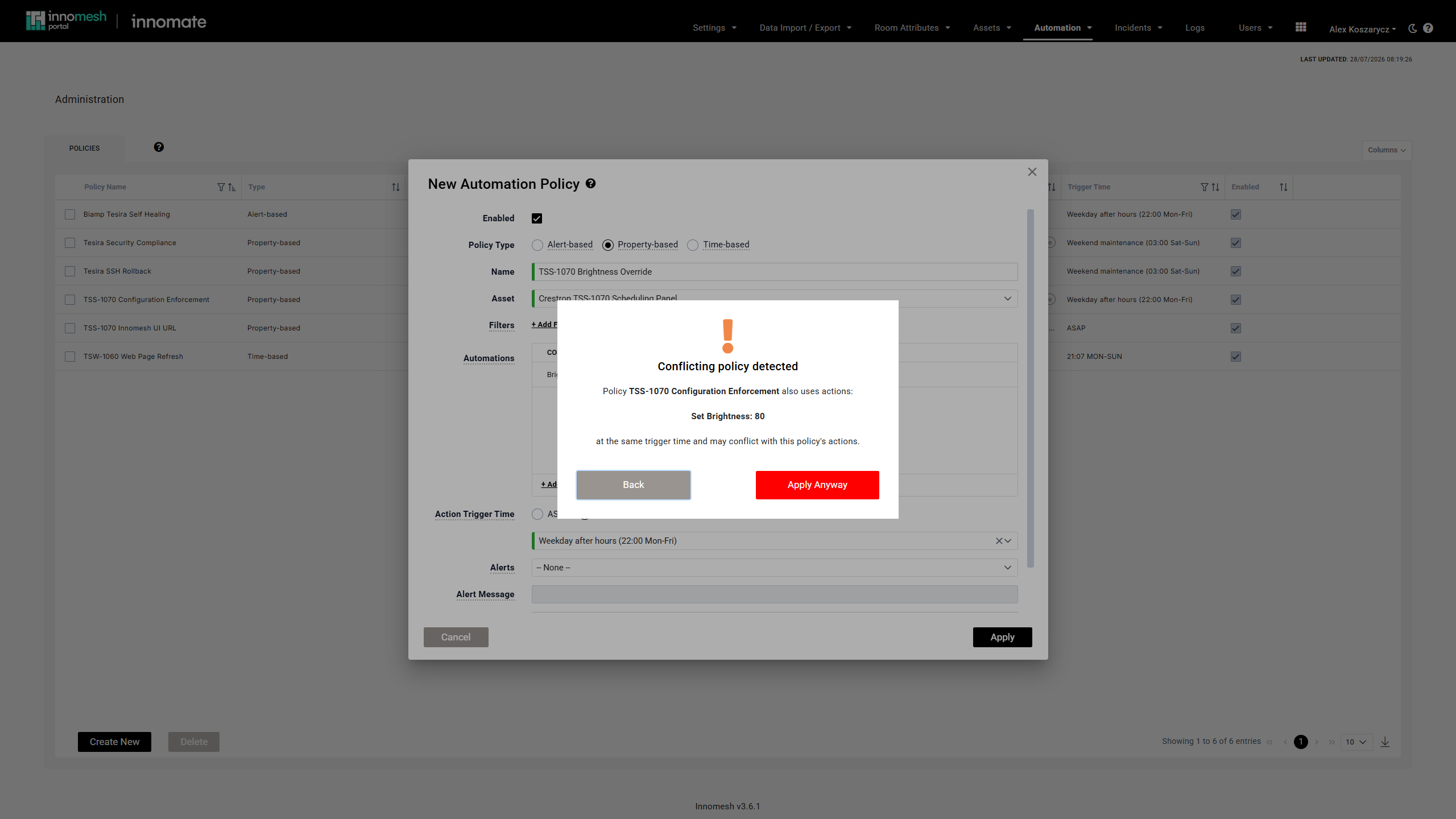
The check runs across all three policy types, so a property-based policy can flag a conflict against a time-based one. Two choices are offered:
- Back returns to the form without saving, so you can change the action, its parameters, or the trigger time.
- Apply Anyway saves the policy regardless. Use this when the overlap is deliberate, such as an override during a configuration rollout, or when filters keep the two policies apart.
Only the first conflict found is shown. If several policies conflict, fix the one reported and save again to surface the next.
The pair above shows why it matters. One enforces Brightness ≠ 80 with Set Brightness: 80, the other Brightness ≠ 50 with Set Brightness: 50. Every evaluation, one of them sees a breach and corrects it, which puts the panel in breach of the other. It alternates between the two values indefinitely, and nothing ever errors. You are most likely to notice it as a device that will not hold a setting, or as the same pair of actions repeating against one asset in Action History.
Managing Policies
The Policies table lists every policy with its target asset profile, filters, conditions, actions, trigger time, onboarding classification, and enabled state. Use the per-column filter and sort controls to find a policy, and the download button to export the list.
Several further columns are available from the Columns button and are hidden by default: Type, Comments, Created, Created By, Updated, and Updated By. Turn on Type when you want to see at a glance which policies are time-based, alert-based, and property-based.
- Edit a policy by clicking its row. The policy type itself is read-only once a policy has been created.
- Disable a policy by clearing its Enabled checkbox. A disabled policy stops scheduling new actions, and any actions it had already queued are removed.
- Delete one or more policies by selecting their checkboxes and clicking Delete.
The Conditions column renders each condition as {property} {operator} {value}, for example HTTPS Enabled ≠ true or Web Page URL ≠ https://ui.example.innomesh.io. Multiple conditions are comma-separated, with a + N more chip when there are too many to fit the column. Time-based policies show At Trigger Time, since they have no conditions to meet.
The Onboarding column shows which policies belong to a device’s one-click onboarding set. It is read-only here and changed on the policy form. See Manual Policy Runs.
To see what a policy has queued or already run, open Assets > Actions, which lists scheduled and completed actions from every policy alongside any a user triggered by hand. See Scheduled Actions and History.
Common Use Cases
Configuration enforcement. Ensure newly installed or replaced devices adopt your standard configuration without anyone visiting the room. Create a time-based policy that runs each morning before the work day, targeting the relevant asset profile with actions such as Set Language, Set Volume, Set Auto Update, and Reboot. An integrator can install a device and walk away, and by the next morning it is configured to standard. For large fleets a property-based policy is more efficient, because it only touches the devices that are actually non-compliant.
Day-one provisioning. A device that is newly installed, or swapped for replacement hardware, is evaluated against its policies within minutes of Innomesh detecting the new hardware, rather than waiting for the next scheduled run. This needs no configuration and applies to every time-based and property-based policy.
Provisioning on the spot. Tick Onboarding on a device type’s provisioning policies, then apply them all to one device from its page. Use this when you want the device configured while you are still in the room, rather than waiting for detection or a maintenance window. See Manual Policy Runs.
End-of-day shutdown. Create a time-based policy that sets all displays to the correct input and powers them off at the end of each working day. Target the display asset profile, add Set Input and Set Power actions, and schedule it after business hours.
Self-healing offline devices. Create an alert-based policy targeting touch panels or other network-connected devices, matching Endpoint Reachability alerts, with a PoE Reboot action. When a device drops offline and raises a Hotlist alert, Innomesh cycles its network port to attempt recovery.
Compliance monitoring. Create a property-based policy with conditions describing the non-compliant state, such as TLS Version < 1.2, and set an alert severity without any actions. Innomesh raises a Hotlist alert for each non-compliant device and resolves it automatically once the device is brought into line.
Pre-emptive reboots. For devices known to become unstable over time, schedule a weekly reboot during a maintenance window. This is a time-based policy with a single Reboot action set to run on weekends.
Related Articles
- Time-Based Automation Policies
- Alert-Based Automation Policies
- Property-Based Automation Policies
- Manual Policy Runs
- Scheduled Actions and History
- Administration Settings
Appendix: Action Staggering and Queuing
Understanding how Innomesh sequences actions helps predict when they will actually execute.
Within a Single Policy
Actions on the same asset are staggered by a minimum of 10 seconds, so each action has time to complete before the next begins. Some action types carry a longer built-in wait, defined by Innomesh per action:
| Action type | Approximate wait before the next action |
|---|---|
| Standard actions (Set Volume, Set Language, Set Input) | 10 seconds |
| Reboot | 30 seconds |
| Firmware Update | 5 minutes |
Actions on different assets within the same policy run simultaneously. Each asset has its own independent action timeline, so a policy covering 200 rooms does not take 200 times as long as a policy covering one.
Across Multiple Policies
If two policies target the same asset at the same trigger time, the second policy’s actions are queued after the first policy’s actions complete. This prevents two policies issuing overlapping commands to one device.
Appendix: Dynamic Action Values
An action parameter can contain a JSONata expression that Innomesh resolves separately for each asset at the moment the action runs. The delimiters are the same {% %} used by dynamic hostnames in Room Manager, and that article is the place to learn the expression syntax itself. The difference here is the prefix: action parameters reference the asset being actioned, so expressions begin with asset..
| Reference | Resolves to |
|---|---|
{% asset.room_id %} | The ID of the room the asset sits in |
{% asset.hostname %} | The asset’s hostname |
{% asset.name %} | The asset’s display name |
{% asset.ip_address %} | The asset’s IP address |
Expressions mix freely with static text in one value:
https://ui.example.innomesh.io?roomId={% asset.room_id %}Evaluated against a panel in room room-201, that resolves to https://ui.example.innomesh.io?roomId=room-201. A panel in another room gets its own room ID, with no second policy required.
How Expressions Are Displayed
Values containing an expression are shown in italics, and hovering one reveals the unresolved expression. Clicking into the field swaps the resolved value back to the expression so you can edit it, then resolves again when you click away. The Scheduled Actions and Action History pages render them the same way.
Property-based policies accept the same expressions in their condition values, which lets one condition check each asset against its own expected state. See Appendix: Dynamic Condition Values.
Appendix: Regex Patterns
Any value that would otherwise be matched as literal text can be a regex instead. Begin the pattern with ^ and end it with $ for the value to be treated as a regex. An unanchored value is matched as literal text.
Regex works in three places: filter values, alert-based policy conditions, and the text values of property-based policy conditions.
For example, to match all rooms containing “Zoom Room”:
^.*Zoom Room.*$The pattern breaks down as follows:
| Character | Meaning |
|---|---|
^ | Start of string |
.* | Any characters (zero or more) |
Zoom Room | Literal text to match |
.* | Any characters (zero or more) |
$ | End of string |
To match any alert description containing the word “reboot”, use ^.*reboot.*$.