

Raise a new incident manually using the two-step Create Incident dialog. Step 1 captures the incident’s properties, and Step 2 links alerts to it. Manually created incidents are useful for tracking issues that Innomesh has not detected automatically; for automatic incident creation, see Incident Rules.
Opening the Dialog
You can create an incident from three places:
- From the Incidents tab: go to Portal > Hotlist > Incidents and click Create Incident on any sub-tab except History.
- From the Alerts list: open an alert’s ellipsis menu on the Alerts tab and choose Create Incident.
- From an alert’s detail view: click Create Incident in the action bar.
When you start from an alert, the dialog opens with the alert’s room pre-selected and the alert already ticked on Step 2.
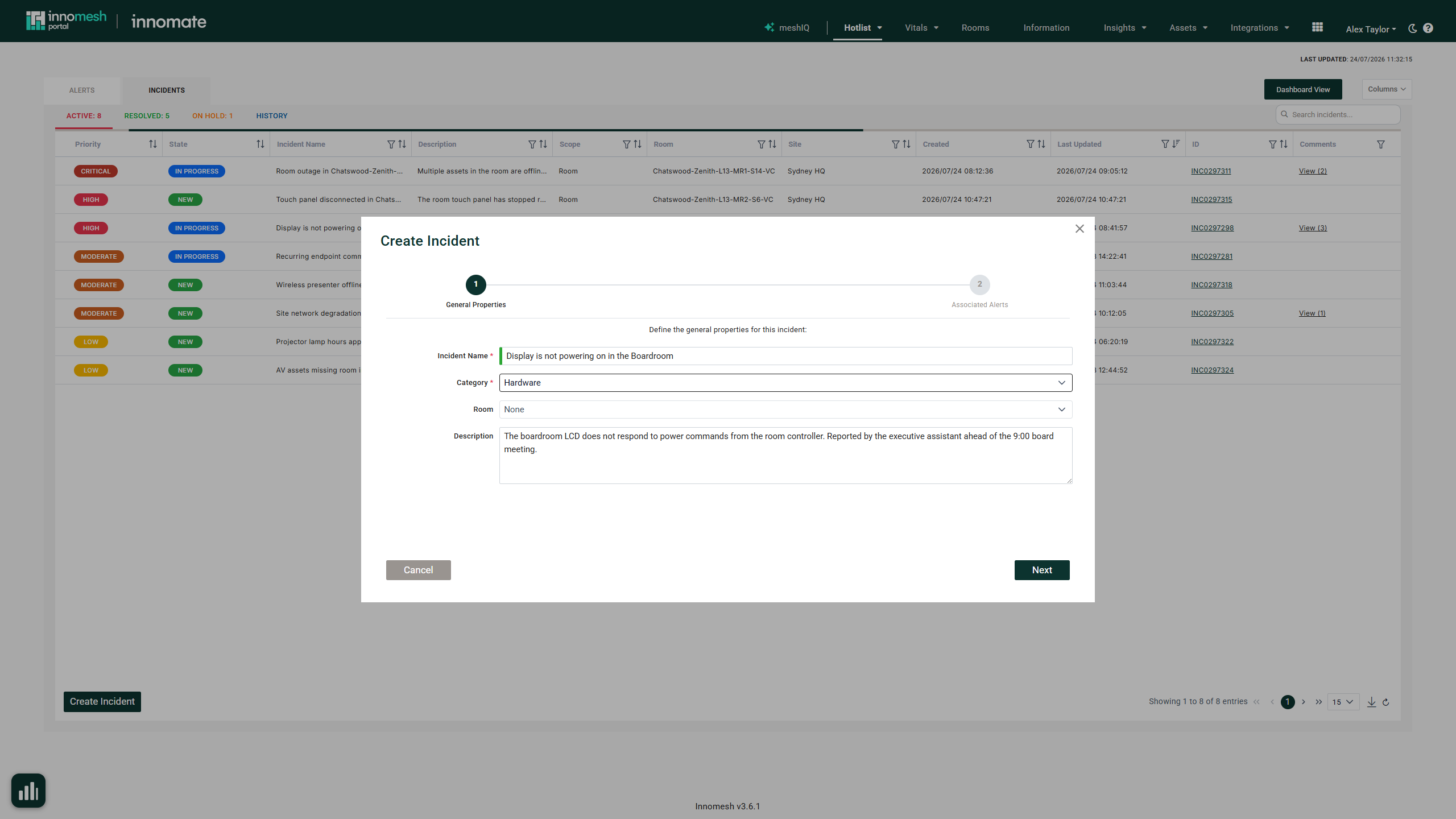 Create Incident dialog | Innomesh Portal
Step 1: General Properties
| Field | Required | Notes |
|---|---|---|
| Incident Name | Yes | Free text. Must be unique across existing incidents. |
| Category | Yes | Dropdown of your tenancy’s configured categories. |
| Assigned To | Conditional | User picker. Required when no ITSM integration is configured; sourced from the ITSM otherwise. |
| Room | No | Selecting a room sets the scope to Room and narrows Step 2 to that room’s alerts. Without a room, the scope is Global. |
| Impact | Conditional | Dropdown. Required when enabled for your tenancy. |
| Urgency | Conditional | Dropdown. Required when enabled for your tenancy. |
| Description | No | Multi-line free text. |
Step 2: Associated Alerts
Tick one or more alerts to associate with the incident, or leave the selection empty. All active alerts that are not suppressed, as well as recently resolved alerts, are available for selection. If Step 1 included a room, the list is narrowed to that room.
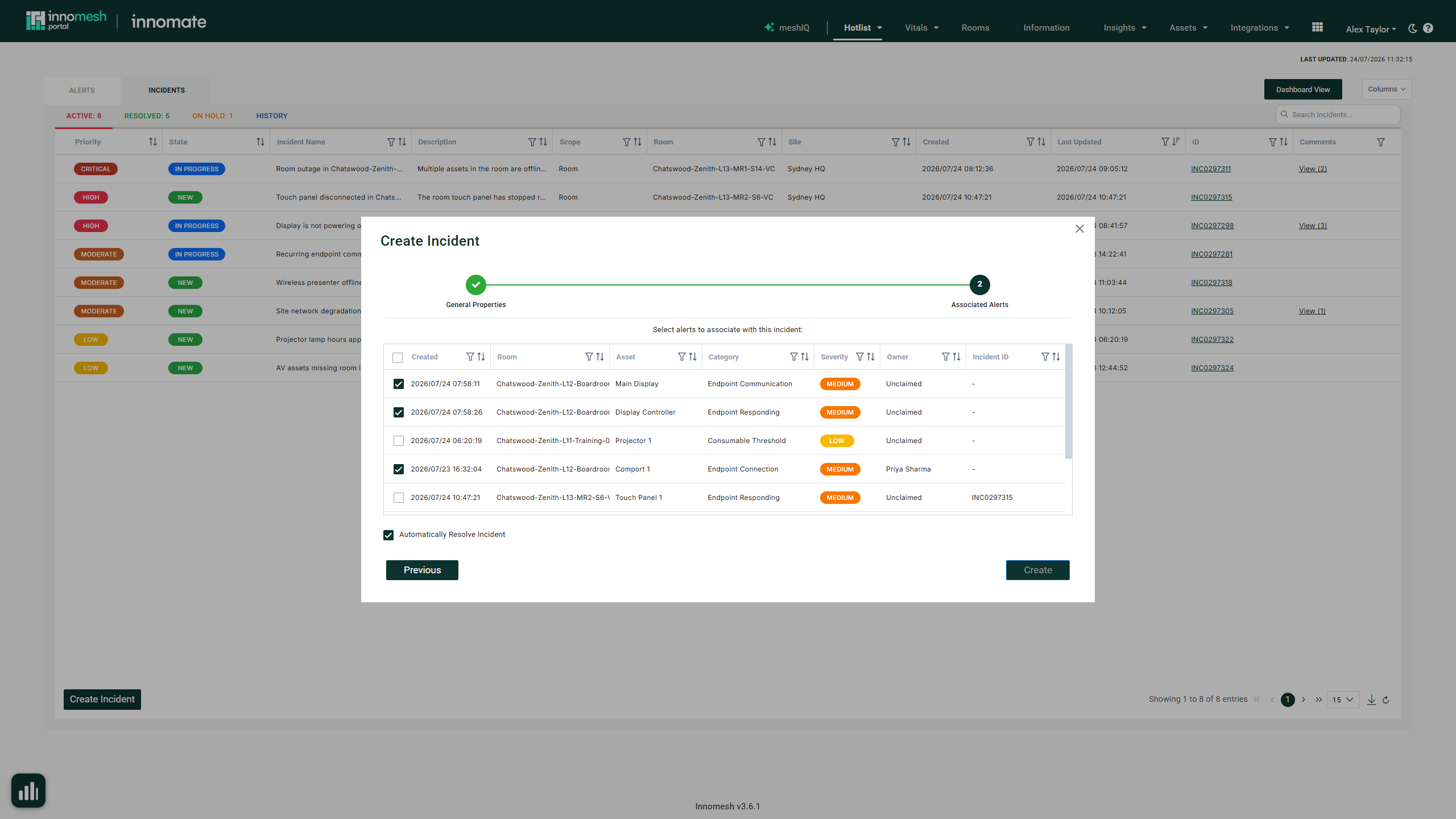
Automatically Resolve Incident is ticked by default once at least one alert is selected, and closes the incident once every associated alert clears. Untick it to keep the incident open regardless. With no alerts selected, the option is unavailable.
Click Create to submit. The new incident appears on the Active sub-tab.