A few controls in the meshIQ chat help you steer and trust what it returns: stop a request that is heading the wrong way, see which timezone a chart’s times are in, and report an answer that went wrong. This article covers each. For an introduction to meshIQ, see the meshIQ Overview.
Stopping a Request
While meshIQ is working on a request, you can stop it. Stopping cancels the work end to end: meshIQ does not keep running the query in the background after the response disappears from view.
Timezones on Charts
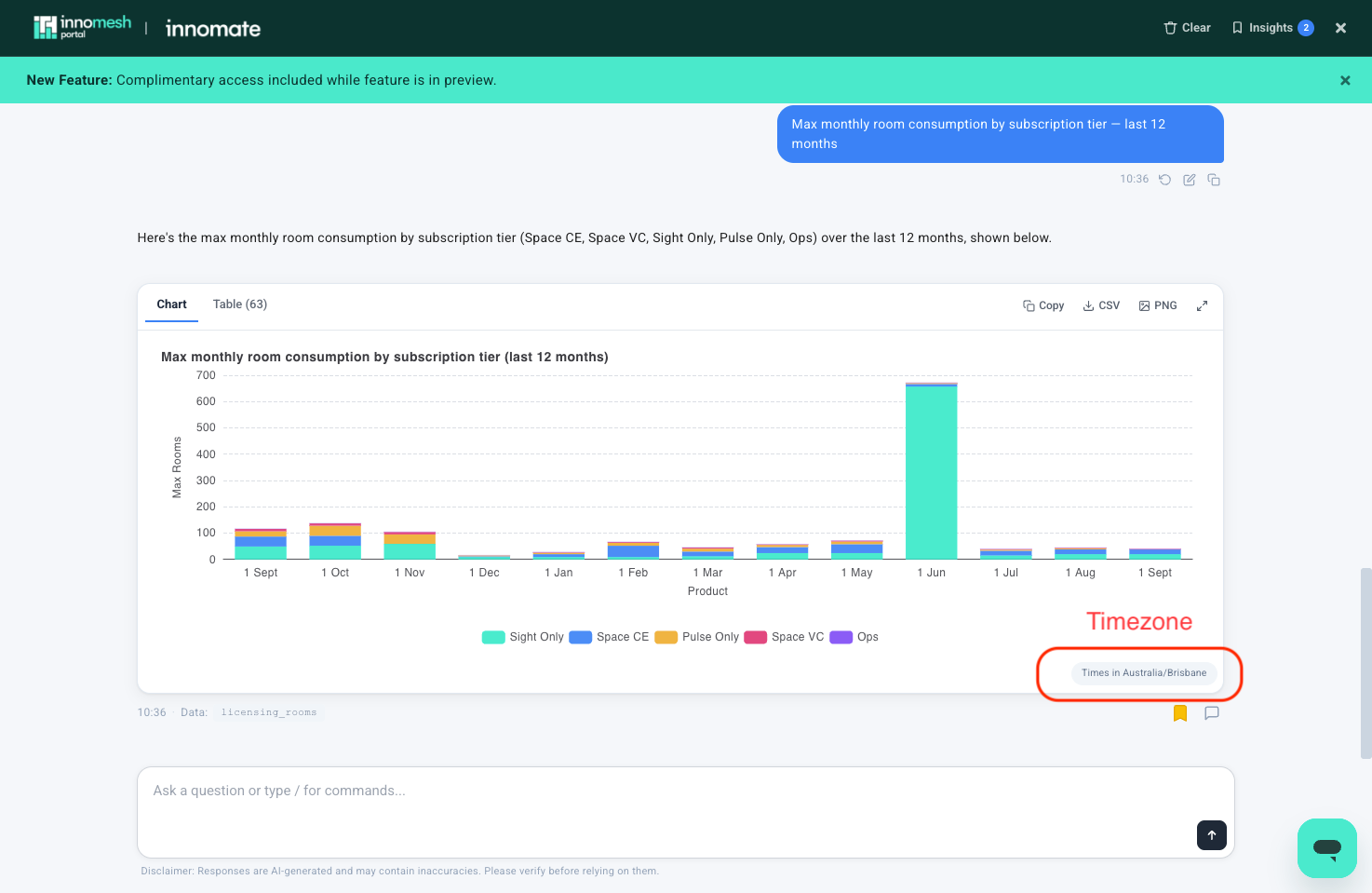
meshIQ applies your tenant’s timezone to every analytics result. Each visualisation carries a timezone pill naming the timezone its times are in, so a chart can be read without guessing which midnight it starts from.
Giving Feedback on an Answer
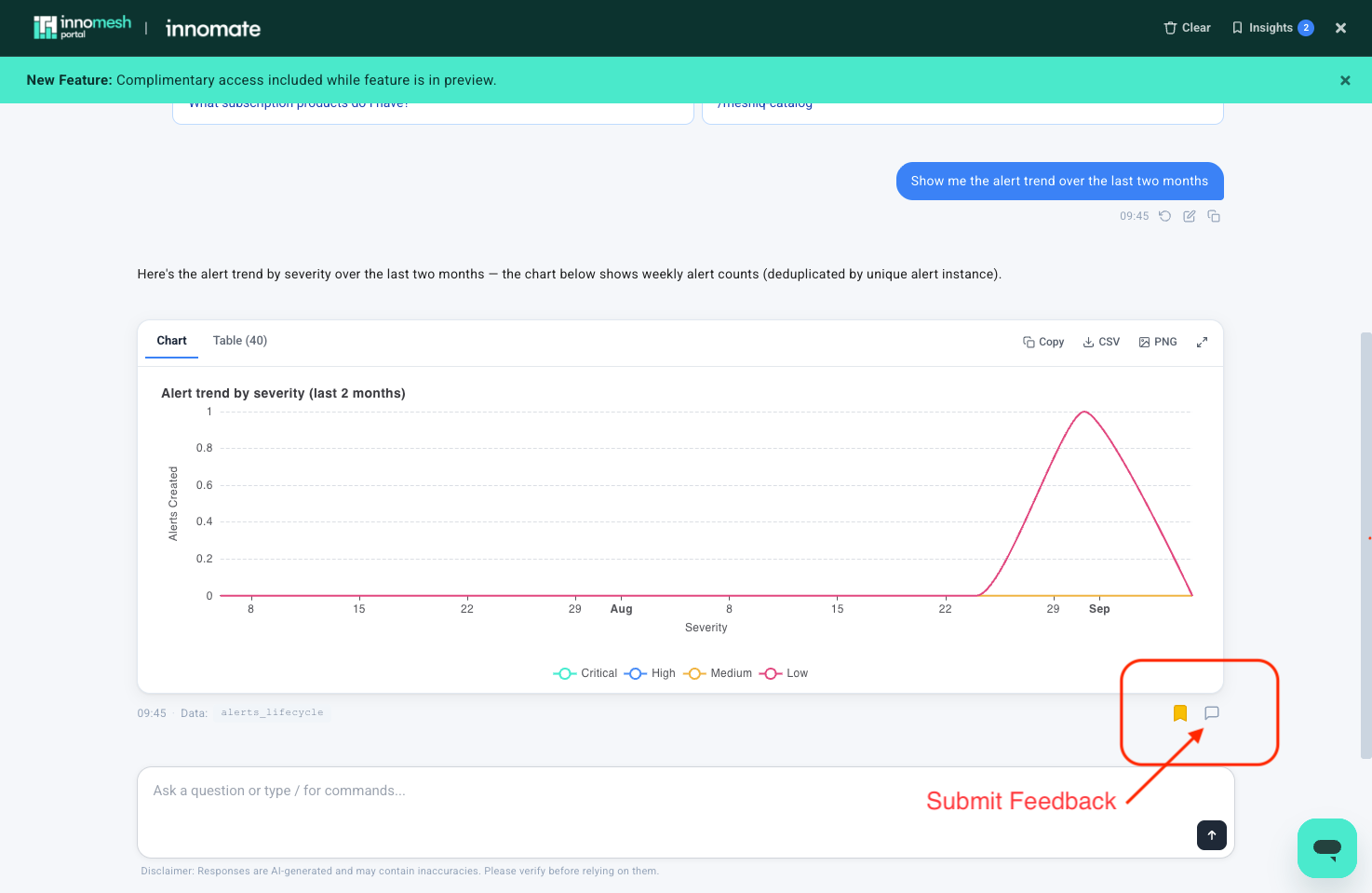
meshIQ responses carry a feedback icon (a speech bubble). On an insight it sits beside the bookmark icon, and error cards carry it too, so a failed answer can be reported in one click.
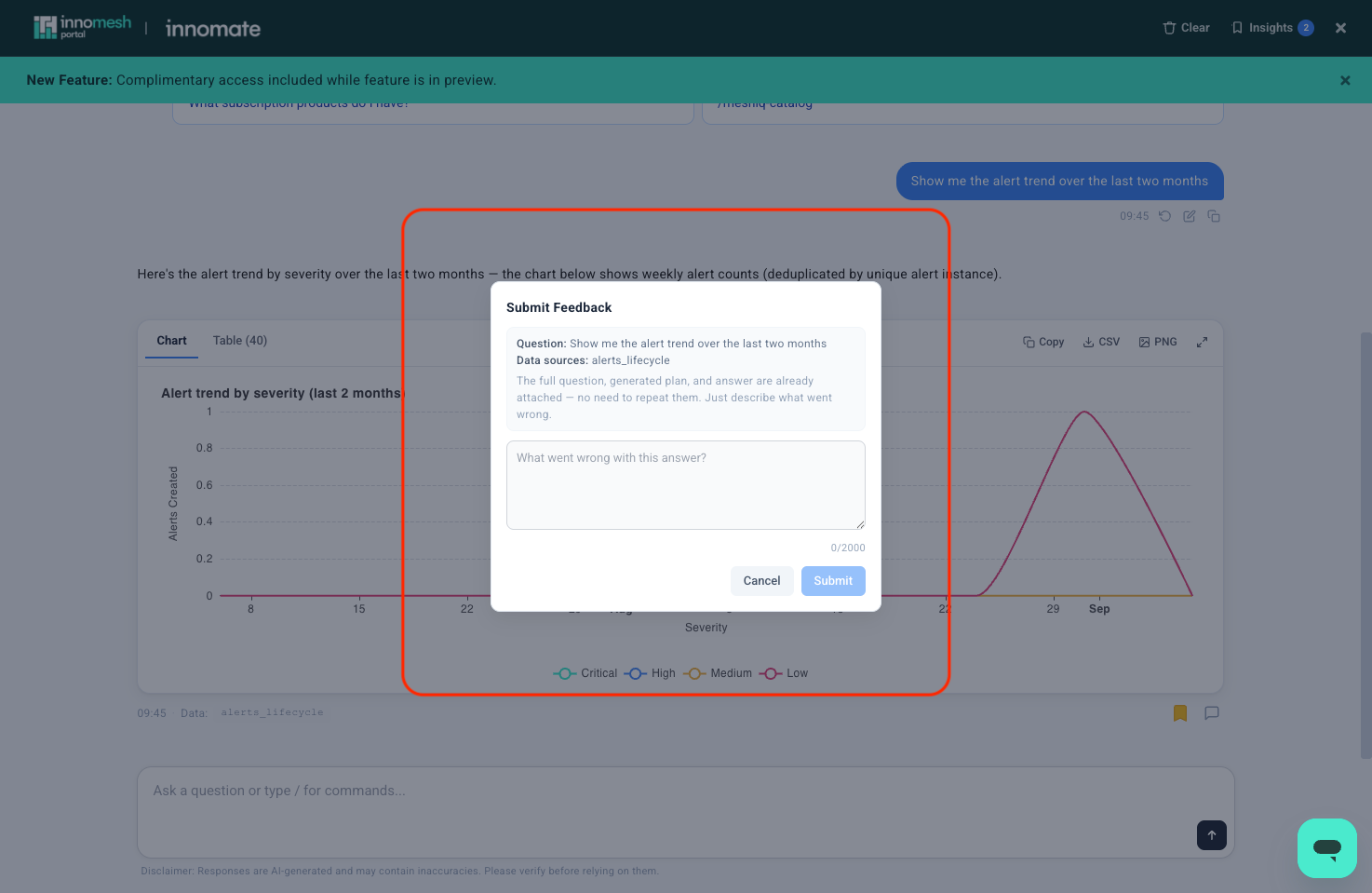
Selecting the icon opens the Submit Feedback form. It shows the question you asked and the data sources used, and notes that the full question, meshIQ’s generated plan, and the answer are already attached. Describe what went wrong and select Submit.