

Automation policies normally run on their own schedule, across every device they target. A manual policy run applies one device’s policies to that device immediately, perfect for freshly installed or replaced hardware that needs configuring while you are still in the room.
Running Policy Actions on Demand
Use this to bring a device to its standard configuration immediately, without waiting for a maintenance window or for a condition to be breached.
Before you start:
- Your role needs permission to run device actions. This is the same permission that governs the device’s other actions, such as Reboot. See the RBAC Authorisation Guide.
- At least one enabled policy has to apply to the device, otherwise the button does not appear.
-
Open the device’s Asset Information page, also called the Asset Support View.
-
Click Run Policy Actions at the bottom of the page. The button appears once Innomesh has worked out which policies apply, so it may take a moment to show.
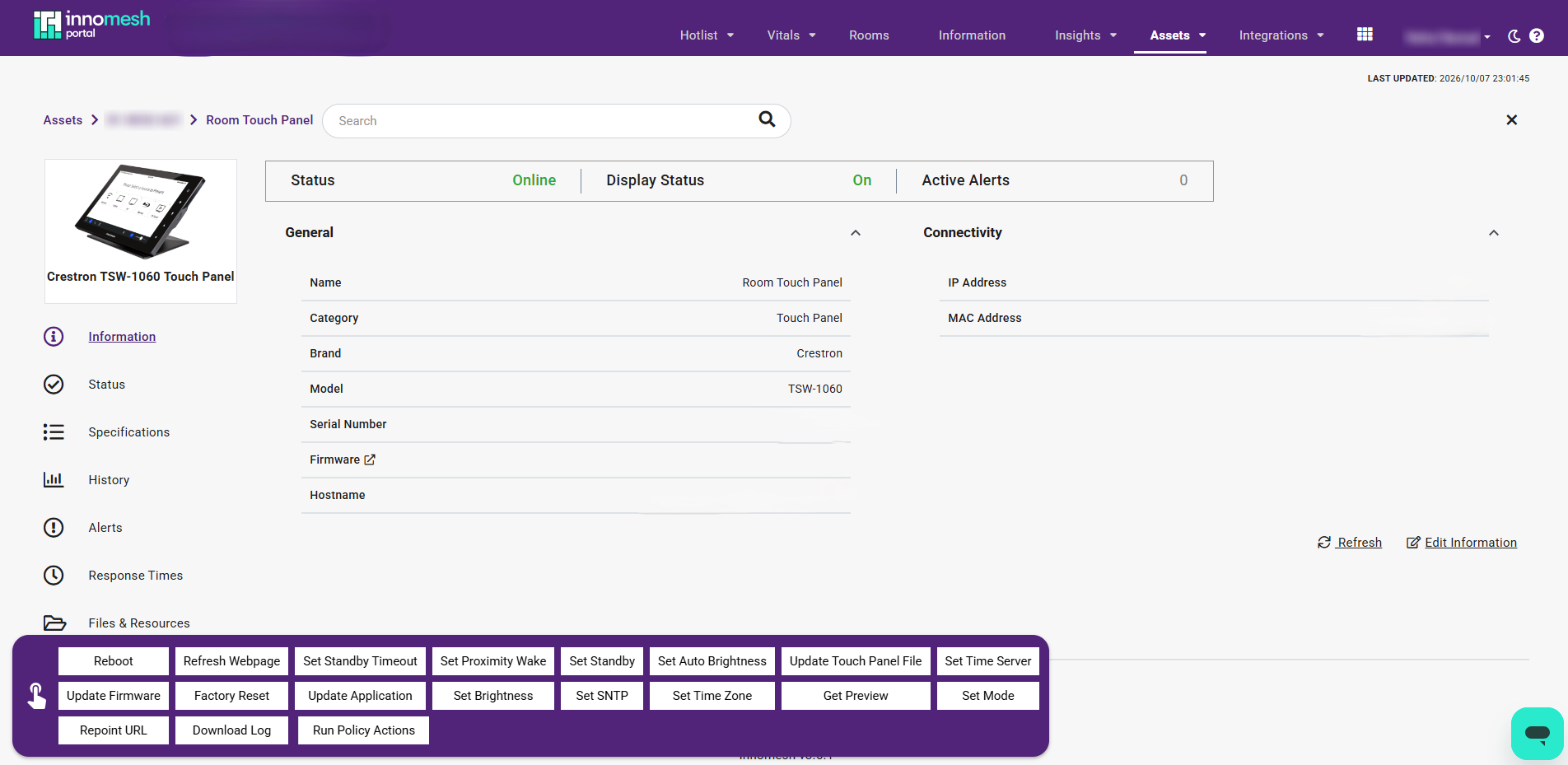
Run Policy Actions sits alongside the device's other operations, at the bottom of the Asset Support View -
Choose an entry from the Policy dropdown. All onboarding policies is listed first and selected by default when the device has any, and every applicable policy is listed after it in alphabetical order. Type in the dropdown to filter a long list. See Onboarding Policies for how that first entry is curated.
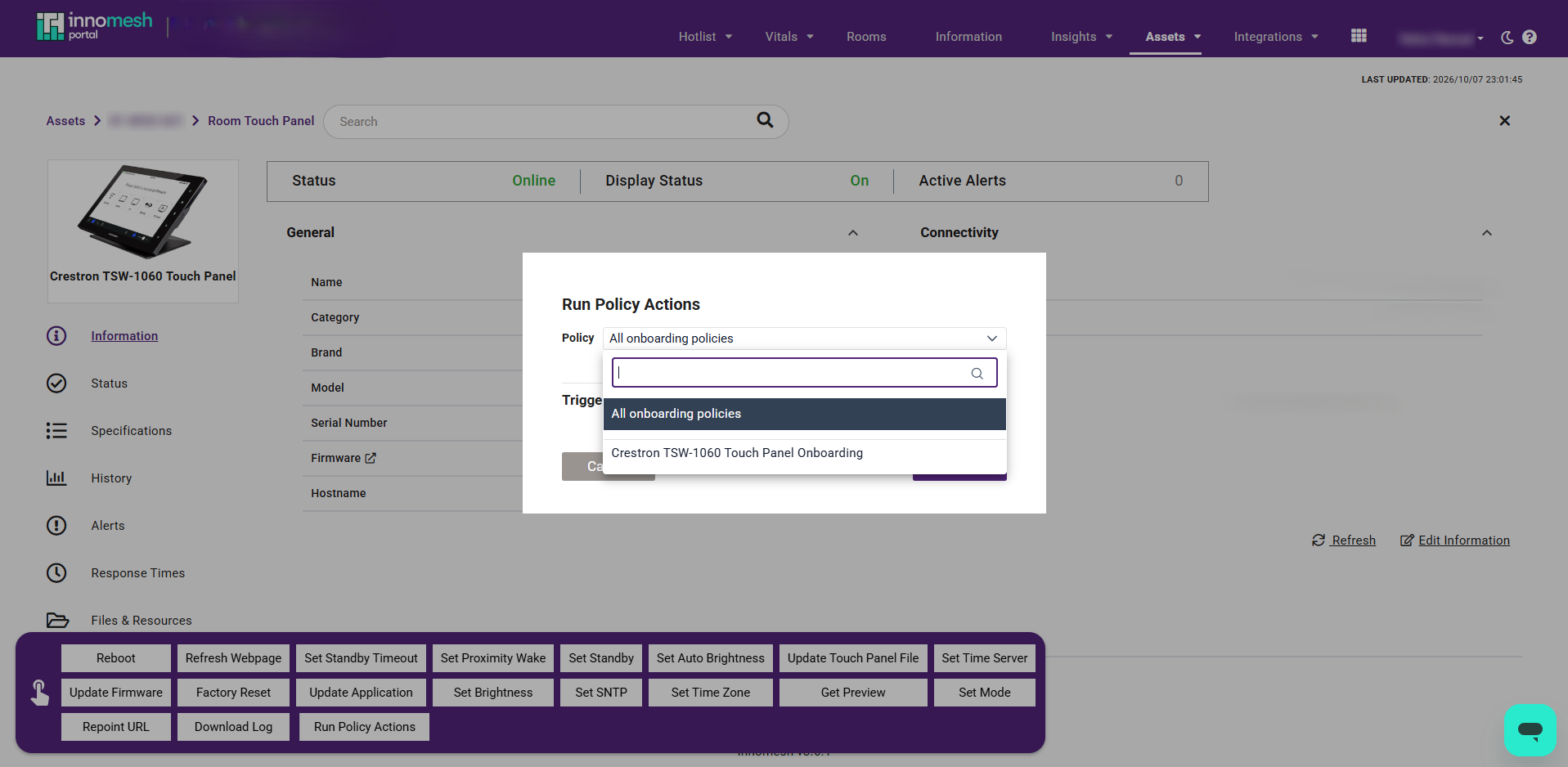
All onboarding policies is listed first, followed by each policy that applies to the device -
Read the summary line. It reports the number of actions for a single policy, and both the action and policy counts for the bundle.
-
Click the chevron on the summary line to review exactly what will run. A single policy expands to a flat list, and the bundle expands to one group per policy. Both are shown in the order the actions will be queued. A value in italics is a dynamic expression already resolved for this device, and hovering it reveals the expression behind it.
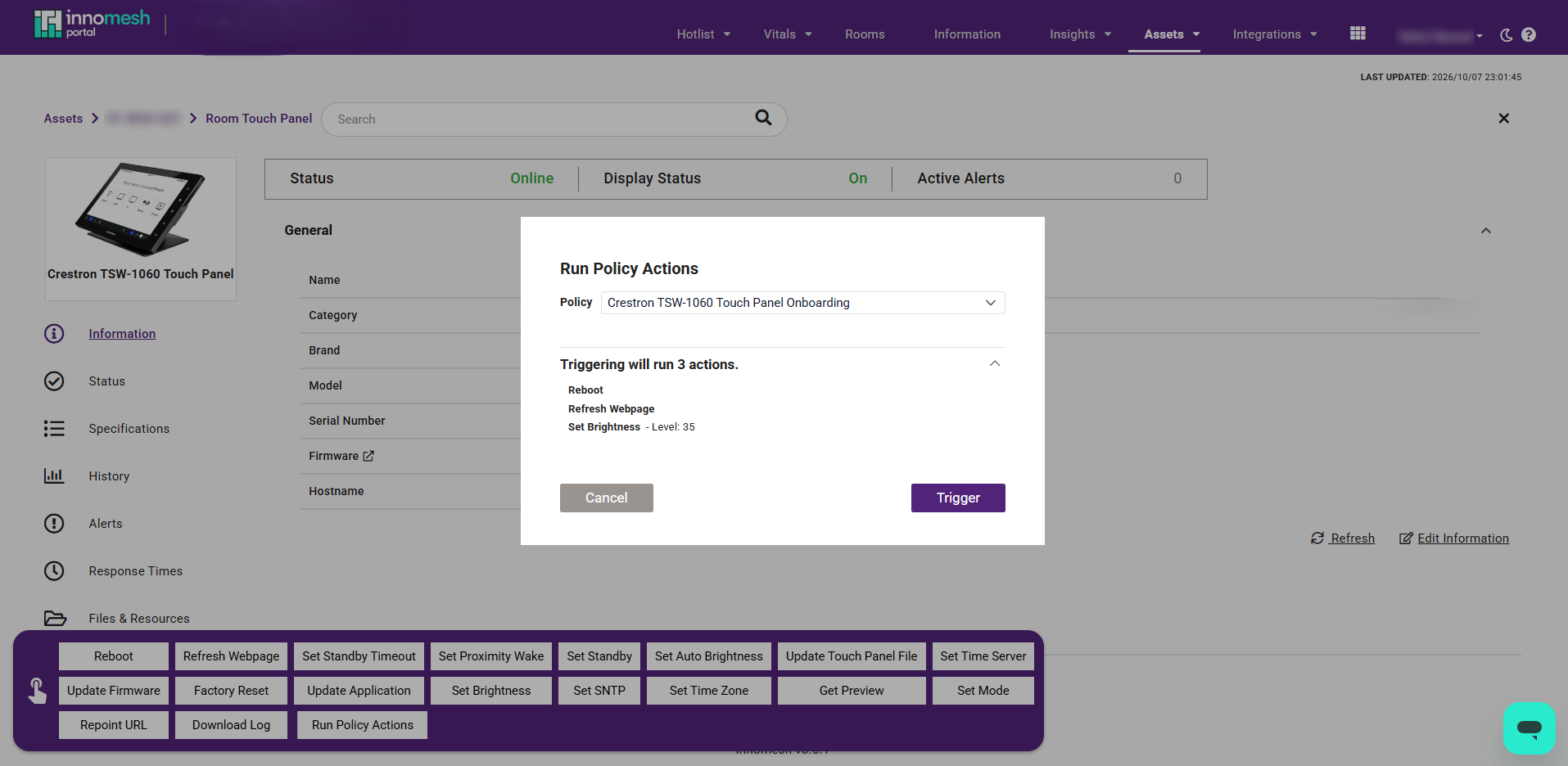
Expanding the summary lists each action with its parameters, in the order they will run -
Click Trigger. A confirmation reports how many actions were scheduled, along with any it could not schedule.
What a Manual Run Does Differently
A manual run deliberately sets aside two of the policy’s own rules:
- The trigger time is ignored. Actions are scheduled for the next whole minute, whatever the policy’s Action Trigger Time says. A maintenance window policy runs now.
- The conditions are ignored. A property-based policy’s actions run whether or not the device is currently in breach. A manual run asserts the configuration rather than correcting a drift.
Cancelling or Re-running
Manual run actions queue behind whatever is already pending for that device, and are staggered in the usual way. See Appendix: Action Staggering and Queuing.
To stop actions that have not run yet, open Assets > Actions and delete them from the Schedule tab, the same as any other pending action.
Onboarding Policies
When a new device always needs the same provisioning policies applied, mark them as Onboarding policies to run in one go with the All onboarding policies option. The checkbox sits beside Policy Type on the policy form, and appears only for property-based and time-based policies, since alert-based policies cannot be run by hand.
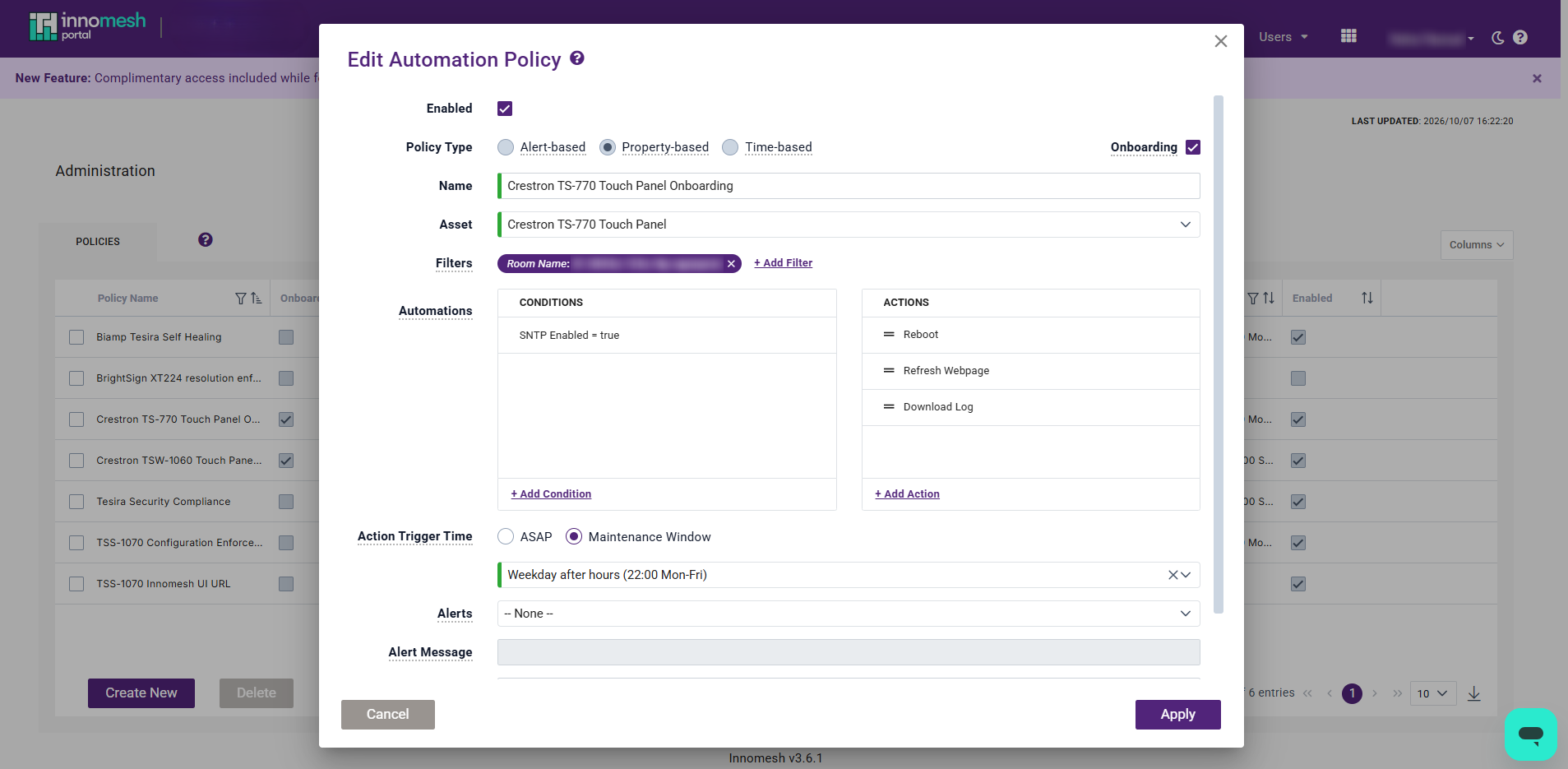
The set should describe a correctly configured device of that type. A configuration enforcement policy and a security compliance policy both belong in it. A weekly reboot policy does not, even though it targets the same devices.
Evaluation After a Hardware Change
You will often not need a manual run at all. Depending on its driver, Innomesh may gather a device’s MAC address and serial number as part of its regular monitoring. When one of these changes, including the first time a device reports one, Innomesh evaluates that device against every enabled policy that applies to it, and each policy runs or schedules its actions as it normally would.
This happens within about 15 minutes, or up to about 30 minutes for a brand-new device that Sight has to discover first.
Detected changes are recorded in the activity feed, so you can confirm after the fact that Innomesh saw the device. See Audit Logs.
Verification
-
Navigate to Assets > Actions. On the Schedule tab, confirm a row exists for each action. For a manual run the Origin column shows User with your name, and Type reads One-Time (ASAP).
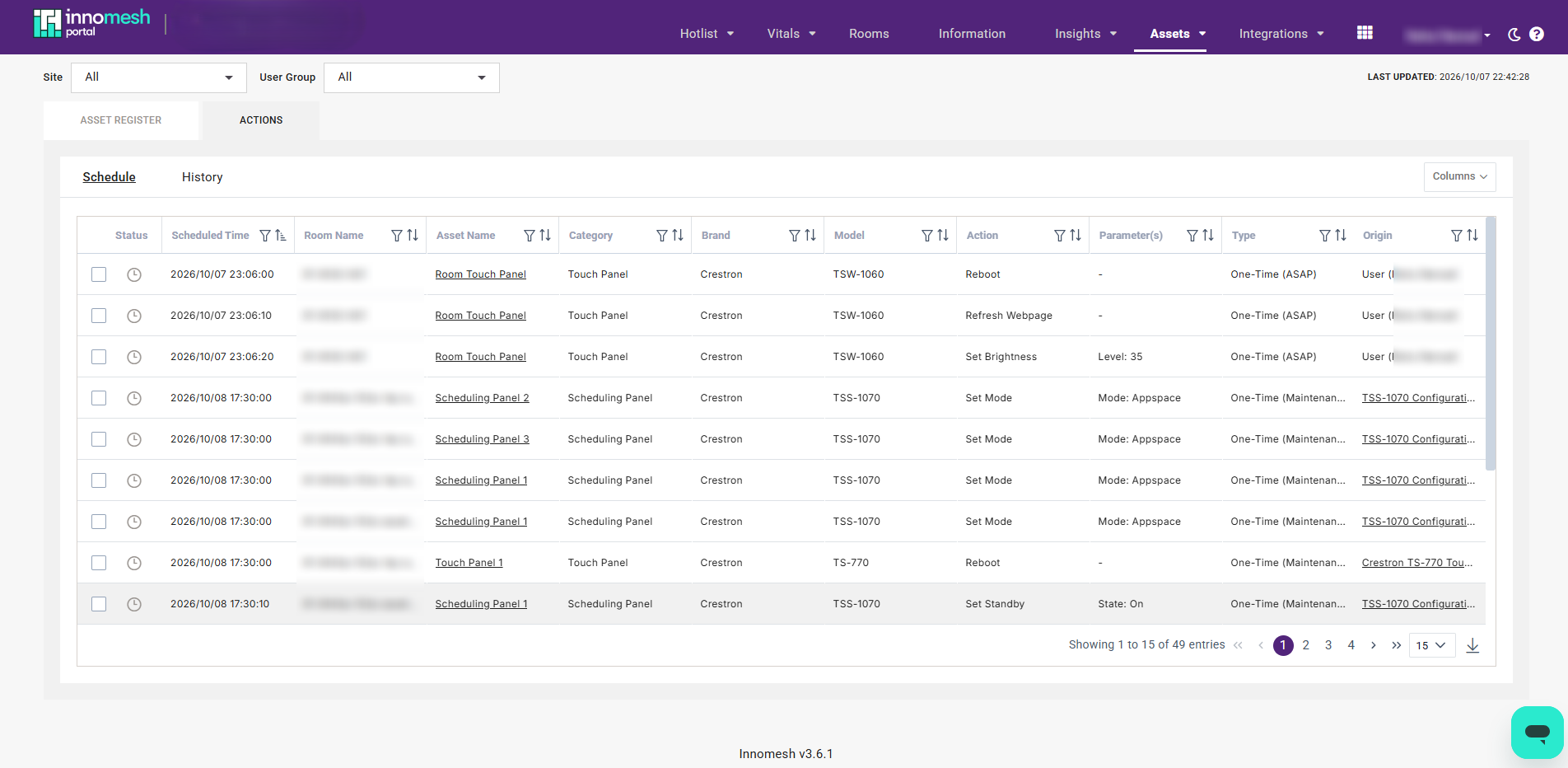
A manual run's actions on the Schedule tab, ten seconds apart, with the user who triggered them as the origin -
After the actions run, open the History tab and check the outcome of each. Hover a status icon for detail.
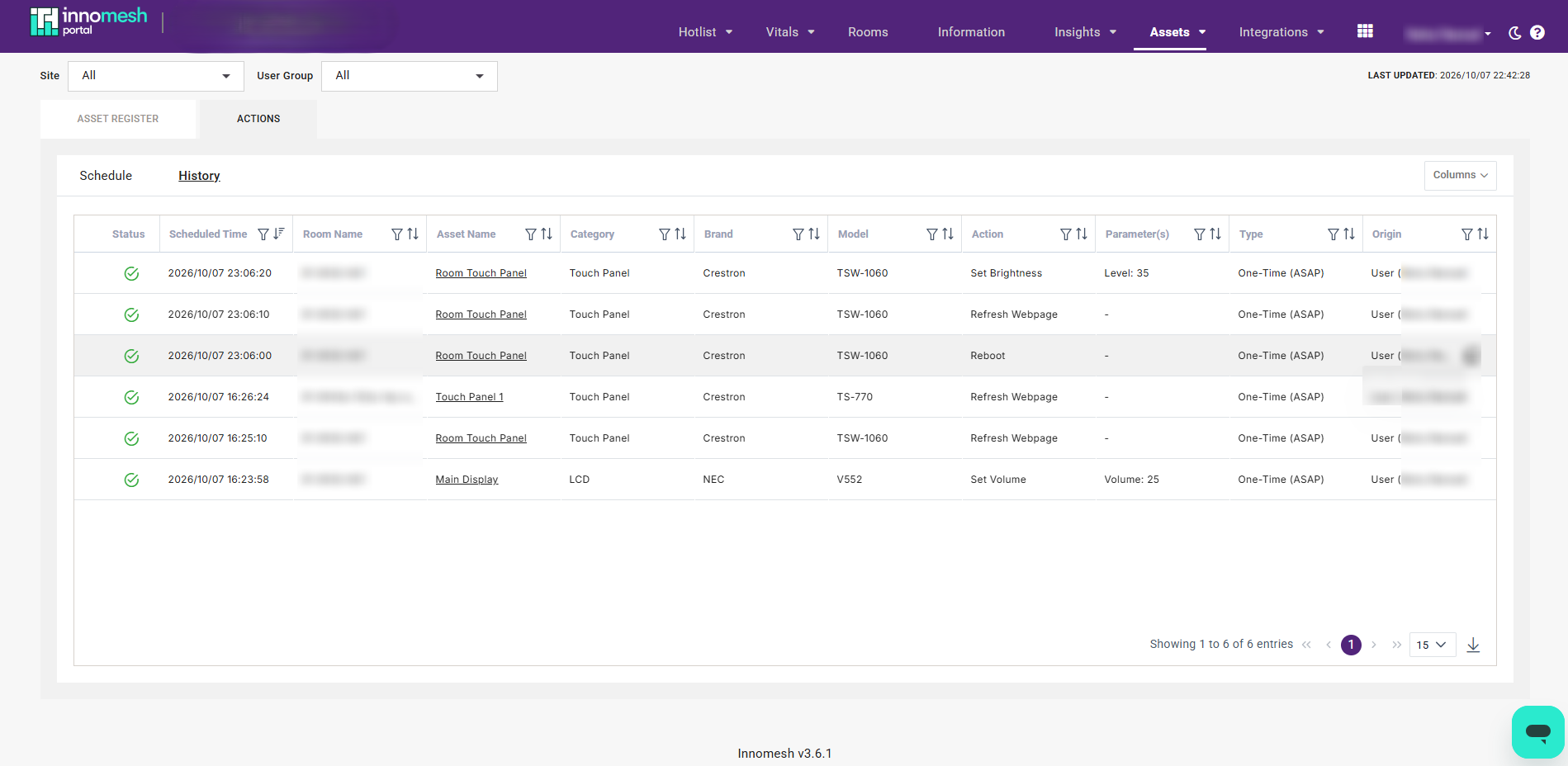
The same actions on the History tab once they have run -
Open the device’s Status tab and confirm the properties now hold the expected values.
Troubleshooting
| Symptom | Likely cause |
|---|---|
| Run Policy Actions is not on the page | No enabled policy applies to this device, or your role cannot run device actions. Check the device’s category, brand, and model against the policy’s asset profile, and check the policy’s filters. |
| A policy is missing from the dropdown | The policy is disabled, its asset profile does not match the device, a filter excludes the device, or it is alert-based. Alert-based policies are never offered. |
| All onboarding policies is not offered | No applicable policy has the Onboarding checkbox ticked. |
| The confirmation reports actions it could not schedule | A policy stopped applying to the device between the page loading and the trigger, usually because it was edited or disabled in the meantime. Reload the page and try again. |
| Actions ran but nothing changed on the device | The actions are scheduled and staggered, so allow for the queue. Check the History tab for failures. |
| New hardware was not picked up automatically | The device reports no MAC address or serial number, or the replacement reports the same values as the unit it replaced. Note that only values the device reports itself count, so correcting a MAC address by hand on the asset record does not trigger an evaluation. |
| A device was evaluated but its actions have not run | The policy uses a maintenance window, so its actions are scheduled for the window rather than run immediately. Run the policy by hand if you need it applied now. |