

The meshIQ MCP Server exposes meshIQ platform tools to AI agents through the Model Context Protocol (MCP), an open standard for connecting AI applications to external systems. Connect Claude, Microsoft Copilot, Cursor, or your own LLM-based applications to your Innomesh tenancy and ask natural-language questions about rooms, assets, alerts, and automation. The agent discovers the available tools automatically and calls them on your behalf.
Key Concepts
| Concept | Description |
|---|---|
| Model Context Protocol | An open standard that gives AI applications a uniform way to discover and invoke tools on external systems. The meshIQ MCP Server implements MCP over Streamable HTTP (JSON-RPC 2.0). |
| Tools | The individual capabilities the server exposes, such as rooms, asset_status, or alert_details. Each tool has a name, description, and input schema that the agent reads at connection time. |
| MCP Endpoint | A tenant-specific HTTPS endpoint served from your Platform API Gateway at the path /v1/mcp. |
| API Key | Your tenancy’s Platform API key, sent as an x-api-key header on every request. The same key you use for the Platform API. |
| OAuth Access Token | A short-lived bearer token minted from your OAuth client credentials and sent in the Authorization header on every request. Tokens expire after roughly two hours. |
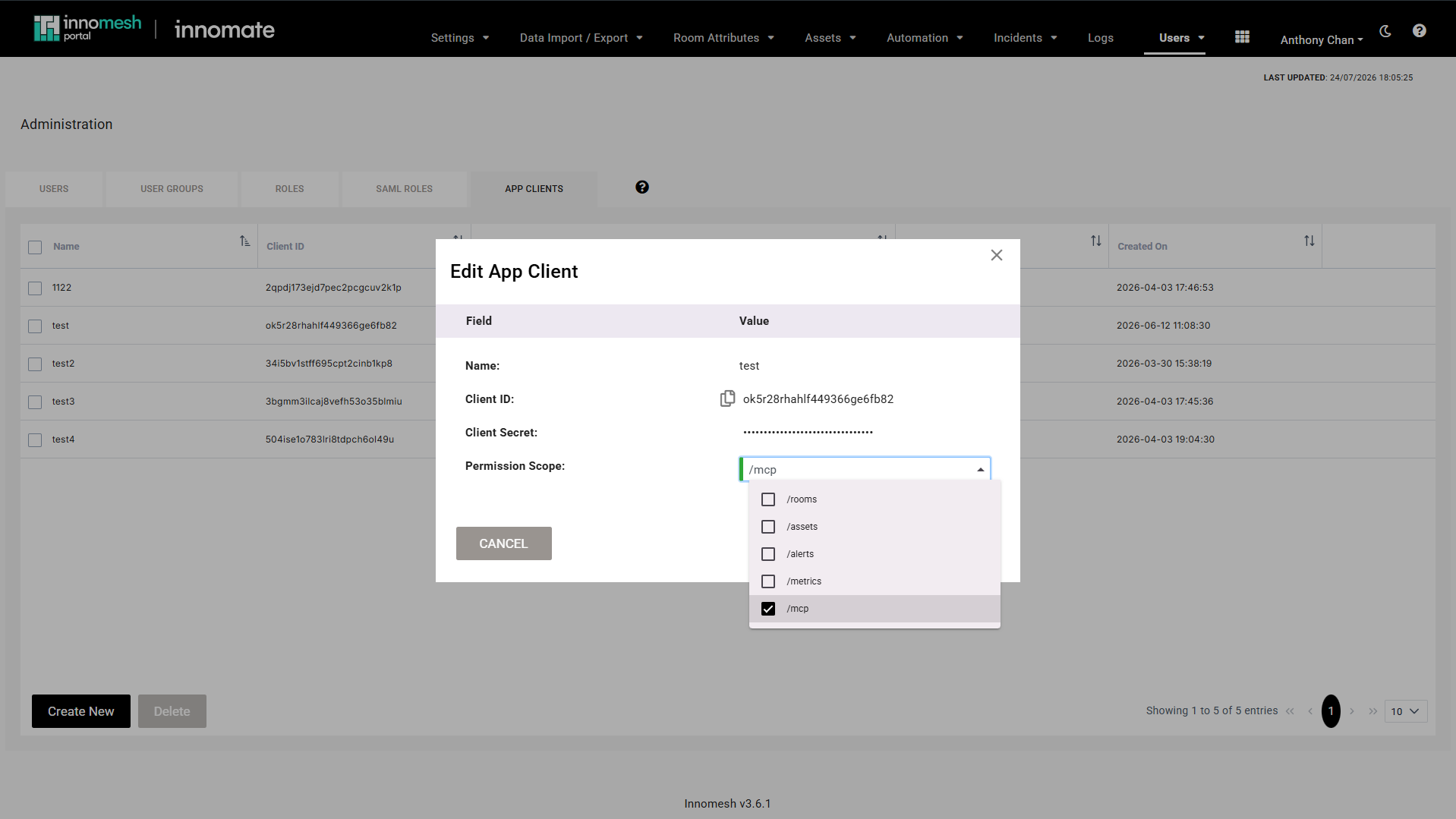
| App Client | The identity your integration authenticates as, holding the OAuth client ID and secret. App clients are managed under Users > App Clients in Innomesh Portal. They need the /mcp permission scope enabled to use the MCP Server. |
Connecting
Endpoints
Each tenancy has its own MCP endpoint on its Platform API Gateway domain, and a matching OAuth token endpoint for minting access tokens. The base domain is region-specific:
| Region | MCP endpoint | OAuth token endpoint |
|---|---|---|
| AU | https://api.platform.<tenant>.innomesh.com.au/v1/mcp | https://auth.platform.<tenant>.innomesh.com.au/oauth2/token |
| EU | https://api.platform.<tenant>.innomesh.io/v1/mcp | https://auth.platform.<tenant>.innomesh.io/oauth2/token |
| US | https://api.platform.<tenant>.innomesh.us/v1/mcp | https://auth.platform.<tenant>.innomesh.us/oauth2/token |
Authentication
Every request to the MCP endpoint must carry both of the following headers:
| Header | Value |
|---|---|
x-api-key | Your tenancy’s long-lived Platform API key, the same key used for the Platform API. Request it from Innomate support (UXT Support). |
Authorization | Bearer <access-token>, where <access-token> is a short-lived OAuth 2.0 access token minted with your client credentials. |
The client credentials come from an app client, which you manage yourself in Innomesh Portal. Open Users > App Clients and create or edit an app client to obtain its client ID and client secret. Then tick /mcp in the app client’s Permission Scope list. Without this permission, the MCP Server rejects the client’s requests.
Mint an access token with the OAuth 2.0 client credentials grant:
curl -s -X POST "https://auth.platform.<tenant>.innomesh.com.au/oauth2/token" \
  -H "Content-Type: application/x-www-form-urlencoded" \
  -u "<client-id>:<client-secret>" \
  -d "grant_type=client_credentials"
The response contains an access_token and an expires_in value in seconds. Access tokens expire after roughly two hours, so they need to be refreshed. See Appendix: Refreshing Tokens for a reusable refresh script, or use Claude Code’s headers helper below for fully automatic refresh.
scope parameter is needed when requesting a token. Leave it out: access is governed by your API key and client credentials.To keep credentials out of config files, export them as environment variables in your shell profile and reference them from your MCP client configuration:
export INNOMATE_MCP_URL="https://api.platform.<tenant>.innomesh.com.au/v1/mcp"
export INNOMATE_TOKEN_URL="https://auth.platform.<tenant>.innomesh.com.au/oauth2/token"
export INNOMATE_TENANT_API_KEY="<your-tenant-api-key>"
export INNOMATE_M2M_CLIENT_ID="<your-oauth-client-id>"
export INNOMATE_M2M_CLIENT_SECRET="<your-oauth-client-secret>"
All responses are scoped to your tenancy. The combination of your tenant domain, API key, and access token determines which data the tools can return.
Example: Claude Code
Claude Code builds the request headers by running a helper script each time it connects. When the server rejects an expired token, it re-runs the script automatically. This makes it the simplest client to keep authenticated: no manual token refresh is needed.
Save the following as ~/.innomate/mcp-headers.sh and make it executable (chmod +x). The script requires curl and jq:
#!/usr/bin/env bash
set -euo pipefail

TOKEN=$(curl -s -X POST "$INNOMATE_TOKEN_URL" \
  -H "Content-Type: application/x-www-form-urlencoded" \
  -u "${INNOMATE_M2M_CLIENT_ID}:${INNOMATE_M2M_CLIENT_SECRET}" \
  -d "grant_type=client_credentials" \
  | jq -r '.access_token')

printf '{"x-api-key": "%s", "Authorization": "Bearer %s"}\n' "$INNOMATE_TENANT_API_KEY" "$TOKEN"
Then create a .mcp.json file in your project root (or add the entry to your global Claude Code MCP configuration):
{
  "mcpServers": {
    "meshiq": {
      "type": "http",
      "url": "https://api.platform.<tenant>.innomesh.com.au/v1/mcp",
      "headersHelper": "/home/<you>/.innomate/mcp-headers.sh"
    }
  }
}
On Windows, point headersHelper at a .ps1 or .cmd wrapper that prints the same JSON to stdout.
Restart Claude Code and run the /mcp command to confirm the server is connected and its tools are available.
Other MCP Clients
Any MCP client that supports the Streamable HTTP transport can connect, including Claude Desktop, Cursor, Windsurf, Cline, VS Code (GitHub Copilot Chat), and custom agents built on the MCP SDKs. Most of these clients cannot run a headers helper script, but they do support static headers with environment variable expansion:
{
  "mcpServers": {
    "meshiq": {
      "url": "https://api.platform.<tenant>.innomesh.com.au/v1/mcp",
      "headers": {
        "x-api-key": "${env:INNOMATE_TENANT_API_KEY}",
        "Authorization": "Bearer ${env:INNOMATE_MCP_TOKEN}"
      }
    }
  }
}
The INNOMATE_MCP_TOKEN variable holds an access token you have already minted. The refresh script in Appendix: Refreshing Tokens exports it for you.
${env:...} values once, when they connect. They do not notice when the access token expires. When requests start failing after about two hours, mint a fresh token and reconnect the MCP server from the client’s settings panel.Available Tools
Connected agents discover the tool list automatically. The tools cover five areas of the platform.
Rooms
| Tool | Description |
|---|---|
rooms | List all rooms in your tenancy |
room_alerts | Active alerts, optionally filtered by room |
room_assets | Assets installed in a room |
room_config | A room’s configured asset profile and layout |
room_metadata | Room metadata as used by Insights |
room_custom_fields | Custom metadata fields configured for a room |
Assets
| Tool | Description |
|---|---|
assets | Tenant-wide asset inventory, grouped by room, with a counts-only mode |
asset_status | Current live device state |
asset_information | Static device information such as model, serial number, and MAC address |
asset_metadata | Tenant-level asset metadata as used by Insights |
asset_alerts | Active alerts for a specific asset |
asset_alerts_history | Historical alert timeline for an asset |
asset_actions | Available remote actions for an asset, such as reboot, power, and PDU/PoE control |
asset_actions_history | History of executed actions on an asset |
asset_automation | Per-asset automation roll-up covering policies, scheduled actions, and completed actions |
Alerts
| Tool | Description |
|---|---|
alert_details | Full detail for a single alert, including its timeline and validation data |
alerts_history | Tenant-wide historical alert events, up to 90 days |
Automation
| Tool | Description |
|---|---|
automation_policies | Tenant automation policies, covering alert, time, and property triggers |
automation_windows | Maintenance windows and global automation settings |
scheduled_actions | Currently pending or queued automation actions |
completed_actions | Recently completed actions from the last 24 hours, with outcomes |
Licensing
| Tool | Description |
|---|---|
licensing | Tenant licensing and subscription details |
Example Interactions
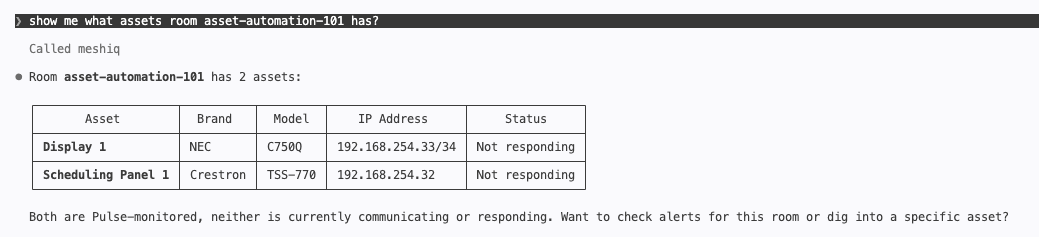
Once connected, ask questions in plain language. The agent selects the right tools, chains them together, and presents the results. For example, asking Claude Code what assets a room contains calls the room_assets tool:
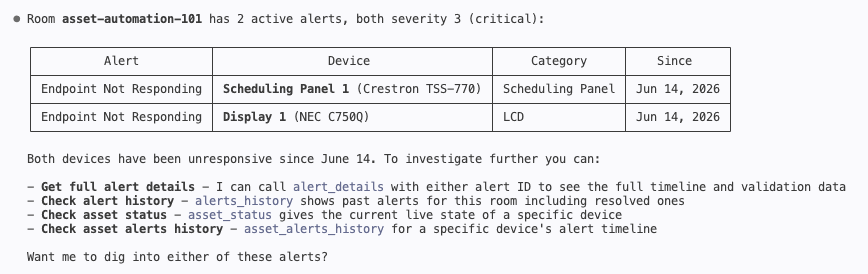
The agent can then follow up on what it finds, such as checking the active alerts for the same room and suggesting which tools to use next:
Other things you can ask include:
- “Show me a list of rooms and their current status”
- “Which rooms have critical alerts right now?”
- “What automation actions ran in the last 24 hours, and did any fail?”
- “Give me the alert history for the displays in Building 3”
Protocol Reference
The MCP Server implements MCP over the Streamable HTTP transport. Each request is a single HTTP POST containing a JSON-RPC 2.0 message. The server replies with a single JSON-RPC response. Requests are stateless: conversation state is the client’s responsibility.
Supported Methods
| Method | Purpose |
|---|---|
initialize | Client handshake. The server declares its capabilities (tools only). |
tools/list | Discover the tools available to your tenancy, including input schemas. |
tools/call | Invoke a tool with arguments and return the result. |
notifications/initialized | Client confirms initialisation is complete. |
ping | Keep-alive and health check. |
The server does not implement MCP resources, prompts, or SSE streaming. All tools return complete responses, so no partial results are streamed.
Errors
Requests that fail authentication are rejected with HTTP 403 Forbidden before any JSON-RPC processing. A 403 has three possible causes: a missing or wrong API key, an invalid or expired access token, or an app client without the /mcp permission scope. Mint a fresh token and check both headers before investigating further.
Protocol-level errors are returned as standard JSON-RPC 2.0 error responses:
| Code | Meaning | When |
|---|---|---|
-32700 | Parse error | Request body is not valid JSON |
-32600 | Invalid request | Missing required JSON-RPC fields |
-32601 | Method not found | Unknown JSON-RPC method, for example resources/list |
-32602 | Invalid params | Unknown tool name or invalid tool arguments |
-32603 | Internal error | Tool execution failure or timeout |
Rate Limits
Requests to the MCP endpoint are rate limited per tenant API key. The default quota is 2 requests per second with a burst of 10, and 10,000 requests per day. Higher limits are available on request through Innomate support.
Related Articles
Appendix: Refreshing Tokens
The scripts below mint a fresh access token and export it as INNOMATE_MCP_TOKEN in your current shell. Use them with MCP clients that read the token from a static header. Both expect the environment variables from the Authentication section to be set.
macOS / Linux (bash or zsh)
Save as ~/.innomate/refresh-innomate-token.sh:
#!/usr/bin/env bash
# Source this file to (re)export a fresh INNOMATE_MCP_TOKEN into the current
# shell. Do NOT execute it directly (./refresh-innomate-token.sh) - that runs
# in a subshell and the export won't reach your interactive shell. Instead:
#
#   source ~/.innomate/refresh-innomate-token.sh

_innomate_refresh_mcp_token() {
    if [ -z "${INNOMATE_M2M_CLIENT_ID:-}" ] || [ -z "${INNOMATE_M2M_CLIENT_SECRET:-}" ] || [ -z "${INNOMATE_TOKEN_URL:-}" ]; then
        echo "innomate: required env vars not set, skipping token refresh" >&2
        return 1
    fi

    local response
    response=$(curl -sS --max-time 5 -X POST "$INNOMATE_TOKEN_URL" \
        -H "Content-Type: application/x-www-form-urlencoded" \
        -u "${INNOMATE_M2M_CLIENT_ID}:${INNOMATE_M2M_CLIENT_SECRET}" \
        -d "grant_type=client_credentials")
    local curl_status=$?

    if [ $curl_status -ne 0 ]; then
        echo "innomate: token refresh request failed (curl exit $curl_status)" >&2
        return 1
    fi

    local token
    token=$(echo "$response" | jq -r '.access_token // empty')

    if [ -z "$token" ]; then
        echo "innomate: token refresh returned no access_token: $response" >&2
        return 1
    fi

    export INNOMATE_MCP_TOKEN="$token"
    local expires_in
    expires_in=$(echo "$response" | jq -r '.expires_in // "?"')
    echo "innomate: INNOMATE_MCP_TOKEN refreshed (expires in ${expires_in}s)" >&2
}

_innomate_refresh_mcp_token
Wire it into your shell startup by adding these lines to ~/.bashrc or ~/.zshrc:
source ~/.innomate/refresh-innomate-token.sh
alias innomate-refresh-token=_innomate_refresh_mcp_token
Every new terminal then starts with a fresh token. Run innomate-refresh-token at any time to mint a new one in the same session.
Windows (PowerShell)
Save as $HOME\Documents\PowerShell\Scripts\refresh-innomate-token.ps1:
function Invoke-InnomateTokenRefresh {
    if (-not $env:INNOMATE_M2M_CLIENT_ID -or -not $env:INNOMATE_M2M_CLIENT_SECRET -or -not $env:INNOMATE_TOKEN_URL) {
        Write-Warning "innomate: required env vars not set, skipping token refresh"
        return
    }

    $pair = "$($env:INNOMATE_M2M_CLIENT_ID):$($env:INNOMATE_M2M_CLIENT_SECRET)"
    $basicAuth = [Convert]::ToBase64String([Text.Encoding]::ASCII.GetBytes($pair))

    try {
        $response = Invoke-RestMethod -Method Post `
            -Uri $env:INNOMATE_TOKEN_URL `
            -Headers @{ Authorization = "Basic $basicAuth" } `
            -ContentType "application/x-www-form-urlencoded" `
            -Body "grant_type=client_credentials" `
            -TimeoutSec 5
    } catch {
        Write-Warning "innomate: token refresh request failed: $_"
        return
    }

    if (-not $response.access_token) {
        Write-Warning "innomate: token refresh returned no access_token"
        return
    }

    $env:INNOMATE_MCP_TOKEN = $response.access_token
    Write-Host "innomate: INNOMATE_MCP_TOKEN refreshed (expires in $($response.expires_in)s)"
}

Invoke-InnomateTokenRefresh
Set-Alias -Name innomate-refresh-token -Value Invoke-InnomateTokenRefresh
Add this line to your PowerShell profile (run echo $PROFILE to find its path):
. "$HOME\Documents\PowerShell\Scripts\refresh-innomate-token.ps1"The leading . (dot-source) is required. It makes the function and the $env: change land in your actual session instead of a disposable child scope.
Appendix: Testing Your Credentials
Confirm your credentials work before wiring up an AI tool. Mint a token, then send an initialize request:
TOKEN=$(curl -s -X POST "$INNOMATE_TOKEN_URL" \
  -H "Content-Type: application/x-www-form-urlencoded" \
  -u "${INNOMATE_M2M_CLIENT_ID}:${INNOMATE_M2M_CLIENT_SECRET}" \
  -d "grant_type=client_credentials" \
  | jq -r '.access_token')

curl -s -X POST "$INNOMATE_MCP_URL" \
  -H "x-api-key: $INNOMATE_TENANT_API_KEY" \
  -H "Authorization: Bearer $TOKEN" \
  -H "Content-Type: application/json" \
  -d '{"jsonrpc":"2.0","id":1,"method":"initialize","params":{"protocolVersion":"2025-06-18","capabilities":{},"clientInfo":{"name":"test","version":"1.0"}}}'
A successful response returns a JSON-RPC result describing the server. A 403 means the API key or token is wrong, the token has expired, or the app client is missing the /mcp permission scope. Re-check your environment variables and mint a fresh token.