

meshIQ can run actions on your assets directly from the chat. Rebooting a panel, capturing what a display is showing, or pulling a device log no longer means leaving the conversation to open the asset in Innomesh Portal. This article covers picking an asset and an action, confirming it, and reading the result. For an introduction to meshIQ, see the meshIQ Overview.
Starting an Action
There are two ways to start: type the /asset-actions command, or ask for what you want in plain language (see Asking in Plain Language).
The /asset-actions command walks through three picks.
-
Pick a room. meshIQ lists your rooms, with a search box and paging for larger estates.
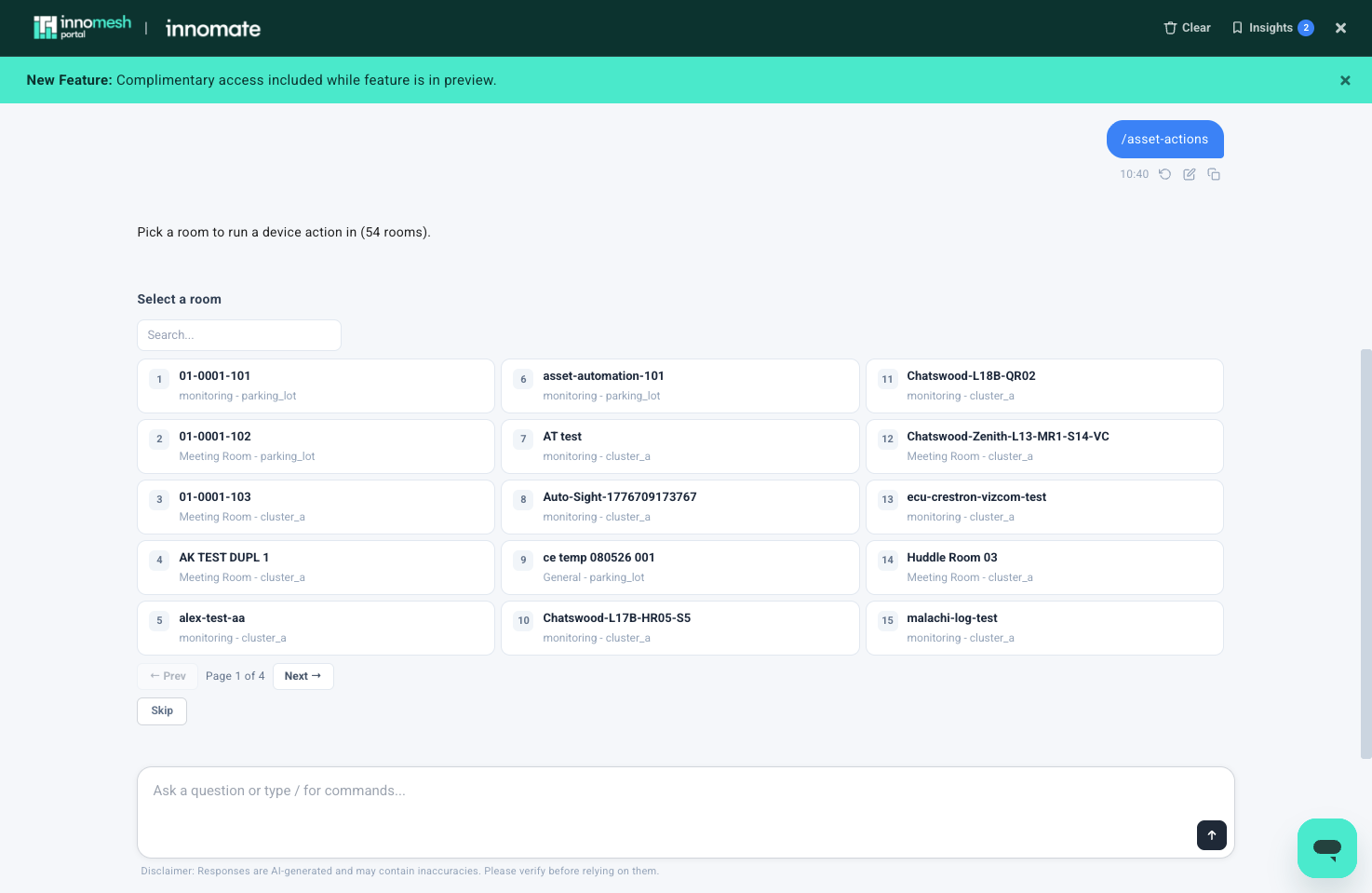
The room picker after typing /asset-actions -
Pick a device. meshIQ lists the assets in the room you chose. Select Pick another room to go back a step.
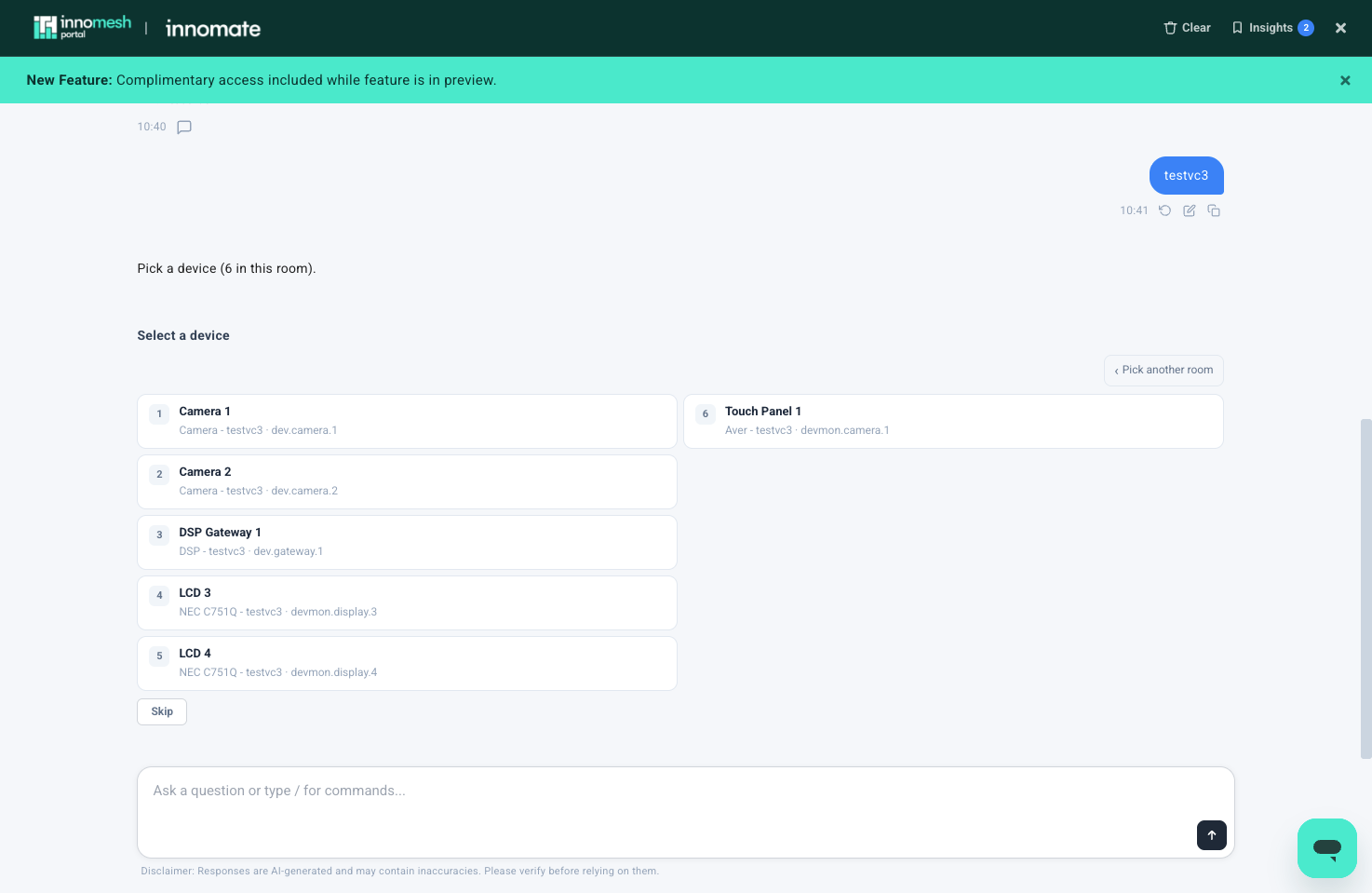
Every asset in the chosen room, identified by name, model, and device ID -
Pick an action. meshIQ lists every action the asset supports.
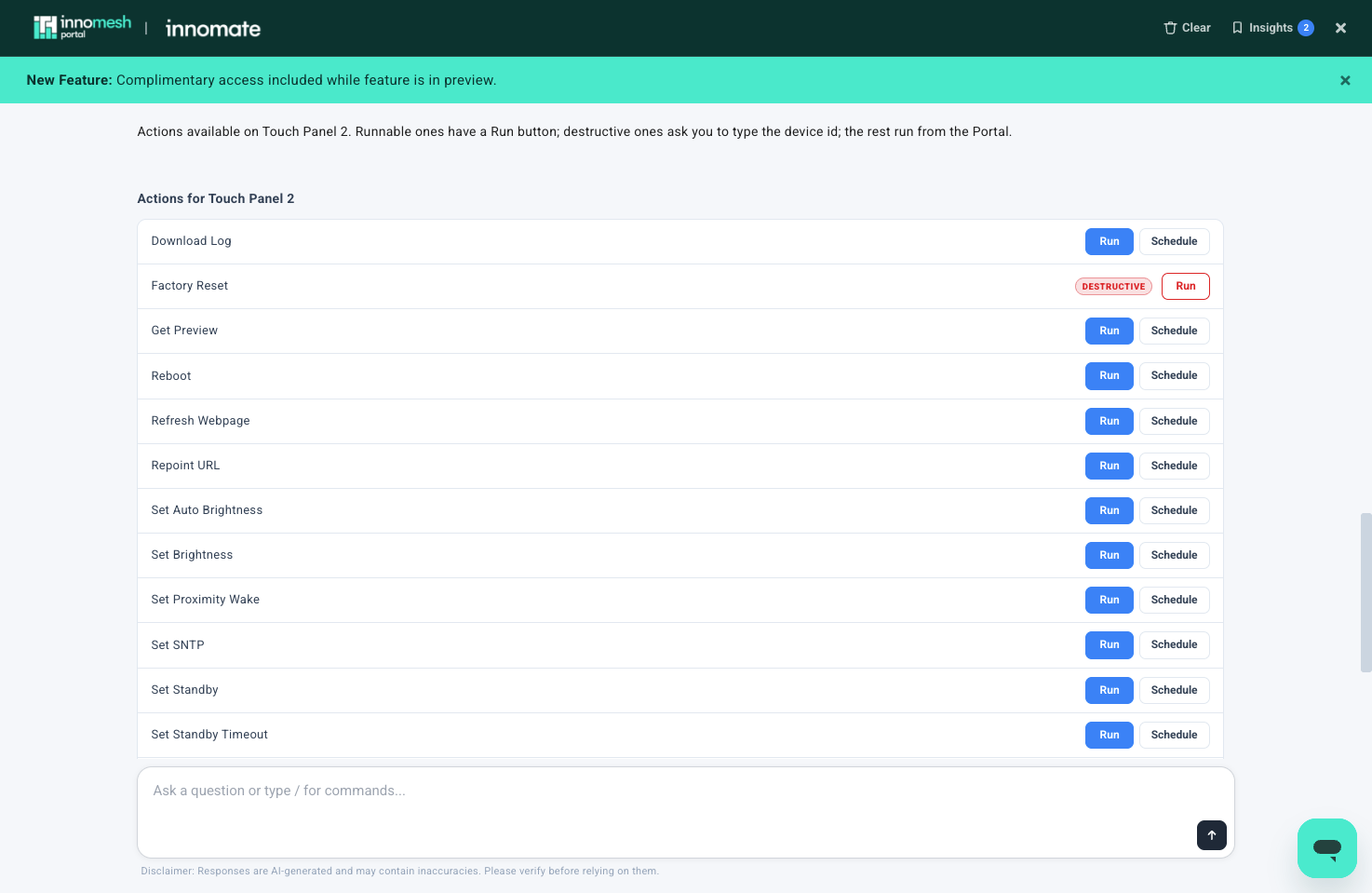
The action list shows everything the asset supports, including actions that only the Portal can run
Reading the Action List
The action list gives the full picture for an asset, not only what chat can run.
| What you see | What it means |
|---|---|
| Run | The action can run now from chat. |
| Schedule | The action can also be queued for later. See Scheduling Actions in meshIQ. |
| Destructive badge | An action such as Factory Reset. To confirm it, you type the asset ID rather than clicking a button. |
| No Run button | The action can only be performed from Innomesh Portal. It is listed so you can see everything the asset supports. |
Confirming and Running
Select Run. meshIQ shows a confirmation card naming the action, device, and room, and how long the confirmation stays open. Select Confirm to proceed, or Cancel to back out.
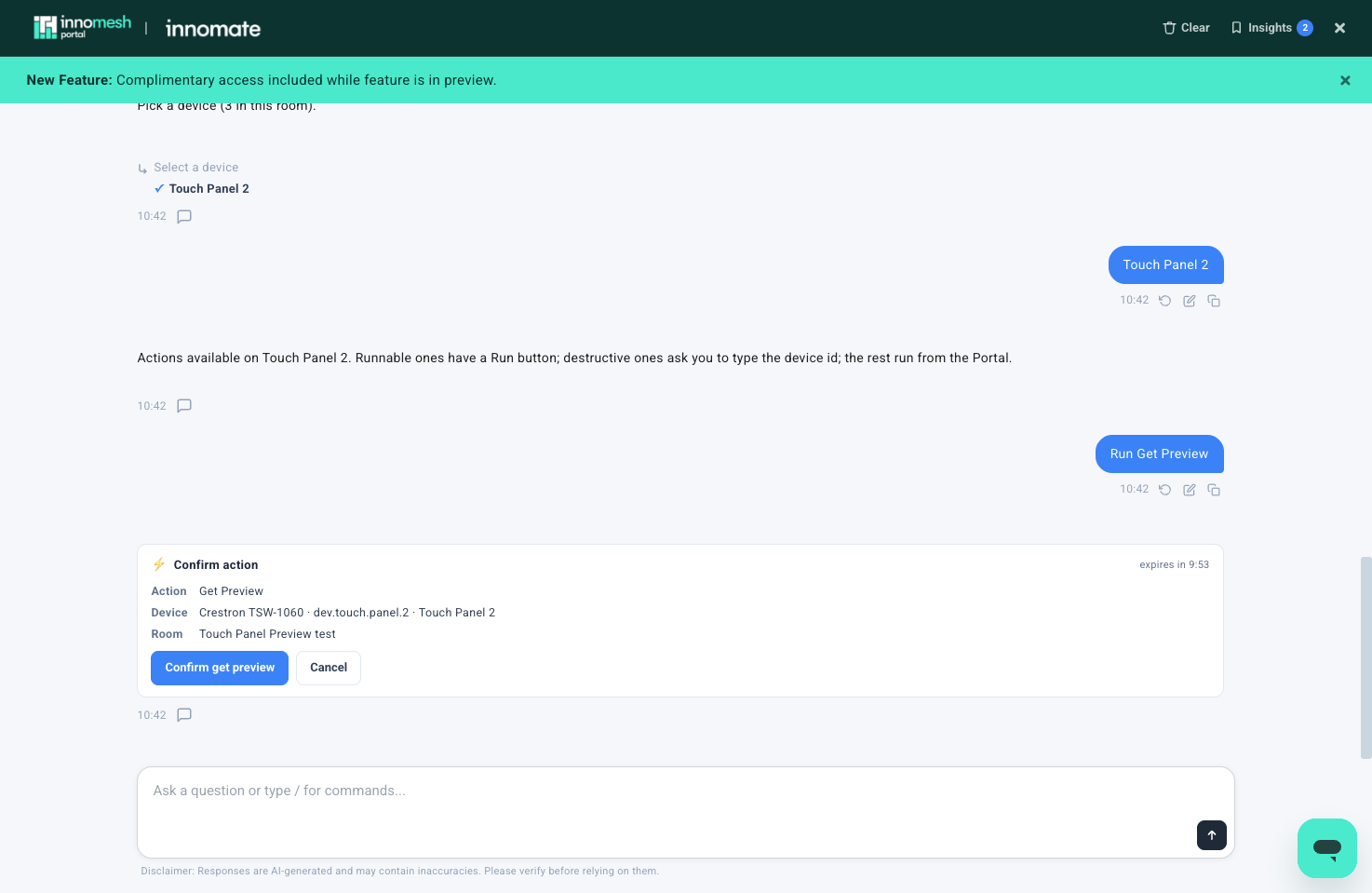
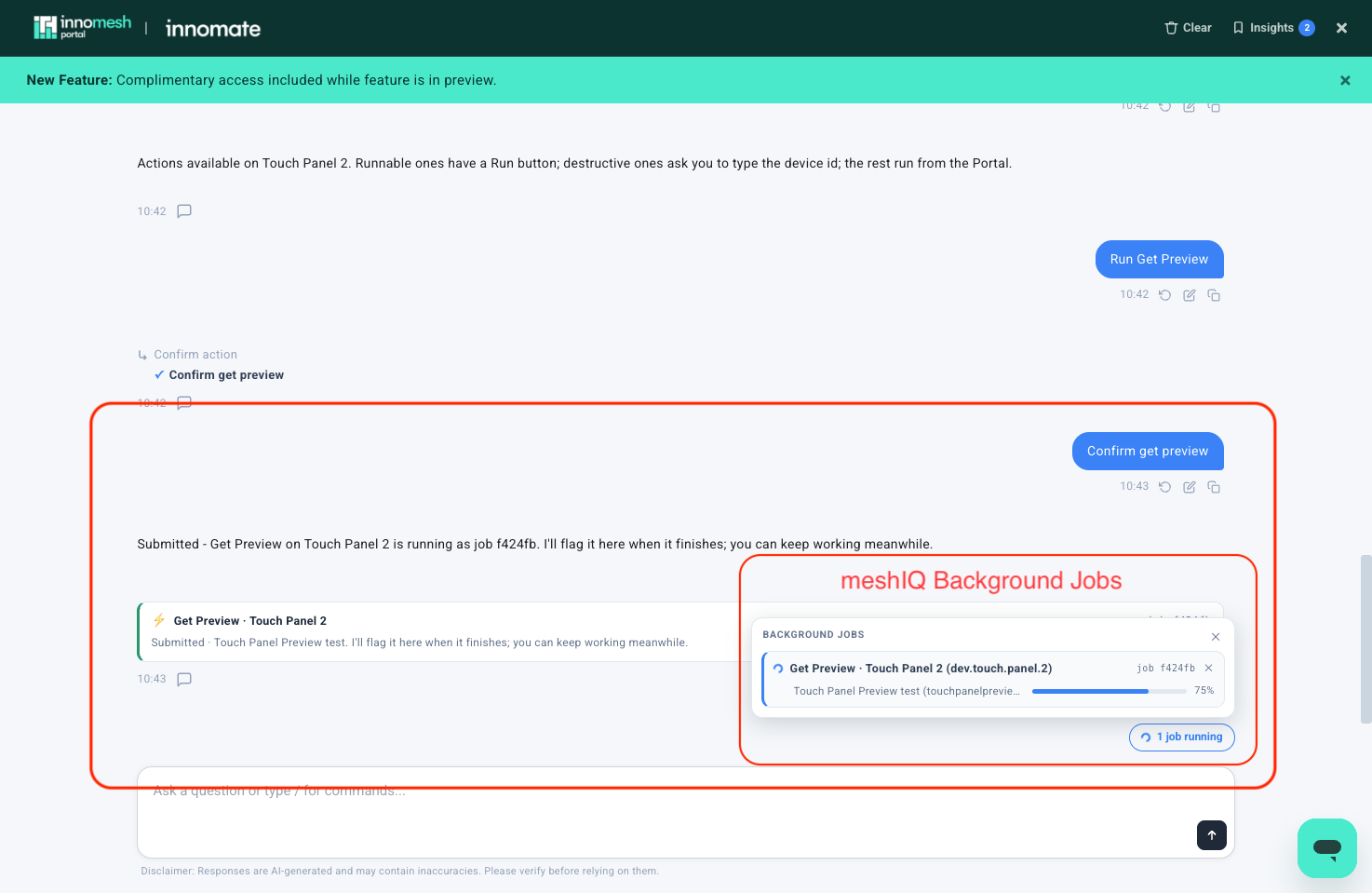
Once confirmed, the action runs as a background job. meshIQ reports that the job has been submitted, tracks it in a Background Jobs panel, and notifies you in the chat when it finishes. You can keep asking questions or start other work in the meantime.
Reading the Result
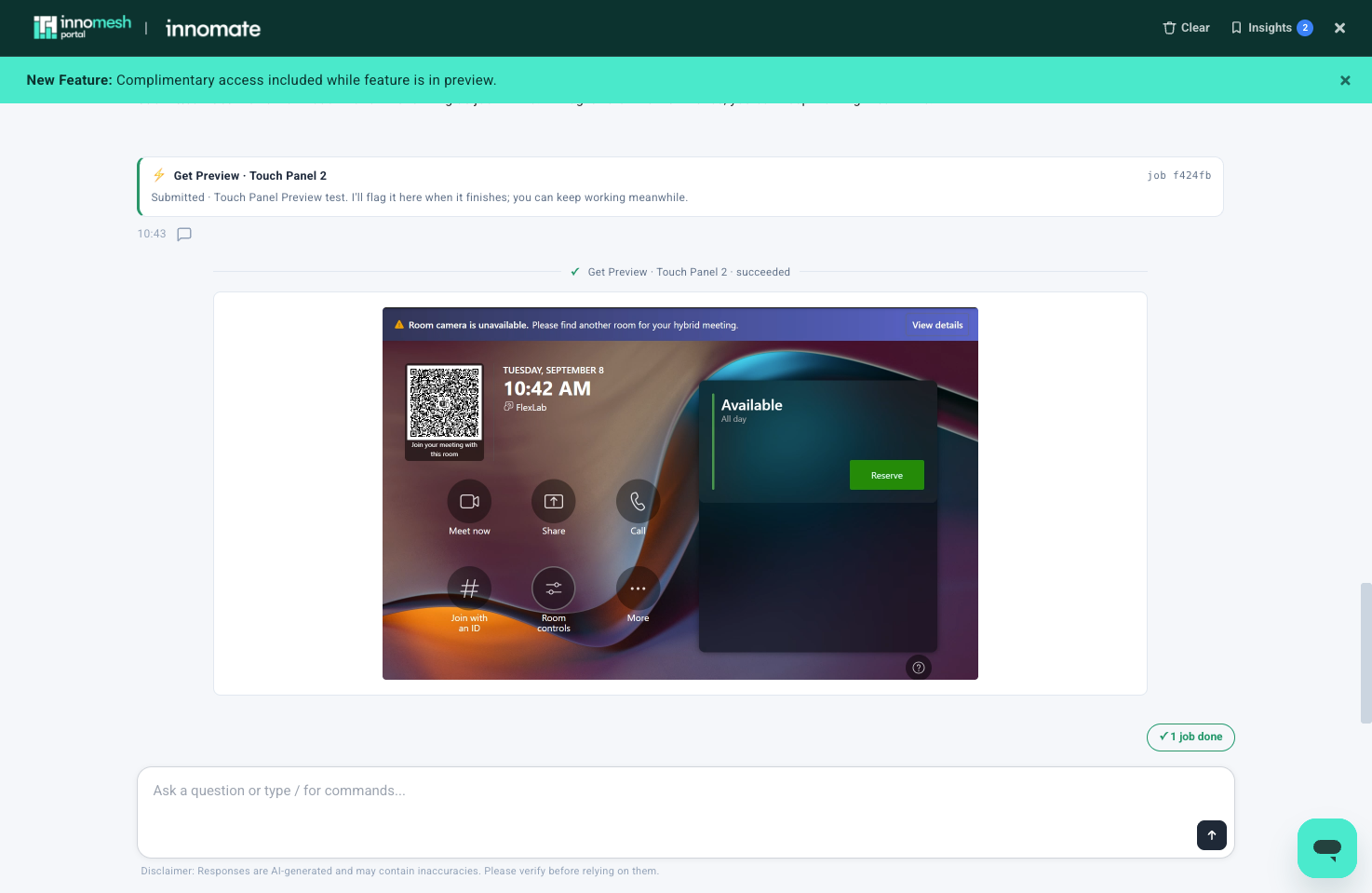
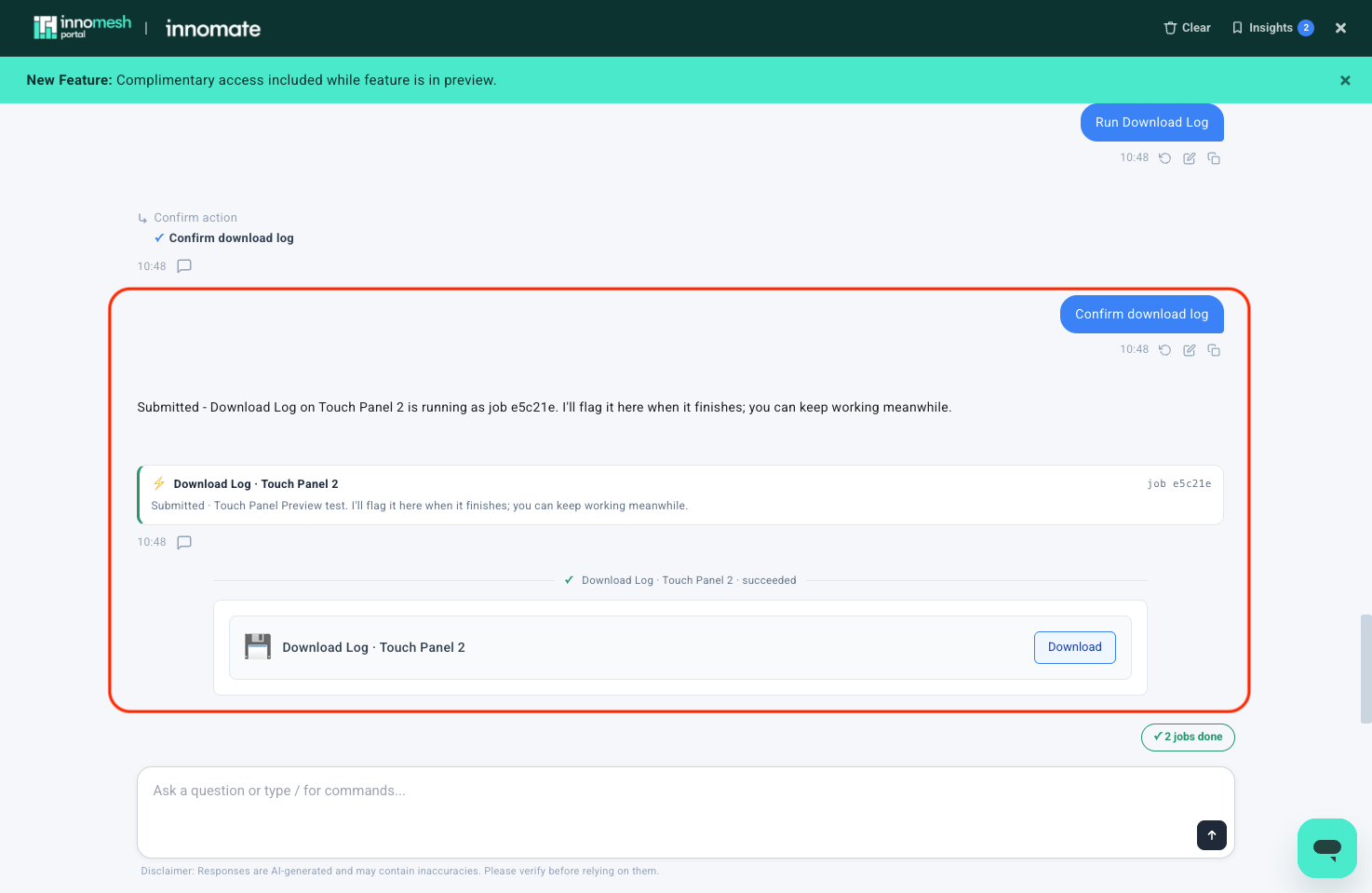
When a job finishes, its result appears in the chat. Files that an action returns render in place:
- Get Preview returns a screenshot of the asset’s current screen, shown inline.
- Download Log returns an archive with a Download button.
Asking in Plain Language
The /asset-actions command is a shortcut, not a requirement. meshIQ interprets the request itself rather than matching keywords, so you can ask for the same thing directly:
- “What can I do to the touch panel in 01-0032-210?”
- “Show me the actions available on the main display in the boardroom.”
- “Reboot the touch panel in 01-0032-210.”
- “Get a live screenshot of the touch panel in 01-0032-210.”
- “Download the logs from the Crestron panel in 01-0001-e201.”
Your Permissions Apply
meshIQ connects with your own Innomesh Portal permissions, sites, and user groups, so:
- The rooms and assets it lists are the ones you are allowed to see.
- The actions it offers are gated on your own permissions.
- Each action record is attributed to your name and email, so the audit history shows who did what.