

The Properties section contains the general metadata and system-level settings for a Space CE configuration. It appears in two places:
- On a template, where it defines the identity of the system template and the default settings inherited by every room created from it.
- On a room, where it identifies the specific deployed room and lets you set its per-room settings. Fields that come from the template appear here as read-only values (in the Advanced Settings area), while room-specific fields are editable.
Properties Fields
The Belongs to column indicates where each field is authored: Template fields are defined on the template and are read-only on the room; Room fields are set on the individual room.
| Field | Belongs to | Description |
|---|---|---|
| System Name | Template | The friendly name of the system template, displayed in the Templates list and referenced by rooms. On a room it appears (read-only) as System Template Name. |
| System Repository Name | Template | Auto-populated from the System Name, used as the global identifier internally by Innomesh. This cannot be changed after creation. On a room it appears (read-only) as System Template ID. |
| System Description | Template | A brief description of the system type and its intended use (e.g. “Meeting Room, Single Display, Zoom Enabled”). |
| Template Version | Template | Configuration version number, formatted as major.minor.revision (e.g. 1.0.0). Increment this when making significant changes to the template. |
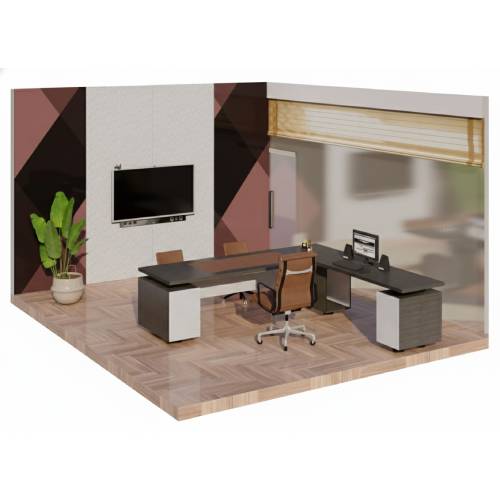
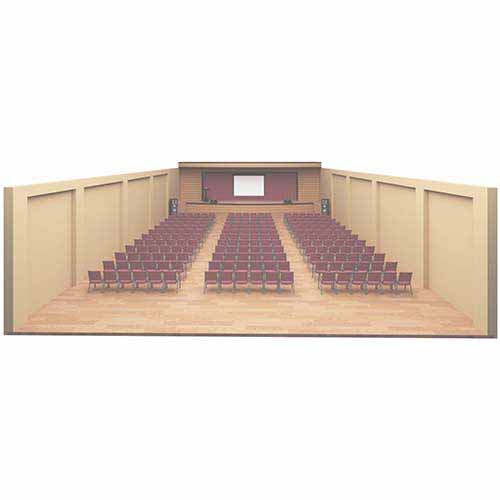
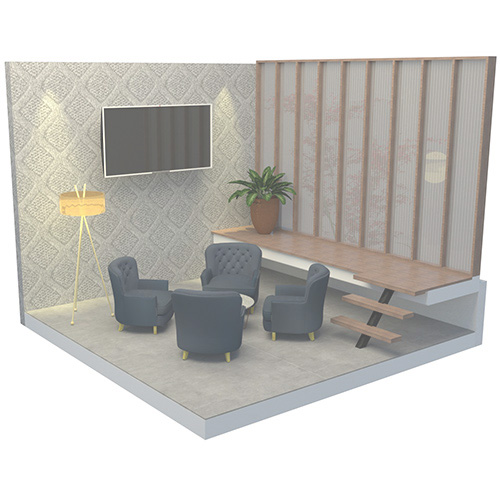
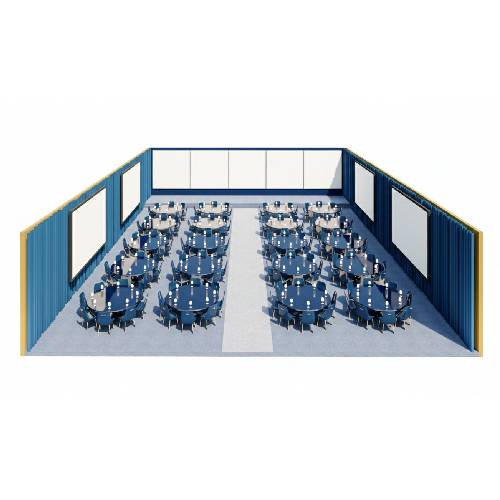
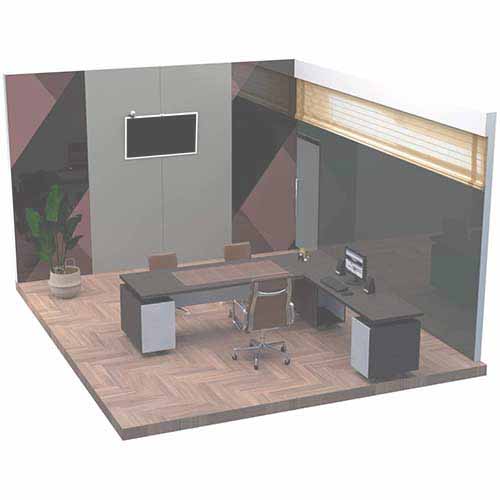
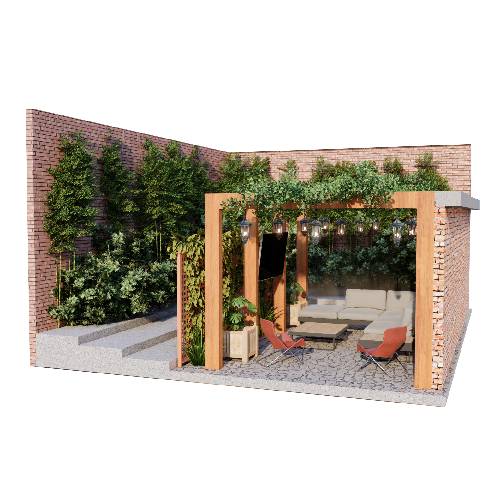
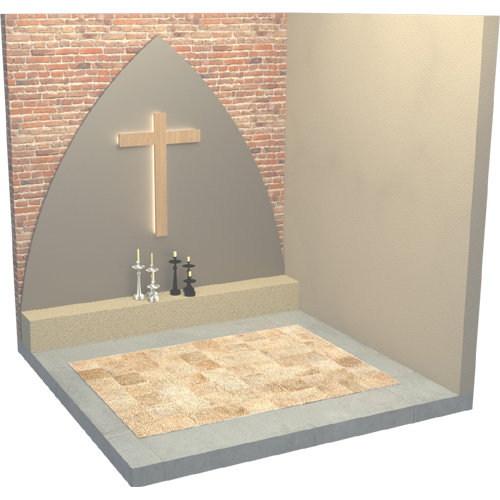
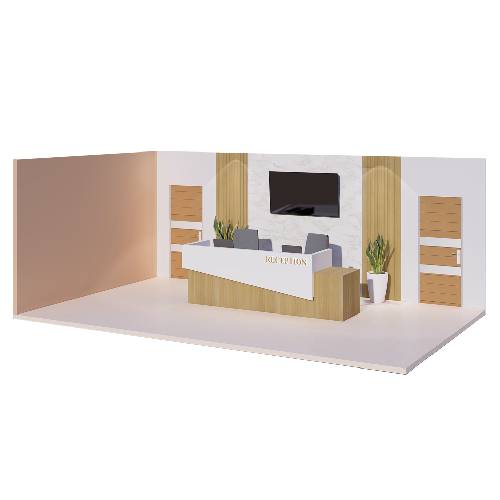
| System Type | Template | The room category used to classify the template. See System Types for the full list of available types. |
| System Author | Template | Auto-populated with the name of the user who created the template. |
| Room Name | Room | The name of the room where the system template is deployed. Shown in the Rooms list. |
| Room ID | Room | The unique identifier of the room. This cannot be changed after creation. |
| Room Author | Room | The name of the user who authored the room configuration. |
| Room Location | Room | The room’s location, used to determine its time zone (e.g. “Sydney, Australia”). |
| Room Friendly Name | Room | The friendly name of the room displayed on the touch panel. If left blank, the Room Name is displayed. |
| Building Name | Room (Non-standard) | The room’s building name, shown on the touch panel. |
| Helpdesk Number | Room | The helpdesk number shown on the touch panel. |
| Helpdesk URL | Room (Non-standard) | The helpdesk URL shown on the touch panel. |
| Security Number | Room (Non-standard) | The security number shown on the touch panel. |
| Room API Devices | Room (Non-standard) | The device ID(s) of the Controller serving the Room API. Multiple values can be comma-separated. |
| Force Room API Websocket | Room (Non-standard) | Forces the Room API to activate even when it is not technically required, such as when the only touch panels are legacy panels operating via middleware. The Room API websocket is required for HTML5 panels, so forcing it on lets the remote web panel work alongside a legacy physical touch panel. |
| Lock Controller Panel | Room (Non-standard) | Locks the physical front panel of the control processor. |
| Log Level | Room | The logging verbosity for the deployment (Trace, Notice, Warning, Error, or Fatal). |
| Maintenance | Room | Marks the room as in maintenance, so its alerts are suppressed while work is carried out. |
| Portable | Room | Marks this specific room as portable. See Portability. |
System Types
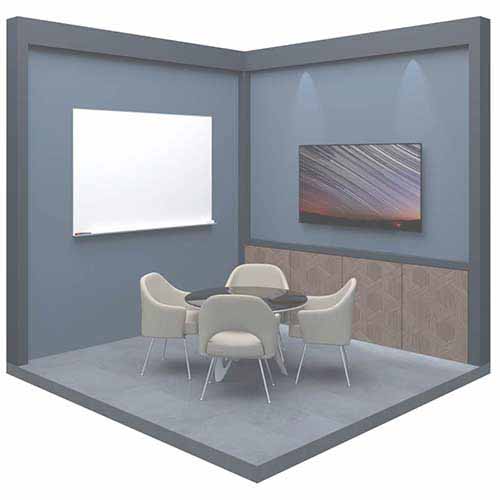
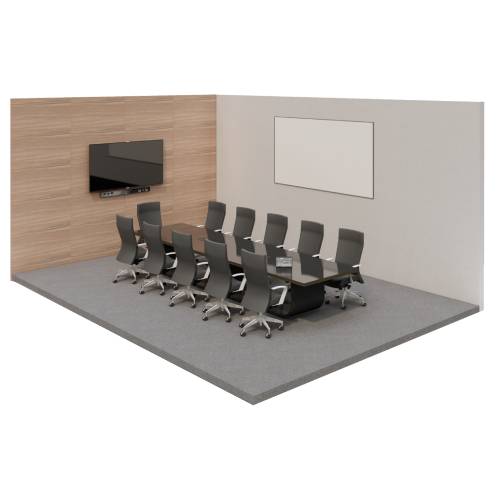
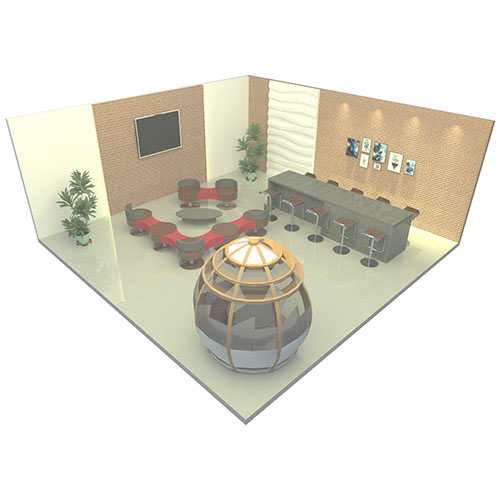
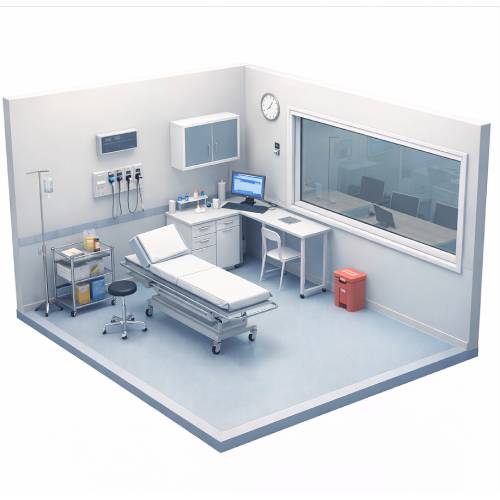
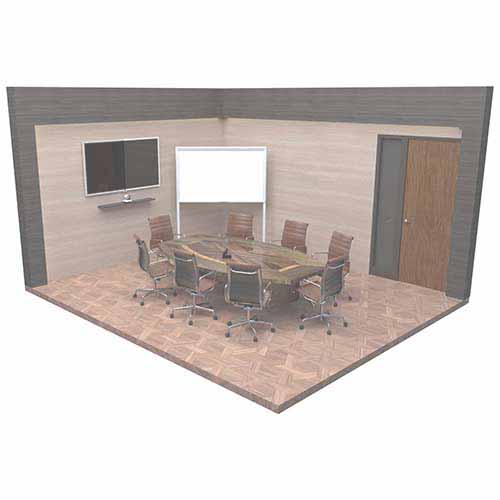
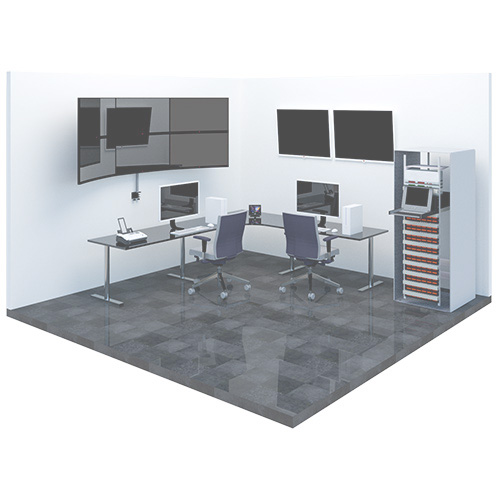
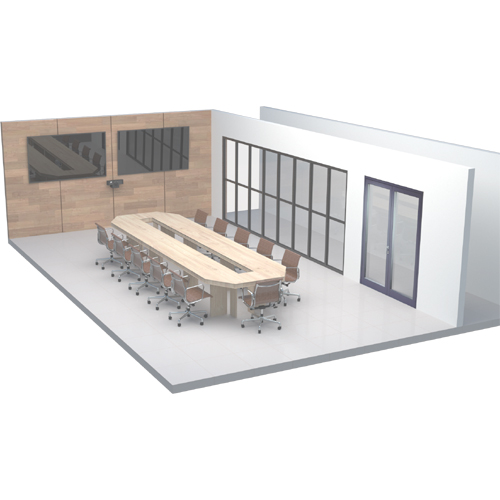
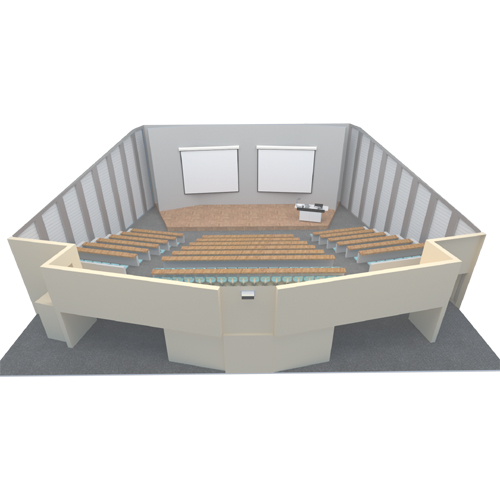
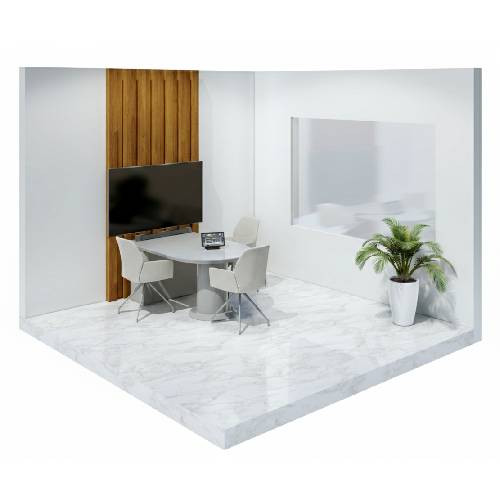
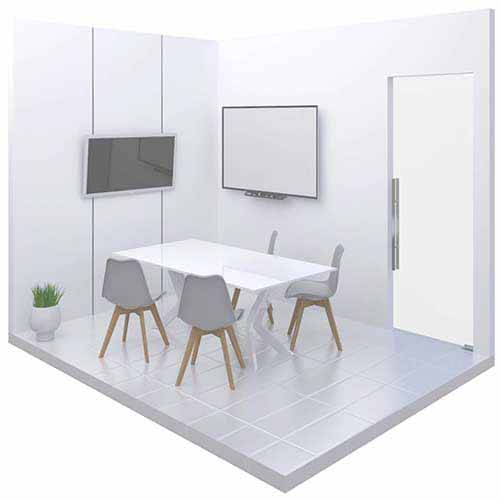
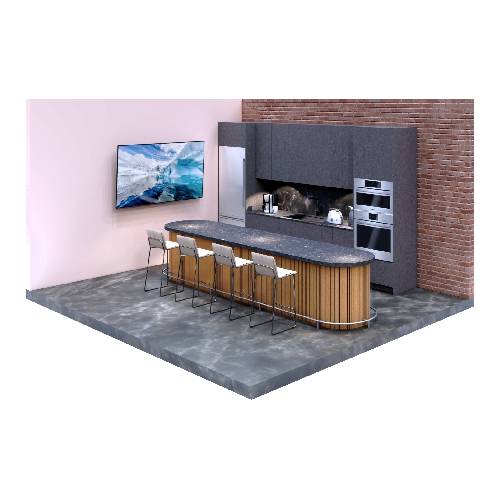
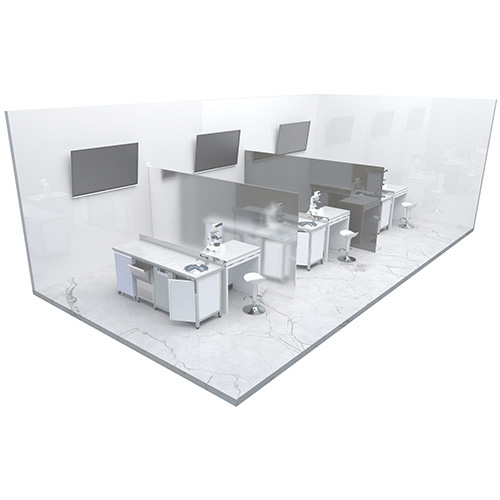
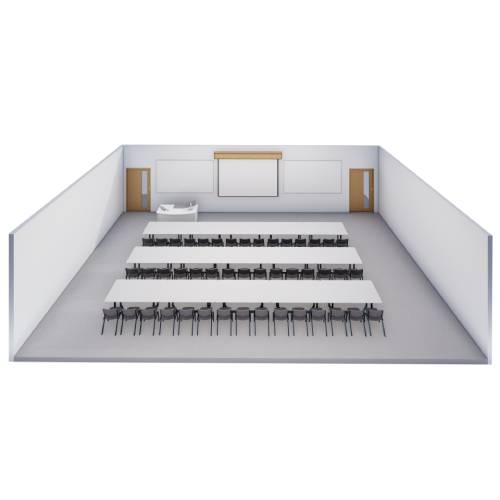
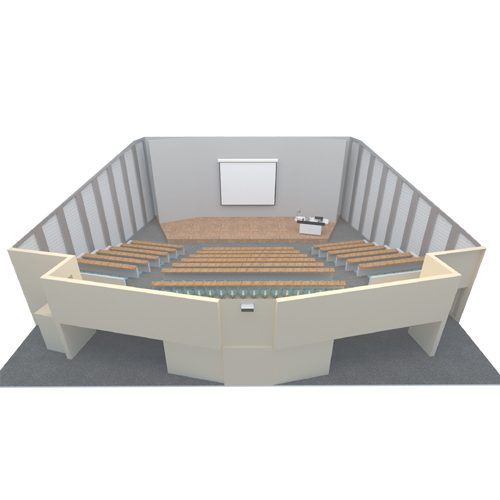
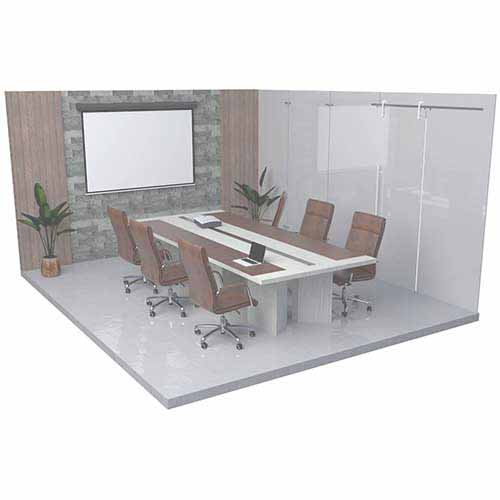
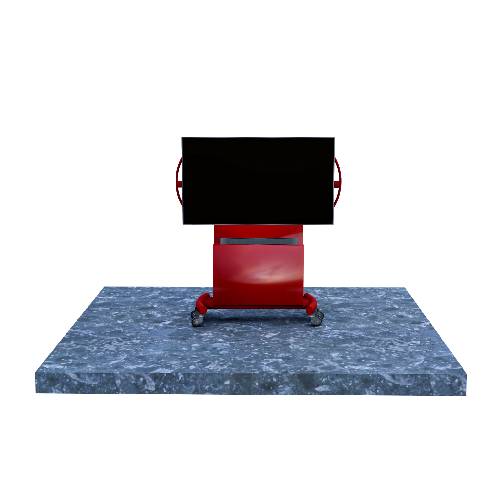
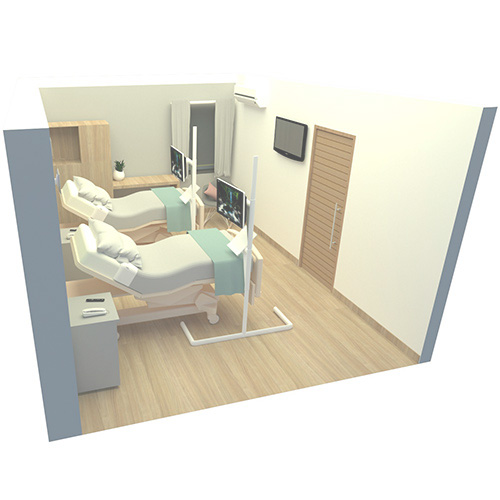
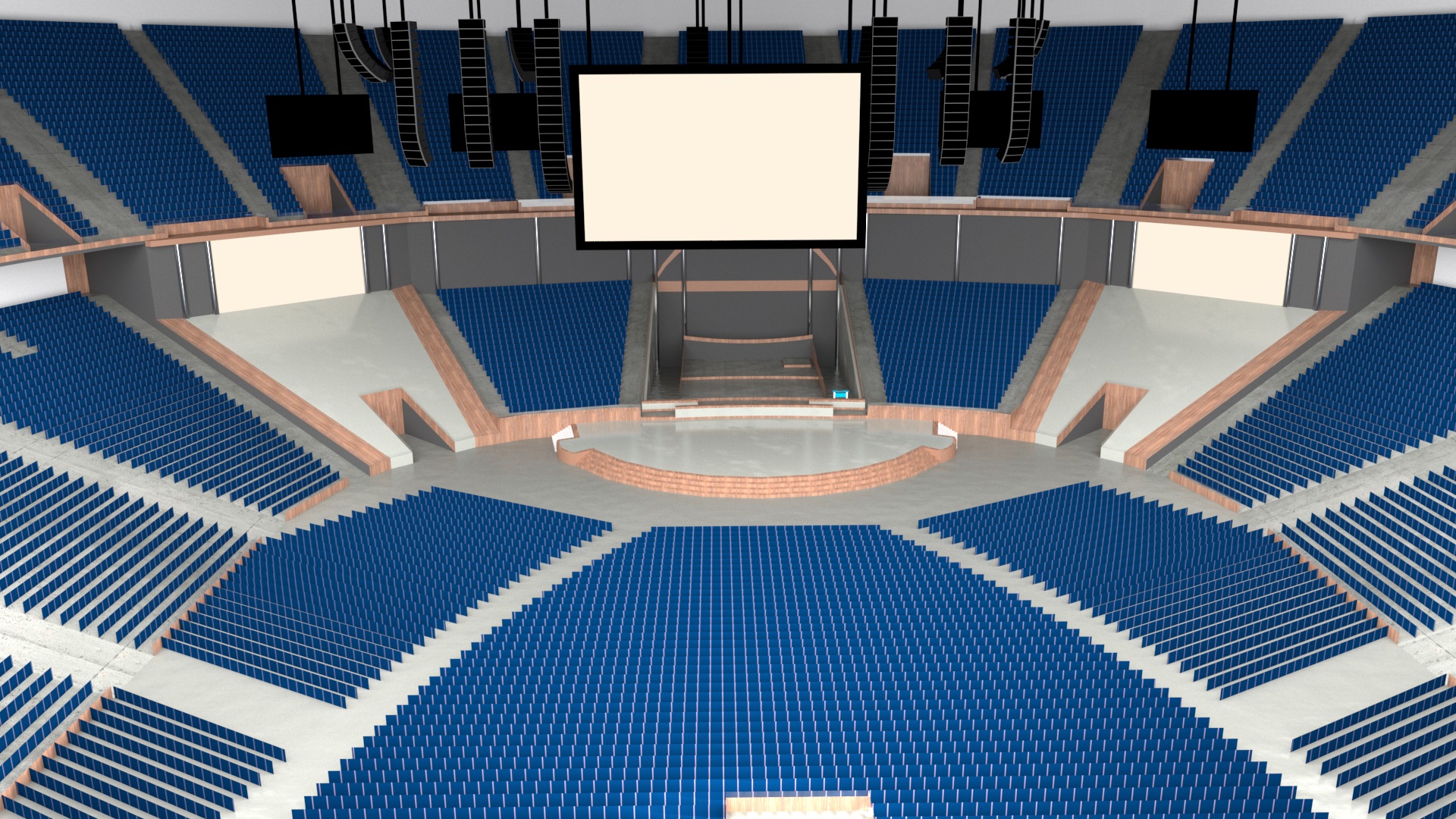
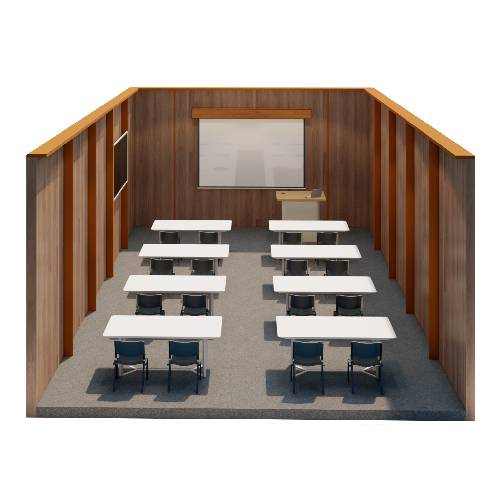
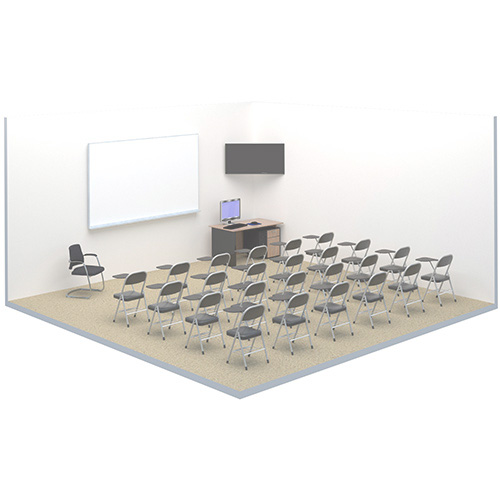
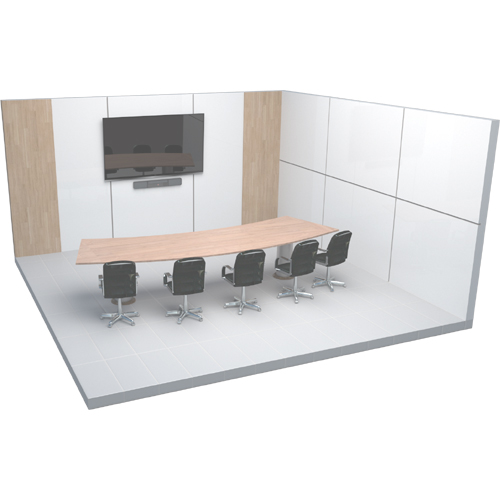
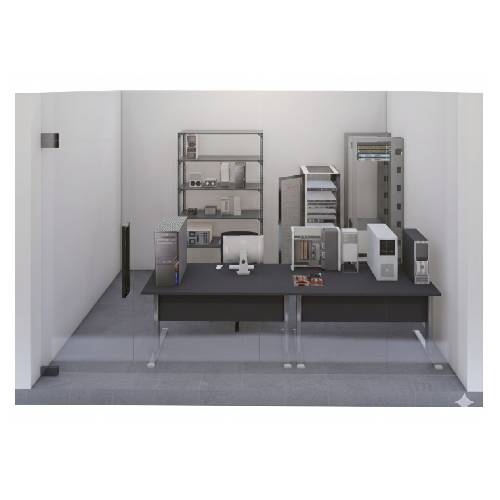
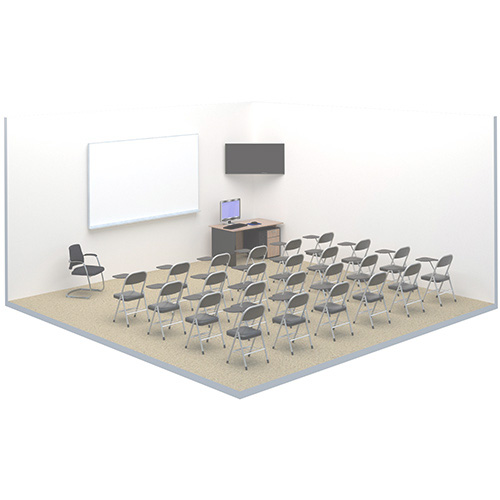
When creating a template, you can choose a System Type to classify the room. The available types are:
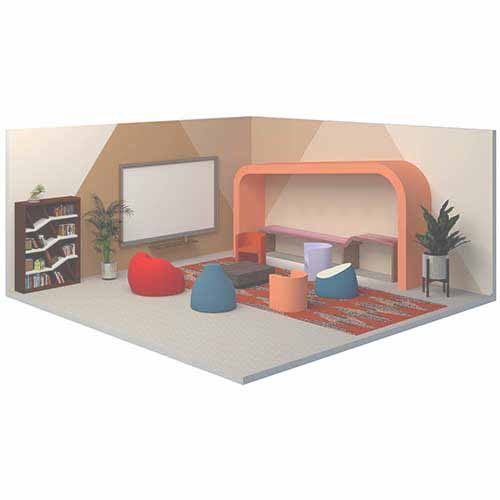
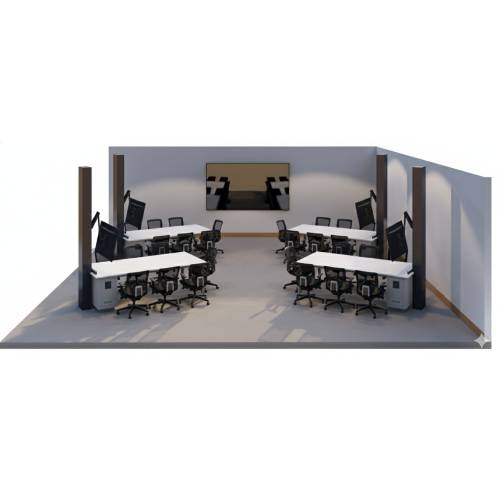
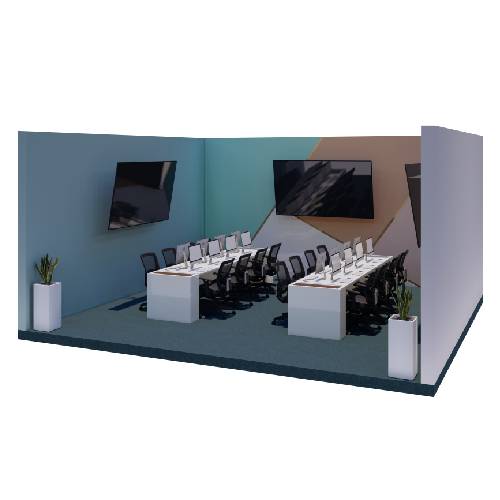
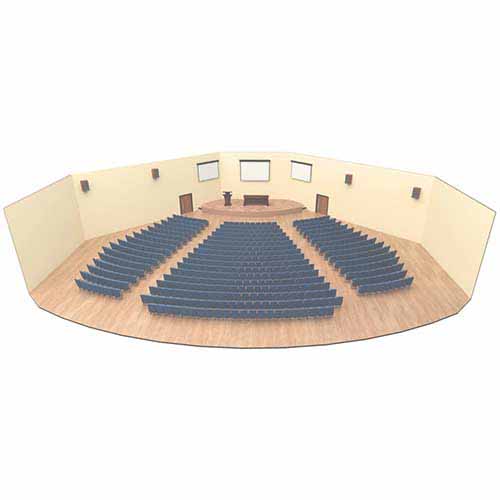
Portability
The Is Portable flag marks rooms created from this template as portable, meaning they are not always expected to be online (e.g., mobile AV carts, temporary installations). When enabled:
- Alerts for devices in portable rooms are dropped, preventing noise from expected offline periods.
- The room’s status in Portal will reflect that it is a portable installation.
An individual room also has its own Portable toggle on the room Properties page, so a single room can be marked portable without changing the template.
Editing Properties
- Open the Space CE template or room in Room Manager.
- Click the Properties section in the left-hand navigation.
- Update the desired fields. On a room, the template-owned fields are read-only in the Advanced Settings area; edit the room-specific fields directly.
- Save the changes (on a room, deploy the configuration to apply them).
Changes to template properties do not affect rooms that have already been deployed. To update the properties displayed in existing rooms, push the configuration from the template Options menu, or edit and deploy the room directly.