

Alert-based policies turn a Hotlist alert into a remediation attempt without anyone touching Innomesh Portal. The classic use is self-healing: a touch panel drops offline, Innomesh raises an Endpoint Reachability alert, and the policy PoE-reboots the panel to bring it back.
Prerequisites
- A role with Innomesh Portal administration access.
- An asset profile for the devices you want to target, with a mapped driver. See Asset Profiles.
- Knowledge of the alert you want to react to. Open the Hotlist and note the exact Category and Description text of a representative alert.
- For PDU Reboot or PoE Reboot actions, the asset’s PDU or switch relationship defined in the room configuration. See Asset PDU Association.
Creating the Policy
-
Navigate to Administration > Automation > Policies.
-
Click Create New, then set Policy Type to Alert-based.
-
Enter a descriptive Name, such as “Poly TC10 Offline Reboot”.
-
Select the target Asset.
-
Optionally add Filters to restrict the policy to specific rooms, zones, sites, or user groups. See Targeting Assets with Filters.
-
Define one or more Conditions. Each condition matches on a property of the alert:
Condition Matches on Alert Category The alert’s category, for example Endpoint Reachability Alert Description The alert’s description text 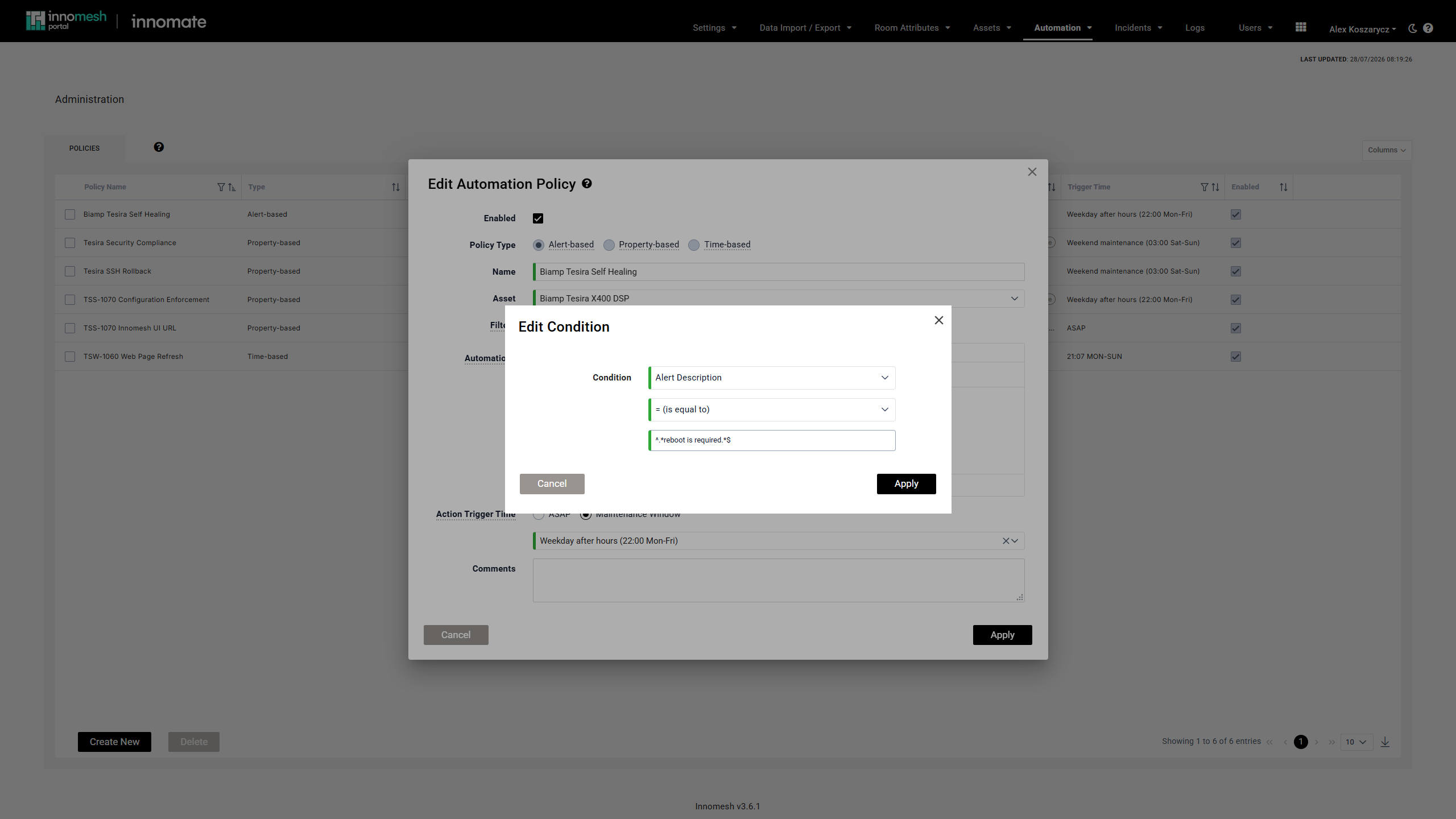
Conditions are matched against incoming Hotlist alerts on the targeted assets. This one uses a regex so it matches any wording around "reboot is required". Both conditions support regex when the value is anchored with
^and$. See Appendix: Regex Patterns.If several conditions are defined, the policy triggers when any one of them matches.
-
Under Automations, add the actions to run, such as PoE Reboot for an unreachable network device.
-
Set the Action Trigger Time:
- ASAP schedules the action at the start of the next minute. Use this when a fast recovery attempt is worth more than avoiding disruption.
- Maintenance Window defers the action to a defined window. Use this for non-urgent remediations where a mid-meeting reboot would be worse than the fault.
-
Optionally add Comments.
-
Click Apply.
On save, Innomesh scans the current Hotlist for alerts already matching the policy’s conditions and schedules actions for them immediately.
Self-Healing Behaviour
Alert-based actions track the state of the alert that created them, so a fault that clears on its own does not get an unnecessary reboot.
- If the alert resolves before the scheduled action runs, the action is cancelled. It stays visible in the Scheduled Actions list until its scheduled time has passed.
- If the alert resurfaces after resolving, the action returns to pending and runs if the alert is still active at its scheduled time.
Verification
- Navigate to Assets > Actions.
- On the Schedule tab, confirm a row exists for the affected asset with your policy name in the Origin column.
- After the action runs, open the History tab and check its outcome. Hover the status icon for detail.
- Return to the Hotlist and confirm the alert resolved.
Troubleshooting
| Symptom | Likely cause |
|---|---|
| The alert appears but no action is scheduled | The condition value does not match the alert text exactly. Copy the Category or Description straight from the alert, or use a regex such as ^.*offline.*$. |
| The policy worked once and then stopped | The alert resurfaced rather than arriving as new. Re-save the policy to schedule against all current matching alerts. |
| Actions are cancelled before running | The alert resolved on its own during the wait. This is expected behaviour, and is more common with a Maintenance Window trigger time than with ASAP. |
| PoE Reboot or PDU Reboot fails | The asset has no switch port or PDU outlet relationship defined in the room configuration. See Asset PDU Association. |
| Actions fire on devices you did not intend | The policy has no filters, so it covers every asset matching the profile. Add a room, zone, or site filter. |
Related Articles
- Asset Automation Overview
- Property-Based Automation Policies
- Manual Policy Runs
- Scheduled Actions and History
- Innomesh Portal Hotlist
- Alert Diagnosis
Appendix: How Actions Follow Alert State
| Alert state change | Existing action state | Result |
|---|---|---|
| New alert detected | None | A new action is scheduled as pending |
| Alert resolves before the action runs | Pending | The action is cancelled |
| A cancelled action’s alert resurfaces | Cancelled | The action returns to pending |
| Alert still active at the scheduled time | Pending | The action executes |
| Existing alert resurfaces (not new) | None | No action is scheduled, preventing repetition |
| Policy re-saved | None | Actions are scheduled for all matching alerts, new and resurfaced |