

Crestron DMPS controllers used in Space CE rooms run a middleware program — a compiled Crestron program (a .cpz file) that bridges the DMPS hardware to Space CE. When Innomesh ships a new middleware build, it must be loaded into a program slot on the DMPS and started.
This guide covers the two officially supported ways to load a program onto a Crestron 3-Series or 4-Series control system:
- Crestron Toolbox — the graphical tool, recommended for most cases.
- SFTP + console — transferring the file over SSH, then loading it with the
progloadconsole command.
Both do the same thing: place the .cpz in a program slot and register it with the control system. Choose whichever fits your access and tooling.
.cpz is a compiled Crestron program. A DMPS has up to eleven program slots (0–10); the Space CE middleware normally lives in slot 1 (Program01). Always confirm the correct slot for your deployment before loading — loading into the wrong slot leaves the old program running.Prerequisites
- The middleware
.cpzfile, supplied by Innomesh. - Network reachability to the DMPS (IP address), or a direct USB connection to the controller’s COMPUTER port.
- The DMPS administrator credentials.
- Which program slot the middleware belongs in (typically slot 1).
- Crestron Toolbox installed (for Method 1). Download it from the Crestron Toolbox product page (a free Crestron account is required).
Method 1: Crestron Toolbox (recommended)
Crestron Toolbox is the standard graphical tool for managing control systems. This is the most reliable method for IT support.
1. Connect to the DMPS
Toolbox connects to a device through an Address Book entry — a saved connection you create once and reuse.
- Open Crestron Toolbox.
- Open the Address Book from the toolbar’s Address Book icon (or Tools > Manage Address Book).
- Click Add Entry (or press F3) to create a new connection, and give it a Name you’ll recognise, such as the room or DMPS name.
- Choose the connection type:
- Ethernet (network): select the TCP radio button and type the DMPS IP address into the IP Address/Hostname field. Leave Port blank unless you use a non-default port. To connect securely (encrypted), tick the SSH box — SSH is the recommended default on current DMPS firmware.
- Direct USB: select the USB tab/option instead, used only when your computer is plugged into the controller’s COMPUTER port.
- Click OK to save the entry, then select it and connect. When prompted, enter the DMPS administrator username and password.
You are connected when the status at the bottom of the tool window reads Connected.
2. Open the SIMPL Program function
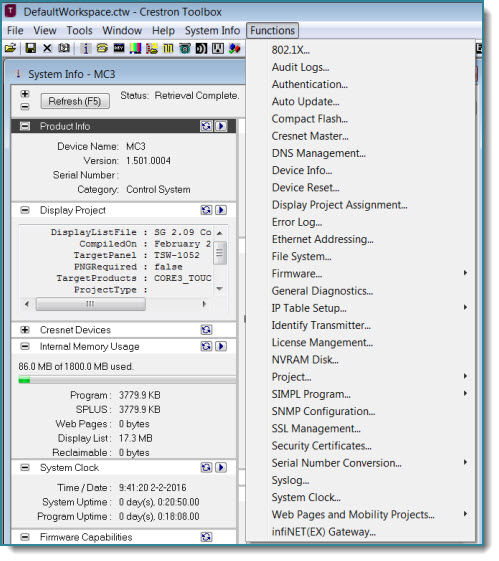
- With the DMPS connected, open System Info (Tools > System Info, or the System Info icon).
- In the System Info window, click the Functions menu and choose SIMPL Program (also labelled Program on some Toolbox versions). This opens the program-loading dialog.
3. Select the file and slot, then send
- Set the memory location to Internal Flash (the DMPS default).
- Click Browse and select the middleware
.cpzfile. - In the program slot dropdown, confirm the correct slot (Program 01 for the Space CE middleware). Toolbox suggests a slot based on the program’s ID tag — change it if it does not match your target slot.
- Click Send.
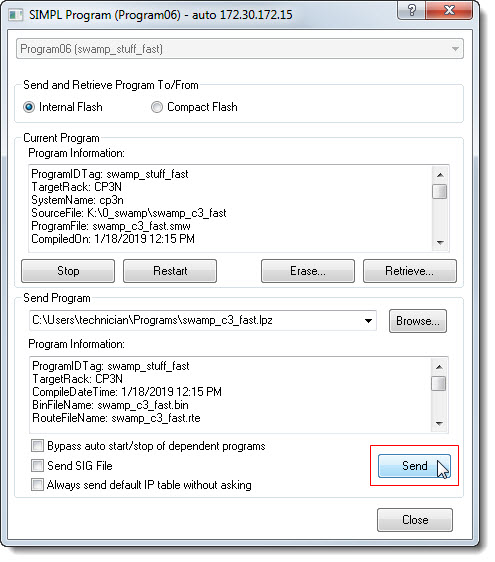
Toolbox stops the running program, transfers the file, and restarts the program automatically. A progress window shows the time remaining. If the program’s default IP table differs from the one on the DMPS, Toolbox prompts before overwriting it — leave the existing table in place unless Innomesh instructs otherwise.
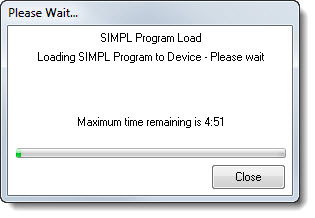
When the transfer completes, Toolbox confirms the program is loaded and running. Skip to Verifying the load.
Method 2: SFTP transfer, then load from the console
For headless deployments or scripted workflows, transfer the .cpz to the controller over SFTP, then load it with the progload console command. This is the manual equivalent of what Toolbox does for you: the file transfer puts the .cpz on the controller, and progload registers and starts it.
1. Transfer the .cpz over SFTP
-
Connect to the DMPS with any SFTP client (for example WinSCP, FileZilla, or the
sftpcommand line). Use the DMPS IP address, port 22, and the administrator credentials.❗ ImportantCrestron file transfer runs over SSH/SFTP on port 22. Plain FTP is disabled on secured firmware. In Toolbox connections, this is what the SSH checkbox selects. -
Upload the
.cpzinto the program slot directory. The Space CE middleware slot 1 maps to:/Program01/📝 NoteOn some firmware the program slots are exposed as/simpl/app01,/simpl/app02, and so on (where the number is the slot)./Program01and/simpl/app01refer to the same slot-1 location — use whichever your DMPS presents.
2. Load it with progload
-
Open a console session to the DMPS — SSH on port 22 with any terminal client, or Tools > Text Console in Crestron Toolbox.
-
Load the transferred program into its slot:
progload -p:1The
-p:flag is the target program slot. Use-p:1for slot 1.progloadon its own loads the most recently transferred program; the-p:flag makes the slot explicit. -
The console reports the load progress and confirms when the program starts.
? to any console command to see its syntax, for example progload ?.Useful related commands:
| Command | Purpose |
|---|---|
progload -p:1 | Load the program in slot 1 after the .cpz has been transferred |
progreset -p:1 | Restart (reset) the program in slot 1 without reloading the file |
progreg | List the registered programs and their slots |
progcomments:1 | Show details of the program in slot 1 (name, compile date, source path) |
Verifying the load
After loading by either method, confirm the correct middleware is running:
- Run
progcomments:1(orprogreg) in the console and check the program name and compile date match the build you just loaded. - Confirm the room comes back under control from Space CE and the touch panel — the middleware re-registers with Space CE within a minute or two of starting.
If the program does not start, restart it explicitly with progreset -p:1. If it still fails, re-check that you loaded into the correct slot and that the .cpz matches the DMPS model.
progreset restarts the program in place. It does not reload the file — if you need to replace the program, transfer the new .cpz and run progload again.