

The User Group Filter lets you narrow Portal and Room Manager views to the rooms assigned to a specific user group, such as a department, support team, or integrator. Alongside the Site Filter, it helps teams in larger organisations focus on the rooms they are responsible for.
Overview
User groups categorise users and rooms by organisation, department, or specialisation. They are managed under Administration > Users > User Groups in Portal, and each room can be assigned to a user group in Room Manager.
Once rooms are assigned, the User Group filter narrows supported views to the rooms belonging to the selected group. User groups can also restrict access outright, so users only ever see the rooms belonging to their own groups. See Restricting Access by User Group below.
Filtering in Portal
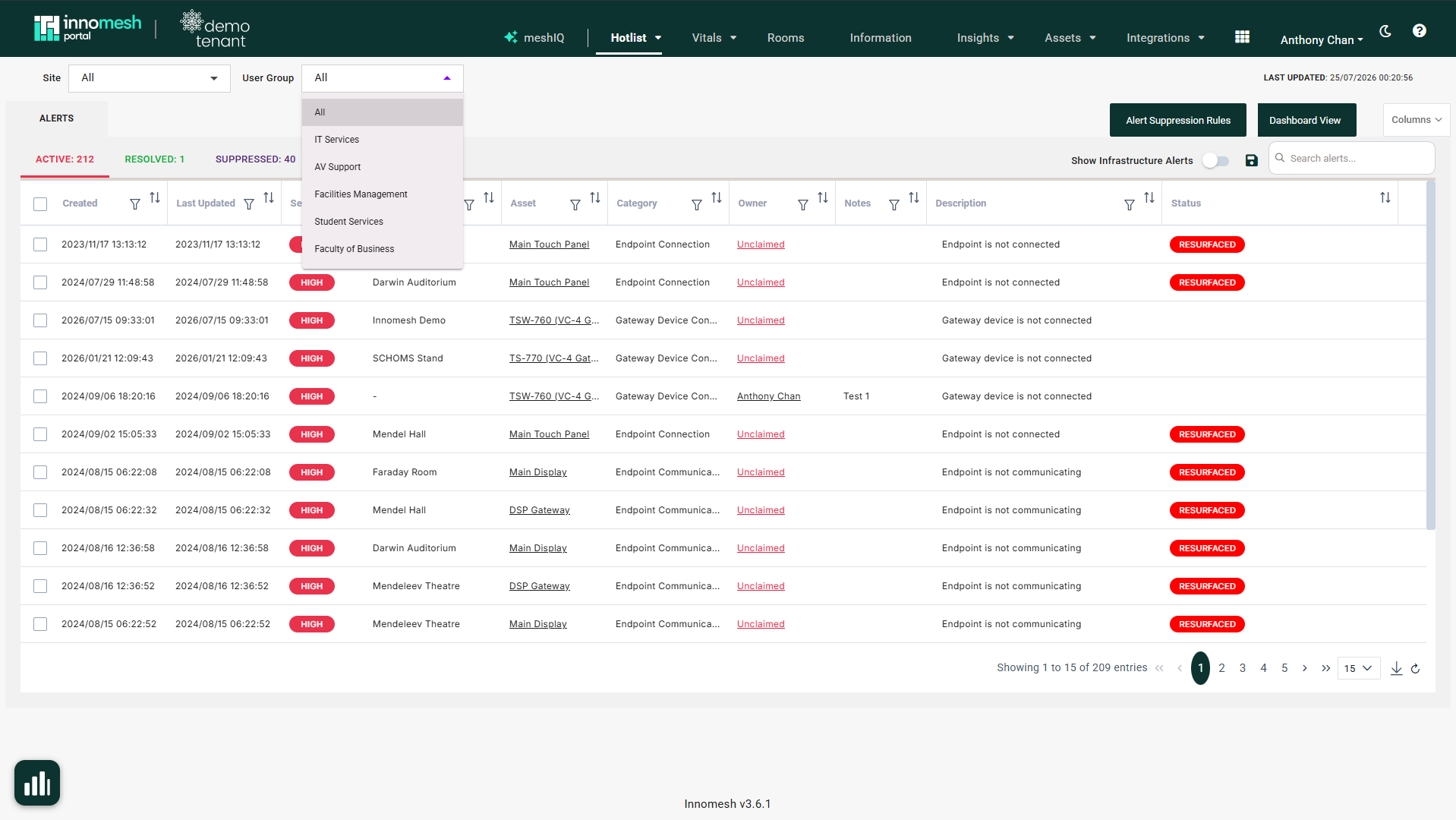
The User Group dropdown appears next to the Site filter at the top of the Hotlist, Rooms, Information, and Assets pages. Select a group to narrow the page to that group’s rooms, or select All to show every room.
Filtering in Room Manager
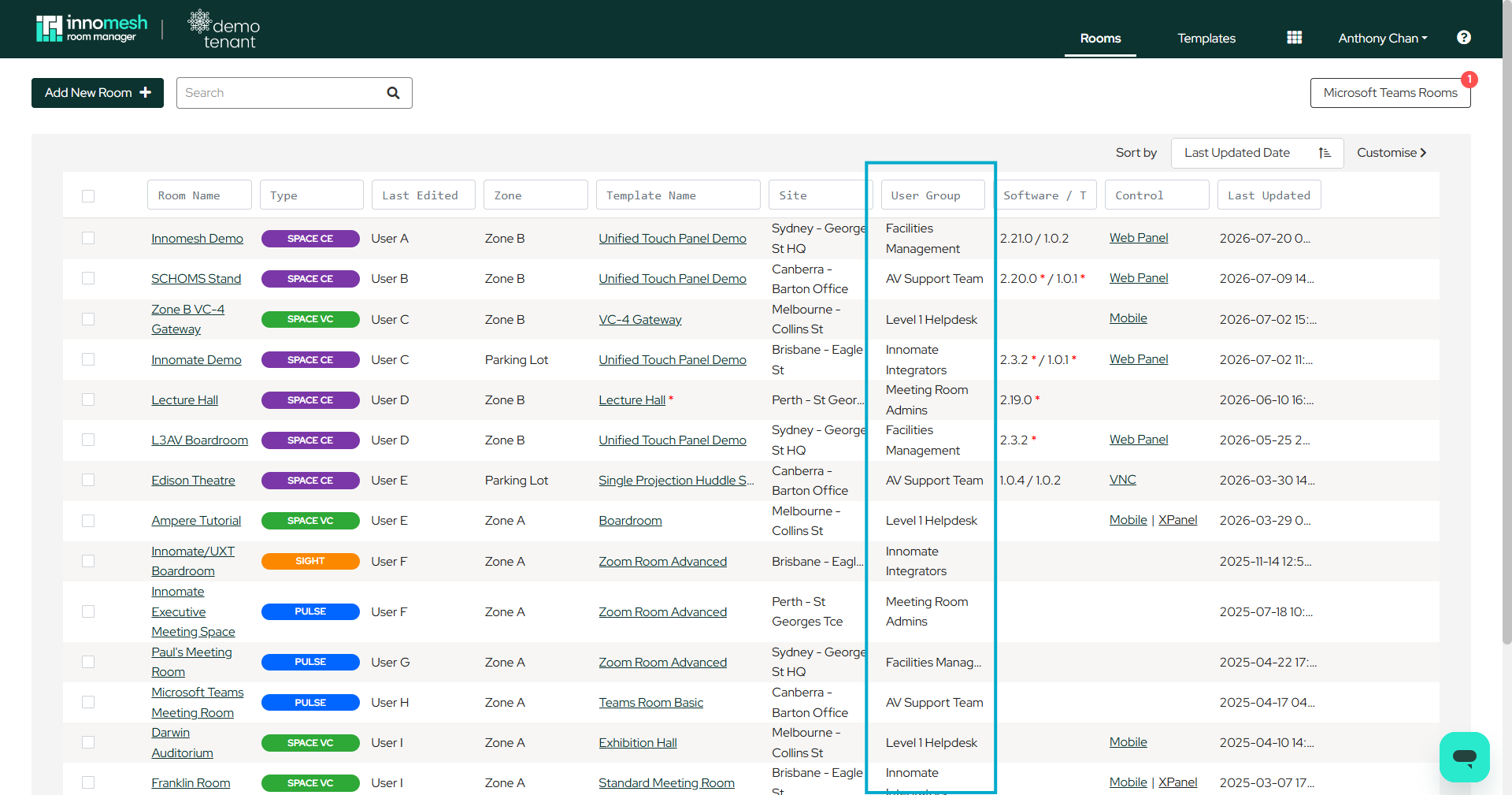
The Rooms page in Room Manager includes a User Group column with its own filter field, and the Sort by dropdown can order rooms by user group.
Assigning a Room’s User Group
To change the user group a room is assigned to:
- Open the room in Room Manager.
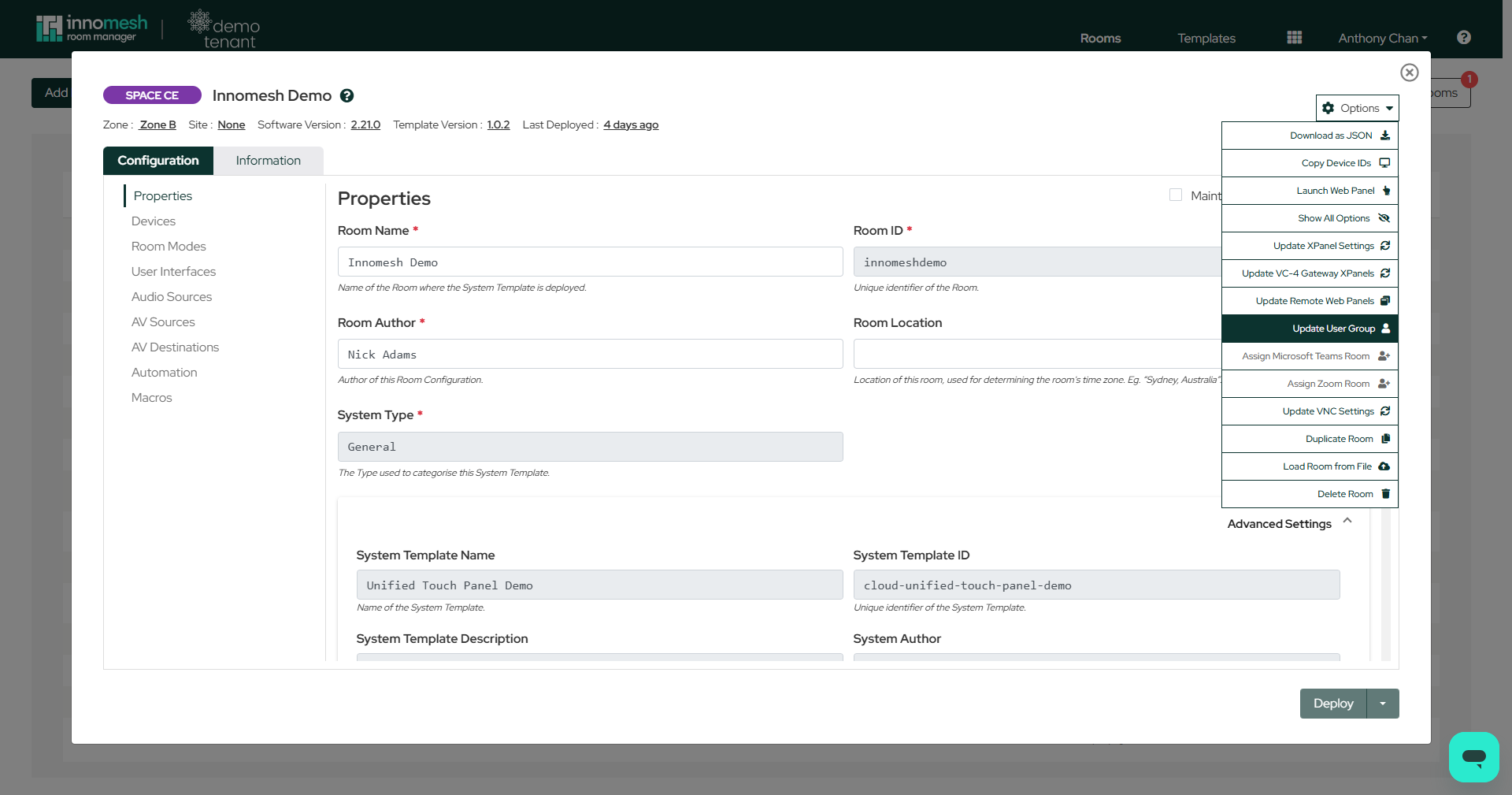
- Open the Options menu in the top right of the room configuration window.
- Select Update User Group.
- Select a group from the list.
- Press Confirm, then update the room to apply the change.
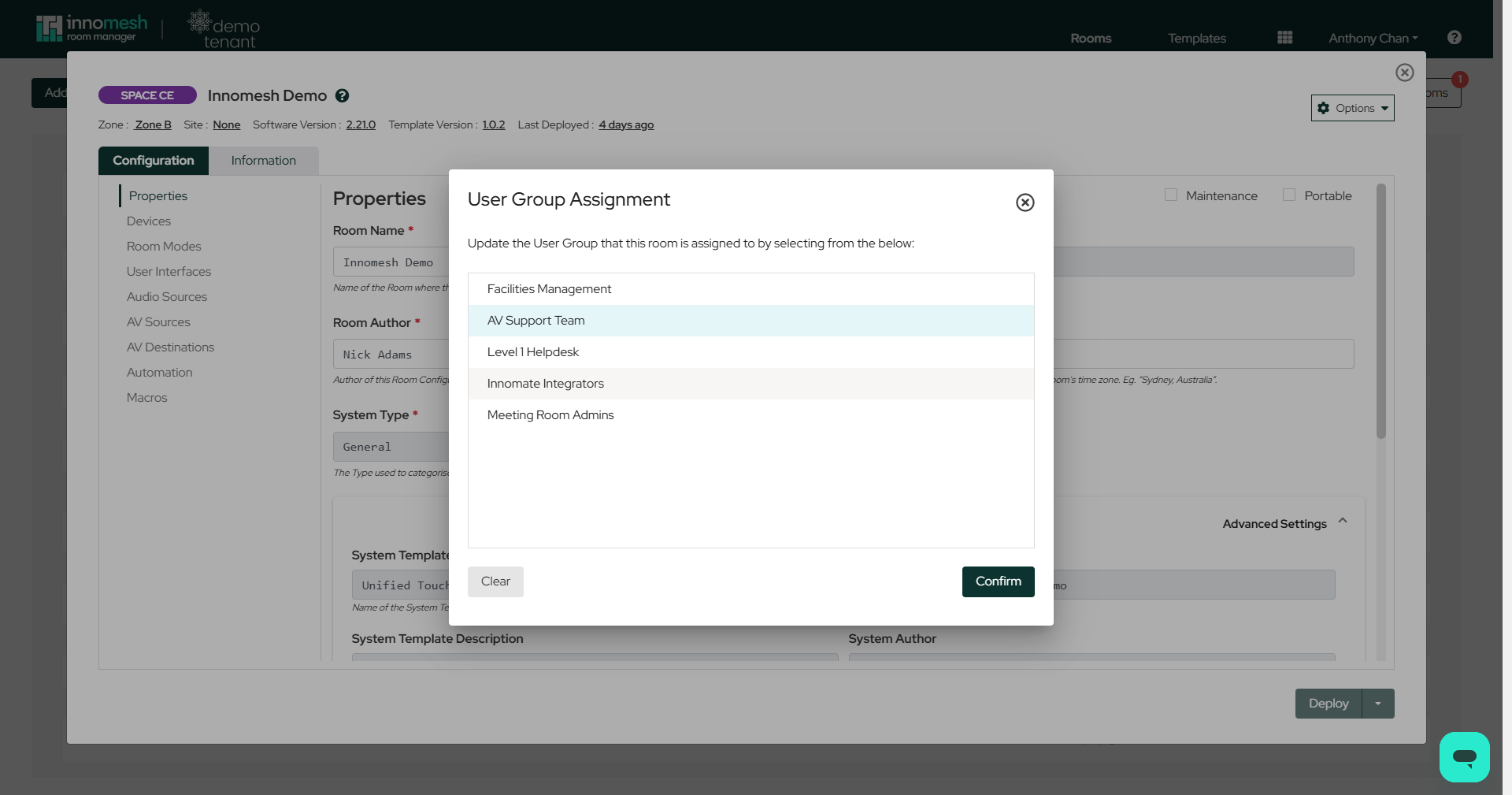
To remove a room’s user group assignment, press Clear in the same dialog.
Restricting Access by User Group
Beyond filtering, user groups can scope what users are allowed to see. Each RBAC role includes a User Group Resource Access setting: All grants access to every group’s rooms, Own User Group restricts visibility to rooms within the user’s own group, and Custom allows selecting specific groups. Users restricted to a limited set of user groups only see those rooms in both Portal and Room Manager.
See How Access Works in the RBAC Authorisation Guide for how user groups, sites and roles combine, and for configuration steps.