

Time-based policies run a sequence of actions on a recurring schedule. They suit any task that should happen at a known time regardless of device state: enforcing configuration each morning, powering displays off at the end of the day, or rebooting a class of device weekly.
Prerequisites
- A role with Innomesh Portal administration access.
- An asset profile for the devices you want to target, with a mapped driver. See Asset Profiles.
- A maintenance window, if you intend to run the policy inside one rather than at a custom time.
Creating the Policy
-
Navigate to Administration > Automation > Policies.
-
Click Create New, then set Policy Type to Time-based.
-
Enter a descriptive Name, such as “Touch Panel Configuration Enforcement”. The name appears against every action the policy creates, so make it recognisable in the Scheduled Actions list.
-
Select the target Asset. Search by name, or click the star icon to browse your organisation’s favourited asset profiles.
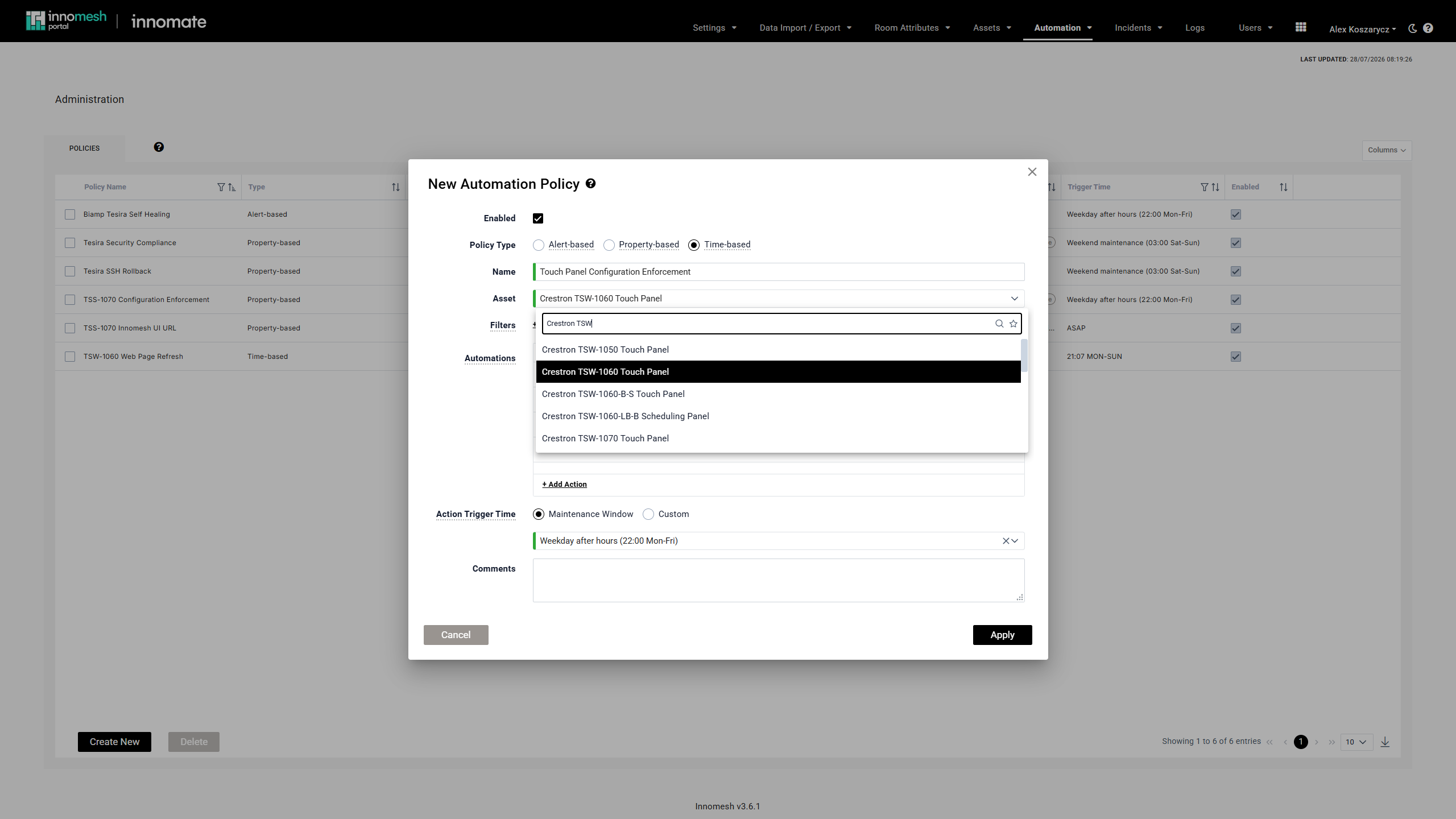
Typing in the search field narrows a long profile list; the star icon beside it switches to your organisation's favourites -
Optionally add Filters to restrict the policy to specific rooms, zones, sites, or user groups. Without filters, the policy targets every asset matching the profile. See Targeting Assets with Filters.
-
Under Automations, click Add Action and build the list of actions to run. The available actions depend on the selected asset profile.
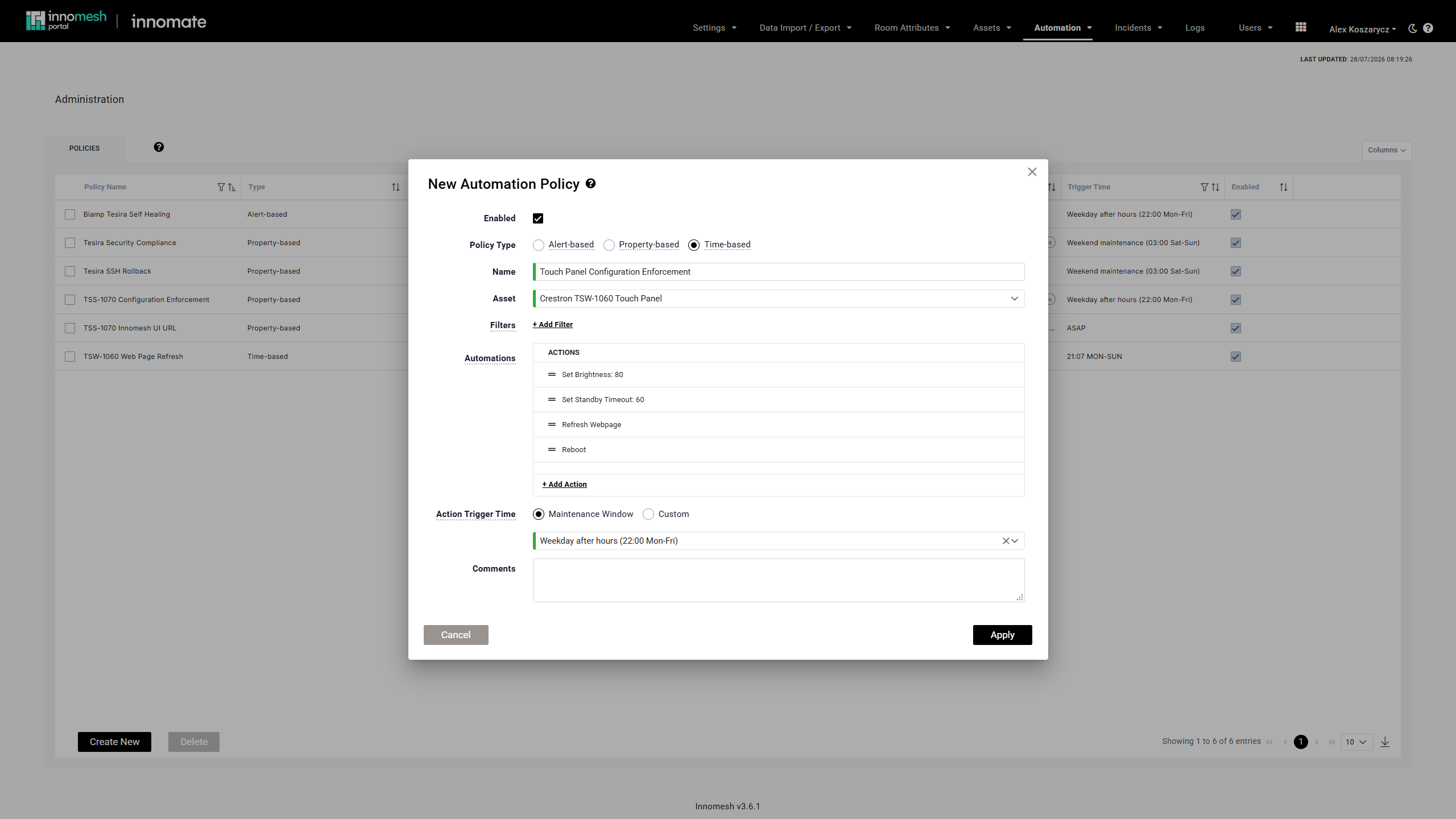
Actions run top to bottom on each targeted asset, staggered by at least 10 seconds, so a Reboot belongs last -
Reorder actions by drag and drop so they run in a sensible sequence. Configuration actions normally belong before a Reboot, not after it.
-
Set the Action Trigger Time:
- Choose Maintenance Window and select a pre-configured window, such as Weekday After Hours or Weekend Maintenance.
- Or choose Custom and set a time plus the days of the week to repeat on.
-
Tick Onboarding if the policy describes part of a correctly configured device, so it can be applied in one pick when provisioning by hand. See Manual Policy Runs.
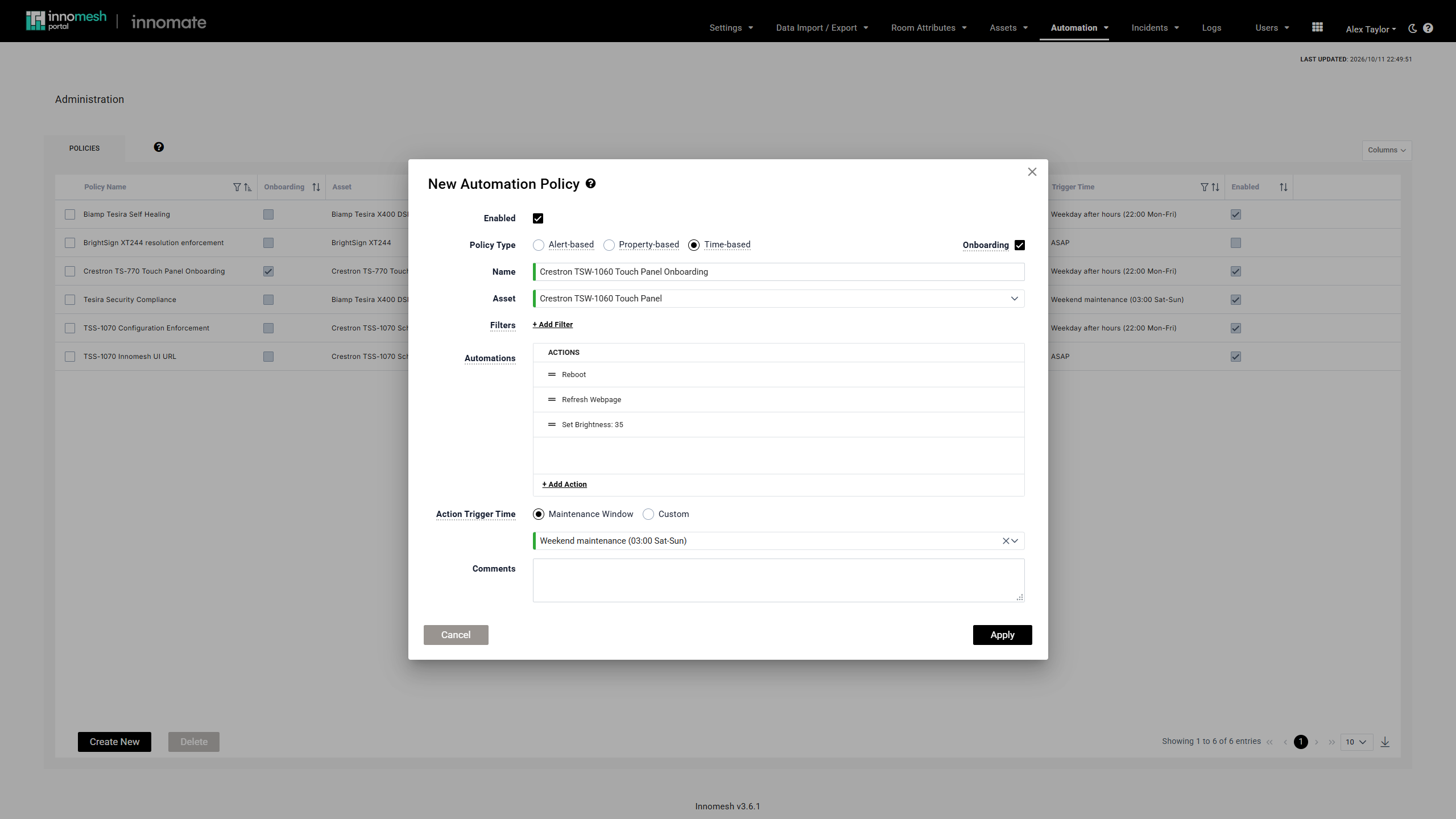
The Onboarding checkbox sits at the right of the Policy Type row -
Optionally add Comments explaining the policy’s purpose for other administrators.
-
Click Apply.
The policy then appears in the Policies table with its filters, actions, and trigger time summarised.
Verification
- Navigate to Assets > Actions.
- Confirm the Schedule tab lists one row per action per targeted asset, with your policy name in the Origin column.
- Check the Scheduled Time values. Times are shown in your own timezone, converted from each room’s local time.
- After the trigger time passes, open the History tab and confirm the actions completed.
Only the next occurrence is listed. Once today’s actions have run, the Schedule tab refreshes to show tomorrow’s.
Troubleshooting
| Symptom | Likely cause |
|---|---|
| No actions appear on the Schedule tab | The policy matched no assets. Check that the asset profile is correct and that your filters are not too narrow. Assets in Parking Lot zones are always excluded. |
| Actions appear for fewer assets than expected | The same physical device appears in multiple rooms and was de-duplicated, or some rooms fall outside the filters. |
| Actions run at the wrong time | Custom times are entered in the tenant’s timezone, not yours. Check the tenant timezone before assuming an off-by-hours error. |
| Actions are scheduled but never run | The maintenance window attached to the policy may be disabled. A policy on a disabled window schedules nothing. |
| Actions run but the device does not change | Open the History tab and hover the status icon for the failure detail. A Failed or Timed Out action usually points at device credentials or network reachability rather than the policy. |