

XPanel Management enables you to upload, manage, and launch Crestron XPanel interfaces for Innomesh Sight rooms directly from Room Manager and Portal. This provides browser-based access to room control panels without requiring the Crestron Toolbox or direct processor access. XPanel support for Sight was introduced in Innomesh v3.5.0 and enhanced in v3.5.1 and v3.5.3.
What Is an XPanel?
A Crestron XPanel is an HTML5-based control interface that mirrors the functionality of a physical Crestron touch panel. It runs in a web browser and communicates with the Crestron processor to provide remote room control.
In the Innomesh context, XPanels are uploaded as .c3p files and associated with Sight rooms, allowing support teams to control rooms remotely from the Portal interface.
Uploading an XPanel
- Open the Sight room in Room Manager.
- Open the Options menu and select Update XPanels to open the Update XPanel Settings dialog.
- Click Manage XPanel Files, then Upload XPanel File, and select the
.c3pfile. - Once uploaded, the file becomes available in the XPanel File dropdown. Select it for the panel.
- Enter the panel’s Control IP Address / Hostname and IPID, then click OK.
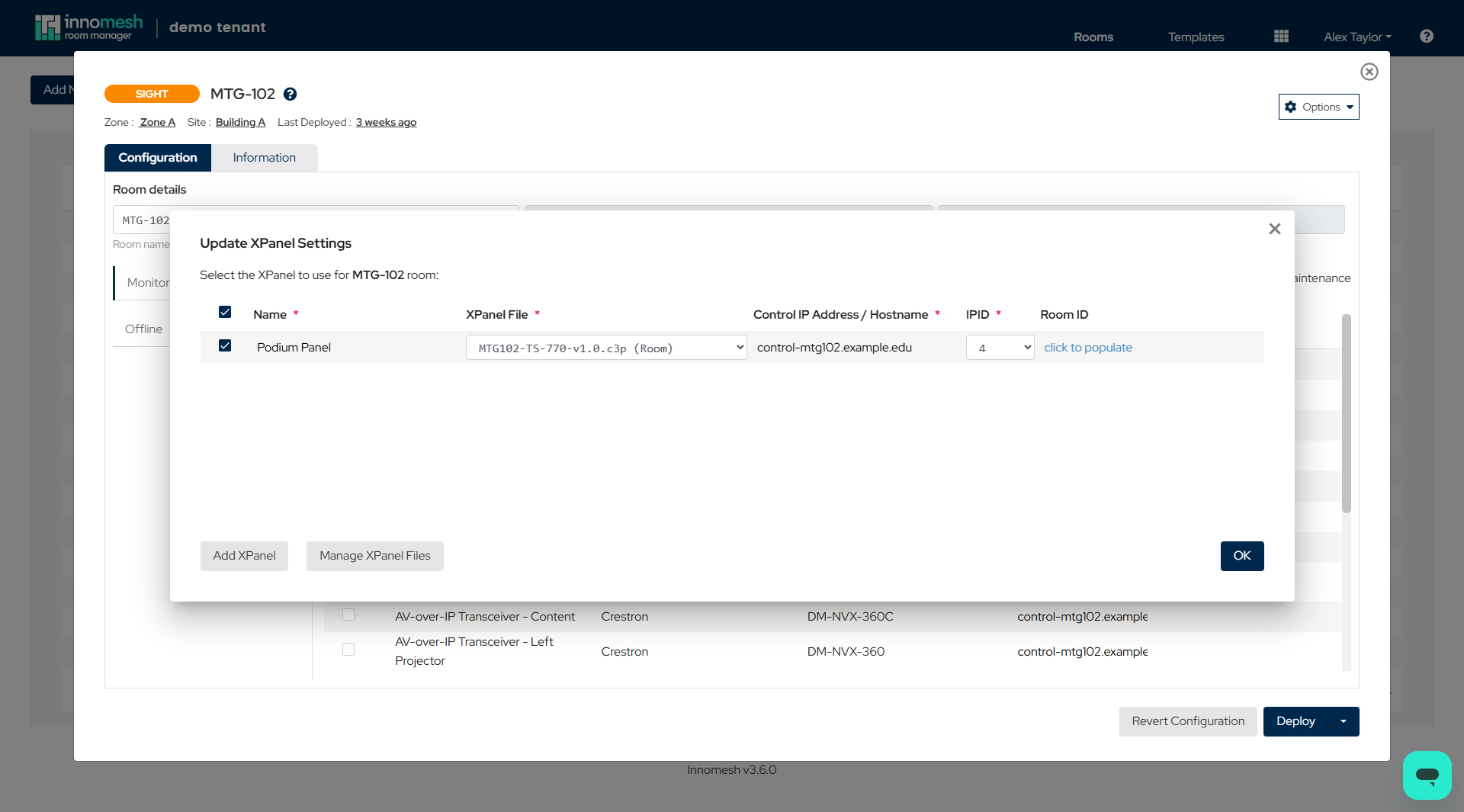 Uploading an XPanel, Innomesh Room Manager
.c3p files are accepted for XPanel upload. Other file types will be rejected.Launching an XPanel
Once uploaded, XPanels can be launched from both Room Manager and Portal.
From Innomesh Portal
- Navigate to Rooms and select the Sight room.
- In the Room Support View, click the XPanel button.
- The XPanel opens in a new browser tab, providing full remote control.
From Room Manager
- Open the room in Room Manager.
- Click the Launch XPanel option from the room’s context menu.
Managing XPanels
From the Update XPanels dialog in Room Manager, you can:
- Replace an existing XPanel by uploading a new
.c3pfile - Remove an XPanel from the room
- Select which XPanels are active if multiple are uploaded
RBAC Permissions
XPanel and Web Panel launching is governed by RBAC permissions. Ensure the user’s role includes the Launch XPanel permission. Portal-only users can also launch panels if this permission is assigned (added in v3.5.1).