

Templates can be uploaded as .json files, which is useful when working across multiple Innomesh environments, such as between the UAT and Production Innomesh environments. This guide covers importing a Space CE template from a JSON file.
To learn how to export a template to JSON, see Saving a Template to JSON.
Step 1: Navigate to the Templates Page
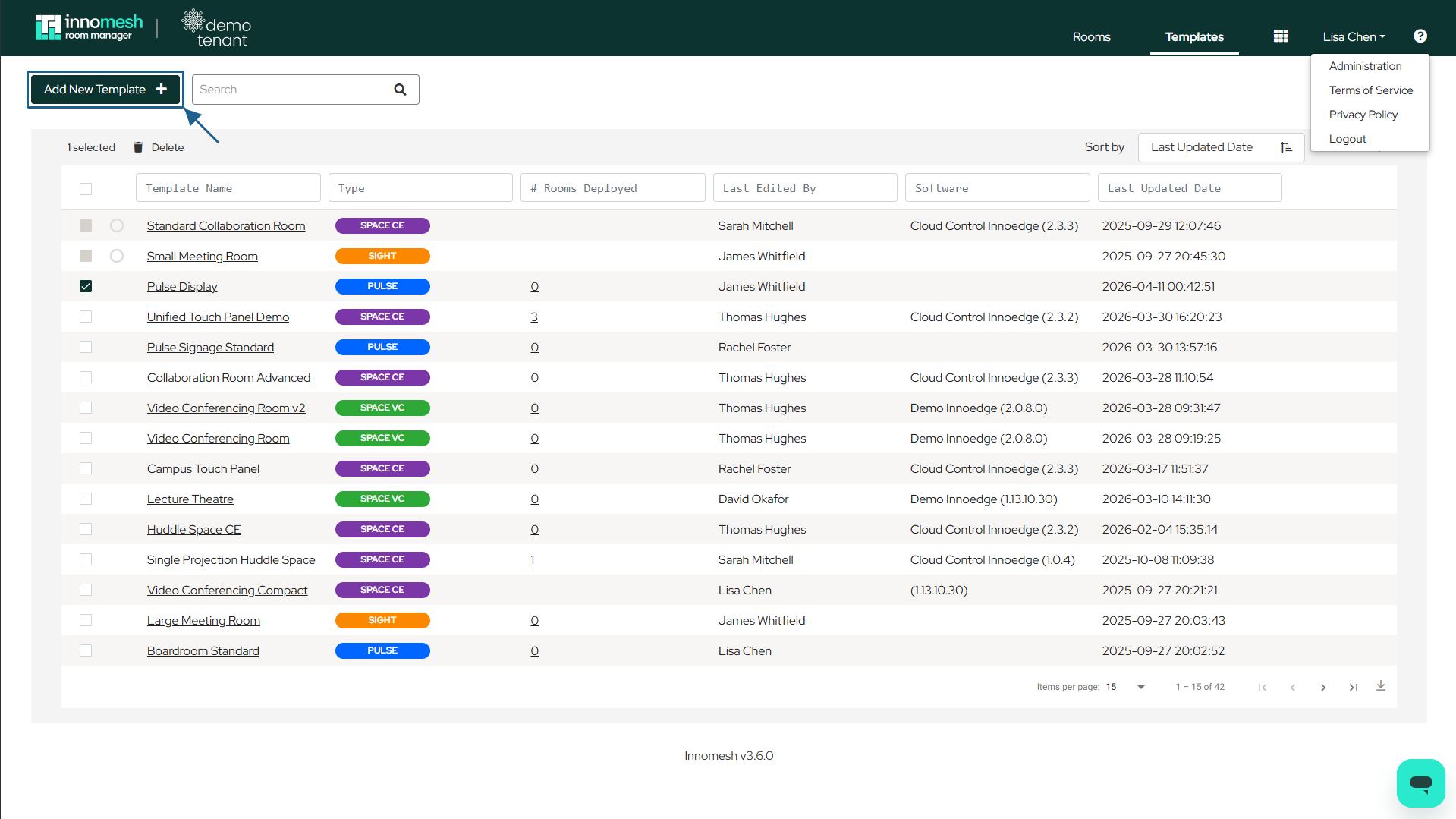
Click the Templates button in the top-right corner of the Innomesh home page to open the Templates page.
Step 2: Add a New Template
Click the Add New Template button. Select Space CE as the system template type.
Step 3: Open the Options Menu
A blank template window will appear. Hover over the Options menu in the top-right corner of the window and select Load Template from File.
Step 4: Upload the File
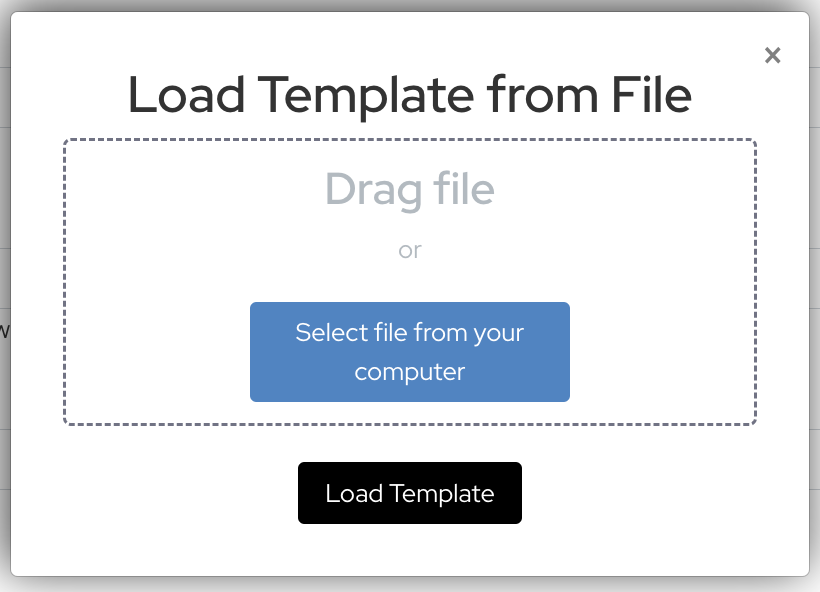
You can upload either a .json file for the Space CE template, or a .zip containing the .json files for both the Space CE template and the Sight devices within it. You have two options for uploading:
- Drag and drop: Drag the
.jsonor.zipfile from your local device into the dotted upload area. - Browse: Click Select file from your computer and navigate to the file location.
Once the file is selected, click Load Template to upload it.
Step 5: Review and Save
The template will populate automatically with all data from the JSON or zip file. Review the imported configuration to confirm everything is correct, then click Create to save the template.