

Any action meshIQ can run now, it can also queue for later. A reboot can wait for tonight’s maintenance window rather than interrupting a meeting in progress. This article covers scheduling an action, reviewing what is queued, and rescheduling or cancelling it. For running an action immediately, see Running Asset Actions from meshIQ.
Scheduling an Action
In the action list for an asset, every runnable action has a Schedule button beside Run.
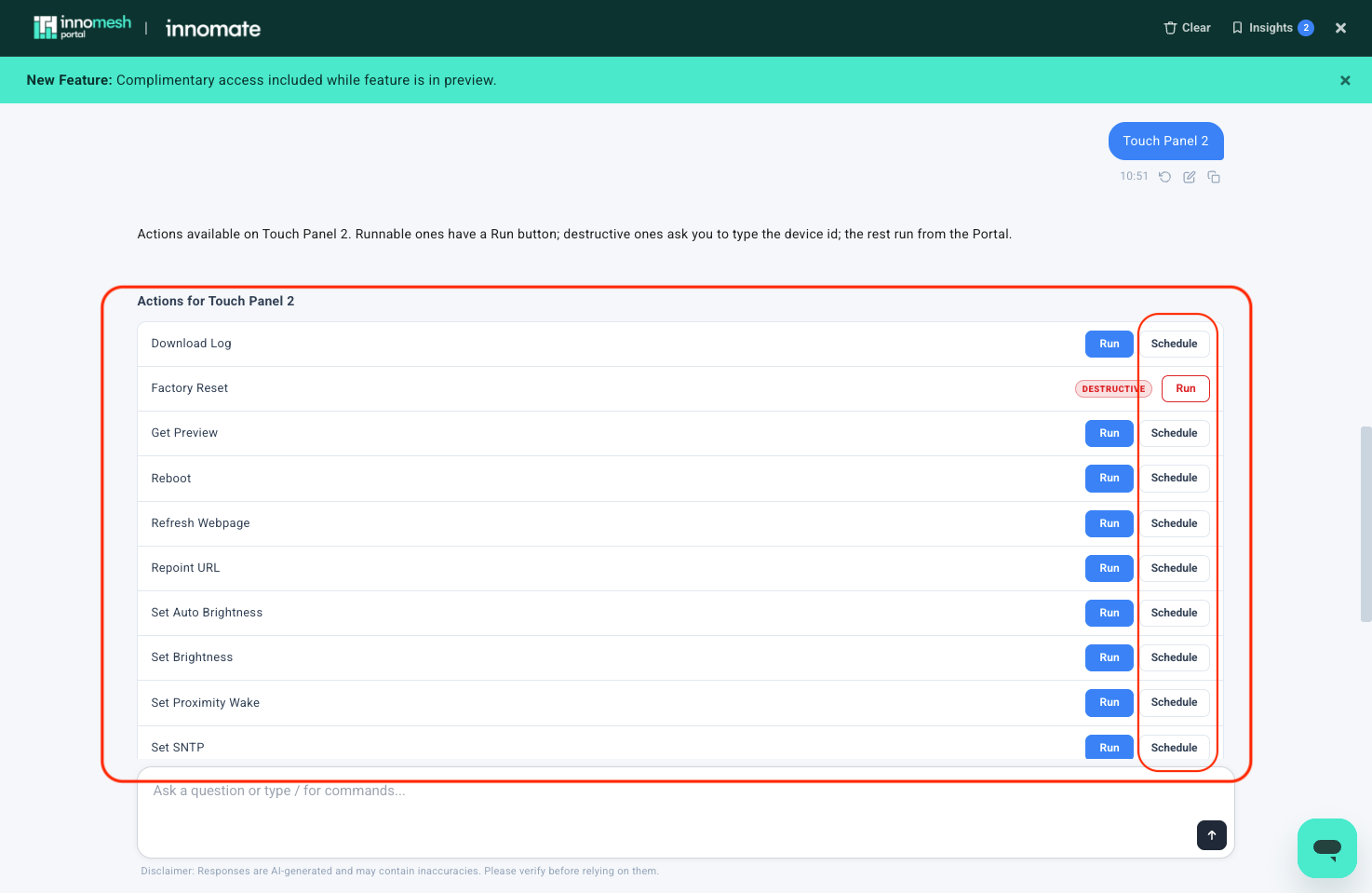
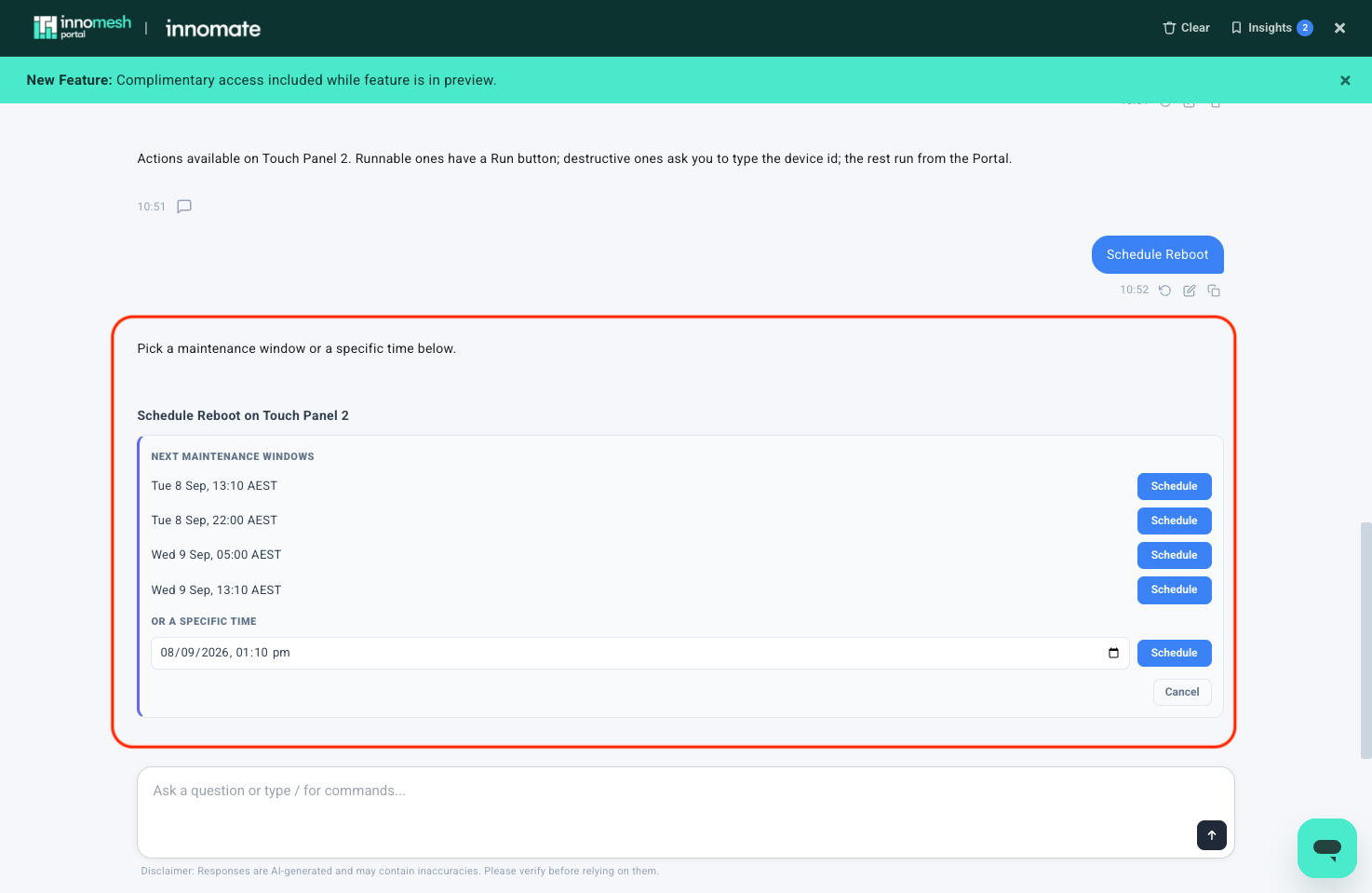
Select Schedule. meshIQ offers two ways to choose a time:
- Next maintenance windows: the upcoming windows are listed with their date, time, and timezone. Select Schedule beside the one you want.
- Or a specific time: enter a date and time, then select Schedule.
Viewing Scheduled Actions
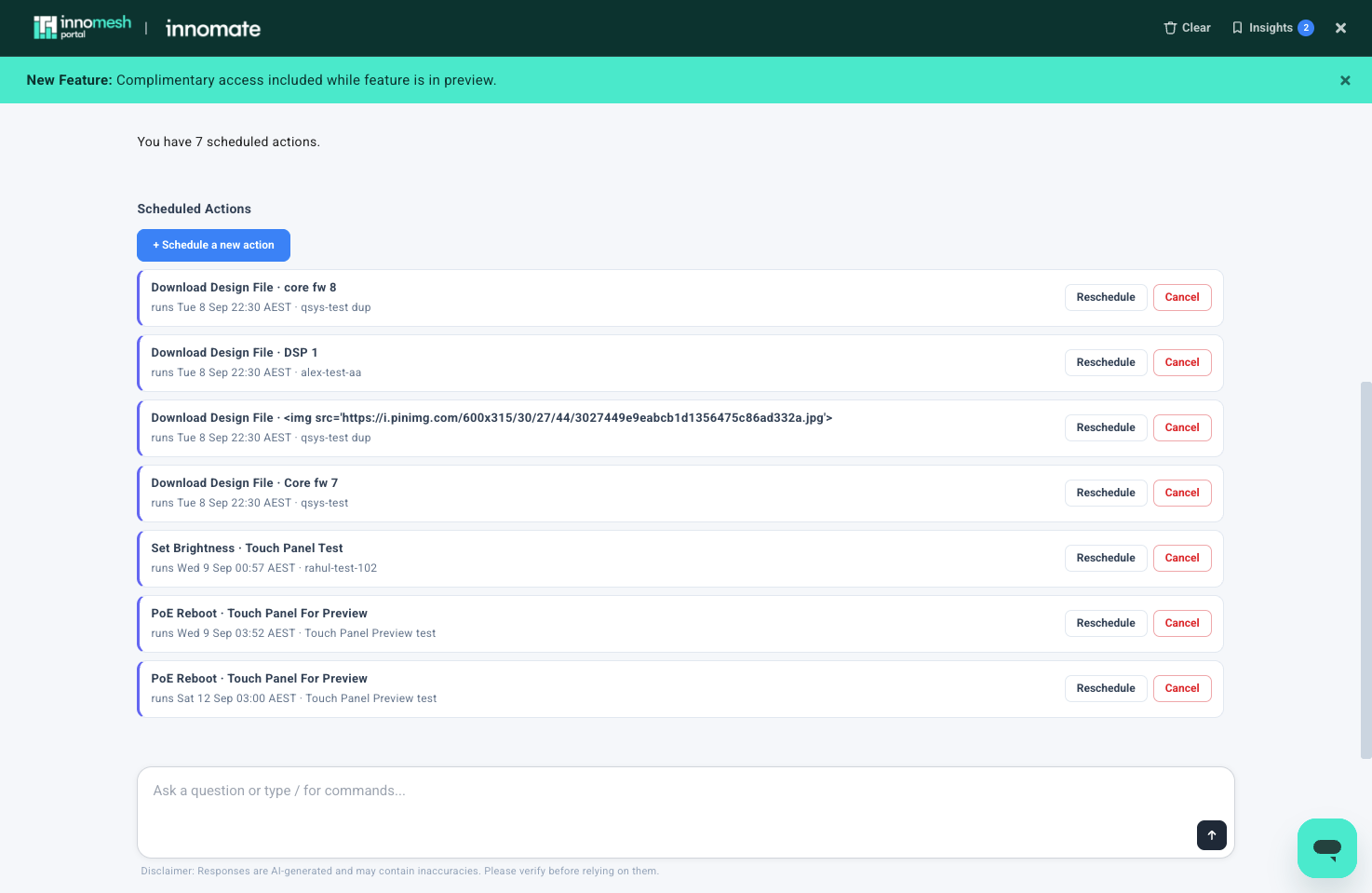
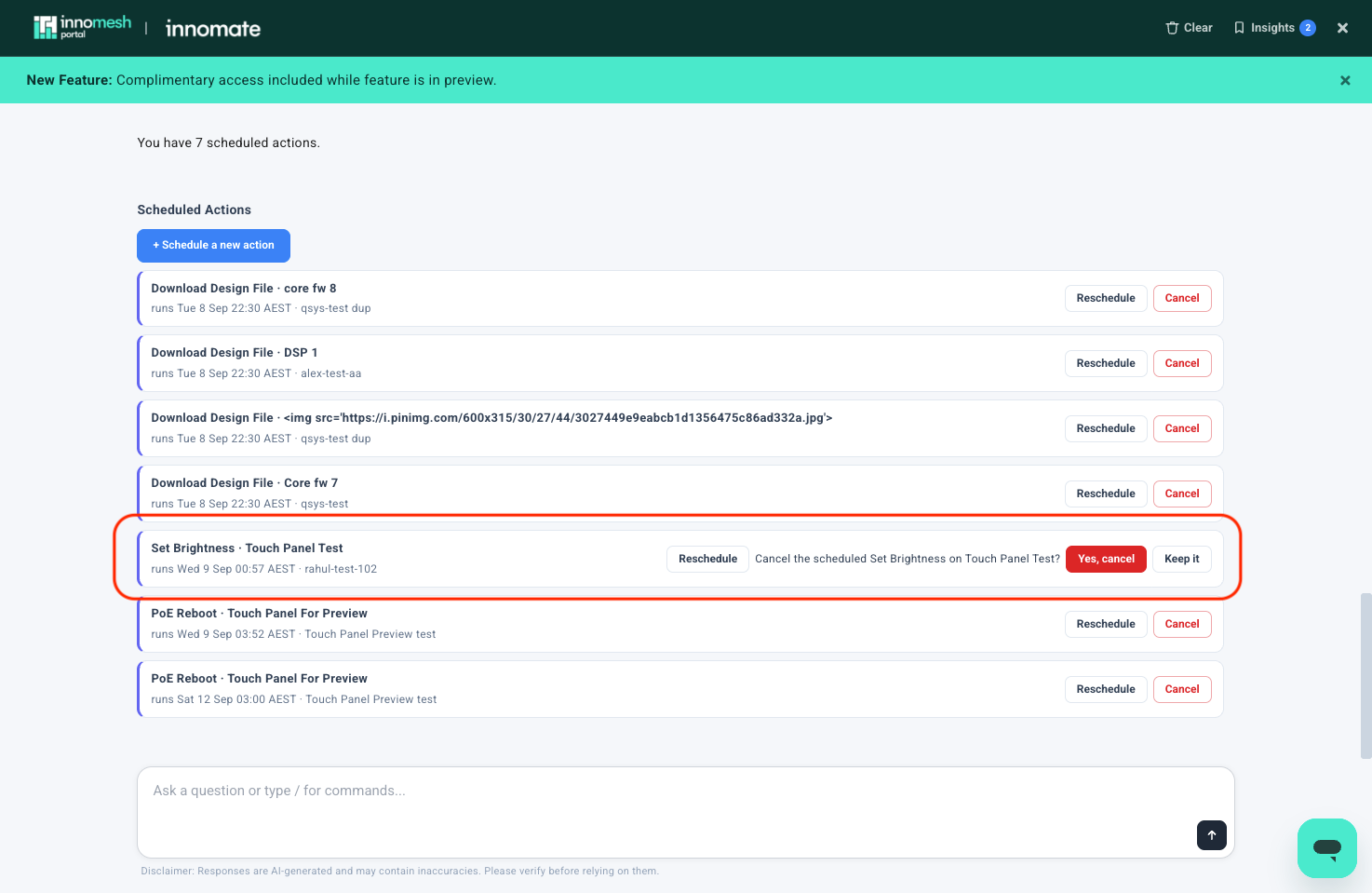
Type /scheduled-actions, or ask (see Asking in Plain Language). meshIQ lists everything you have queued, showing the action, the asset, when it runs, and the room. Each entry has Reschedule and Cancel buttons, and + Schedule a new action starts a new one from the list.
Rescheduling an Action
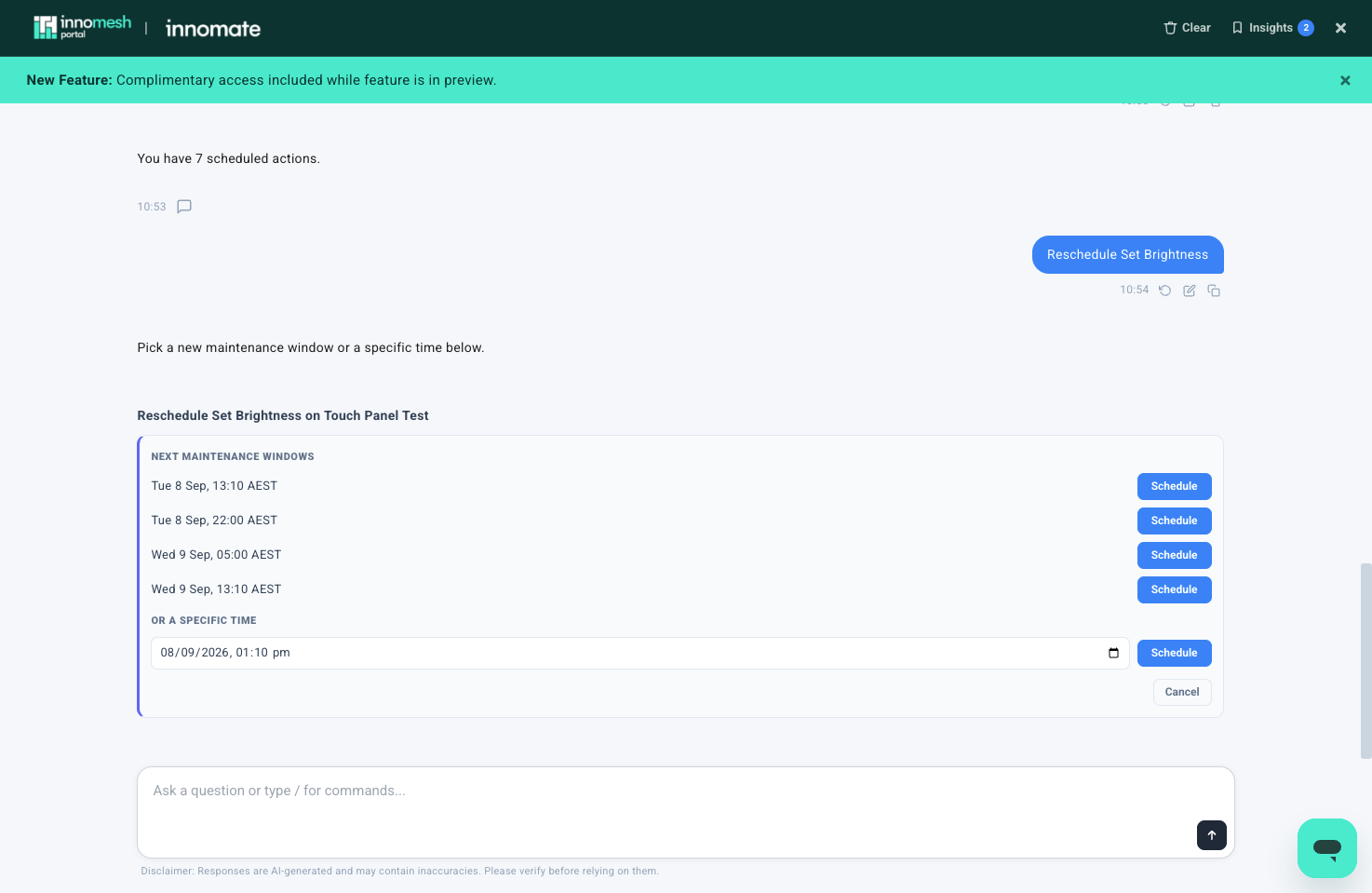
Select Reschedule on an entry. meshIQ offers the same choice as when scheduling: pick a new maintenance window, or enter a specific time.
Cancelling an Action
Select Cancel on an entry. meshIQ asks you to confirm before removing it: select Yes, cancel to remove the action, or Keep it to leave it queued.
Asking in Plain Language
Instead of /scheduled-actions, you can ask:
- “What actions are scheduled?”
- “Do I have anything queued for 01-0032-210?”
- “Show me everything scheduled to run this weekend.”
- “Cancel the reboot scheduled for the boardroom display.”
- “Reschedule that display restart to Saturday morning.”
Scheduling can also start from the request itself, without visiting the action list first. Name the time in the request, or leave it out and meshIQ asks for it in the conversation:
- “Reboot the touch panel in 01-0032-210 tonight at 10pm.”
- “Restart the boardroom display on Sunday at 3am.”