

The Administration area of Innomesh Portal groups the platform’s management tools: operational settings, alert severity rules, data synchronisation, room attributes, asset profiles, automation policies, incident rules, activity logs, and user access. This article maps each section and links to its detailed guide.
Accessing Administration
Click your name in the top-right corner of Innomesh Portal, then select Administration. The Administration area opens with its own navigation bar across the top, one tab per section.
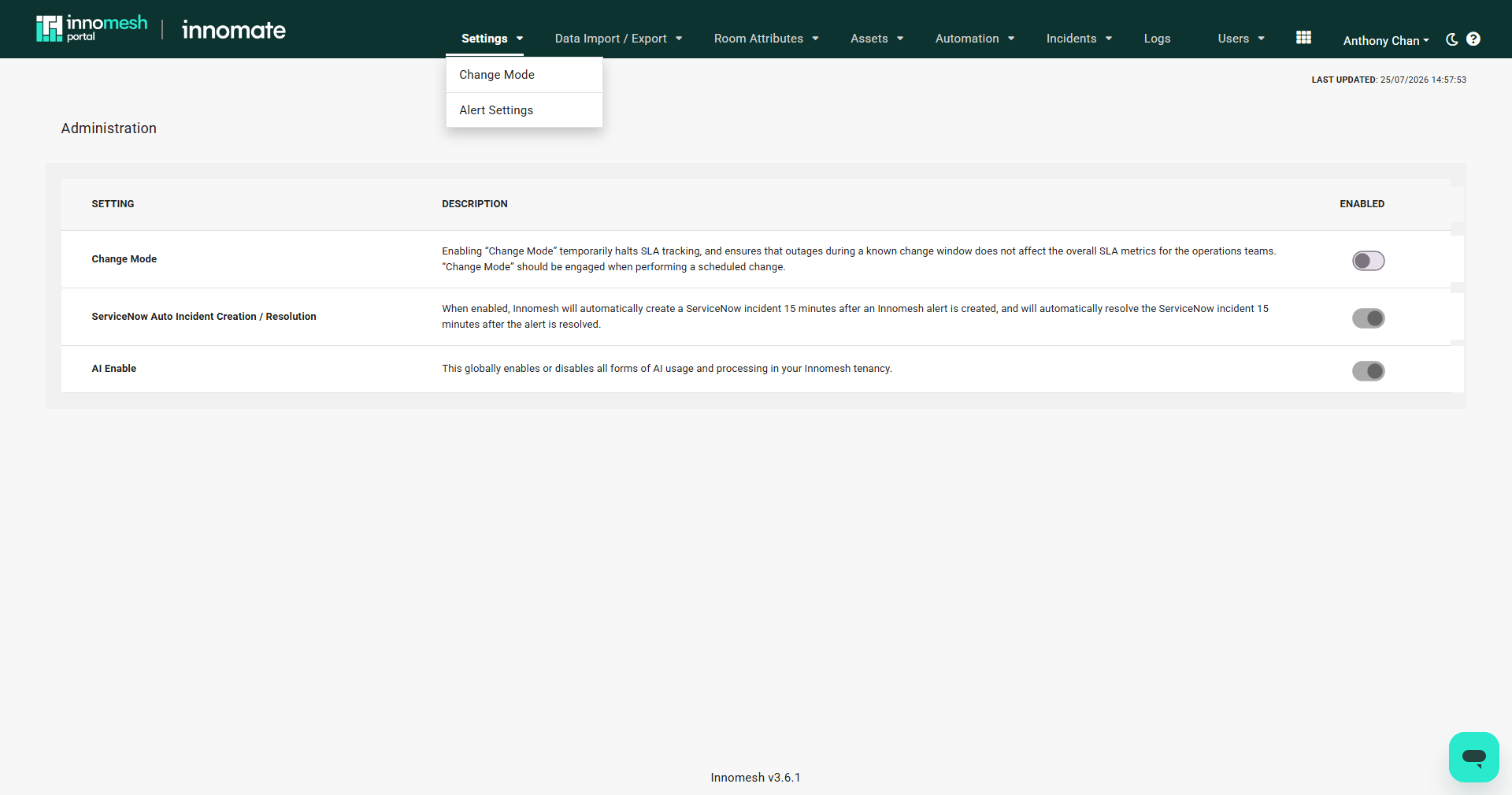
Sections at a Glance
| Tab | What it manages | Detailed guide |
|---|---|---|
| Settings | Platform-wide toggles on the Change Mode page, and alert severity rules on the Alert Settings page | Platform Settings, Alert Settings |
| Data Import / Export | Scheduled import and export pipelines, and one-off manual imports | Managing Data Imports and Exports |
| Room Attributes | Smart Room Attributes and Summary Views | Smart Room Attributes, Room Summary Views |
| Assets | Asset profile and driver mapping reference, and asset field management | Asset Profiles |
| Automation | Asset automation policies | Asset Automation Overview |
| Incidents | Rules that automatically create incidents from alerts | Incident Rules |
| Logs | Activity history of user actions across Room Manager and Portal | Audit Logs |
| Users | Users, user groups, roles, and SAML roles | RBAC Authorisation Guide |
Settings
The Settings menu contains two pages. Change Mode holds platform-wide operational toggles: Change Mode itself (temporarily halting SLA tracking during maintenance windows), ServiceNow auto incident creation and resolution, and AI Enable. Alert Settings defines alert severity rules that override the default severity of matching alerts. See Platform Settings and Alert Settings.
Data Import / Export
The Data Import / Export tab configures synchronisation with external data sources: scheduled imports that populate dynamic room fields, scheduled exports that push Innomesh data to external systems, and manual CSV or JSON imports through the browser. See Managing Data Imports and Exports.
Room Attributes
The Room Attributes tab defines Smart Room Attributes: custom attributes that programmatically query room configurations to surface details such as display counts or microphone types without inspecting each room manually. Its Summary Views tab arranges those attributes into named, comparable views on the Information page. See Smart Room Attributes and Room Summary Views.
Assets
The Assets tab lists the Asset Profiles that normalise device information across the platform. Every device in Innomesh must have an asset profile and mapped driver before it can be selected in Room Manager. Profiles and their driver mappings are maintained by Innomate and requested through the form in the Innomate Support Portal. See Asset Profiles.
Automation
The Automation tab manages asset automation policies, which run asset actions automatically on a schedule, in response to Hotlist alerts for self-healing scenarios, or when a device property drifts from its desired value. See Asset Automation Overview.
Incidents
The Incidents tab manages incident rules, which define when Innomesh automatically creates incidents from alerts. See Incident Rules.
Logs
The Logs tab provides a detailed activity history with sortable columns and filters, tracking logins, edits, asset interactions, room operations, and administrative changes across Room Manager and Portal. See Audit Logs.
Users
The Users tab manages access through Role-Based Access Control (RBAC): user accounts, organisational user groups, roles with fine-grained permissions, and SAML role mappings. Roles are enforced the next time the user logs in. See the RBAC Authorisation Guide.