

Sight monitors individual devices, but a room is more than the sum of its devices. Room State Mapping bridges that gap: it derives room-level states, such as whether the room is powered, whether it is occupied, and which AV source is being presented, from the device properties Sight already collects. One well-chosen mapping per state is enough to turn a Sight room’s raw device data into the same live status and usage insights that Space rooms report natively.
Sight is deliberately stateless, so room states are not measured directly; they are inferred from mapped device properties. A mapping is a simple rule: when this device property has this value, the room is in this state. For example, when the display’s Power Is On property is true, the room is powered. Room states are refreshed about every 5 minutes, and usage insights are recalculated hourly.
Room States
Four room states can be mapped:
| State | What it represents | Example mapping |
|---|---|---|
| Room Power | Whether the room is in use (on or off) | Display Power Is On is true |
| Room Occupancy | Whether the room is physically occupied | An occupancy-capable device reports presence |
| Source Select | Which AV source the room is showing; the state’s value is the source name recorded in insights (e.g. “Laptop HDMI”) | Display Video Input is Hdmi1 |
| Source Off | No source is being shown | Display Video Input is a blank or idle input |
Adding a Mapping
- Open a Sight room.
- Open the Options menu in the top right and select Room State Mapping.
- Click Add Mapping.
- Under Room State, choose the State and its Value. For Source Select, the value you enter here is the source name that appears in usage insights.
- Under Mapped To, select the Device (drawn from the room’s device list), the Property, and the property Value that indicate the state. The Property and Value dropdowns are populated from the device’s category; tick Custom to type a property or value manually, which is also the fallback for devices whose category has no predefined properties.
- Tick Not to invert the condition, so the mapping matches whenever the property does not equal the value.
- Click Add, then OK, and update the room to apply the change.
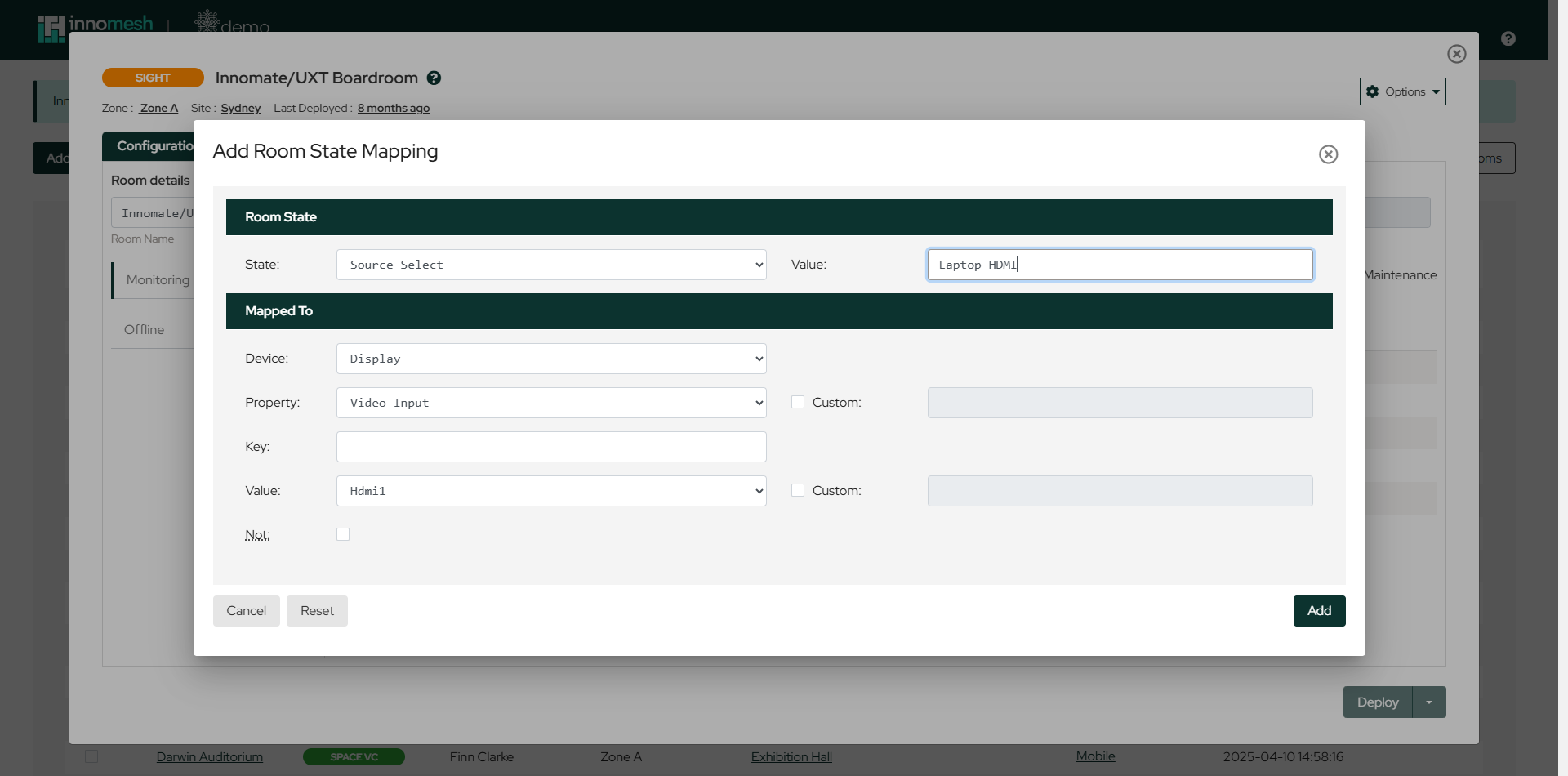 Mapping the “Laptop HDMI” source to the room display’s HDMI 1 input | Innomesh Room Manager
The mapping list shows every configured rule, with the room state on the left and the device condition it is mapped to on the right.
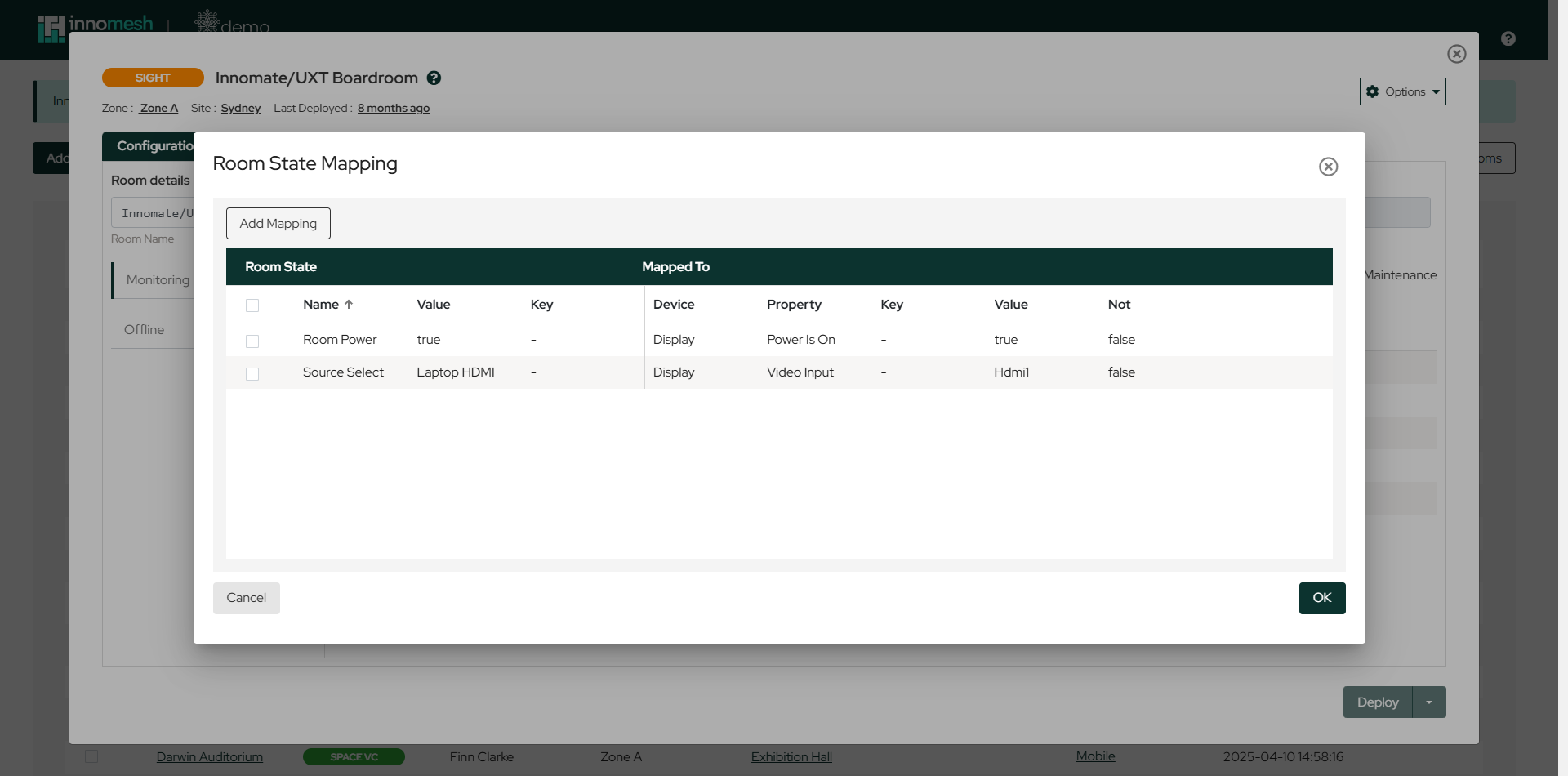 A room with its power and source states mapped to display properties | Innomesh Room Manager
Destination Keys
Rooms with several displays can track source usage per destination. The Key fields tie a Source Select or Source Off mapping to a specific destination, so the platform knows not just that “PC” is being shown, but where it is being shown. The Room Support View then displays sources against their destinations.
Where destinations are used, source usage insights de-duplicate across them. If “PC” is shown on three destinations for an hour while “Laptop” is shown on one destination for the same hour, insights record one hour of usage for each source, not three hours for “PC”.
Mapping at the Template Level
Mappings can also be defined on a Sight template, via the same Room State Mapping entry in the template’s Options menu, so every room created from the template inherits its mappings. This is the recommended approach for fleets of standardised rooms, where configuring each room individually would not scale.
Where Room States Appear
Once mappings are in place and the room is updated, the derived states flow through Innomesh Portal:
- Rooms page: the room’s power status reflects the mapped device, and Live Status shows the room’s power, source, and occupancy states, updated within about 5 minutes.
- Room Support View: shows the current source per destination for rooms using destination keys.
- Insights: room and source usage visualisations, including Room Power Status Over Time, Last Source Selected, and Source Usage Over Time, are built from the mapped states and recalculated hourly.