

This guide explains how to create a new room using Space CE through the Innomesh Room Manager interface.
Initial Steps
- Navigate to the Innomesh home page and click Add New Room.
- Select a Space CE template, identified by a cloud icon next to the template name.
- Click Next to proceed.
- Select the Zone where you want to set up your room. Rooms can be moved between zones after creation. Best practice is to start in a testing zone before moving to production.
- Click Next to continue.
Properties Section
Fill in the room’s identity fields:
- Room Name: The display name for your room.
- Room ID: The internal identifier for the room.
- Room Friendly Name: An alternative, user-friendly room name shown throughout Room Manager and Portal.
- Room Location: The room’s physical location. Filling this out is recommended.
- Room Author: Information about the creator.
Check In Maintenance while building the room to suppress alerts in the Hotlist. Uncheck this setting when the room is commissioned and ready for use.
Devices Section
The Devices section lists the devices inherited from the template. Click click to populate against a device to enter its IP address or hostname, and use Add Device + to add any devices the room needs beyond the template. Clicking an existing device opens it for editing. Disabled devices appear greyed out in the list.
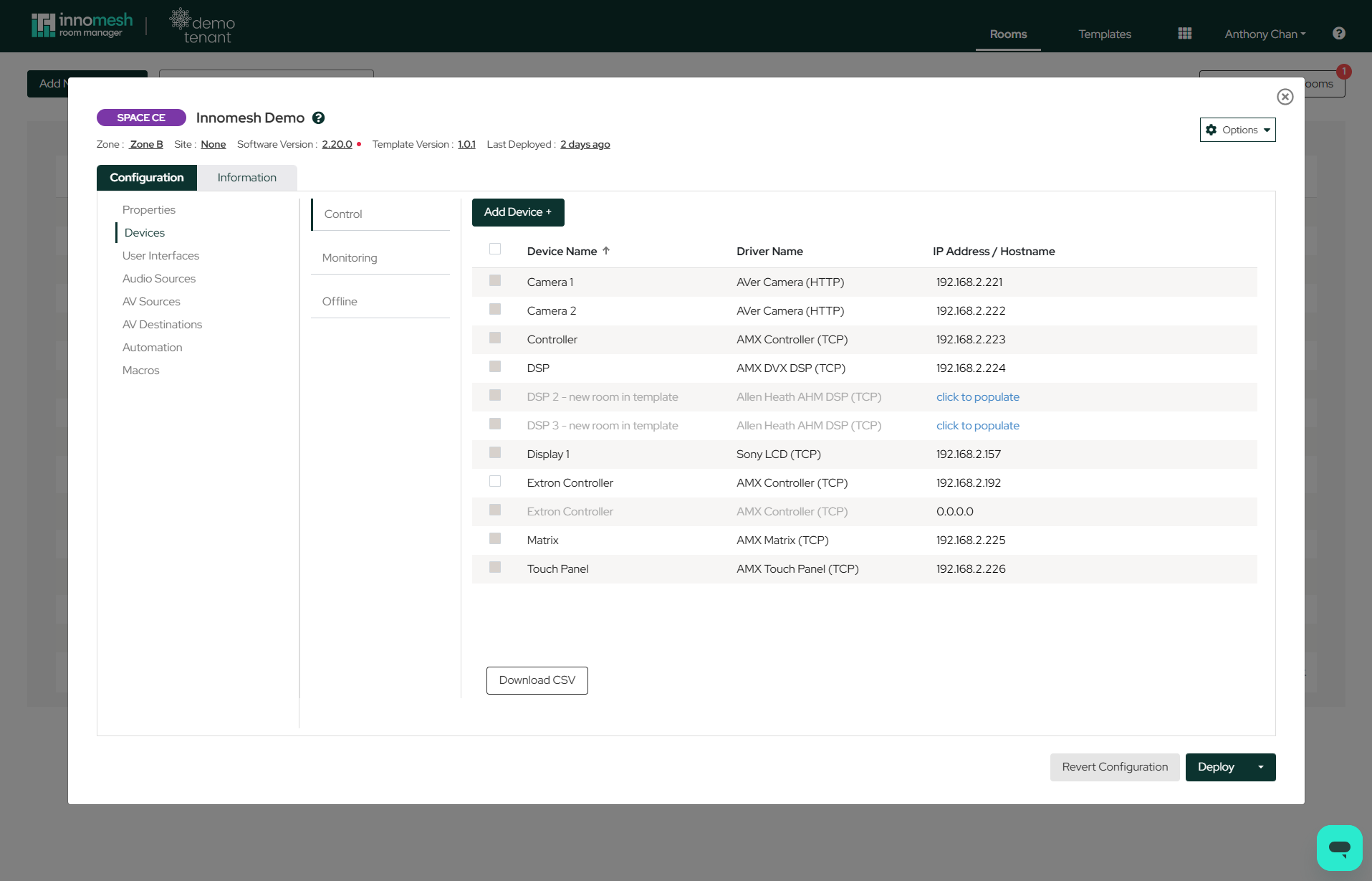
To remove a device that has been inherited from the template, disable it. Note: deleting it will not achieve this — the device is re-inserted when the room configuration is merged with the template configuration. Room Manager also surfaces a warning when you attempt to delete an inherited device.
For the layout of this section — device categories, actions, and device types — see Space CE Room Devices.
Options Dropdown Menu
Advanced features — exporting to JSON, Show All Options, XPanel, web panel and VNC settings, user groups, and more — are available via the options menu in the top right corner of the room configuration window. See the Space CE Room - Options Menu for the full list.
Deploying the Room
Once all necessary information has been entered, click the Deploy button to create the room.