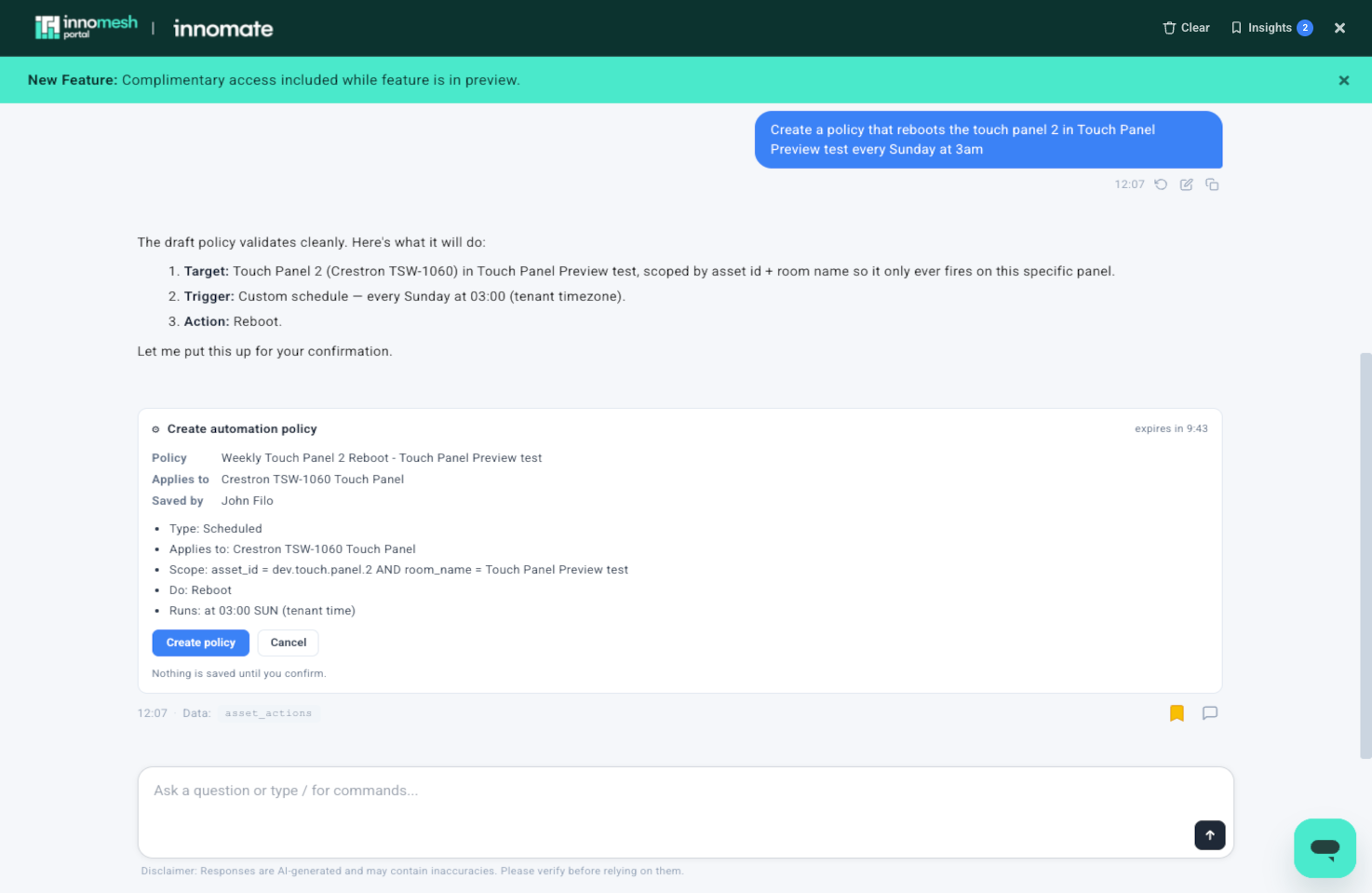
Automation policies can be authored in the meshIQ chat as well as in the Innomesh Portal policy editor. meshIQ lists your policies, walks you through creating one, and lets you edit, enable, disable, or delete any of them, validating a new policy before it is saved. This article covers each of those operations. For what a policy is and how the three policy types behave, see the Asset Automation Overview.
Listing Policies
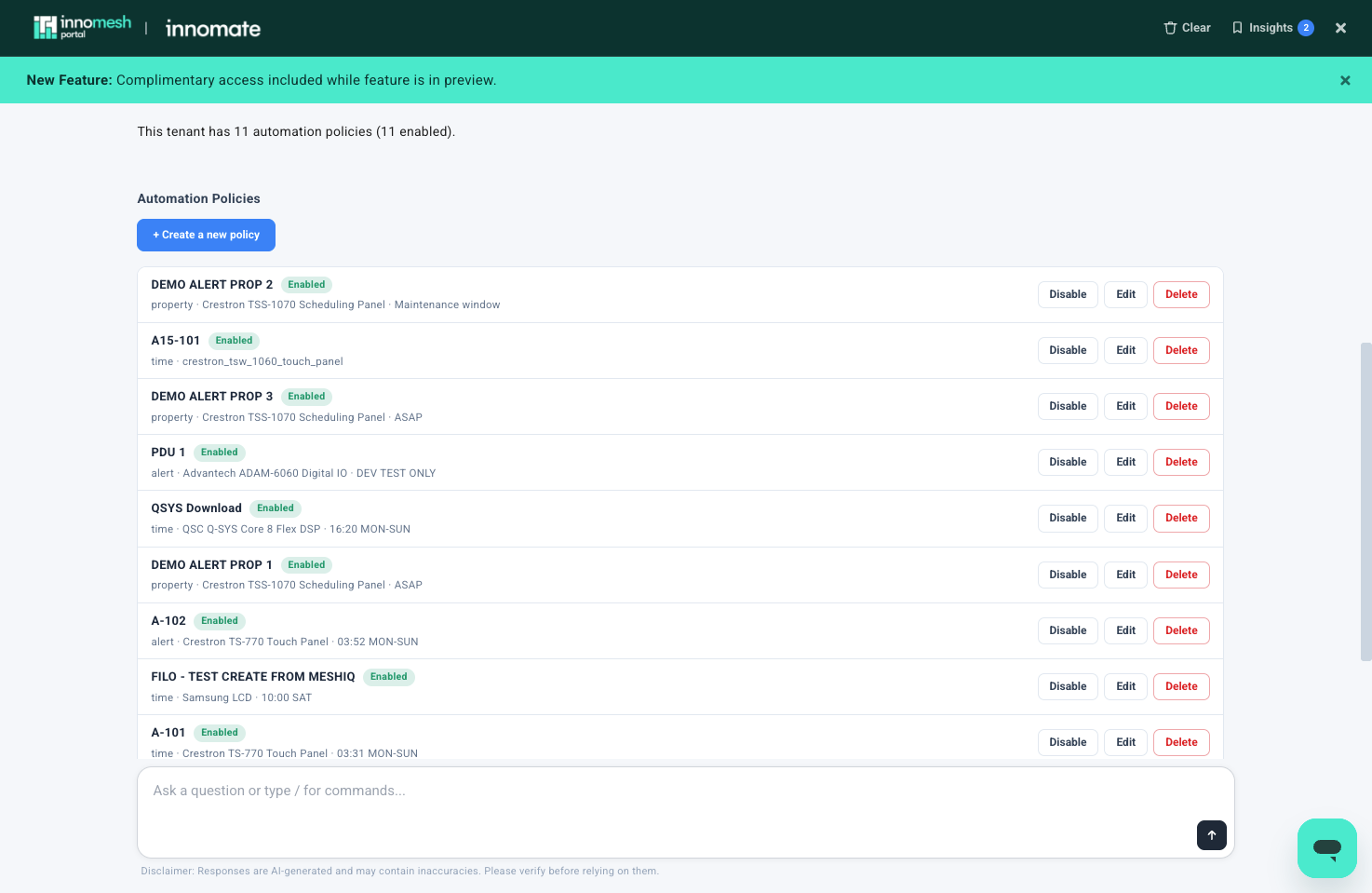
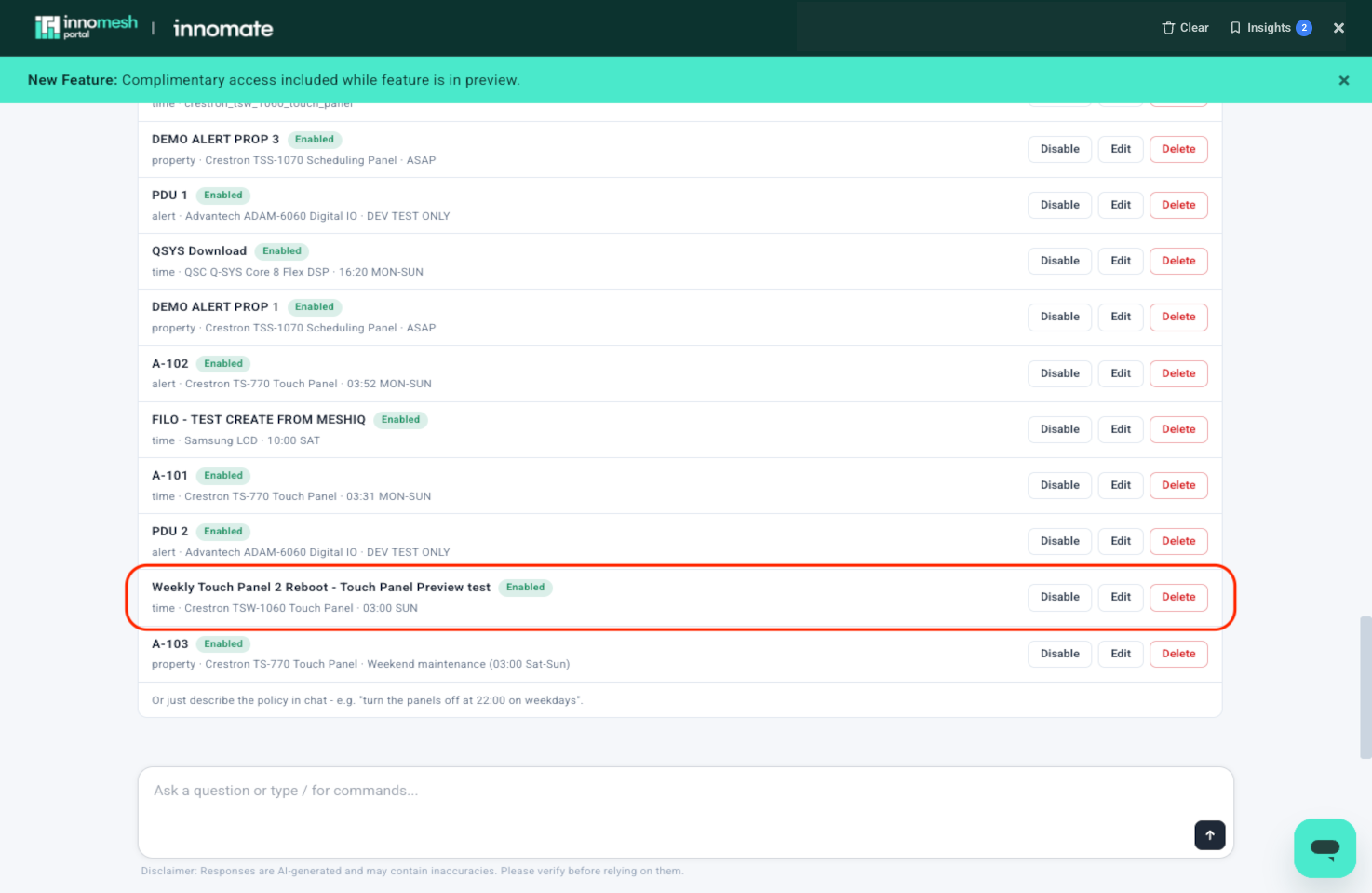
Type /automation-policies, or ask (see Asking in Plain Language). meshIQ reports how many policies the tenant has and how many are enabled, then lists them. Each entry shows the policy’s name, whether it is enabled, its type, the asset profile it targets, and when it triggers, with Disable, Edit, and Delete buttons. + Create a new policy sits at the top of the list.
Creating a Policy
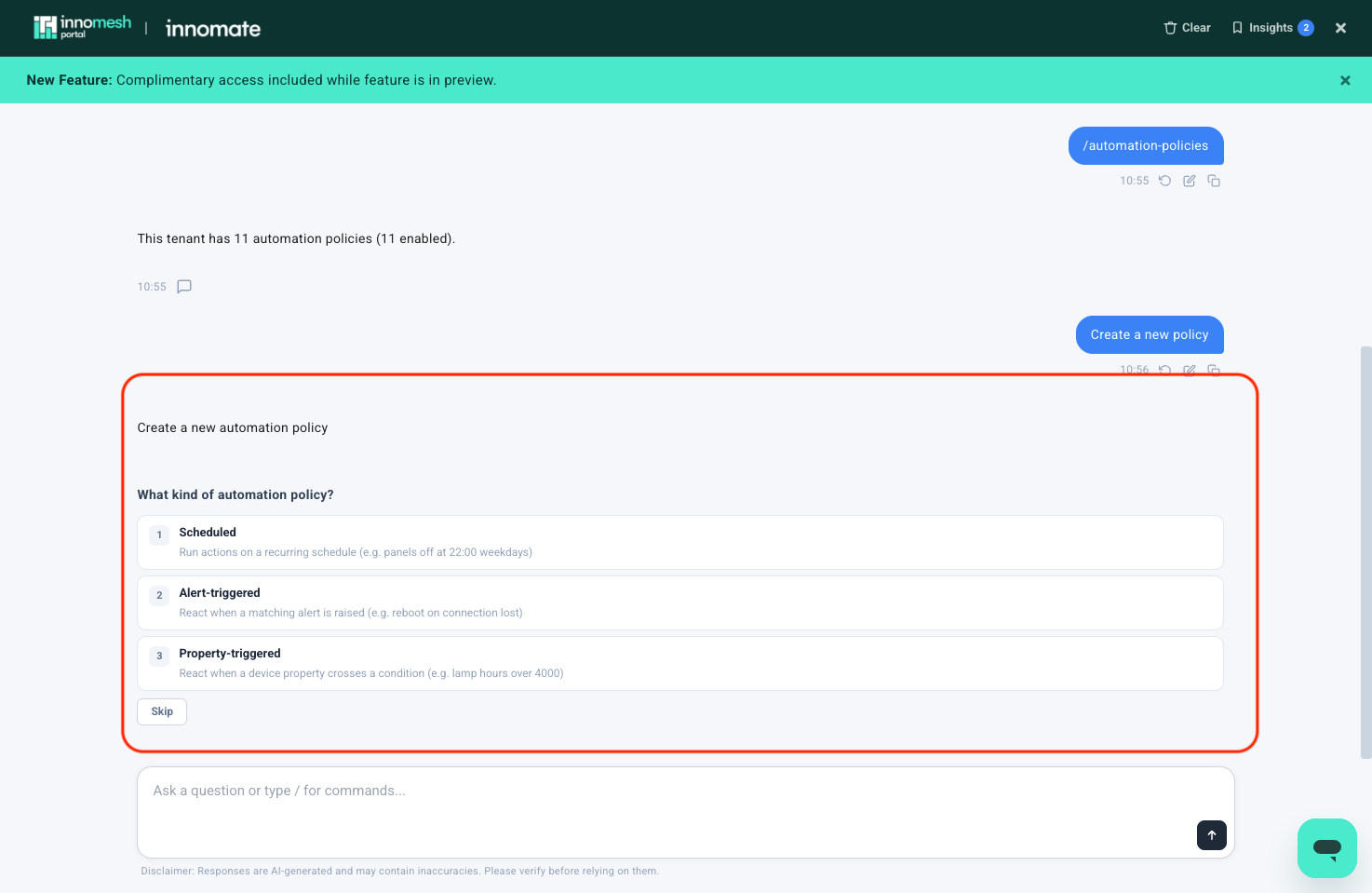
Select + Create a new policy, or describe the policy you want in plain language. meshIQ first asks what kind of policy to create.
| Kind | What it does | Portal equivalent |
|---|---|---|
| Scheduled | Runs actions on a recurring schedule | Time-Based Automation Policies |
| Alert-triggered | Reacts when a matching alert is raised | Alert-Based Automation Policies |
| Property-triggered | Reacts when a device property crosses a condition | Property-Based Automation Policies |
Creating a Scheduled Policy
After choosing Scheduled, meshIQ asks three questions.
-
Which devices does this policy apply to? Pick the asset profile. The list is searchable and paged.
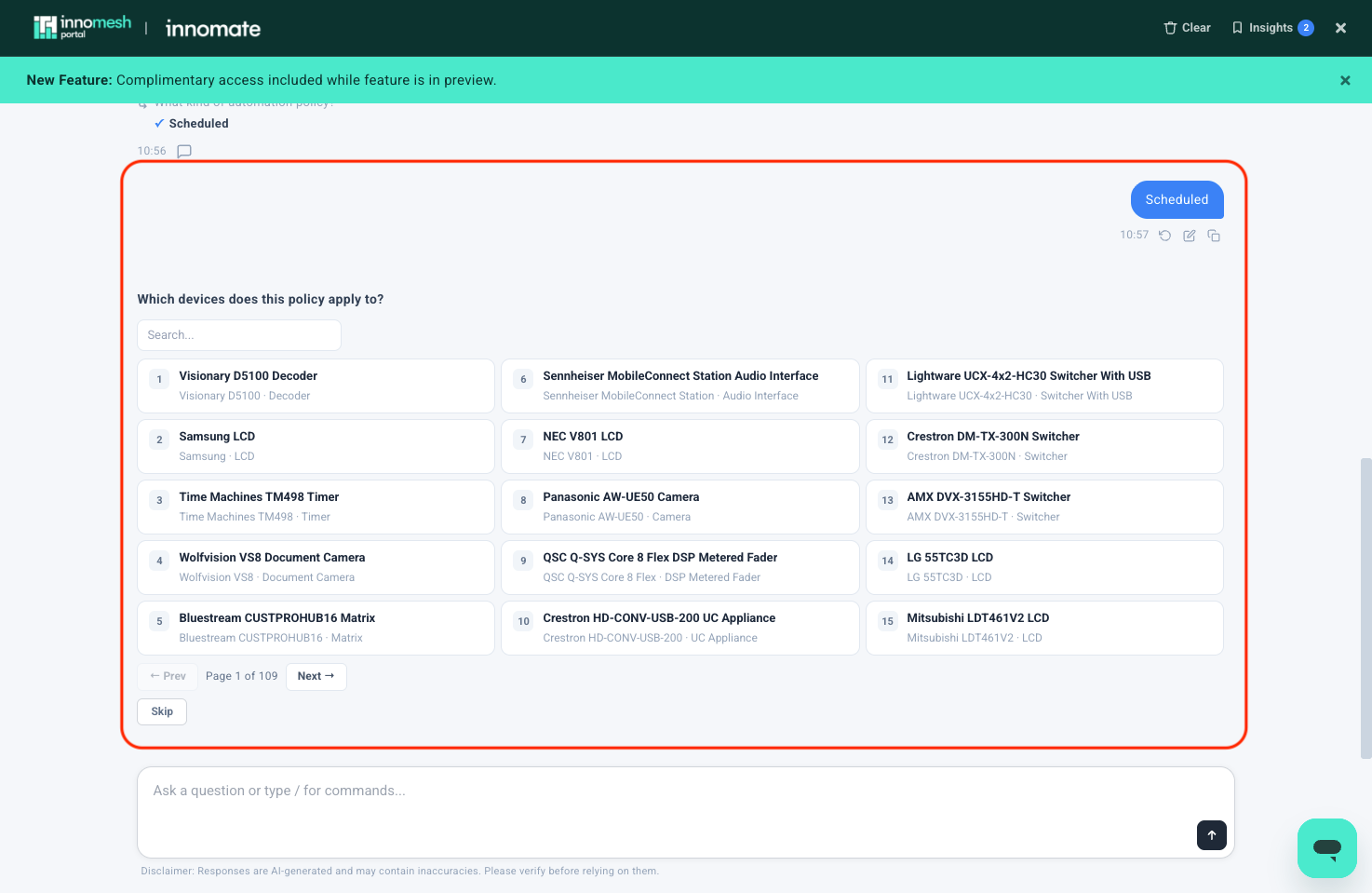
A policy targets an asset profile, so its actions apply to every matching device -
What should it do? Tick the actions to run. The actions offered depend on the asset profile you chose.
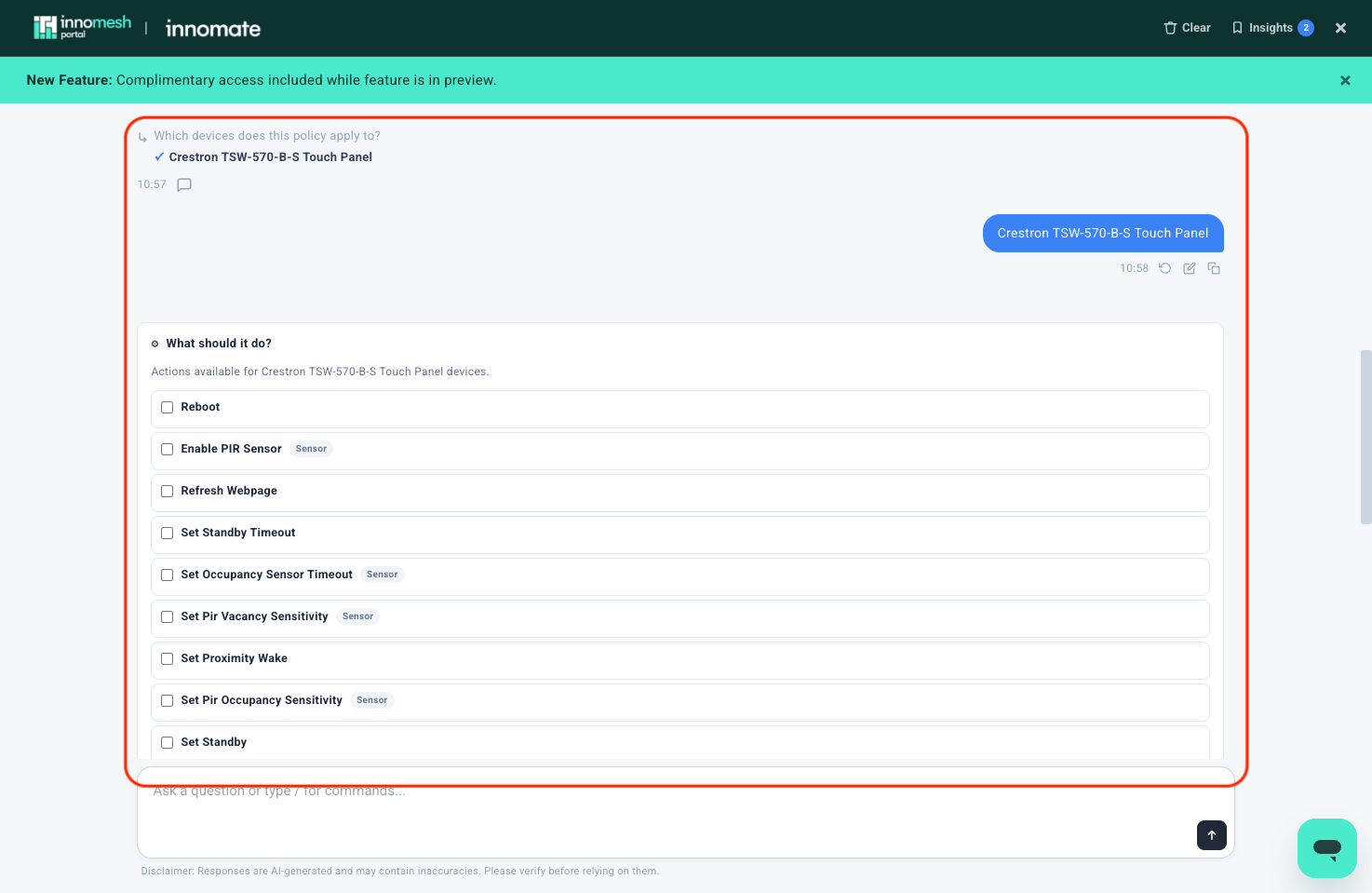
The actions offered depend on the asset profile -
When should the actions run? Choose On a schedule and pick the days of the week and a time in tenant local time, or choose During a maintenance window. Select Continue.
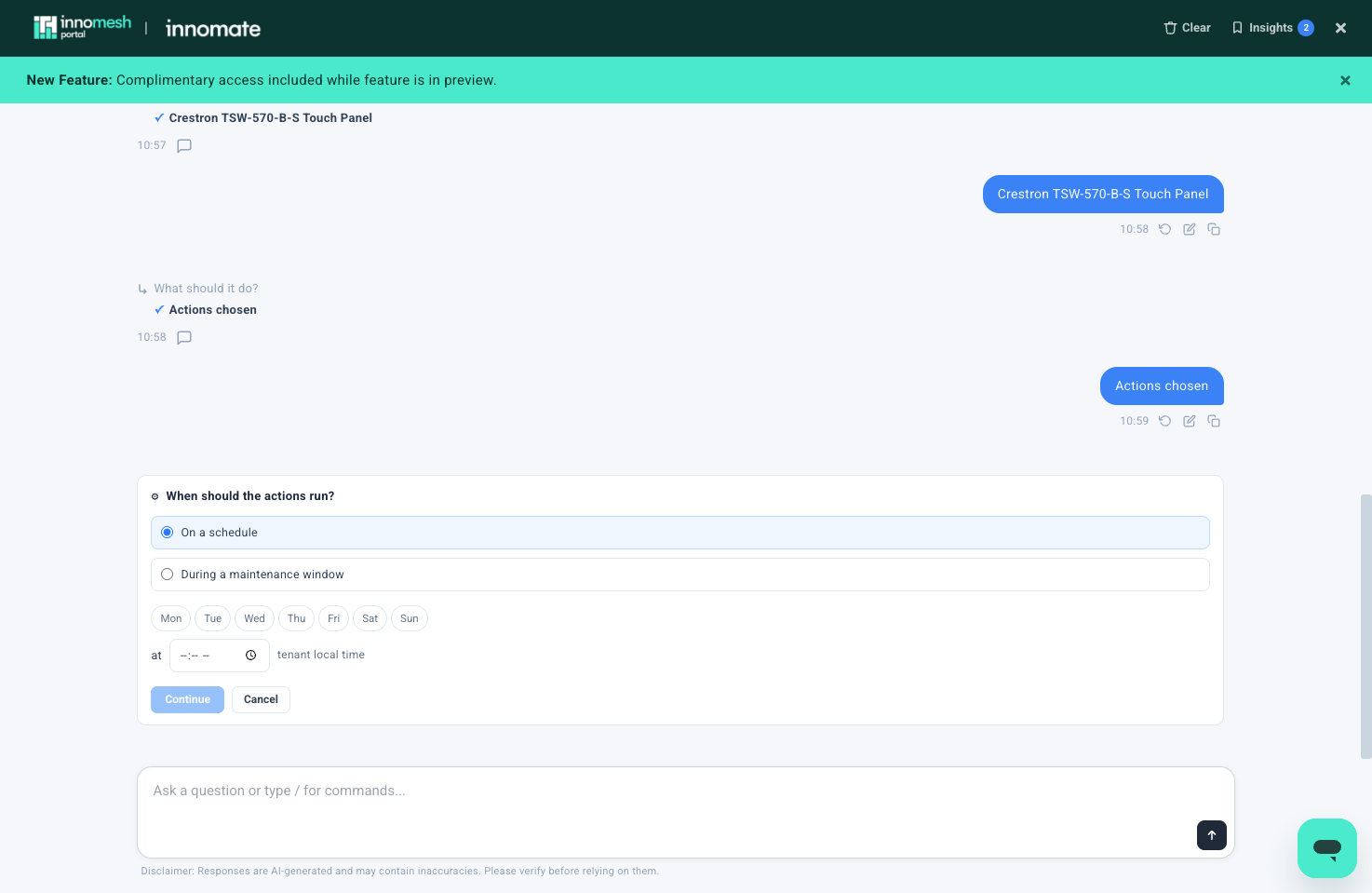
A scheduled policy runs on chosen days at a set time, or inside a maintenance window
meshIQ then validates the policy and saves it.
Creating Alert-Triggered and Property-Triggered Policies
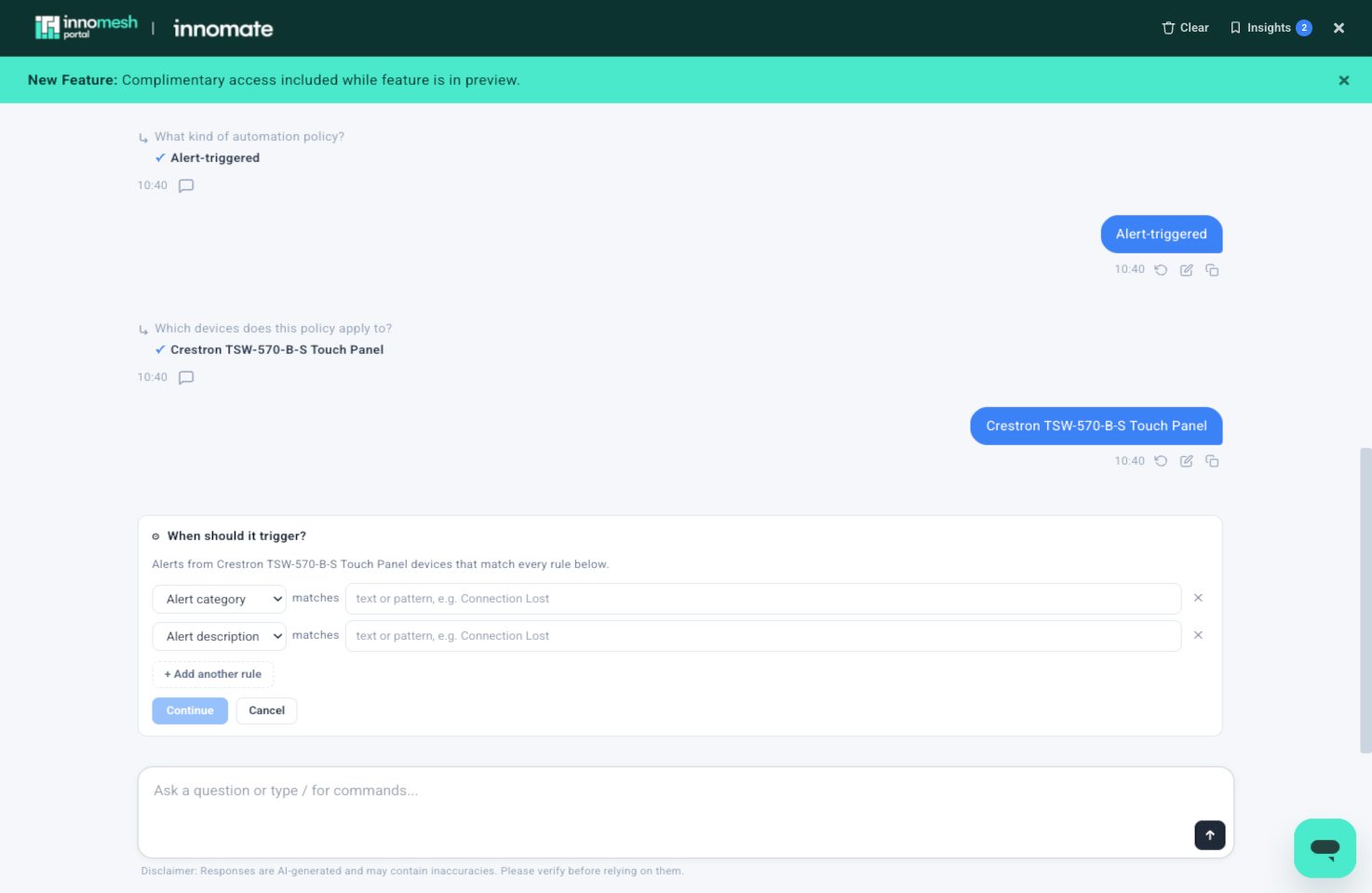
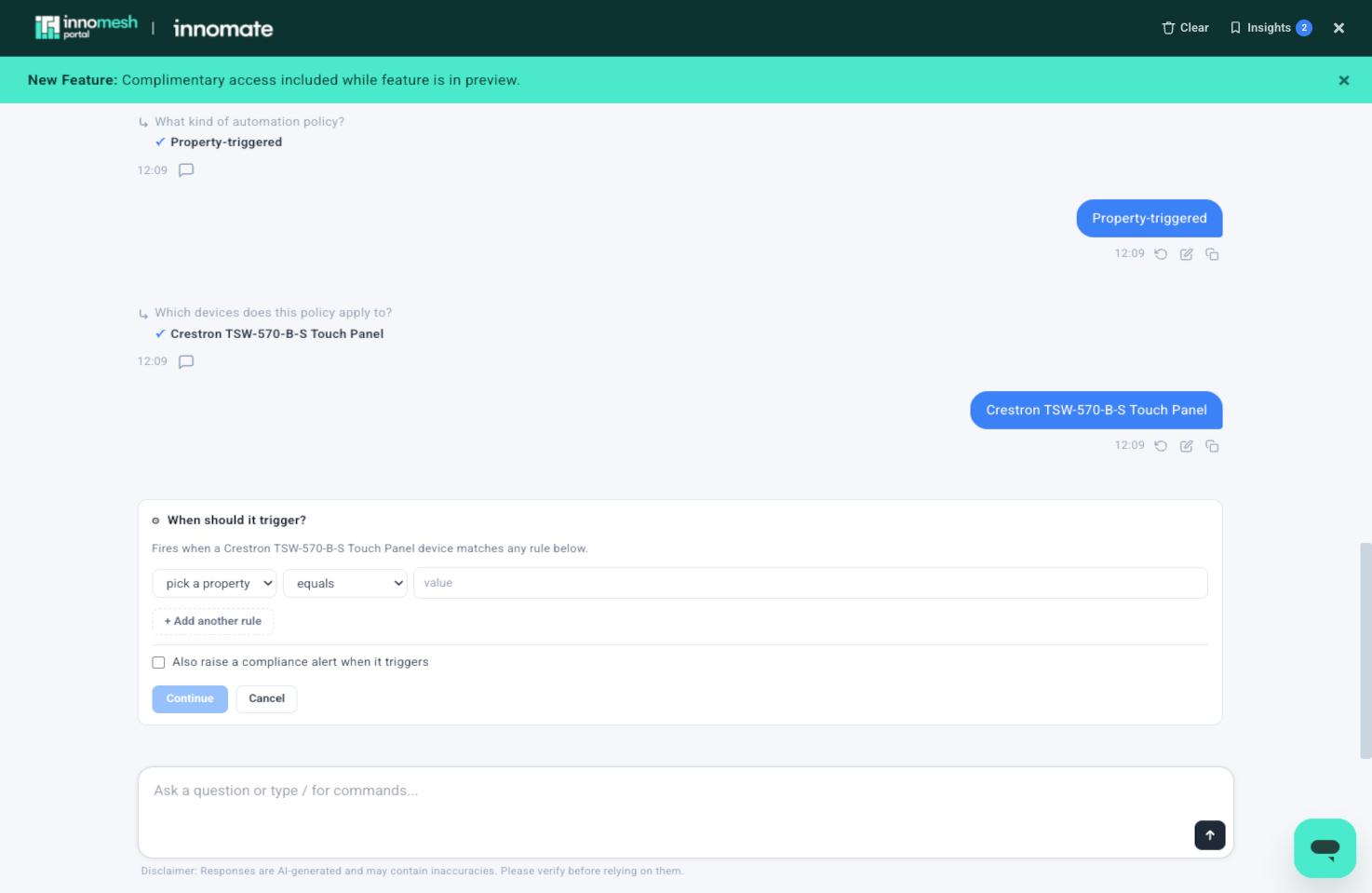
Choose Alert-triggered to build a policy that reacts when a matching alert is raised, or Property-triggered to build one that reacts when a device property crosses a condition. For what each type can do, and the conditions it supports, see Alert-Based Automation Policies and Property-Based Automation Policies.
Editing, Disabling, and Deleting
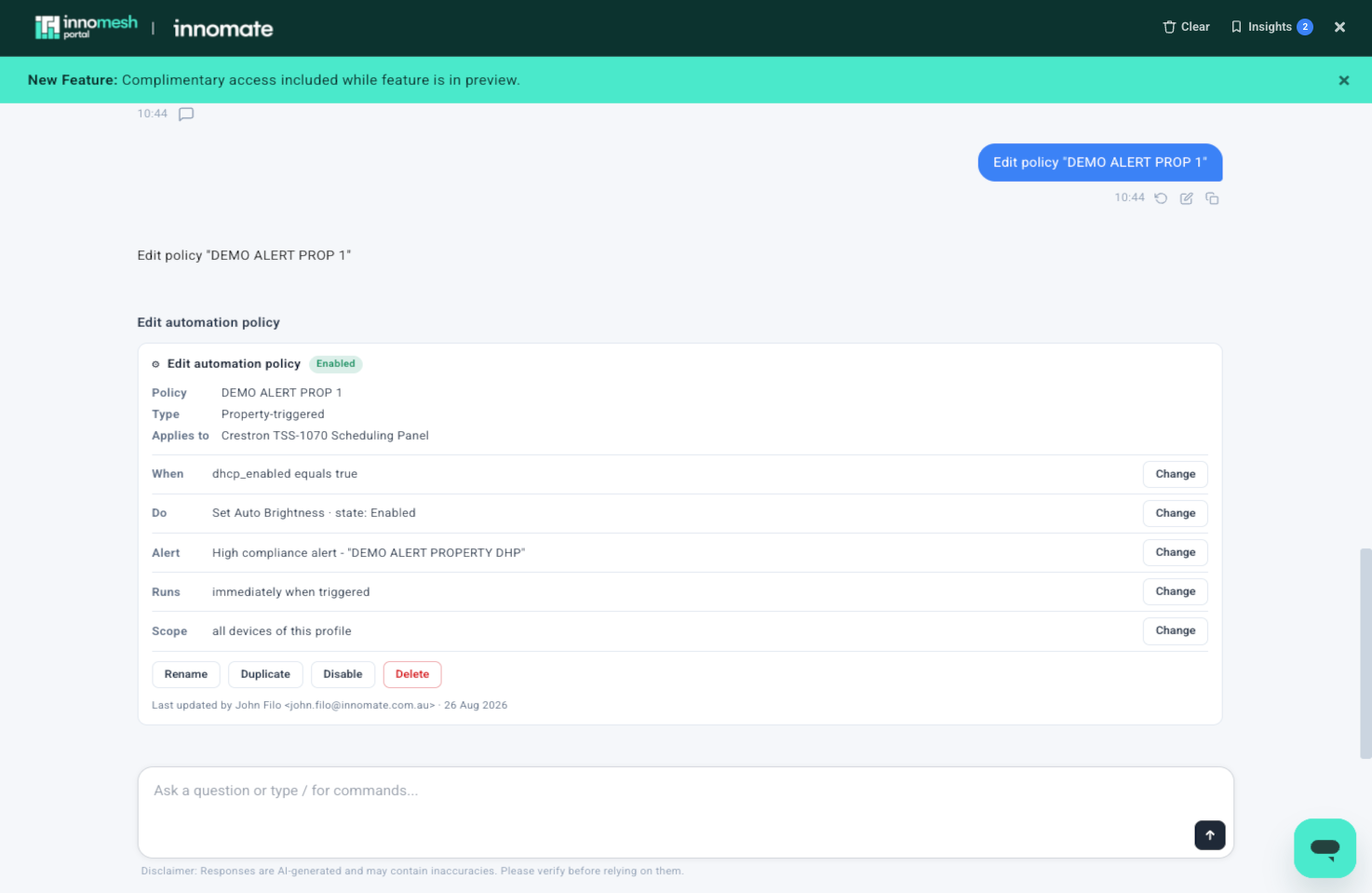
From the policy list, use the buttons on any entry:
- Edit changes the policy.
- Disable turns the policy off without removing it. A disabled policy can be enabled again.
- Delete removes it.
For what happens to a policy’s queued actions when it is disabled or deleted, see Managing Policies in the Asset Automation Overview.
Asking in Plain Language
Instead of /automation-policies and the buttons, you can ask:
- “What automation policies do we have?”
- “Which policies fire on critical alerts?”
- “Create a policy that reboots the touch panel in 01-0032-210 every Sunday at 3am.”
- “Disable the after-hours shutdown policy.”
- “Delete the policy that powers down displays overnight.”