Touch Panel Preview shows a live snapshot of a Crestron touch panel’s screen in the asset’s Preview page in Innomesh Portal. On supported panels, you can also click the snapshot to press the panel’s controls remotely. This lets support staff see what a room user sees, clear a stuck dialog, or walk someone through a screen without a site visit or a separate remote panel tool.
Key Concepts
- Preview: a still image of the panel’s screen, captured on request at the panel’s native resolution. It is a snapshot, not a video stream, so it shows the screen as it was at the capture time displayed beneath it.
- Click-to-press: when the panel supports remote presses, clicking anywhere on the preview sends a short tap to the matching point on the physical panel. The preview then refreshes to show the result.
- Get Preview and Emulate Press: the two asset actions behind the feature. Preview capture uses Get Preview. Remote presses use Emulate Press. The Preview page appears only for assets that have the Get Preview action, and click-to-press is active only for assets that also have Emulate Press.
Supported Touch Panels
Touch Panel Preview supports Crestron touch panels from the X60 generation onwards, including the TS-X80 series.
| Panel generation | Supported | Notes |
|---|---|---|
| X60 series and later | Yes | |
| X70 series on firmware 3.003 or later | Yes | |
| X70 series on firmware 3.002 | No | Known not to work. Update the panel to the 3.003 firmware range or later. |
| TS-X80 series | Yes | |
| Crestron UC-Engine | Yes* | Available to selected tenancies. See the note below. |
| Earlier than X60 (for example TSW-1050, TSW-1052) | No |
* For Crestron UC-Engine rooms, the preview is on the Asset Information page of the UC-Engine, not the touch panel paired with it. It is a live, interactive view of the UC-Engine’s screen rather than a snapshot. The live view is relayed through Innomesh, so your computer does not connect to the UC-Engine itself, but it does need to be on your organisation’s network (directly or over VPN). To have it added to your tenancy, contact your account manager.
Prerequisites
For the preview to work, Innomesh must be able to reach the touch panel directly over the network, at the panel’s own IP address.
If the panel sits behind a Crestron control system or other middleware on the processor’s internal Control Subnet, Innomesh cannot reach it directly, and the preview will not work.
Opening the Preview
- Open the Assets page and click the touch panel to open its Asset Information page.
- Click Preview in the side menu, beneath Files & Resources.
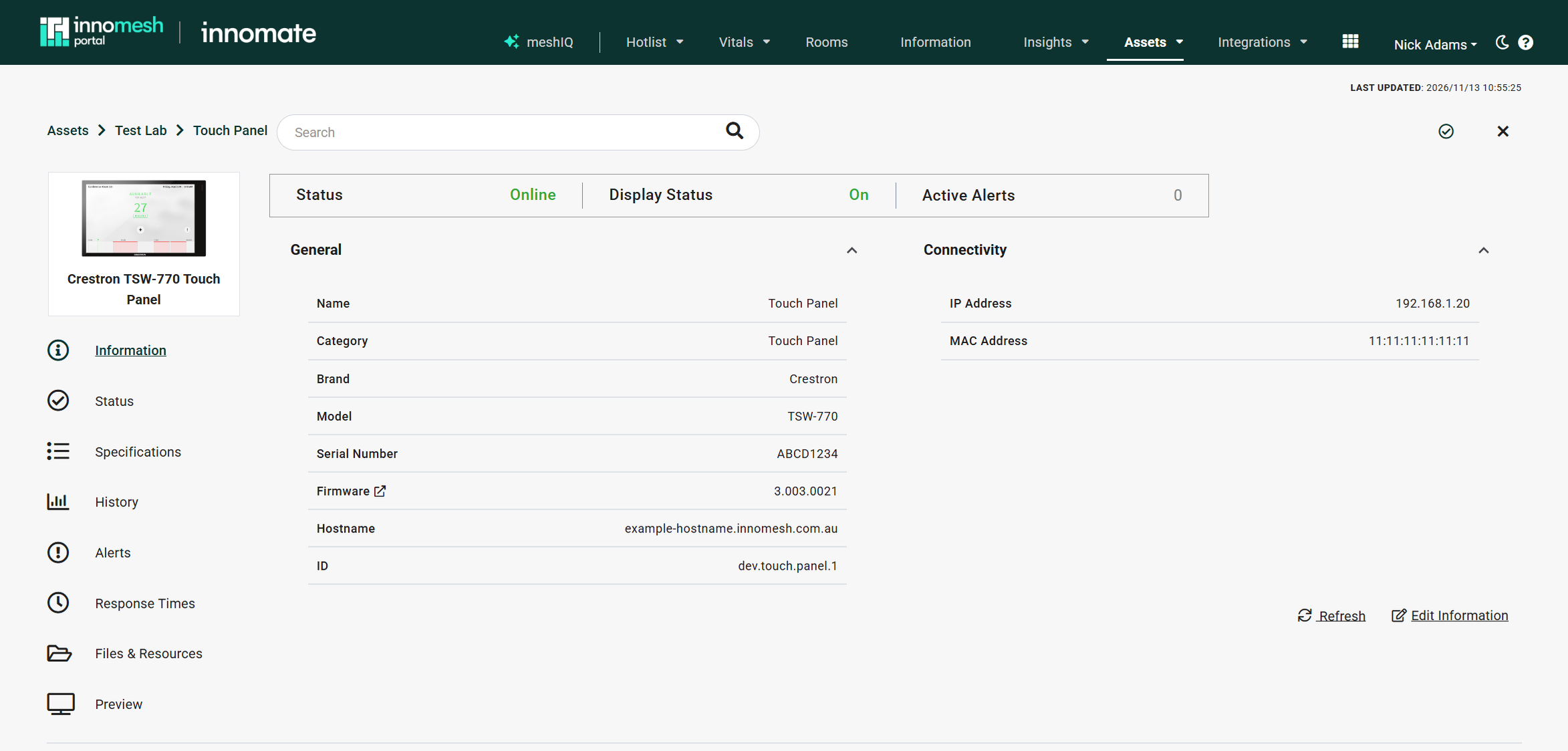
If Preview is not in the side menu, the asset does not have the Get Preview action. Check that the asset is a supported panel (see Supported Touch Panels).
How It Works
Opening the Preview page requests a new snapshot from the panel. While the snapshot is captured, the frame dims and shows a loading spinner. When it arrives, the image fills the frame and the capture time is shown beneath it on the left.
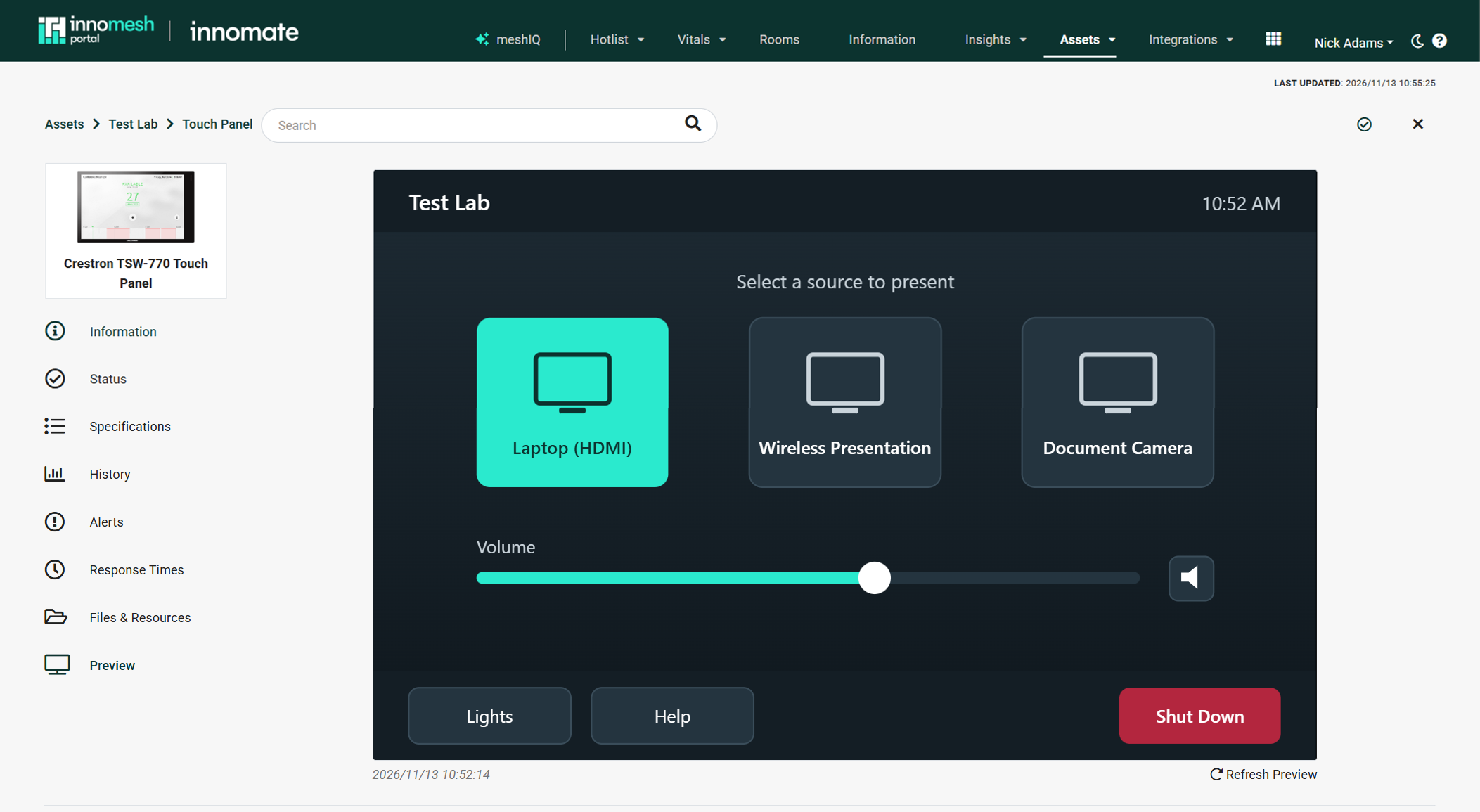
To capture a new snapshot at any time, click Refresh Preview beneath the frame on the right.
If no snapshot arrives within 20 seconds, the spinner stops and Portal shows the message “Preview could not be retrieved.” Until a snapshot is available, the frame shows an Image not found placeholder.
Pressing the Panel Remotely
When the panel supports remote presses, the cursor changes to a crosshair over the preview.
- Click the point on the preview where you want to press the panel (for example, a source button).
- A ripple marks where you clicked, and Portal sends a short tap to the same point on the physical panel.
- About a second later, the preview refreshes to show the panel’s new screen.
While a press and its refresh are in progress, further clicks are ignored, so wait for the preview to update before pressing again. If the press cannot be confirmed, Portal shows the message “Press could not be confirmed.”
Each press is sent as an Emulate Press asset action, so it is recorded against your user like any other asset action. Emulate Press also appears in the asset’s action panel, where you can enter the x and y panel coordinates and the press time in milliseconds yourself.
If the panel does not support remote presses, the preview is display only and clicking it does nothing.
Accessibility
Click-to-press is a pointer interaction, because each press targets a point on the panel’s screen. Refresh Preview is reachable and operable from the keyboard, and screen readers announce “Press sent” and “Preview updated” as each press completes.
Troubleshooting
| Symptom | Likely cause | Resolution |
|---|---|---|
| No Preview item in the side menu | The asset does not have the Get Preview action | Confirm the panel is X60 generation or later. Older panels such as the TSW-1050 and TSW-1052 are not supported. |
| ”Preview could not be retrieved.” | The panel is offline, unreachable, or on unsupported firmware | Check the asset’s Status is Online. For X70 series panels, check the firmware is in the 3.003 range or later. |
| ”Preview could not be retrieved.” on a panel that shows as Online | The password for the panel is not set up correctly in Innomesh | Check that the panel’s password in Innomesh matches the password configured on the panel. |
| ”Preview could not be retrieved.” on a panel that shows as Online | The panel is behind a Crestron control system or middleware on its internal Control Subnet, so Innomesh cannot reach it directly | Preview is not available for panels on a Control Subnet. See Prerequisites. |
| Clicking the preview does nothing | The asset does not have the Emulate Press action | The preview is display only for this panel. |